Review an item
Reviewing is three decisions repeated: the answer was wrong and here is the right one, the answer was fine, or not now.
Who can use it: anyone who can open Studio, in a tenant licensed for evaluations; to act on an item you must own the evaluation run it came from or hold the evaluations approval right.
What you are given
The pane shows, in order, the question the user asked, the answer the agent gave, the source context it retrieved where there was any, and the expected answer from the evaluation dataset where the item came from a dataset. Above them sit the score, the faithfulness where it exists, the agent and its version, and the failure reason the judge wrote.
Two badges on the agent's answer mean different things. low score means the judge marked it down. agent error means the agent did not answer at all, and the pane switches to a red block reading that the evaluation failed and the agent did not return a response. Already correct is disabled on it, and Agent error is the exit that keeps it out of training. Fix the agent instead.
The three actions
| Action | What it records | What reaches the flywheel |
|---|---|---|
| Submit correction | Your text, item completed | Your correction, as a training sample |
| Already correct | An empty correction, item completed | The agent's own answer, at the judge's score |
| Skip | Item skipped | Nothing |
Already correct asks you to confirm first, and it is disabled with the reason on an item the agent errored on or one holding a platform diagnostic. The a key does nothing on those.
Three further exits exist for an item that cannot take a correction, and each sends a different thing:
| Exit | What it does |
|---|---|
| Agent error | Excludes the item from training, and the run's sample carries the reason |
| Wrong expected answer: park it and open the dataset row | Parks the item and opens the dataset row it was scored against, with Back to the queue. Where the run used no dataset the button reads Wrong expected answer: park it and only parks it |
| Evaluator not applicable | Excludes it, naming the evaluator that did not apply; offered for quality evaluators only, never the judge or a measurement |
The correction is free text, with no rubric and no score to give: what the platform wants from you is the answer the agent should have produced.
Submitting is disabled until the box has something in it. On a question seen in more than one run, the pane says your action applies to all its copies.
AI assist
Suggest with AI asks a model to write the correction from the question, the agent's answer and the expected answer, and puts the result in the box for you to edit. Using it a second time offers Regenerate, for a different version.
If the model cannot be reached, a line beside the button says AI assist was unavailable, and any text you had typed or restored stays in the box. Only an empty box is filled with the expected answer as a starting point. Either way what is saved is whatever is in the box when you submit, so read it before you do.
A finished item
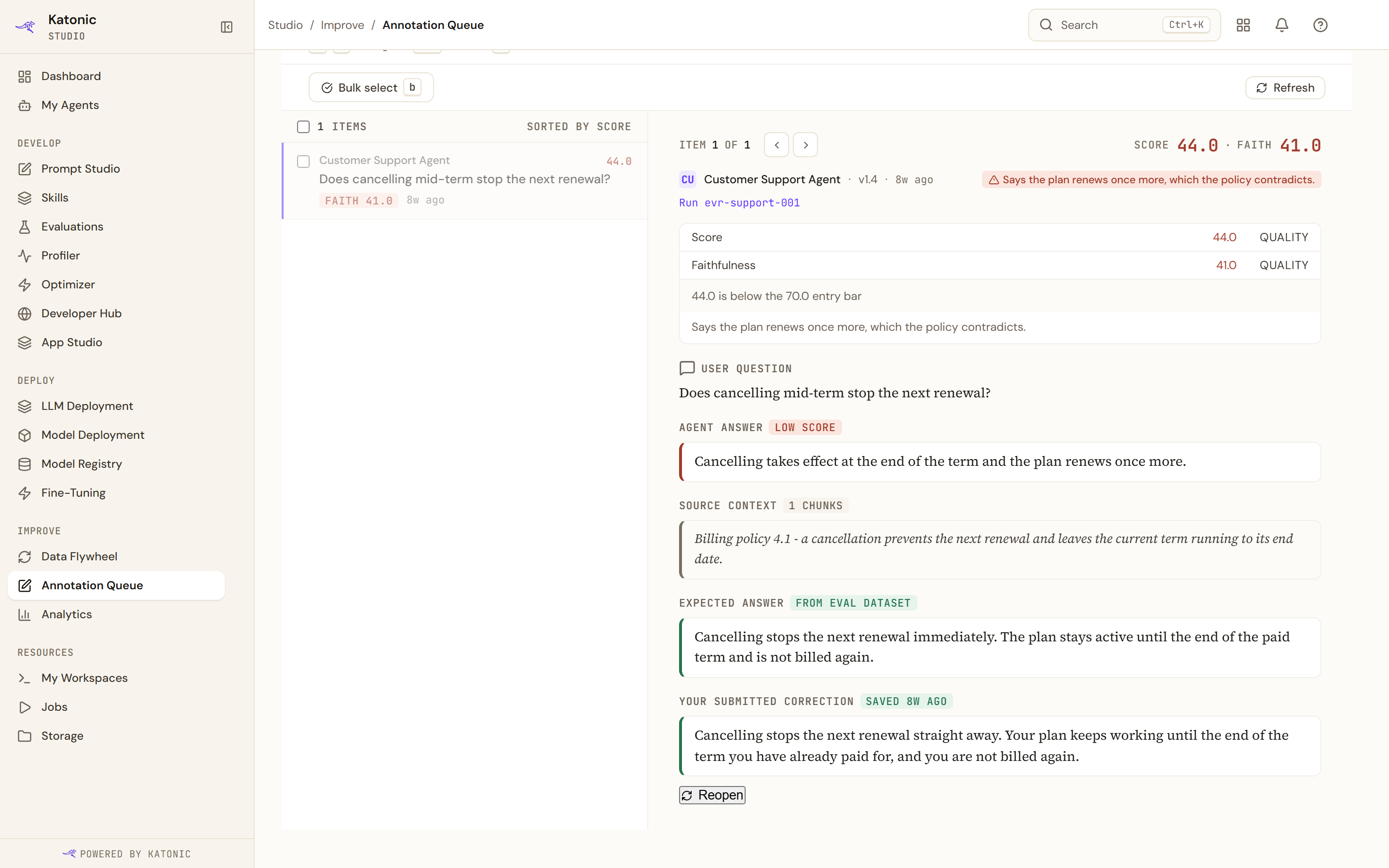
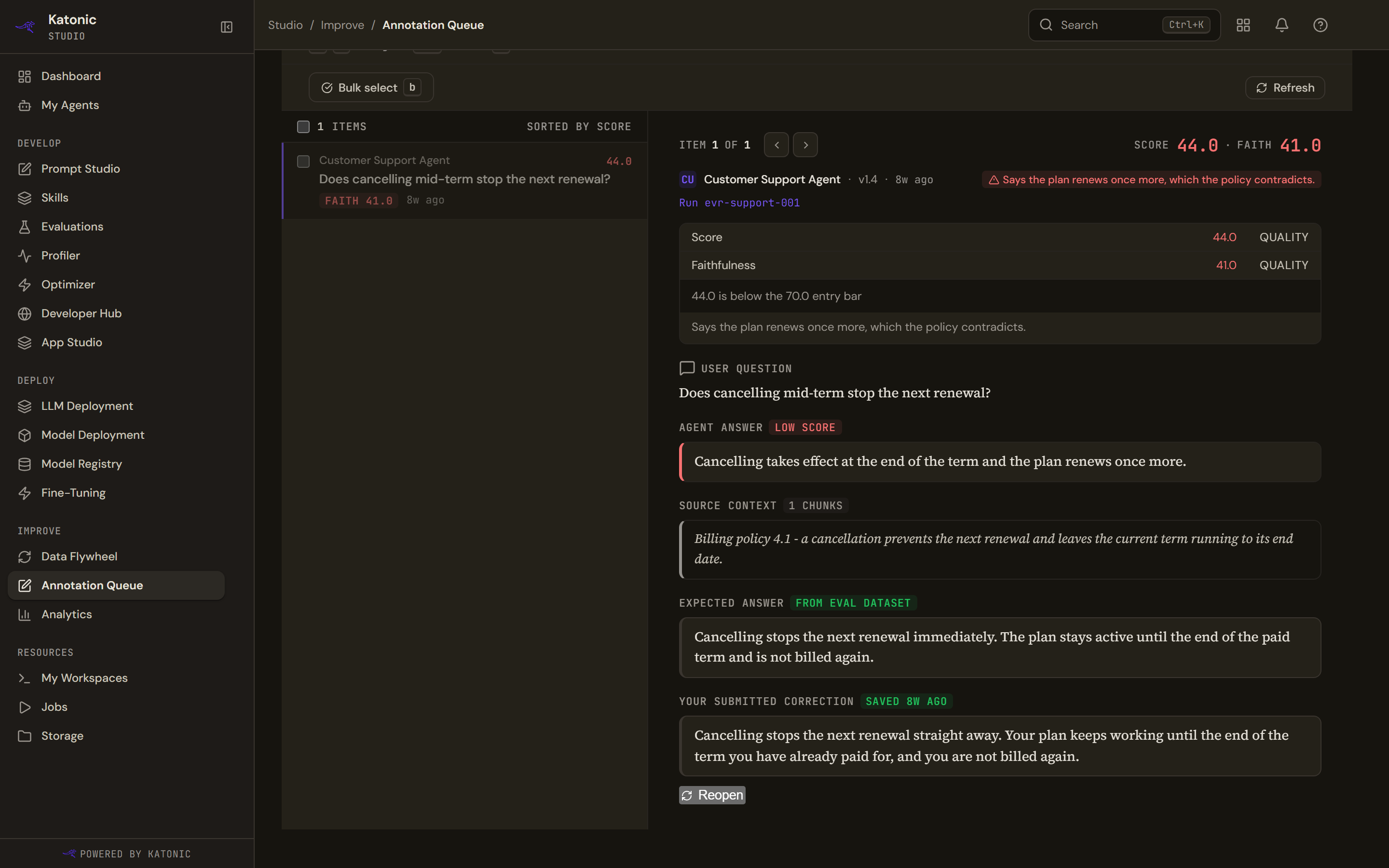
A completed item keeps the whole context and shows your correction read-only, with when it was saved. An item marked already correct says so in green instead. A skipped one says it can be revisited any time, and offers Reopen too.
Reopen puts a completed, parked or skipped item back in the pending queue with your previous text still in the box. Submitting a completed item again is refused, so reopening is the only route.
Reopening does not withdraw what was already published. A second submission publishes a second, later training sample, and both exist.
Working through a batch
A correction you have typed but not sent is kept as a draft across moves and reloads, and closing the tab with one unsent asks you first.
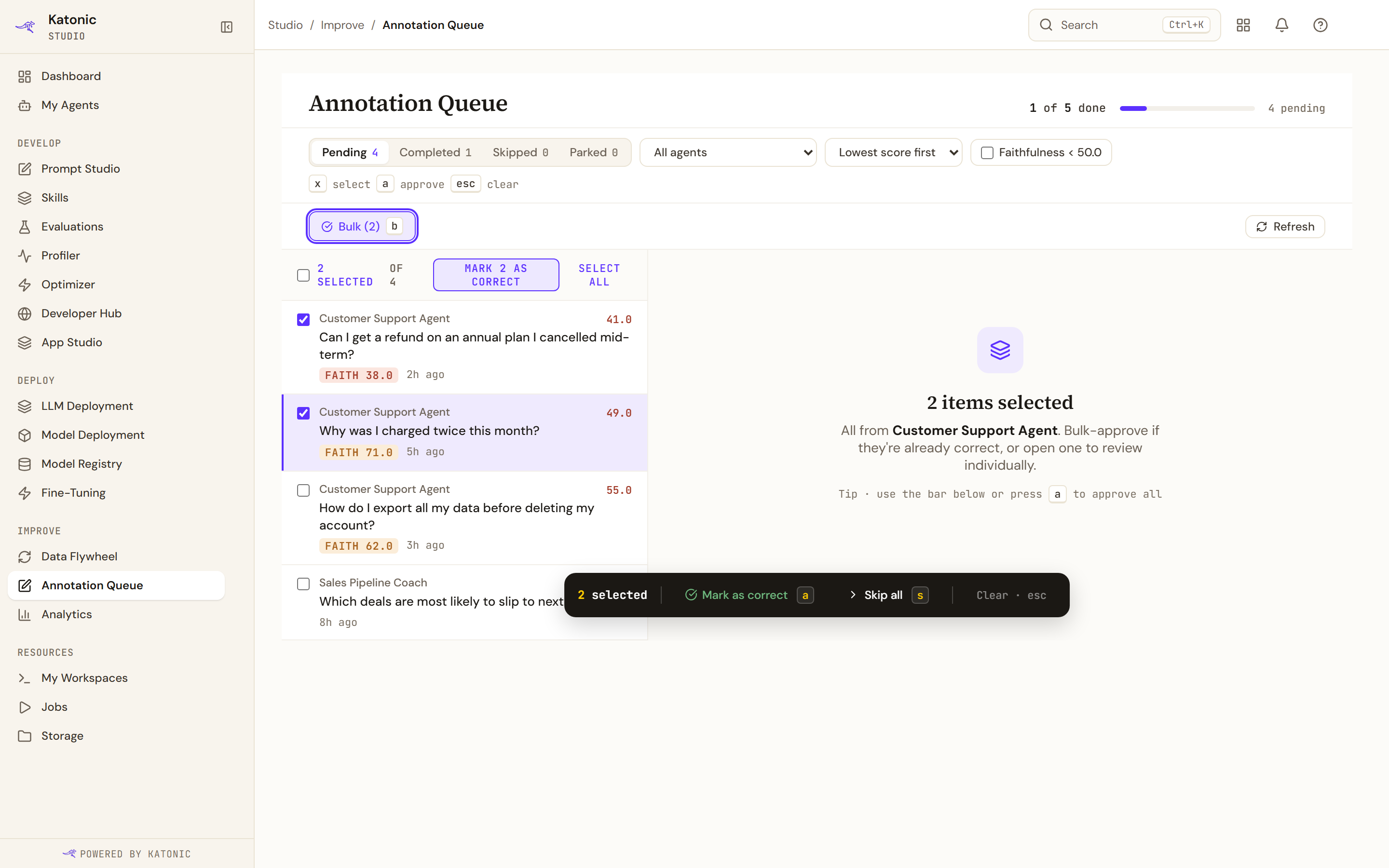
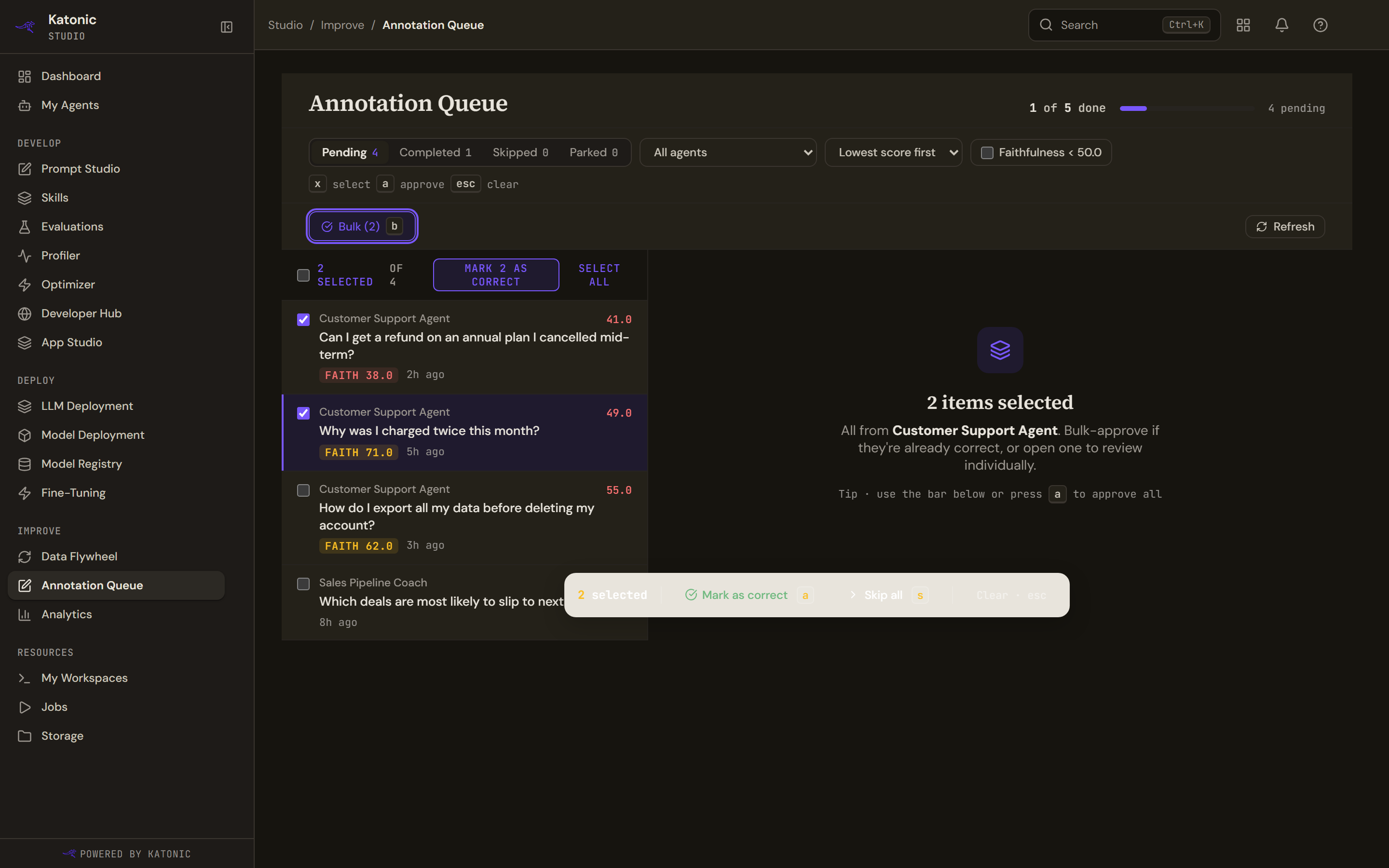
Bulk select, or the b key, turns the rows into checkboxes and replaces the review pane with a count. A bar at the foot of the screen offers Mark as correct, Skip all and Clear, and the list's selection row offers Mark N as correct beside "N selected of M".
Bulk actions work only on pending or skipped items. On Completed or Parked none is offered and the pane says the items are already decided. A mixed selection leaves the decided ones out and says "N of the selected items are already decided and are left out." Bulk Skip all and Mark as correct reach every copy of a question seen in more than one run, and the message counts questions, such as "1 item skipped · 7 left".
Bulk mode cannot write a correction. It is for a run where the judge was harsh, not for clearing a backlog unread.
Mark as correct asks once for the whole selection and leaves out any item the agent errored on or that holds a diagnostic, telling you how many it set aside.
The items are sent one at a time. A partial failure tells you how many failed, with no way to retry only those: clear the selection and look at what is still pending.
Keyboard
| Key | What it does |
|---|---|
j and k | Next and previous item |
⌘↵ | Submit the correction |
a | Already correct, or approve the selection in bulk mode |
s | Skip, or skip the selection in bulk mode |
b | Turn bulk mode on or off |
x | Tick the current row, in bulk mode |
Esc | Clear the selection and leave bulk mode |
? opens the shortcut list itself, which the filter bar advertises.
When an agent has no evaluation suite
An item whose agent has no evaluation suite shows a note headed that the correction was saved but is not training anything yet. The correction is stored and will be picked up once a suite exists, so nothing you write is lost.