Build an agent that acts on a request
Agents
An acting agent answers and also carries out the request, through the tools you give it. This tutorial builds an order service agent that finds an order, explains a delay and books a replacement. It is the second form in Which builder for which agent.
Who can use it: the Builder role or higher, in a tenant licensed for agents and tools.
Prerequisites
- The order system registered as an MCP server: a connection that offers another system's actions to agents as tools. An Admin registers it once in the Control Room; see Add an MCP server, or Connect an API as a tool when the system has an API description. Ask your administrator if no server for the order system is listed.
- A team you belong to, for the Owner team, and a guardrail profile. Before you build a form of agent says who provides each.
Build the agent
- Start a blank draft
In Studio, open My Agents and select New agent. Select Answer & assist, then Answer questions. Pick the Blank card and select Continue to build.
- Fill in Identity and Behavior
On Identity, type the Display name
Order Service Agent, a one-sentence Description, and pick the Owner team. On Behavior, paste the instructions from the next section into the system prompt, the standing instruction the agent follows on every turn, and keep the Balanced model tier. - Open the tool picker
Open Tools. Connected servers lists the MCP servers registered in the Control Room. Select Pick tools on the order system's card.
- Pick only what the job needs
Tick the tool that finds an order, the tool that reads the delivery status and the tool that books a replacement. In this example they are
find_order,get_delivery_statusandbook_replacement. Each is marked READ or WRITE. Leave every other tool off, then select Done.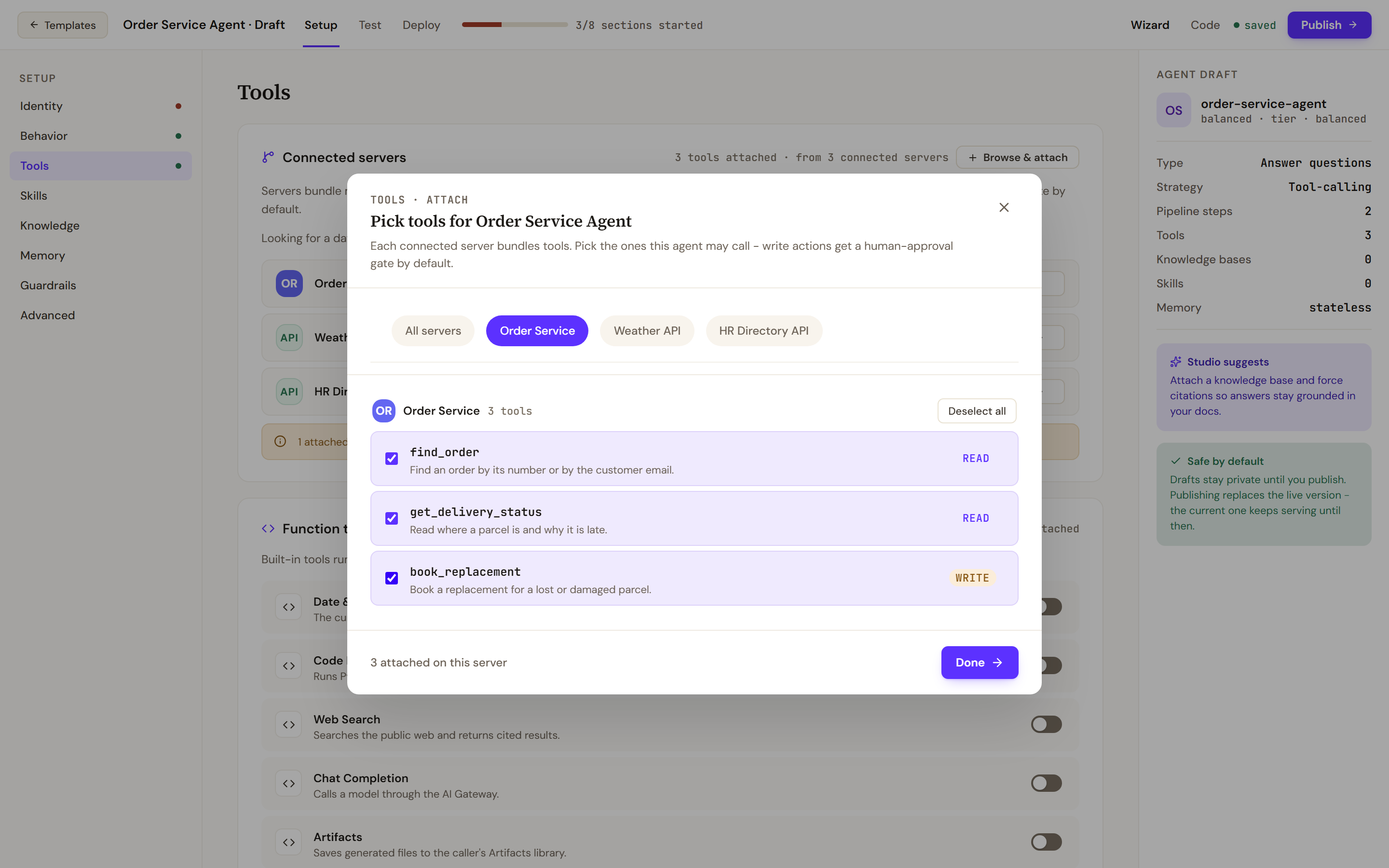
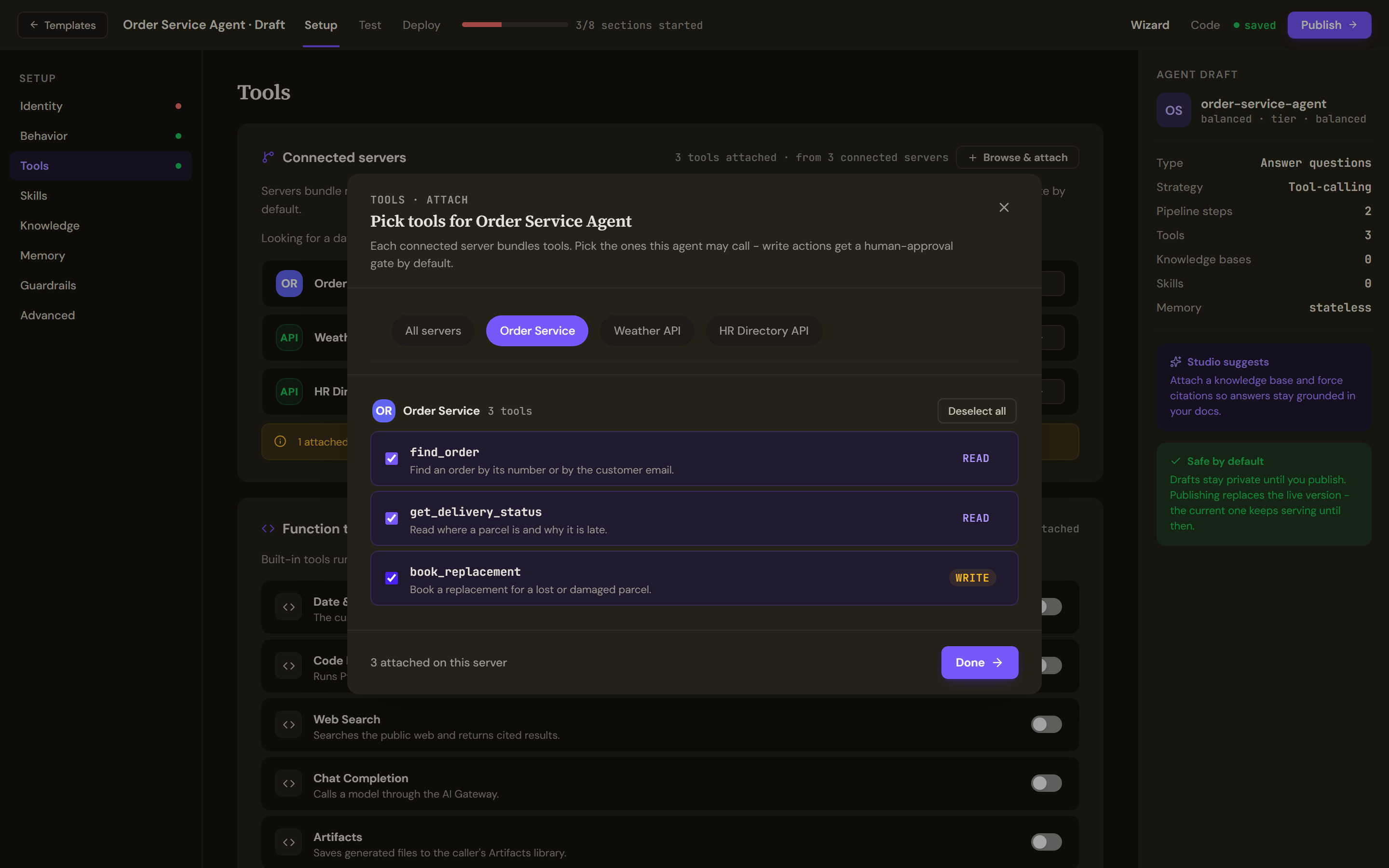
Pick only the tools the job needs. Each tool is marked as one that reads or one that writes. - Check what is attached
You should now see the server's card count three of three tools, and a notice under the cards saying that one attached tool requires human approval before each call. That is the tool that writes.
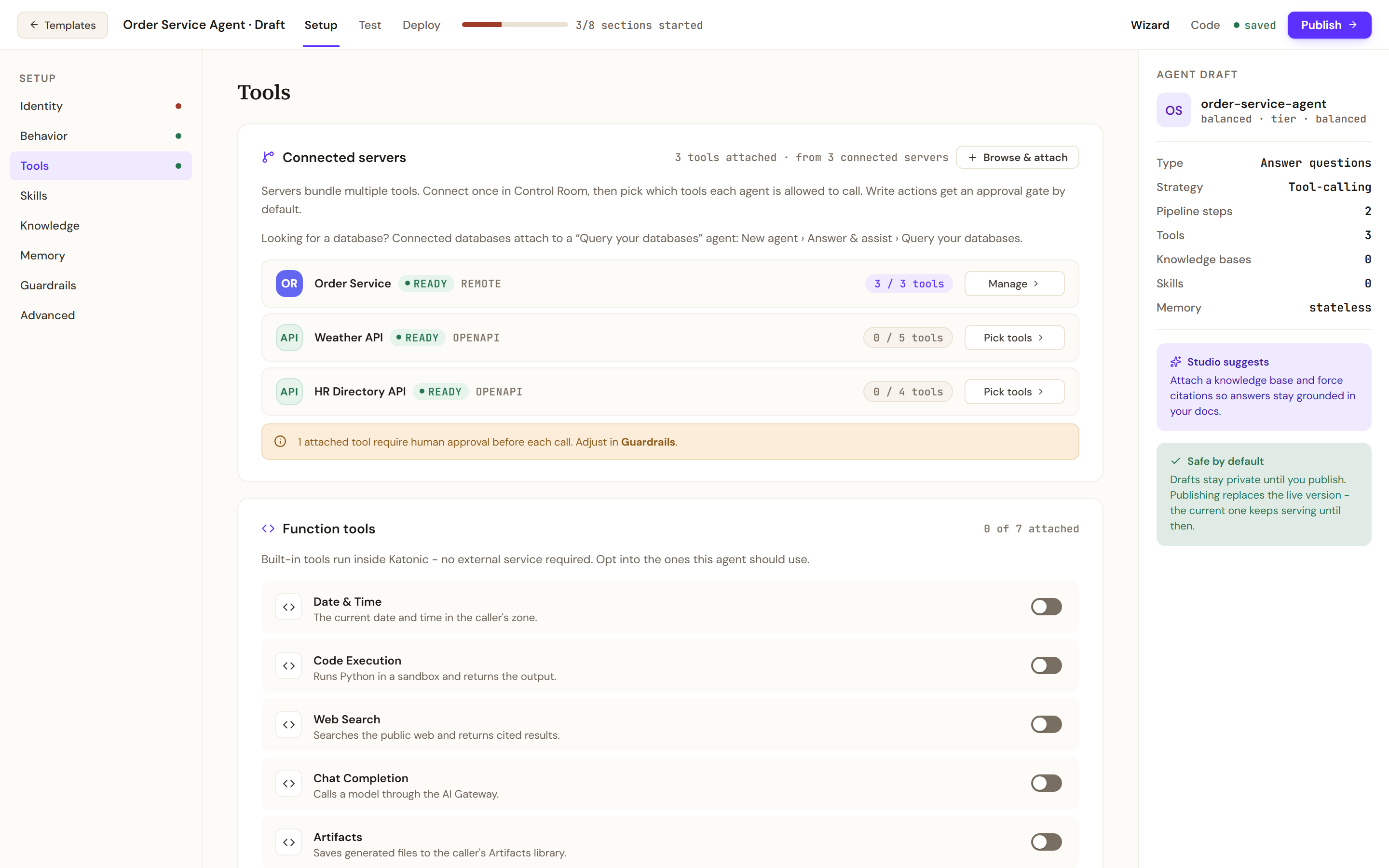
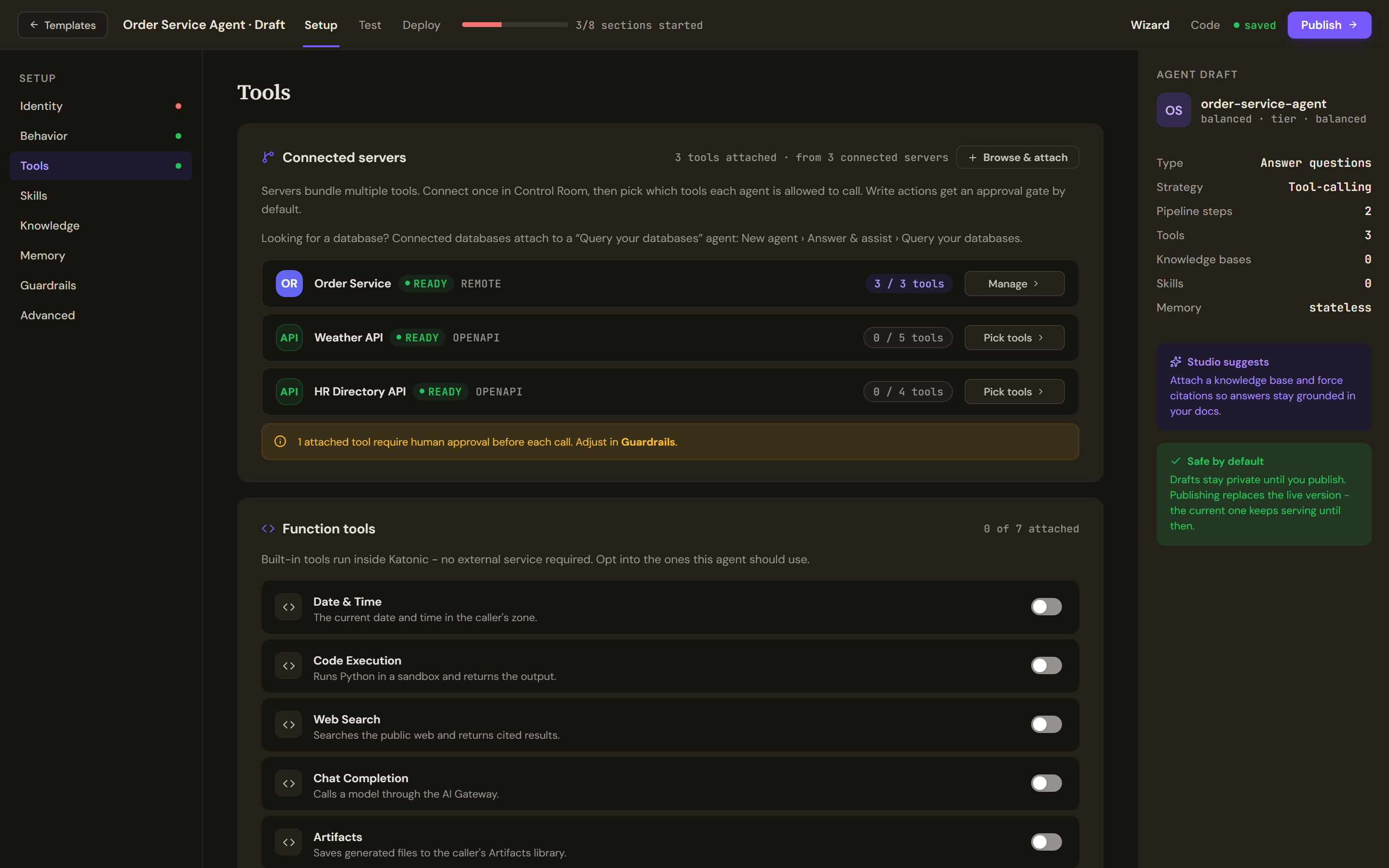
Connected servers lists what the agent may call. The count on each server card shows how many of its tools this agent has. - Pick a guardrail profile
Open Guardrails and pick a profile, so that its rails, the safety checks an administrator defined, run on what the agent takes in, what it gives out and what it passes to tools.
The agent's instructions
You help customers with their orders.

Find the order with the order lookup tool before you say anything about it. Explain a delay from the delivery status, in plain words.

Book a replacement only when the delivery status says the parcel is lost or damaged, and tell the customer that the booking waits for a member of staff to approve it.

If you cannot find the order, or a tool fails twice, say so and hand over to a person. Never guess an order number, a date or a status.
How the write is held
The replacement booking changes something, so it does not run on the agent's say alone. When you publish, the tool that writes gets a tool-call policy that requires approval, unless an administrator has already set a policy on it. Each call to it is then parked on the Control Room's Approvals page until an Admin or a Super Admin approves it. The two tools that read run at once. The full rule is in Before you build a form of agent.
Test and publish
- Run a read
Open Test. Type a question about an order that exists in your order system, such as
Where is order 10482?, and select Run. The Run trace lists the tool calls of the real run. - Publish
Select Publish, fix any blocker, choose who can use the agent and tick Work Room under Where it runs. The screen that follows says whether the version is live, in a lane or not live yet; see Before you build a form of agent.
- Run a write and approve it
In the Work Room, open the agent and ask for a replacement for an order whose parcel is lost. Then, as an administrator, open Approvals in the Control Room. Select the pending row, read the tool arguments and select Approve. Back in the conversation, ask the agent to go ahead: the approved call runs when the agent makes it again.
Verify
- The question about the order is answered with that order's real status, and the trace shows a call to the lookup tool and a call to the status tool.
- The request for a replacement produces a pending row on Approvals that names the server and the tool. Nothing is booked in the order system until the row is approved and the agent has been asked to go ahead.
- On the Control Room's Policies page, there is a row for the booking tool whose action requires approval.
Troubleshooting
- The replacement was booked without an approval. Open Policies and find the row for the tool. A row that reads Saved but not enforced is not being applied; see Policies. No row at all means the publish did not set one: ask an administrator to create a policy with Requires Approval for that tool.
- No pending row appears. Check the trace: if the agent never called the booking tool, the delivery status did not say lost or damaged.
- No MCP servers connected yet. An administrator registers servers on the Control Room's Tools page first.
- A server's card shows an error. The server is not answering. Ask an administrator to check it on the Control Room's Tools page.
- The agent says it did something it has no tool for. The publish dialog warns when the instructions name an action that no attached tool matches. Attach the tool or change the instructions.