Build an agent that answers from your documents
Agents
An answering agent replies to a person's question from documents you have approved, and changes nothing in any system. This tutorial builds one: a leave policy assistant for staff. It is the first of the ten forms in Which builder for which agent, and the simplest to run.
Who can use it: the Builder role or higher, in a tenant licensed for agents and knowledge.
Prerequisites
- A knowledge source that holds the HR policies: a set of documents the platform has indexed so an agent can search it. A Builder creates one under Knowledge Sources in Studio; see Add a knowledge source. Wait until its documents have finished indexing.
- A team you belong to. Every agent needs an Owner team before it can be published. If you are in none, ask an administrator; see Before you build a form of agent.
Build the assistant
- Start a blank draft
In Studio, open My Agents and select New agent. Select Answer & assist, then Search your docs. Pick the Blank card and select Continue to build. The builder opens on Identity, with the draft named Untitled agent · Draft in the header.
- Name it and pick the owner
Type the Display name
Leave Policy Assistant. The slug, the short name used in the agent's address, comes from it. Add one sentence of Description, because that is what people see wherever they pick an agent. Under Ownership & routing, pick the Owner team. - Write the instructions
Open Behavior. The system prompt is the standing instruction the agent follows on every turn. Paste the instructions from the next section. Then choose the Model tier. Keep Balanced; the AI Gateway resolves the model at run time.
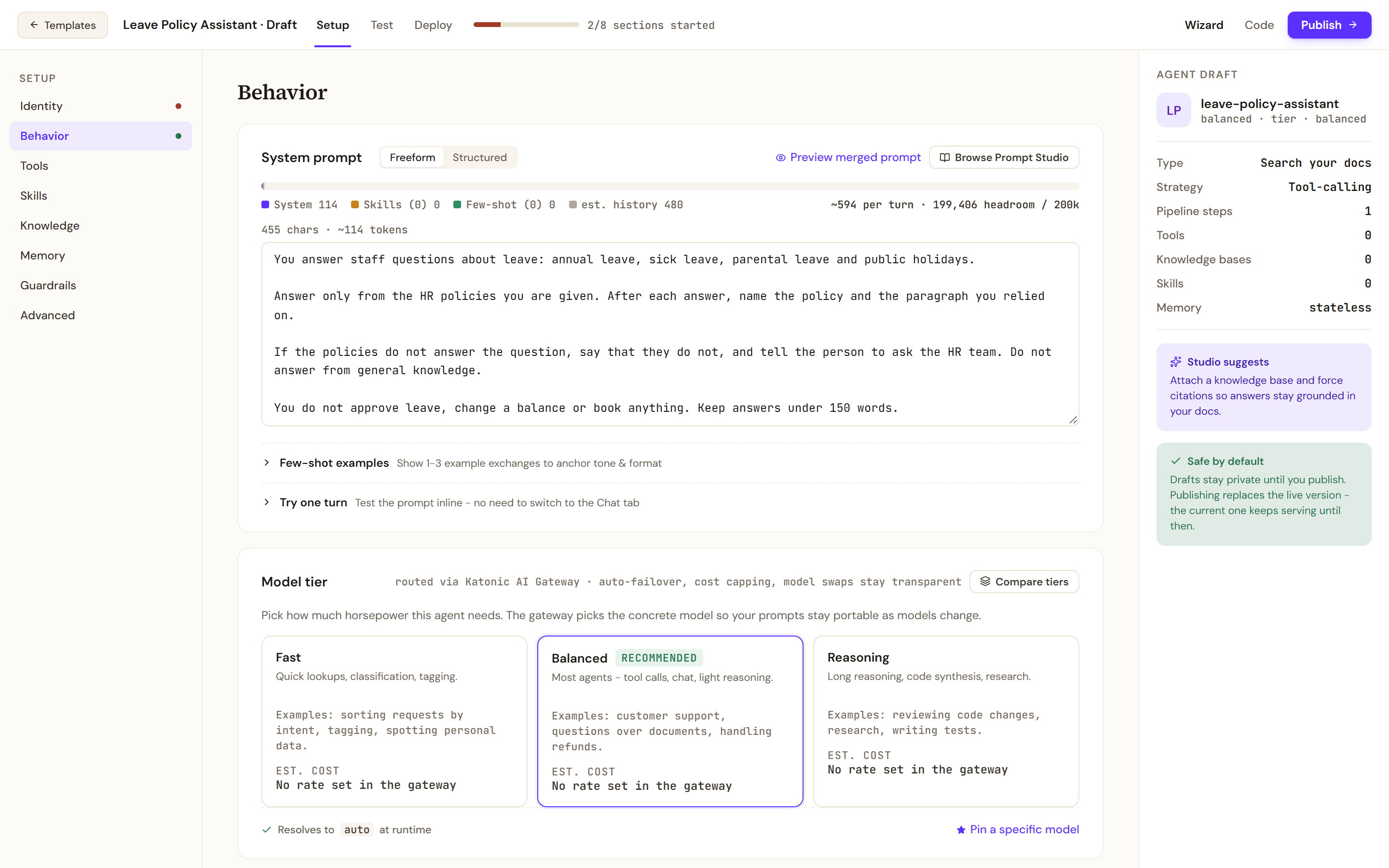
Behavior holds the instructions. Say what the agent answers from, how it cites, and what it says when the documents are silent. - Attach the policies
Open Knowledge. Switch on the source that holds the HR policies. Filter by connector or sort the list to find it, and use Attached only to check what the agent will read. Under When the knowledge base cannot answer, keep the first choice, which has the agent say that the answer is not in its knowledge. You should now see one source counted as attached at the top of the section and in the Agent draft rail.
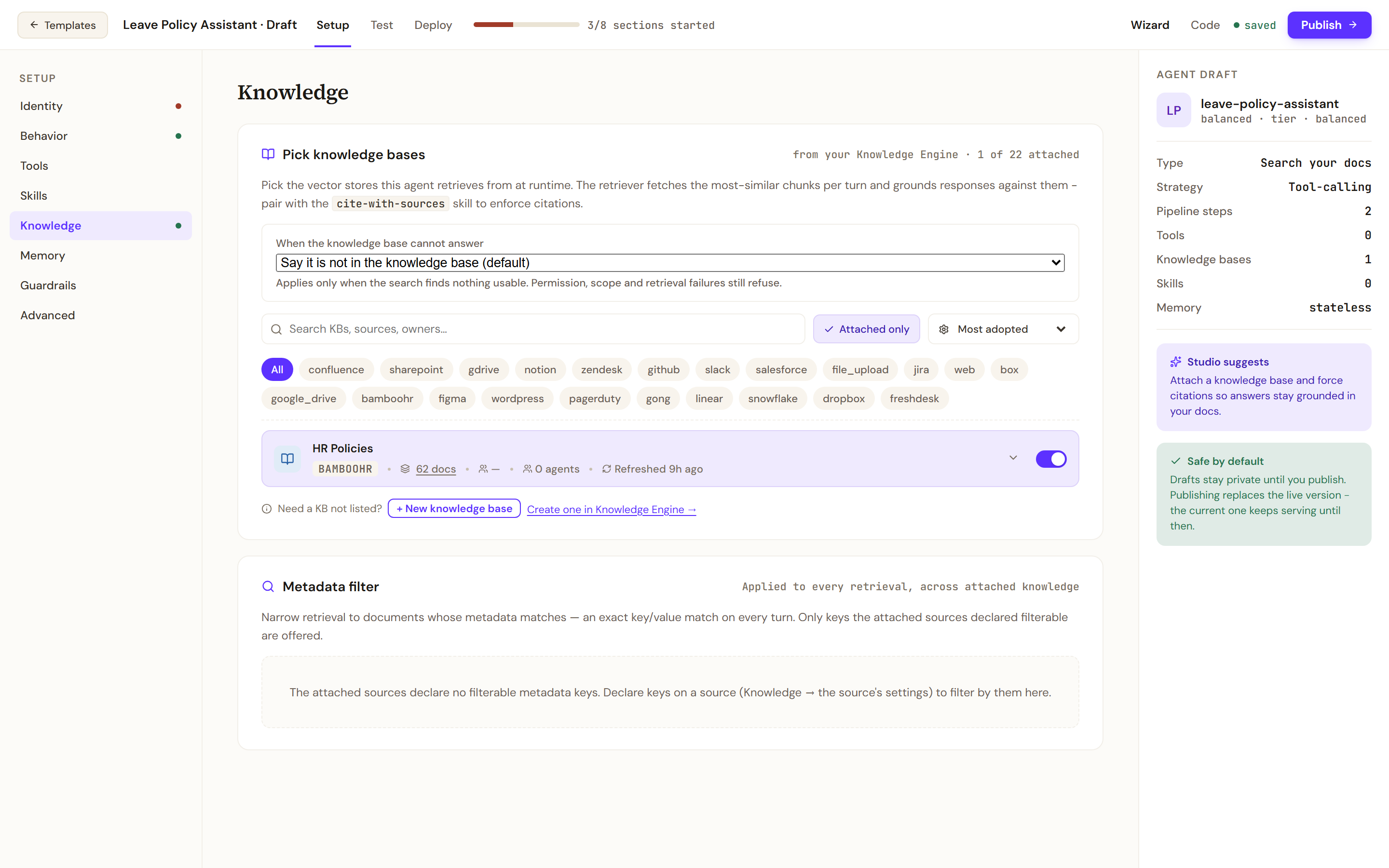
Knowledge attaches the sources the agent reads. The choice above the list decides what it does when a search finds nothing usable. - Pick a guardrail profile
Open Guardrails and pick a profile. A profile is a named set of safety checks, called rails, that an administrator created in the Control Room. They run on every turn of this agent.
The assistant's instructions
Paste this, and change the third paragraph to name your own HR team.
You answer staff questions about leave: annual leave, sick leave, parental leave and public holidays.

Answer only from the HR policies you are given. After each answer, name the policy and the paragraph you relied on.

If the policies do not answer the question, say that they do not, and tell the person to ask the HR team. Do not answer from general knowledge.

You do not approve leave, change a balance or book anything. Keep answers under 150 words.
Test and publish
- Save two test prompts
Open Test. Add a prompt with the plus button for a question your policies answer, and a second for one they do not. The two used here:
How many days of annual leave does a new starter get in their first year?Can I carry my leave over if I move to our office in another country?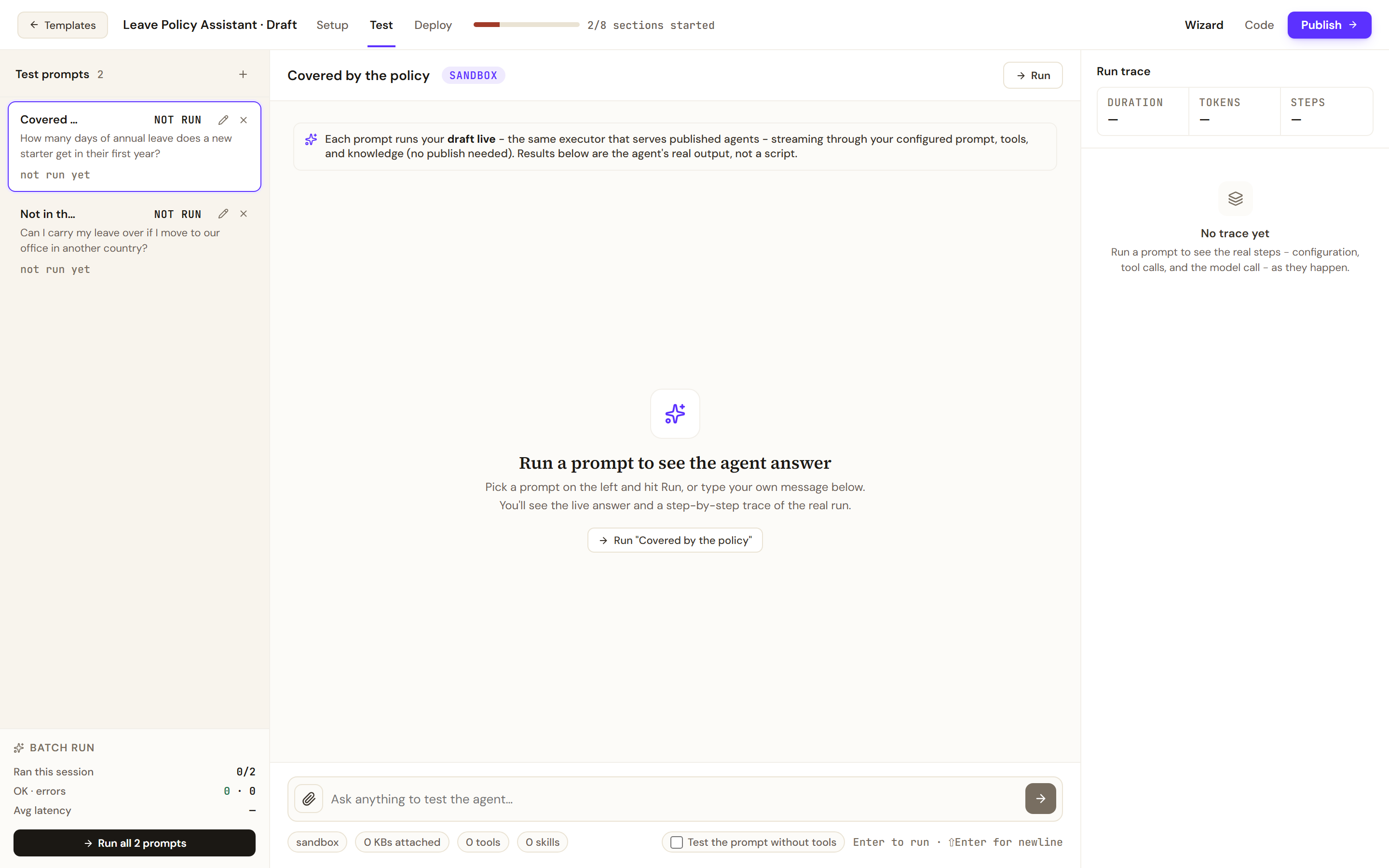
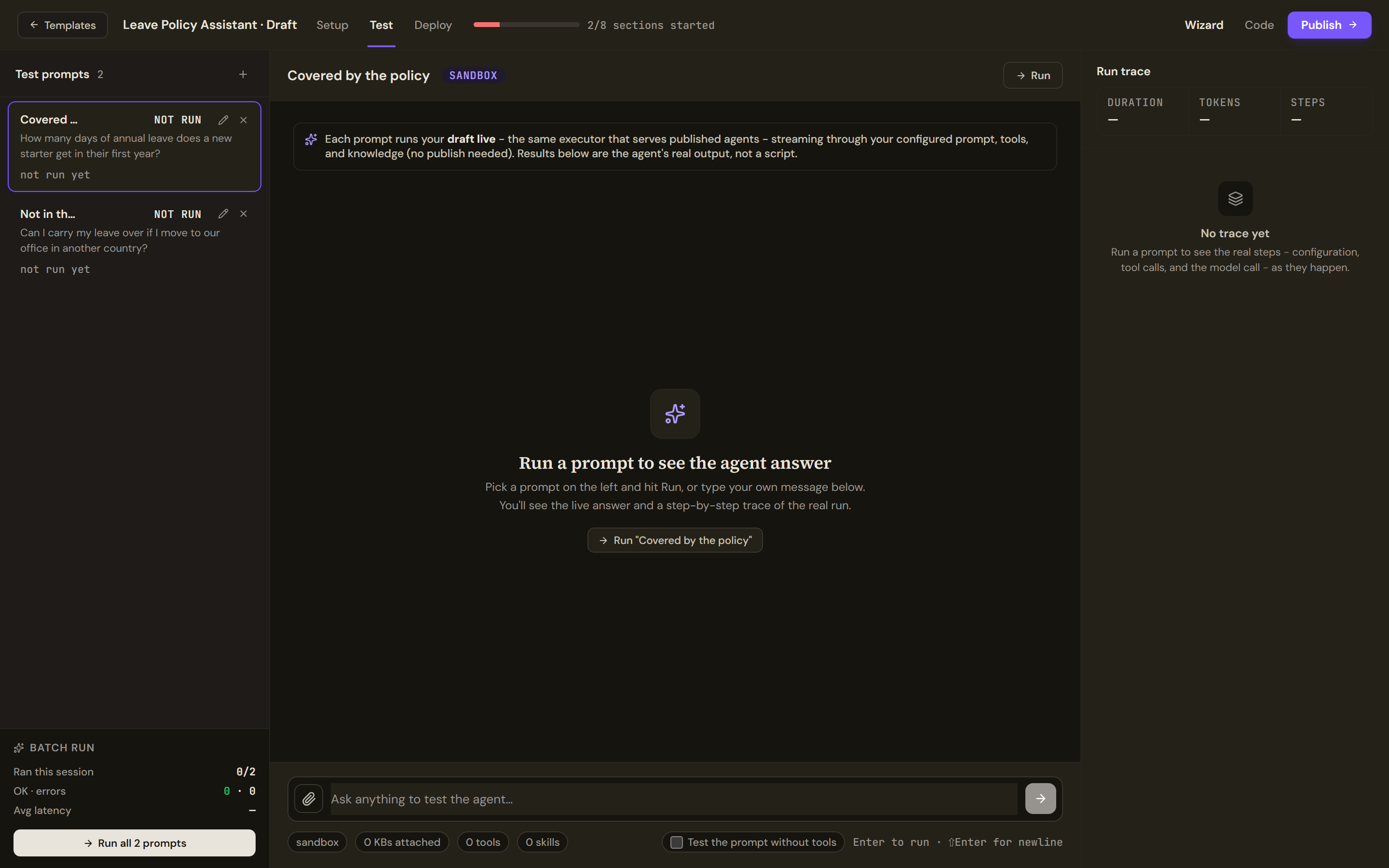
Test runs the draft without publishing it. Save one prompt the documents answer and one they do not. - Run them
Pick a prompt and select Run. The answer streams in, and the Run trace on the right shows the steps of the real run with its duration and tokens.
- Publish
Select Publish. Fix any blocker the dialog names, choose who can use the agent under Who can use it, and tick Work Room under Where it runs. The screen that follows says where the version landed: live, in a lane to promote, or not live yet. Before you build a form of agent says what each means and how to roll back.
Verify
Run the first prompt. The answer states the entitlement your policy gives and ends by naming the policy and the paragraph. Run the second. The answer says the policies do not cover the question and points to the HR team, and gives no entitlement.
Then check what members see. In the Work Room, open the agent and ask the first question again. The same answer comes back.
Troubleshooting
- The answer to the covered question is wrong or vague. Open the knowledge source and use Search and test with the same question. If the right passage does not come back, the fault is in the source, not the agent.
- The agent answers the uncovered question anyway. Check the choice under When the knowledge base cannot answer, and that the third paragraph of the instructions is still there.
- The source is not in the list. It has not been created yet, or you cannot see it. Create it under Knowledge Sources, or ask its owner for access; see Access.
- The source is listed but the answers are empty. Its documents may still be indexing. Open the source and check its documents.
- Blockers, an empty team list and other failures every form shares are in Before you build a form of agent.