Put guardrails, policies and approvals on an agent
Guardrails
A guardian checks or stops the work of other agents. On Katonic the checking is done by three platform controls: a guardrail profile on the agent, a tool-call policy on the tool it calls, and the Approvals queue where a held call waits for a person. This tutorial puts all three on an agent that drafts customer letters, so that no letter goes out unchecked. It is the tenth form in Which builder for which agent.
Who can use it: the Builder role or higher picks a profile and attaches tools on an agent. Creating a profile needs the Admin or Super Admin role or the Security grant. Creating a policy and deciding a tool call need the Admin or Super Admin role. The tenant needs the guardrails and agent governance licences.
Prerequisites
- An acting agent that drafts the letter, here
Customer Letter Drafter; build it as in Build an agent that acts on a request. - The system that sends letters, registered as an MCP server by an Admin; see Add an MCP server.
- A guardrail profile, a named set of safety checks called rails. An administrator creates one from a template; see Guardrail profiles.
- An administrator to work through the last two sections with you, if you are not one.
Put a profile on the agent
- Open the agent's Guardrails section
In Studio, open My Agents, open the agent in the builder and select Guardrails. Each card is a profile, with its rails and how many are on.
- Pick the profile
Select the profile whose rails should run on this agent. For letters, pick one with the rails that redact personal data switched on. You should now see the card marked as selected, and a line saying this profile is what the runtime enforces.
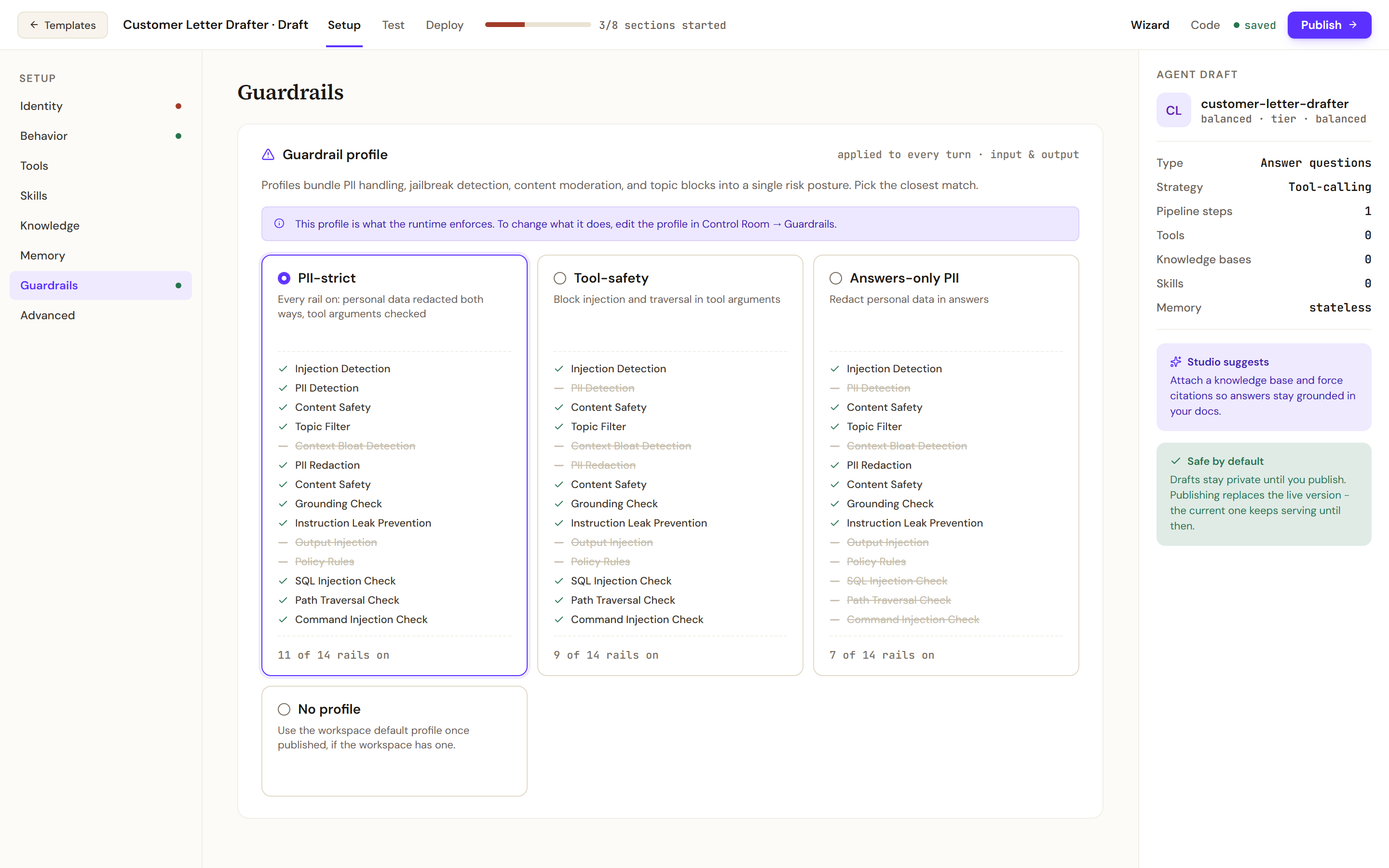
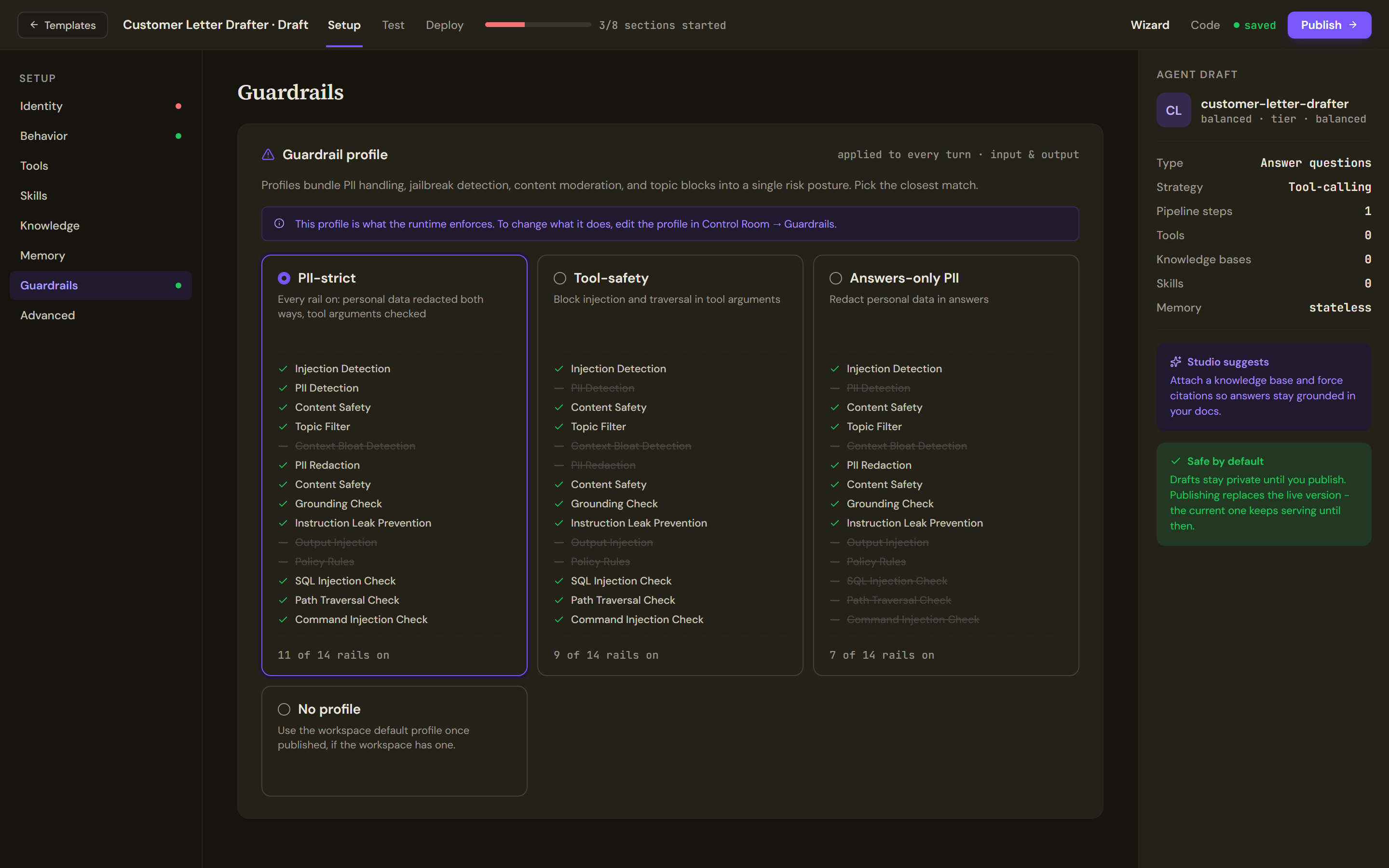
Pick the guardrail profile whose rails should run on this agent's turns.
Attach the sending tool and publish
- Attach the tool
Open Tools, select Pick tools on the mail system's card, tick the tool that sends a letter and select Done. The tool is marked WRITE. You should now see a notice under the cards saying that one attached tool requires human approval before each call.
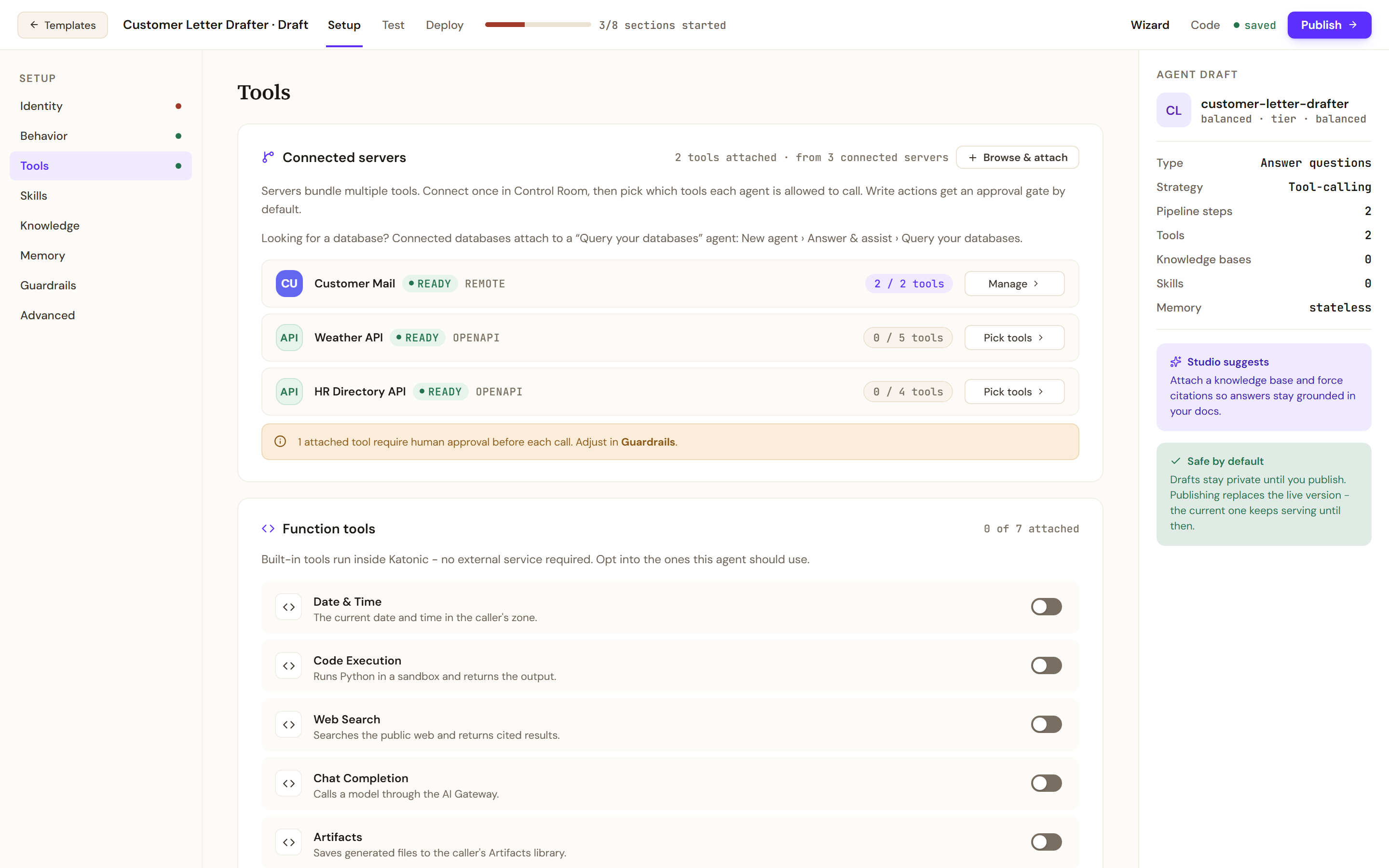
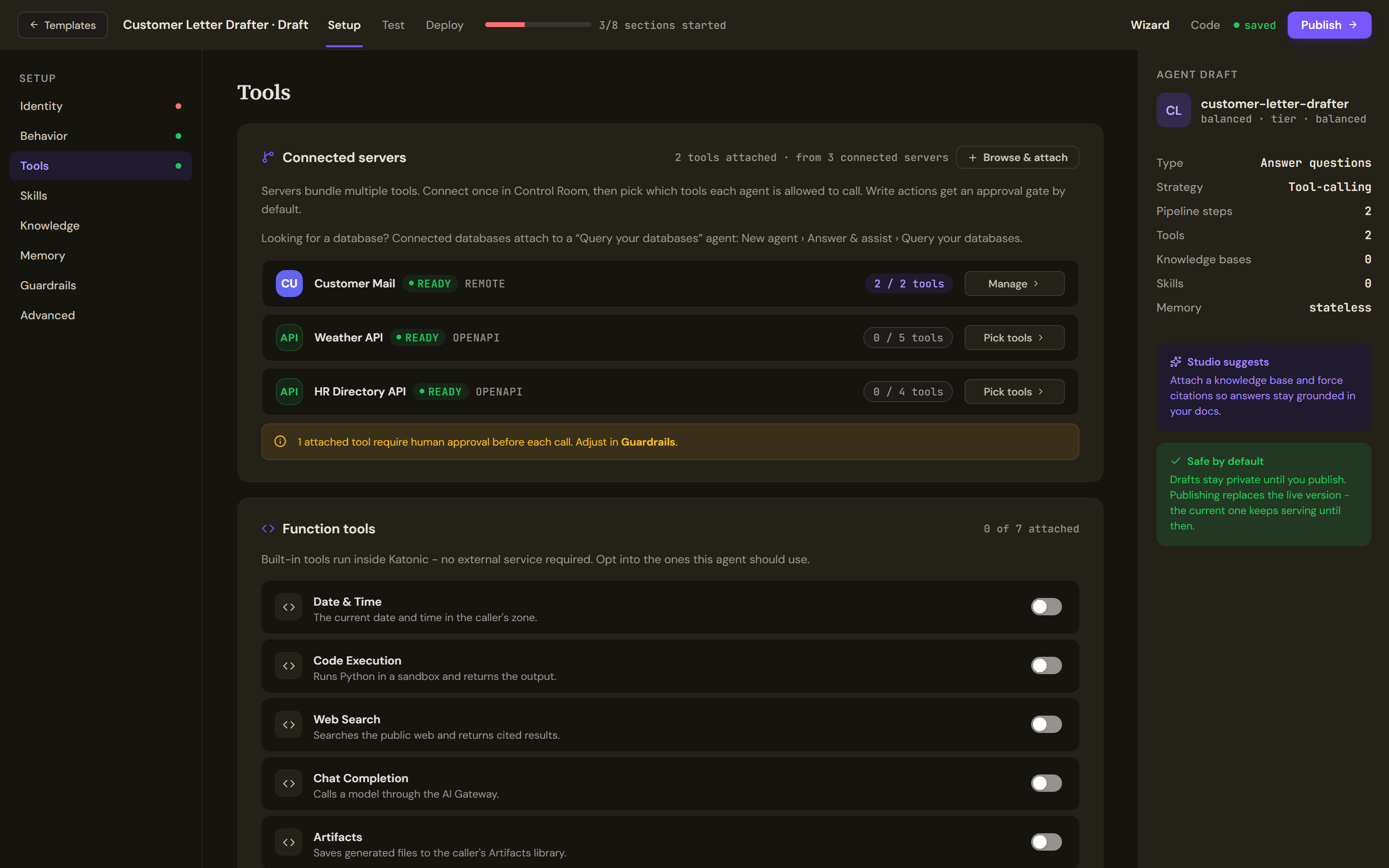
A tool that writes is marked when you attach it, and the notice counts the attached tools that need approval before each call. - Publish
Select Publish. When the agent is published, a tool that writes and has no tool-call policy yet gets one that requires approval. Before you build a form of agent has the rule in full.
Check or set the policy
An administrator does this section.
- Look for the tool's row
In the Control Room, open Policies. Find the row whose Scope names the mail server and the sending tool. If it is there and its action requires approval, go to the next section.
- Create the policy if there is none
Select Create Policy. Enter a Policy Name that says what it governs, such as
Customer letters need approval. Under Action, choose Requires Approval. Leave Approvers empty to notify all admins, or type the email addresses of the administrators who check letters. Under Scope, choose the Server and the Tool. Set Priority to 10, keep the switch on Active and select Create Policy.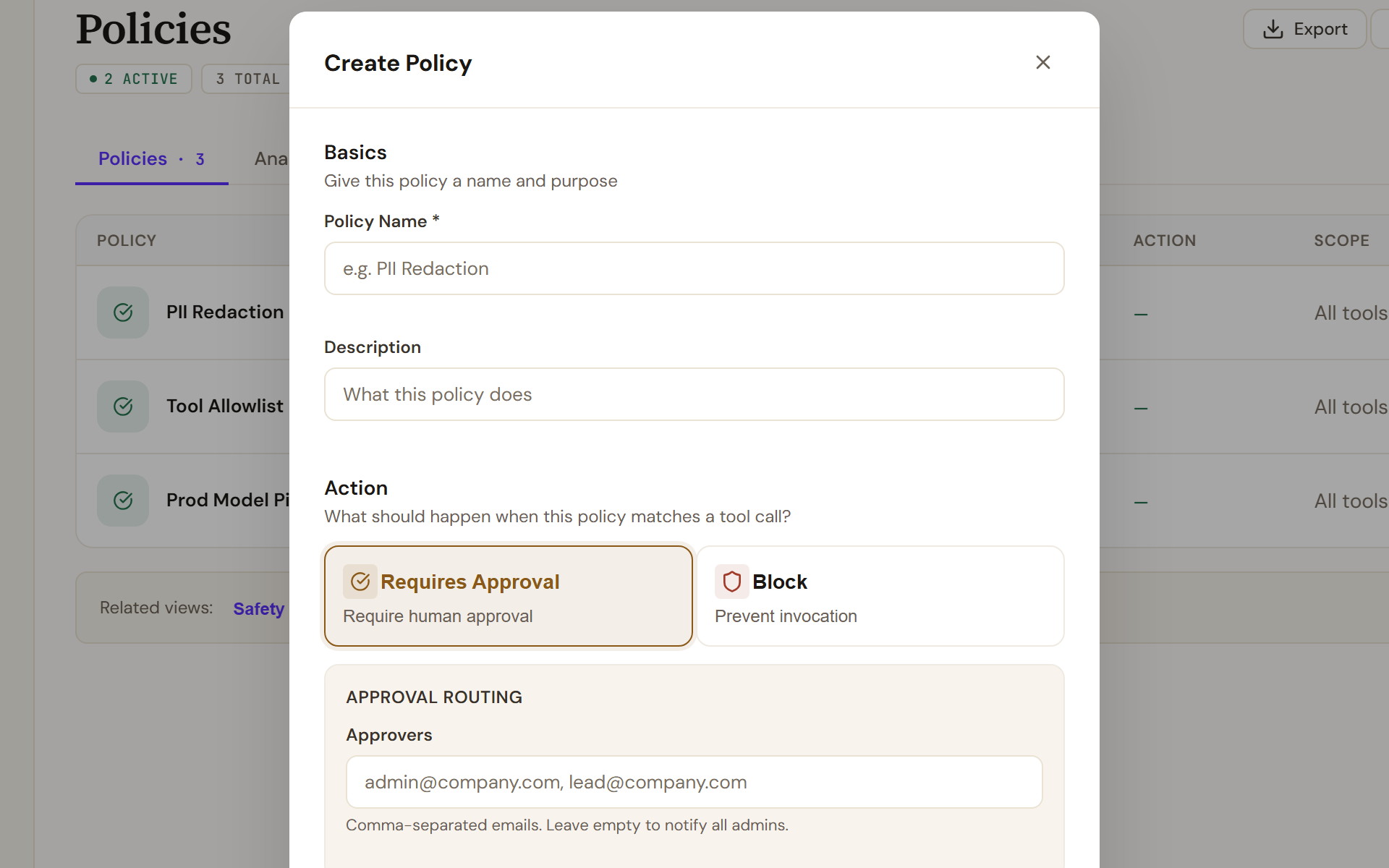
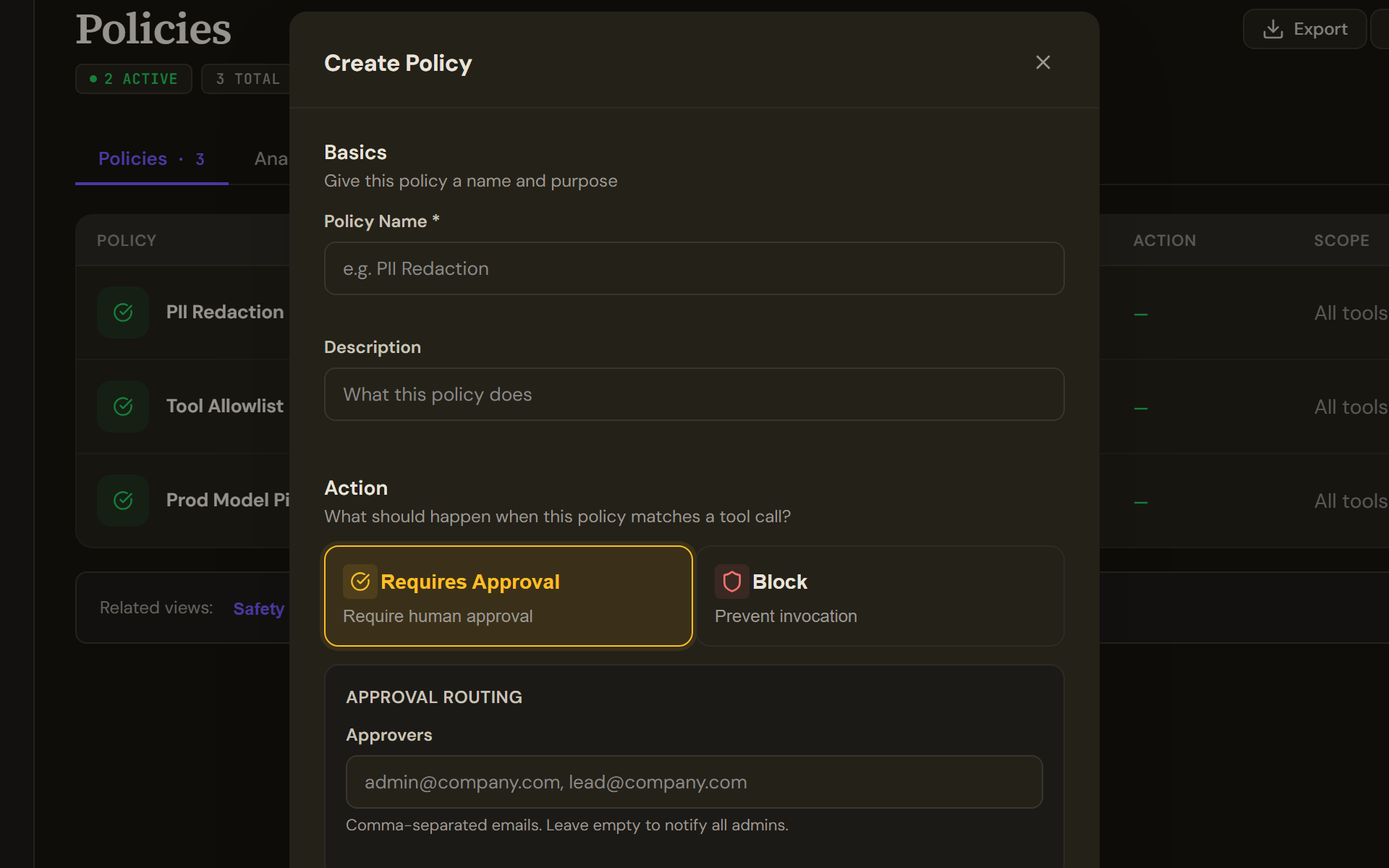
Create Policy: name the policy, choose Requires Approval or Block, optionally list approvers, then set the scope and priority further down. - Check that it is enforced
A row can read Active and still carry Saved but not enforced, which means the tool gateway is not applying it. The header counts such policies. Do not rely on the row until that label is gone and the test below has held a call.
Decide a held letter
- Ask the agent to send a letter
In the Work Room, open the agent and ask it to send a letter on a test case.
- Open the request
As an administrator, open Approvals in the Control Room. On Tool Calls, select the pending row. The detail names the tool call, who requested it, the agent and the Tool Arguments, with personal data marked as redacted.
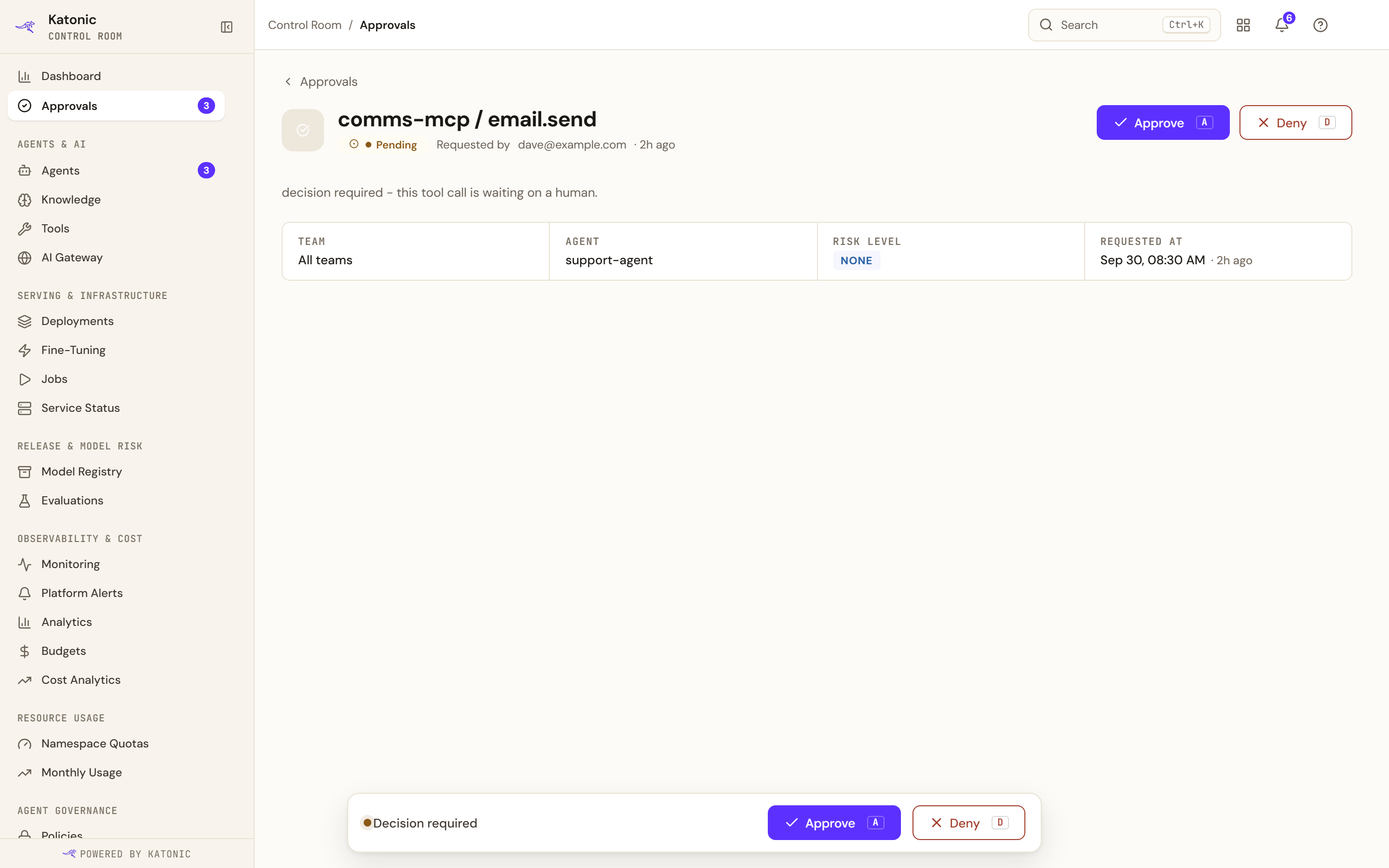
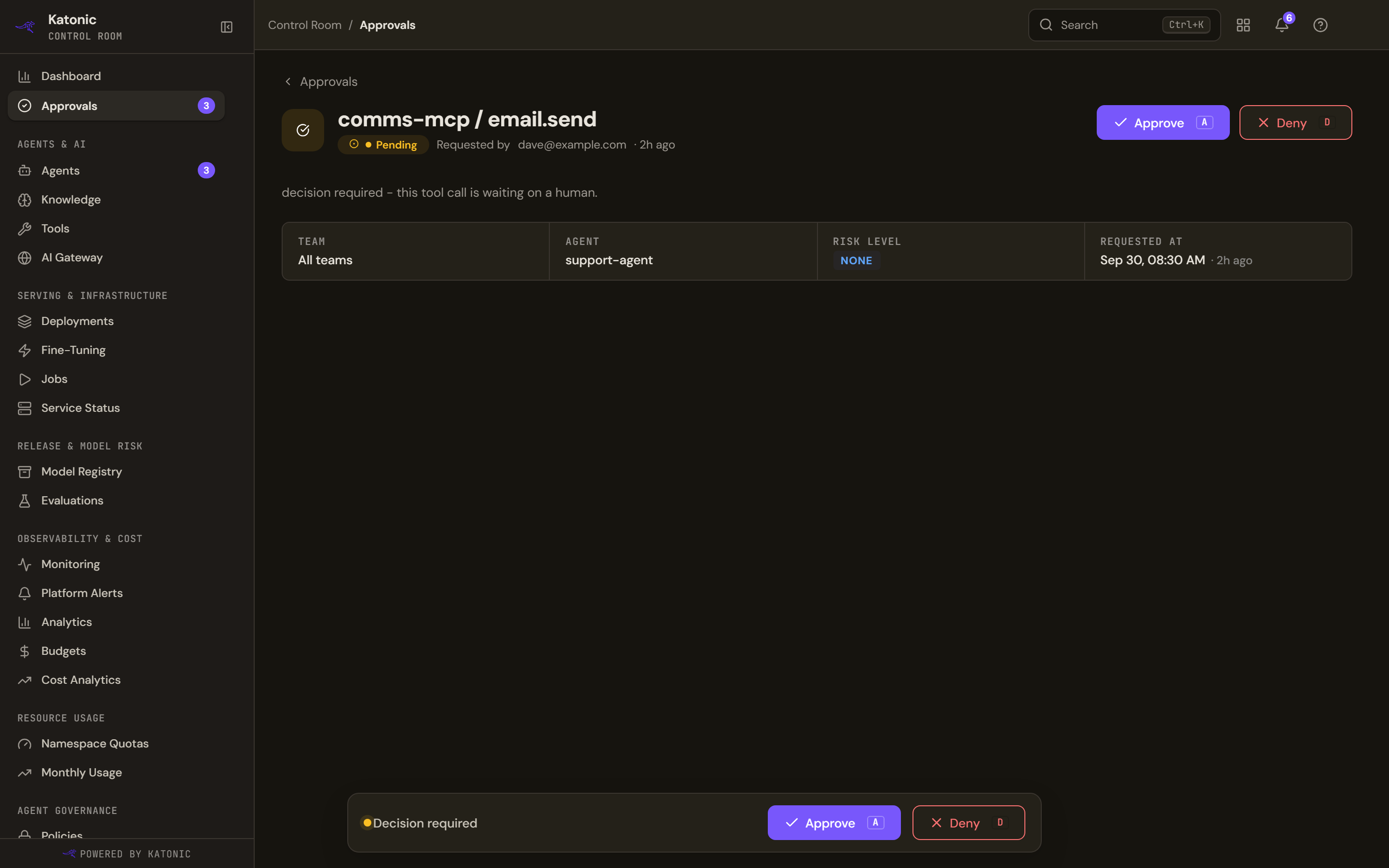
A request's detail: which tool the agent wants to call, who asked, the team, the agent and the risk level, then Approve or Deny. The same two buttons repeat in the Decision required bar at the foot. - Check it and decide
Read the letter in the arguments against the disclosure rules. Select Approve or Deny, add a Decision Note saying what you checked, and confirm.
Verify
Ask the agent to send one letter. Three things show the controls work:
- A pending row appears on Approvals naming the mail server and the sending tool, and no letter leaves the mail system while it is pending.
- After Deny, still no letter has been sent. After Approve on a second request, ask the agent to go ahead: the call runs when the agent makes it again, and one letter is sent.
- The Audit Trail tab on Approvals records who decided each one, with the note.
Troubleshooting
- The letter was sent with no pending row. No policy is being applied to the tool. Open Policies: if the row reads Saved but not enforced, or there is no row, create the policy as above and test again; see Policies.
- A person who checks letters cannot decide. Only the Admin and Super Admin roles decide tool calls. Naming someone under Approvers notifies them; it does not give them the role.
- A request expired. A request with a deadline that nobody decides reads as expired with no decision. Ask the agent again.
- No profile selected in the agent's Guardrails section. The workspace default applies once the agent is published, if the workspace has one.
- Approvals isn't enabled in this license. The tool-call queue needs the approvals licence.
- You want a second agent to review each draft first. There is no separate guardian agent to attach. Put a checking step and an approval in a workflow; see Build a workflow of fixed stages.