Build a workflow that runs on a schedule
Agents
A scheduled agent works with nobody asking: a clock starts it, and it produces the same kind of output each run. On Katonic it is a workflow, an agent built as steps that run in a fixed order, with a schedule trigger. This tutorial builds a digest that runs every weekday morning and summarises what the regulators published overnight. It is the third form in Which builder for which agent.
Who can use it: the Builder role or higher, in a tenant licensed for agents and knowledge.
Prerequisites
- A knowledge source that holds what the digest reads, kept current by a recurring sync. A web scraper source on the regulators' publication pages is one way; see Connect Web Scraper and Keep a source current.
- A team you belong to, for the Owner team. Before you build a form of agent says who provides it.
Build the workflow
- Start a blank workflow
In Studio, open My Agents and select New agent. Select Automate a process, pick the Blank card and select Continue to build. The builder opens in the Wizard lens, with six sections under Build the flow.
- Name the flow and pick the owner
On Identity, type the Workflow name
Morning Regulators Digestand a Description. Under Ownership & routing, pick the Owner team. A workflow with no team can be run only by the person who made it. - Set the schedule
Open Trigger and select the Schedule card. In Trigger label, type
Weekday mornings at six. In Cron expression, type0 6 * * 1-5. A cron expression is five fields: minute, hour, day of month, month and day of week. This one means 06:00, Monday to Friday.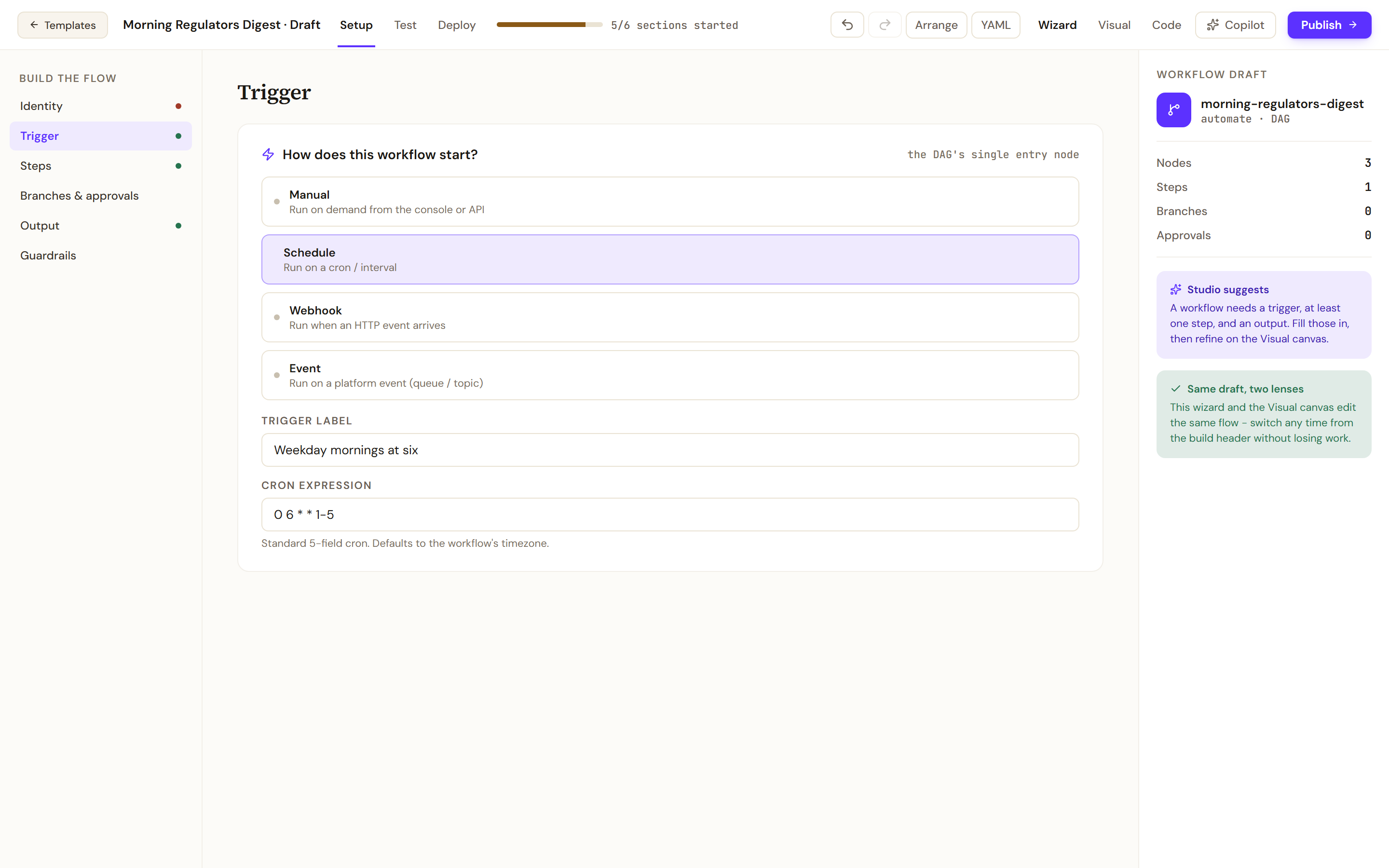
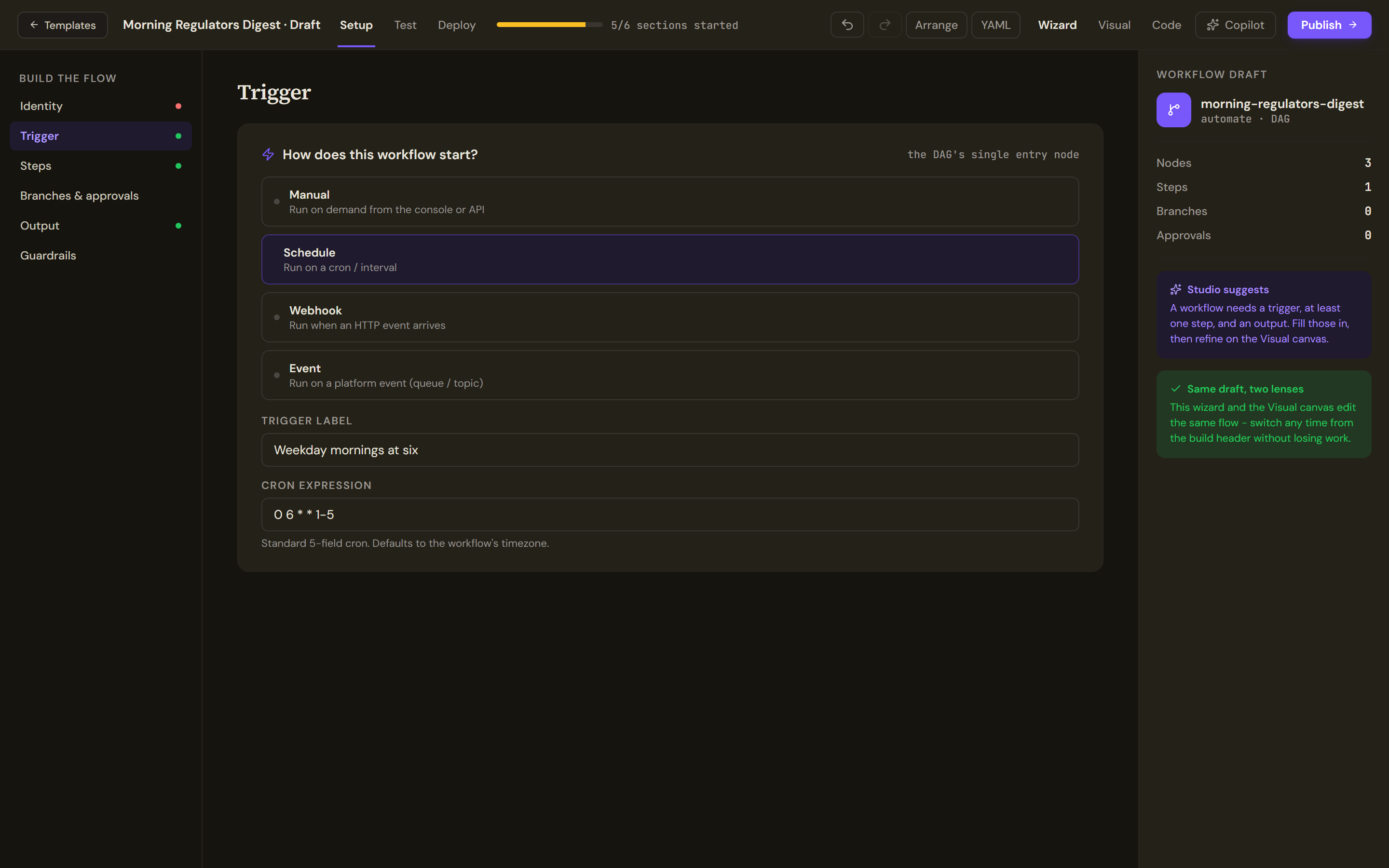
A schedule trigger takes a five-field cron expression, read in the workflow's timezone. - Check the timezone
Select Visual in the build header, select the Trigger node, a box on the canvas, and check Timezone in its configuration. The schedule fires at 06:00 in that timezone. Select Wizard to come back.
- Add the two steps
Open Steps. A blank flow starts with one LLM step, a step that sends text to a model. Open it and select Remove step, so that the search comes first. Then, under Add a step:
- Select Knowledge. In Step name, type
Find overnight publications. In Knowledge base, pick the source that holds the regulators' publications. - Select LLM. In Step name, type
Write the digest. In Instruction, paste the text below.
From the publications you are given, write a digest. One entry for each publication: its title, its date, what changed and who is affected. If you are given no publications, write "Nothing new was published."Steps run in the order listed, and a new step is added after the last one. On the Visual canvas, the LLM node's Pass the previous step's output in switch hands it what the Knowledge step found. You should now see two steps, in that order.
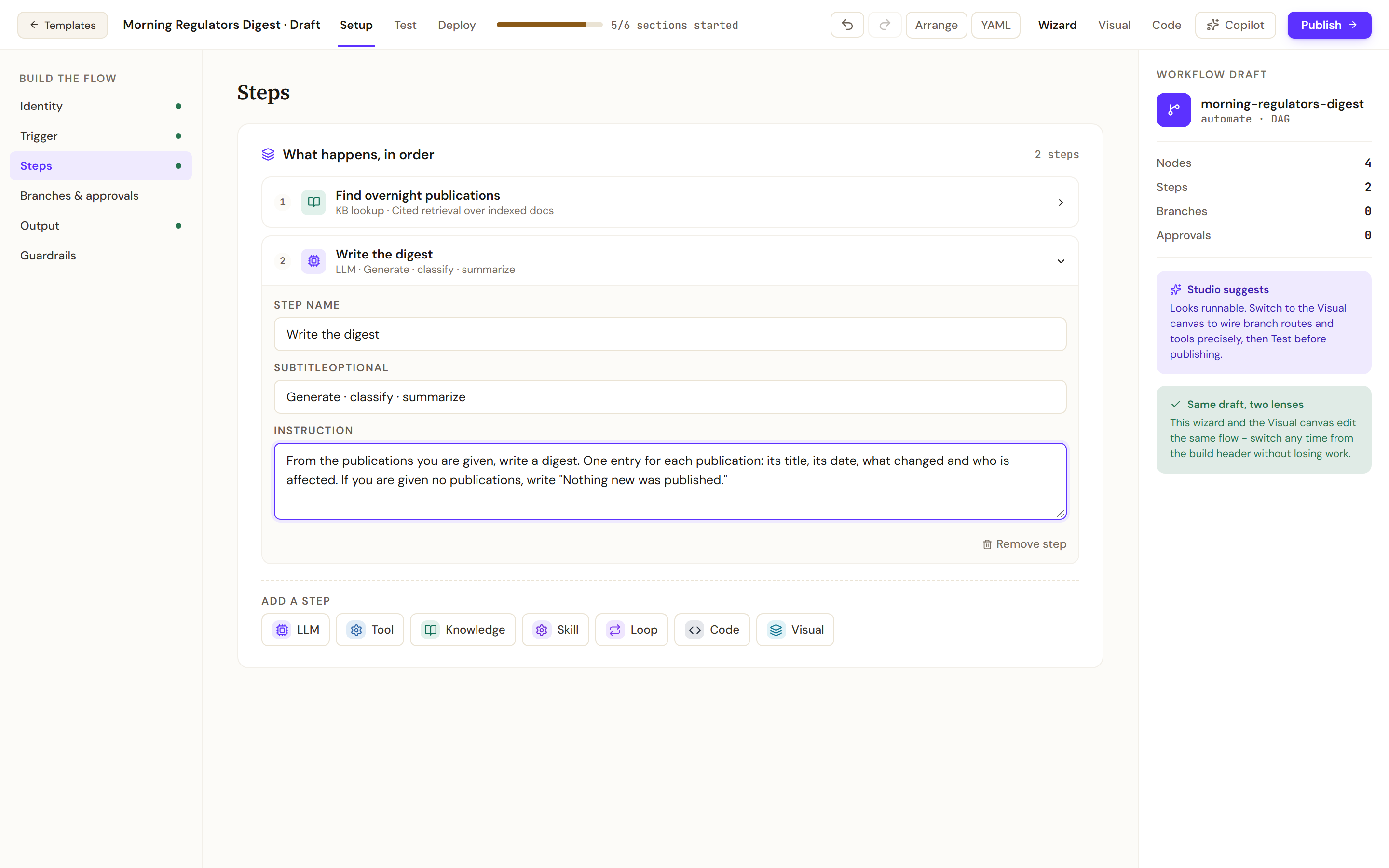
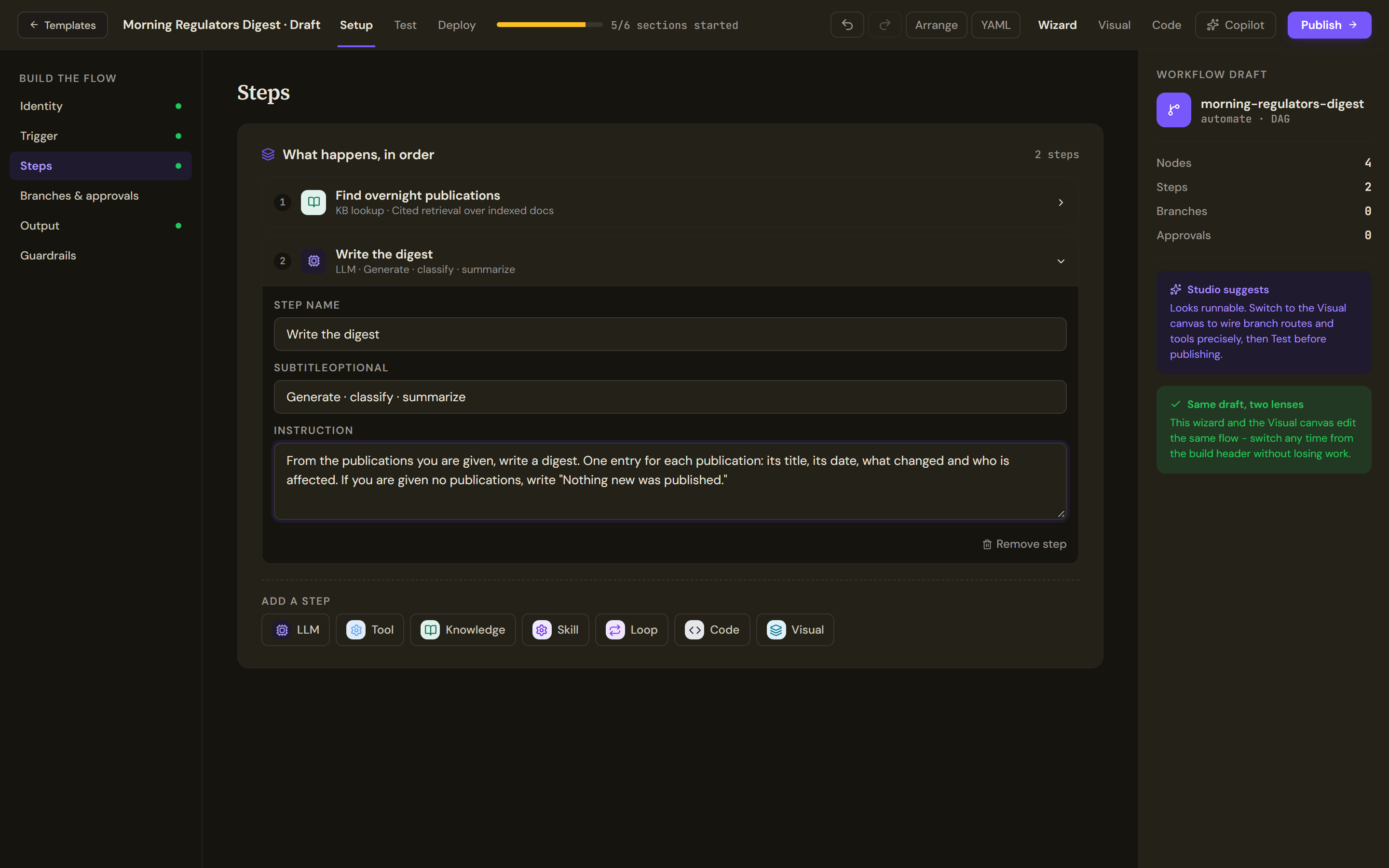
Each step has a name. An LLM step also has an Instruction, the text that tells the model what to do with what it is given. - Select Knowledge. In Step name, type
- Name the output
Open Output. In Output label, type
Digest. In Destination, typereturn to caller. The result of each run is also saved to Artifacts. - Apply the guardrails
Open Guardrails and switch on Customer-facing tone & PII if the digest is sent outside your team. The switches apply across every step.
Test and publish
- Run the draft
Open Test, type
Run the digestand select Run. Every step reports in the Run trace with its status, timing and output. - Publish
Select Publish and fix any blocker. Publishing is what registers the schedule. The screen that follows says whether the version is live, in a lane or not live yet; see Before you build a form of agent.
- Open the schedule
Open the workflow from My Agents and select Run. Under Triggers, the Scheduled card shows the cron expression with its timezone, the state Running, the Next run, the Last run and the Total fires.
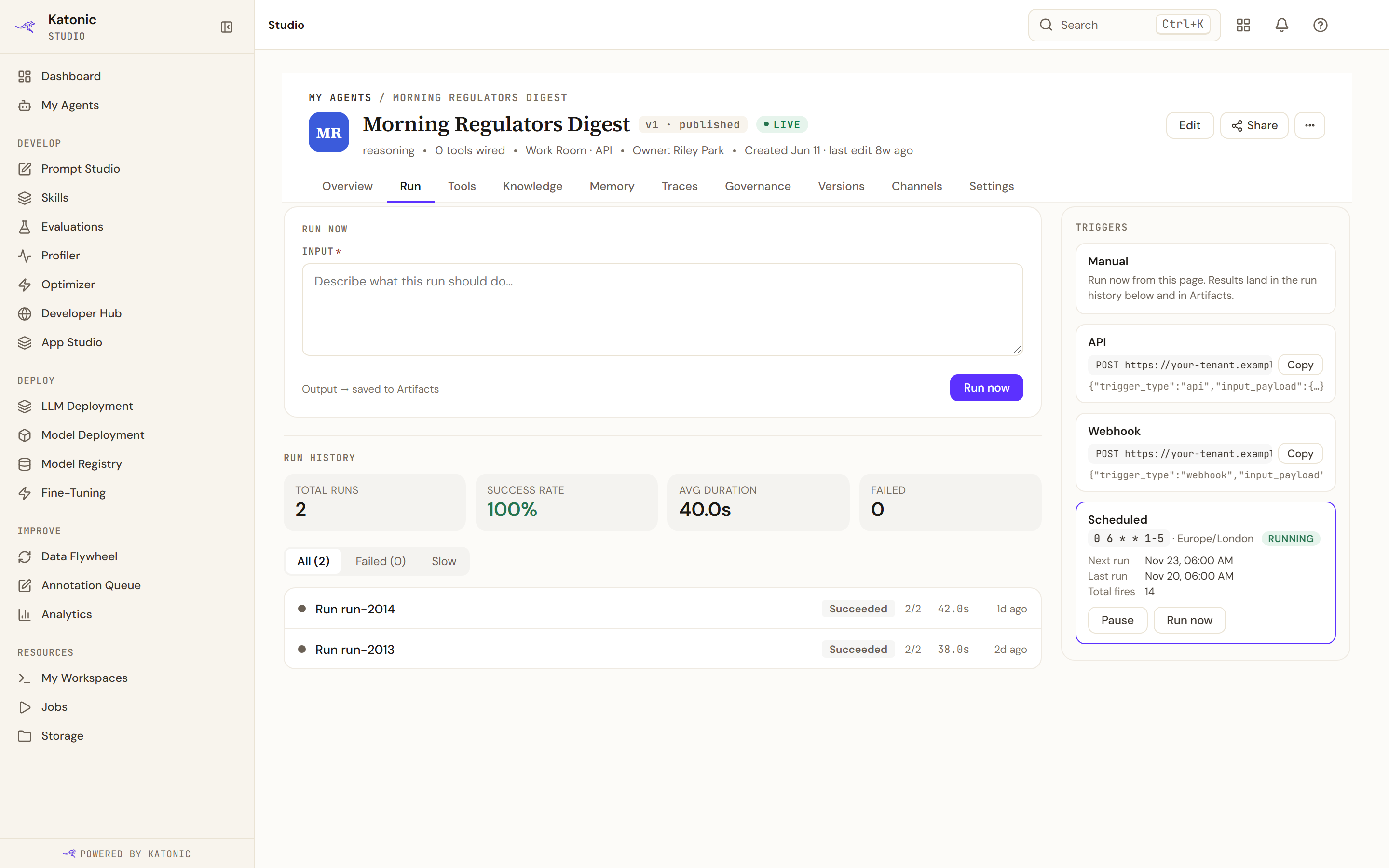
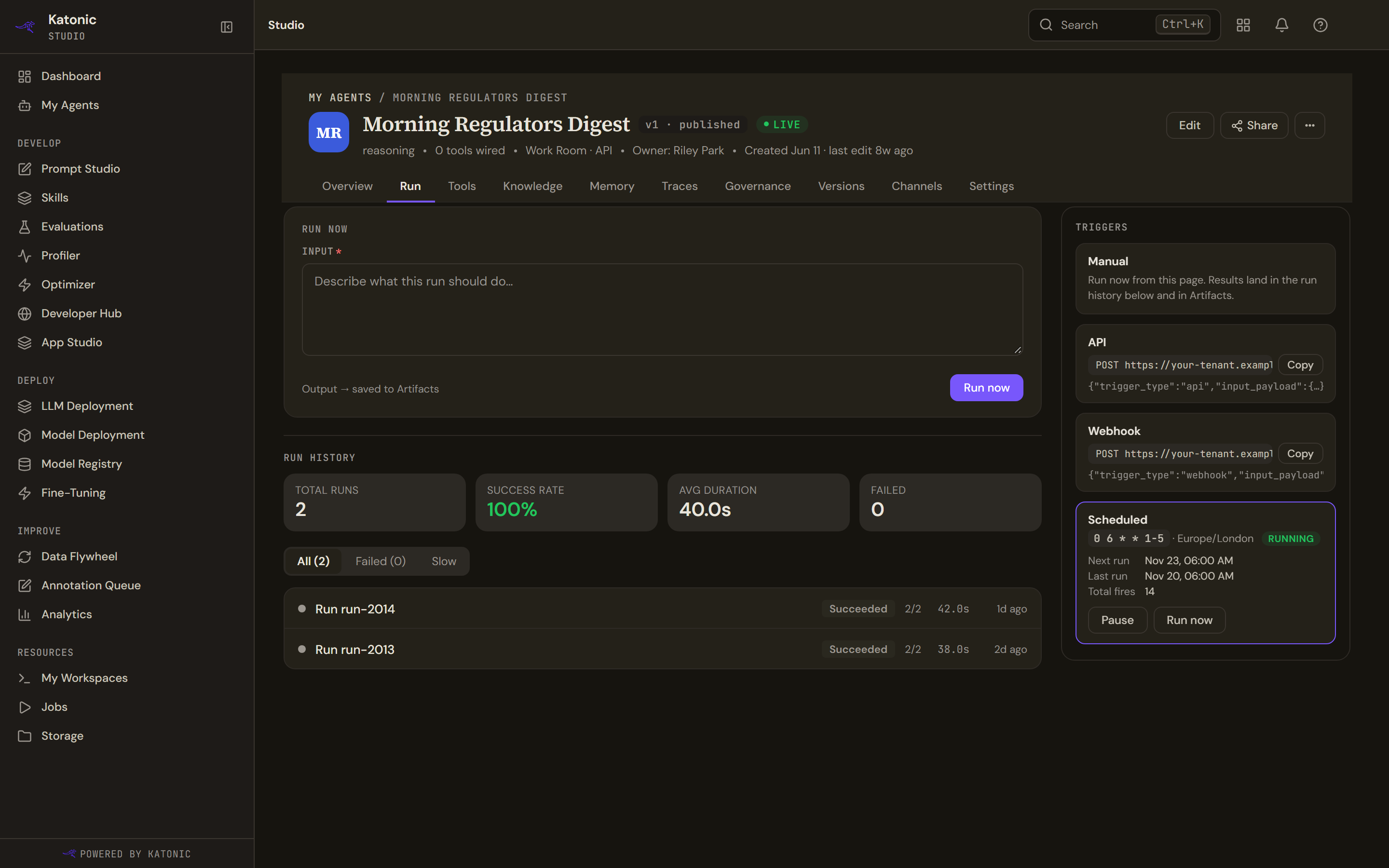
After publishing, the Scheduled card shows the schedule the platform is running: its state, the next run and the last run.
Verify
- In the Test tab, the trace shows the Knowledge step and then the LLM step, and the last output is a digest with one entry for each publication, or the line saying nothing new was published.
- On the Scheduled card, Next run is the next weekday at 06:00 in your timezone.
- Do not wait for the morning. Select Run now on the card. A run appears in Run history on the same tab, and its row shows both steps done.
- After the first morning, Last run carries that date and Total fires has gone up by one. Members see the run under Automations in the Work Room.
Troubleshooting
- This agent's trigger is a schedule, but no published version carries it yet. Publish the workflow. A draft has no schedule.
- The card says the workflow is published with a schedule but the scheduler holds none, or that the scheduler is running a different expression from the one this version asks for. Publish again to register it.
- A morning was skipped. A run does not start while the previous one is still going. A run that could not start within a minute of its time is not made up later. Use Run now for the one that was missed.
- The schedule never fires. Check that the card reads Running, not Paused; Resume starts it again. Then check Timezone on the Trigger node.
- The run completed but the digest says nothing was published. Open the run and read the Knowledge step's output. If it is empty, check when the knowledge source last synced.
- To stop the schedule, select Pause on the card. Resume starts it again.