Compare, suggest and share a prompt
Four things in Prompt Studio's header work on the prompt as a whole rather than on its text: comparing models, comparing versions, asking for a rewrite, and getting the prompt out of the platform.
Who can use it: the Builder role or higher. Deleting a prompt that live agents depend on asks for more than a confirmation.
Compare models
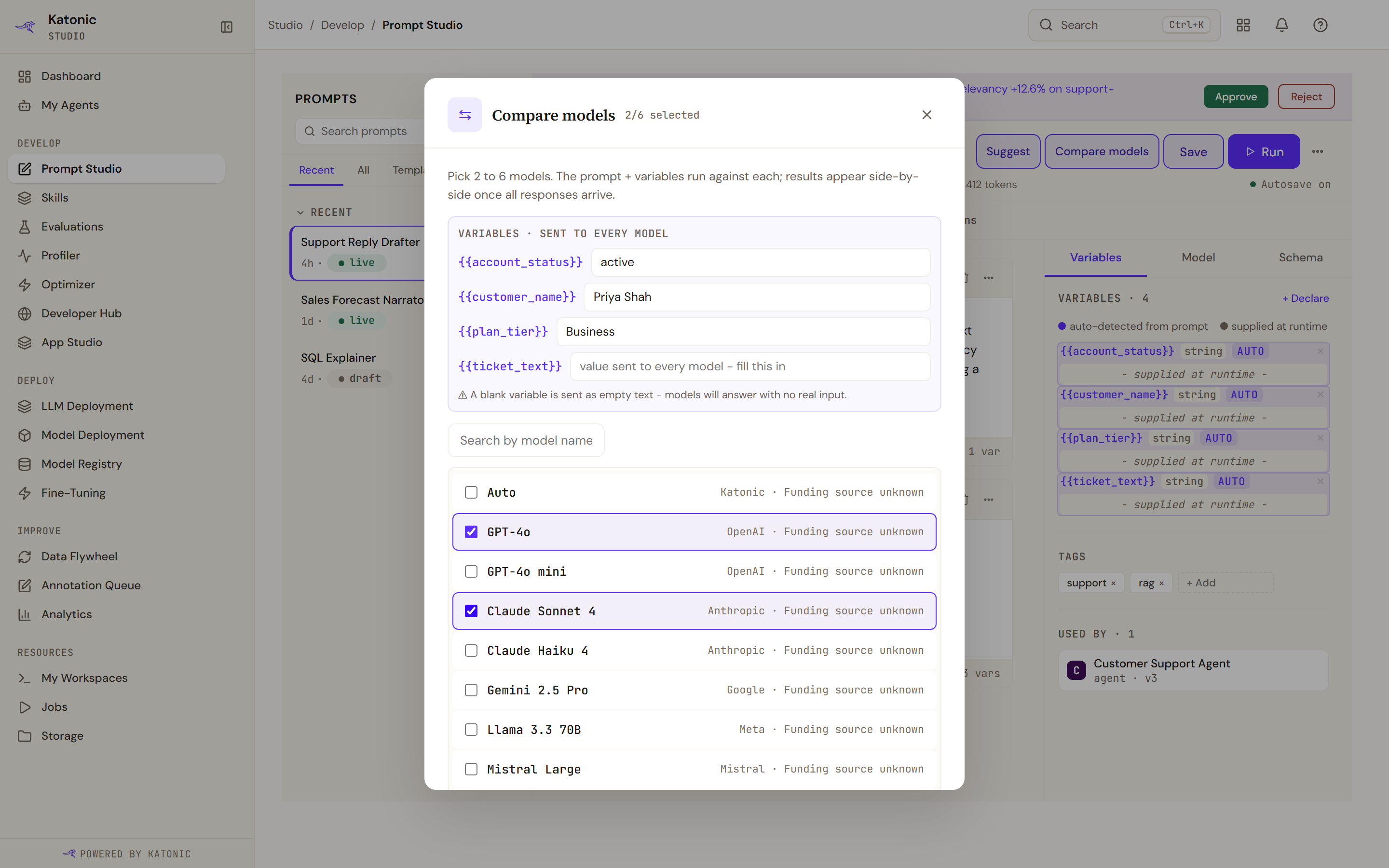
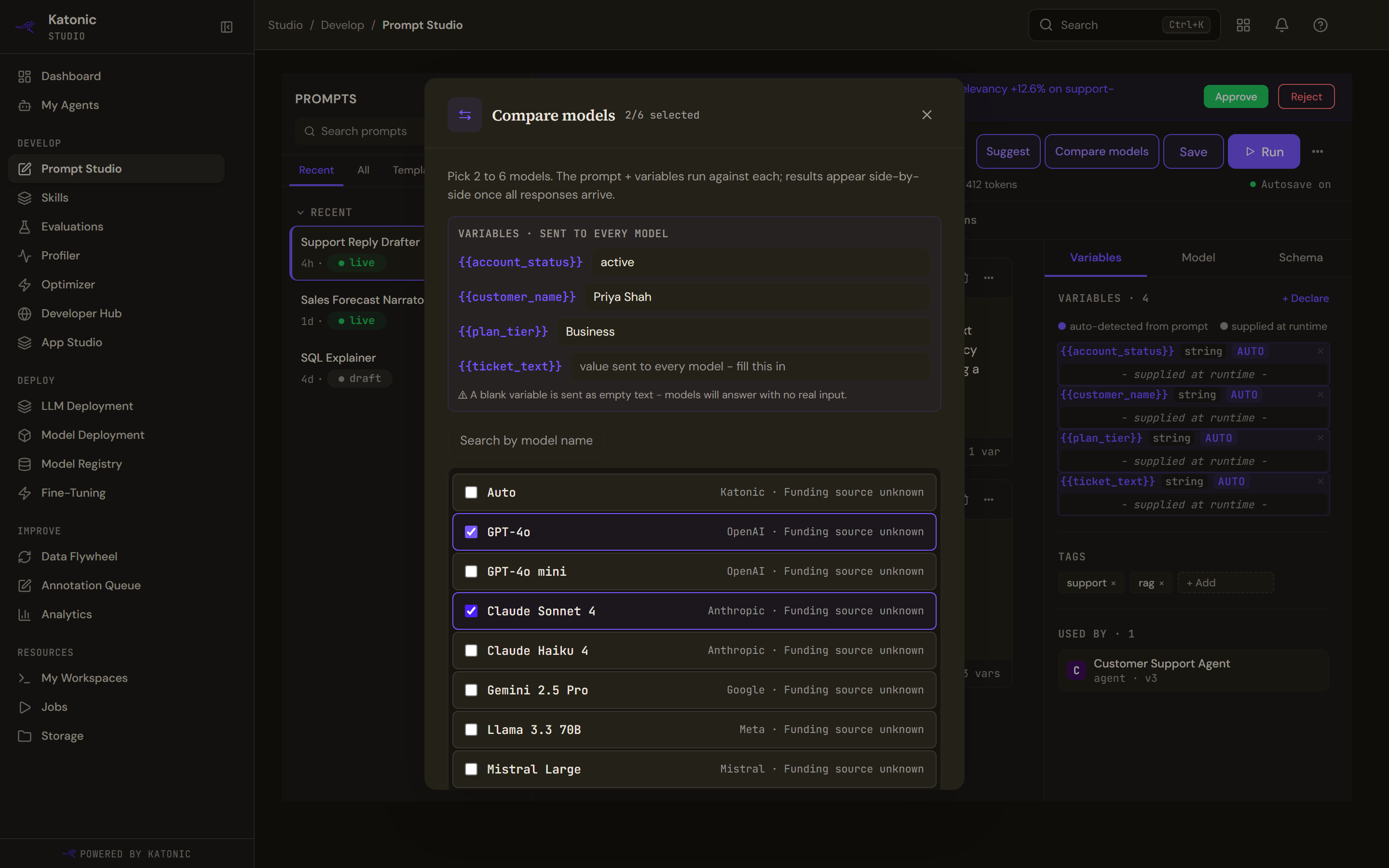
Compare models runs the same prompt against several models side by side. Pick between two and six from the models the AI Gateway offers; the search box narrows a long list.
Above the list, the prompt's variables are shown with the values that will be sent to every model, and you can edit them here. A variable left empty is sent as empty text, and the dialog warns that models will answer with nothing to go on.
Run on starts them in parallel and says it usually takes between ten and thirty seconds. The results open by themselves once every model has answered, each card giving the model, its latency, tokens, cost and provider, and the answer it returned. A model that returned nothing says so rather than showing an empty card.
If the gateway has no models, the dialog says so and offers to open the AI Gateway to add a provider.
Compare versions
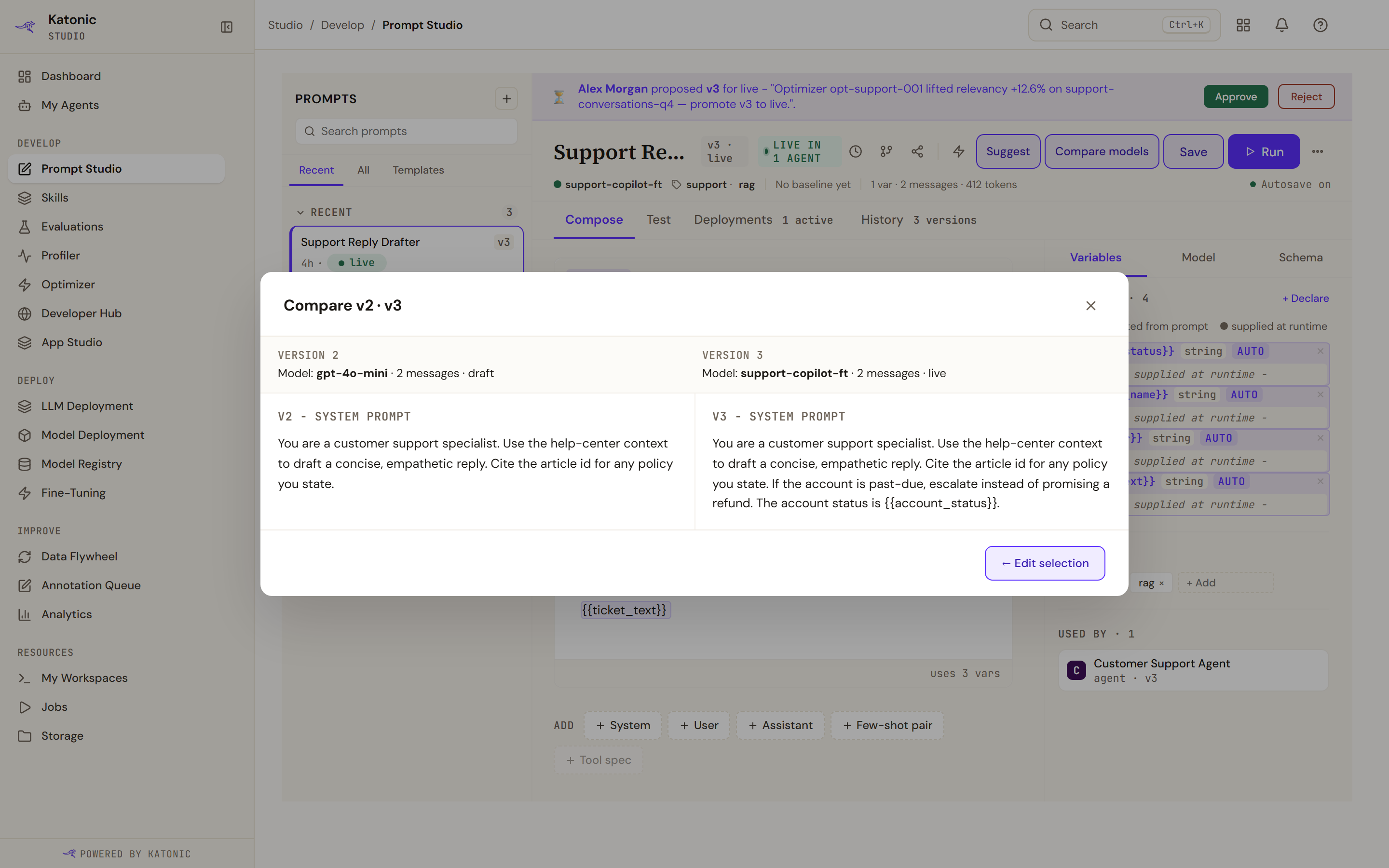
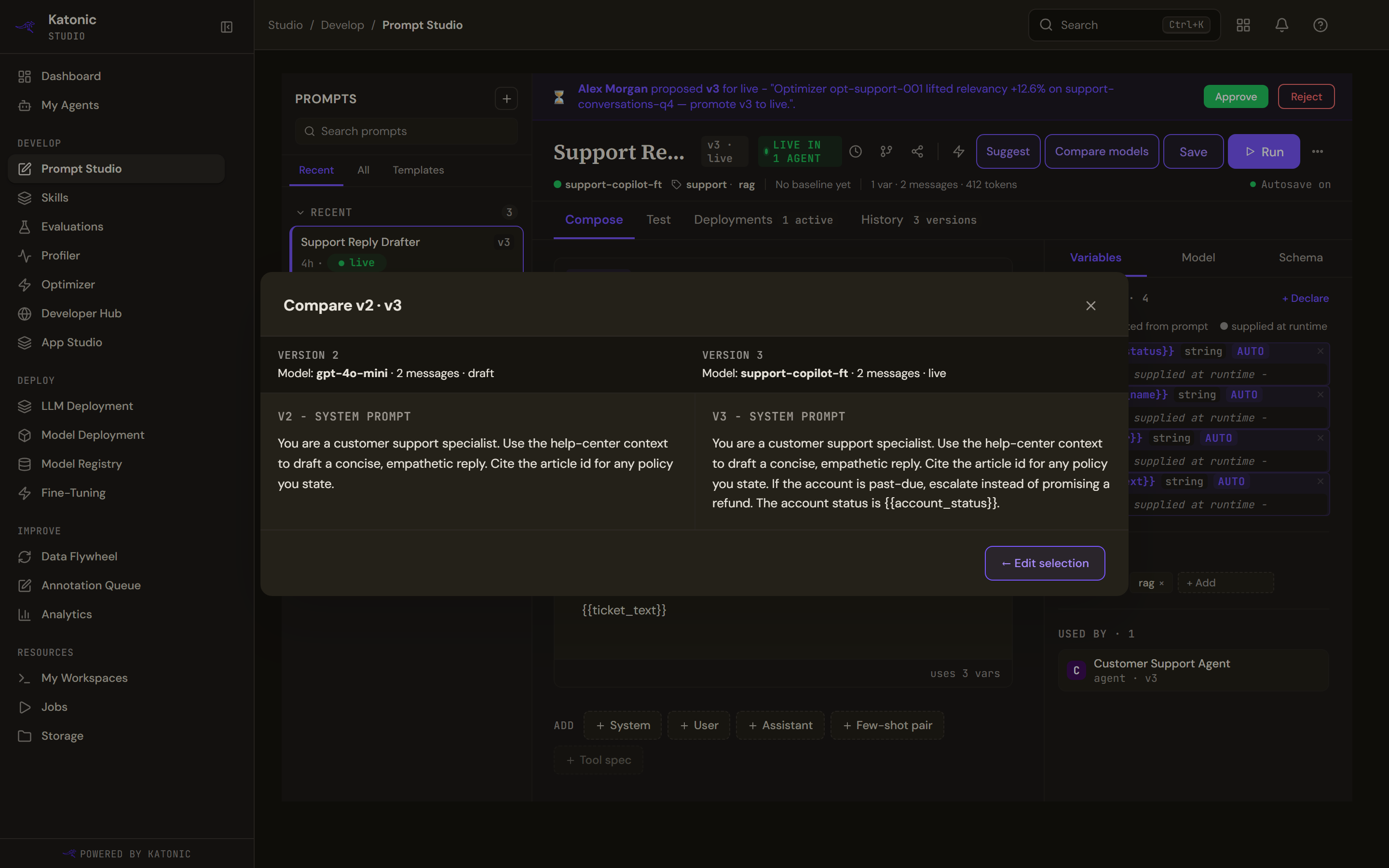
Compare versions diffs between two and four saved versions. The picker counts your selection and tells you how many more you may add. The comparison puts the versions in columns, each with its model, message count and label, and shows the system prompt of each. Edit selection goes back to the picker.
A prompt with nothing saved yet says so and tells you to save at least once.
Suggest a rewrite
Suggest asks a model for a single focused improvement to the prompt, which takes a few seconds. The review dialog names the model that produced it, gives the rationale, lists the changes and shows each proposed message block. Apply suggestion replaces the blocks in the editor, where you can still edit before saving; if the model proposed no changes, the dialog says so and applying is refused.
This is one rewrite, reviewed by you. The Optimizer is the alternative when you want many candidates scored against a dataset.
Share, export and delete
Share copies a link to this prompt as soon as the dialog opens, and explains what the link is: it opens the right prompt and version for someone who already has Studio access, and grants nothing by itself. If your browser blocks the clipboard, the dialog says so and the link is selected for you to copy by hand.
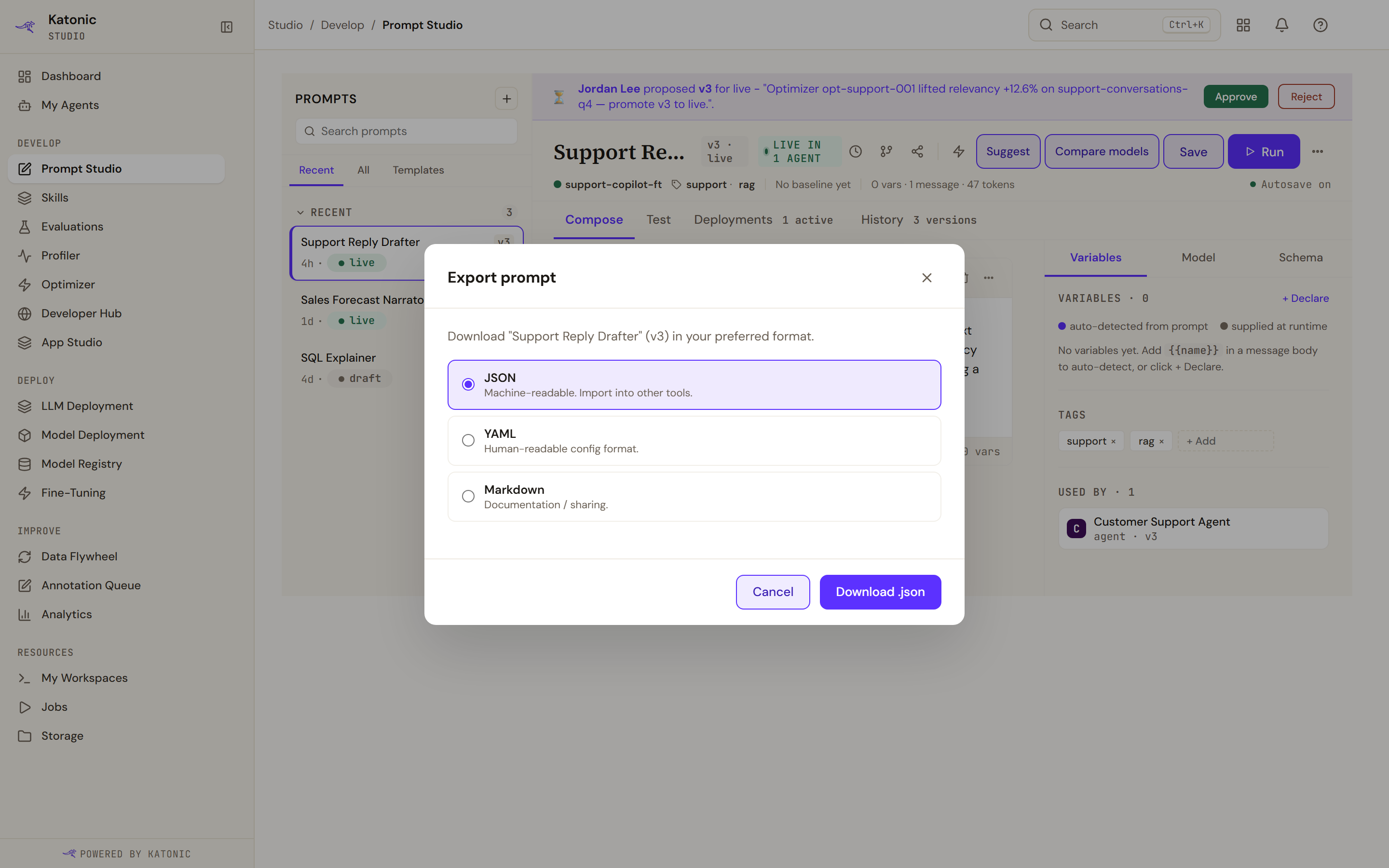
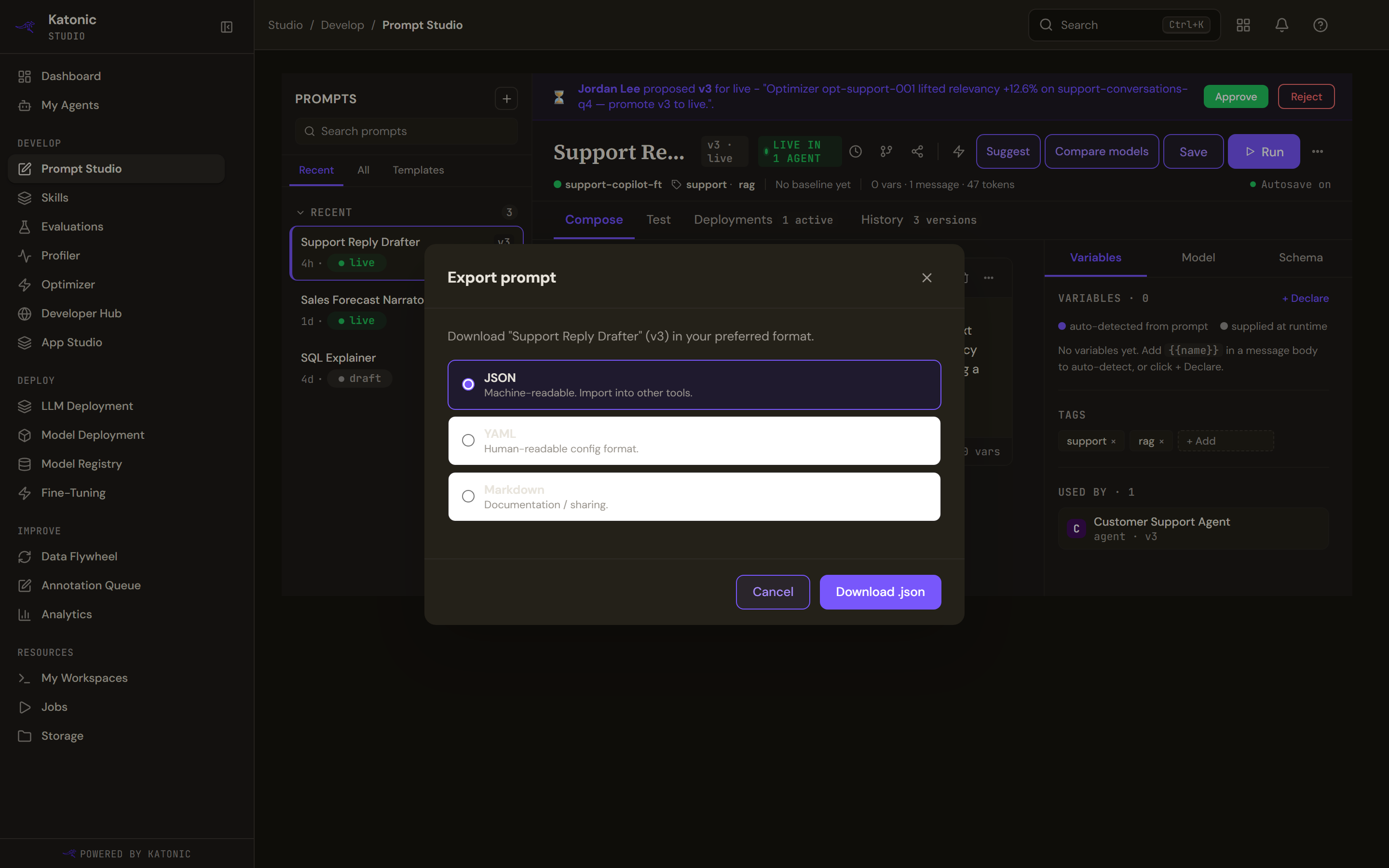
Export prompt downloads the prompt as JSON, YAML or Markdown, each described in the dialog.
Delete prompt is permanent and takes every version with it. The dialog counts the versions, and where an agent that is live references the prompt it warns that those agents will break immediately, suggests moving the prompt to draft first, and requires you to type the prompt's name before the button becomes available.