Import skills in bulk
Skills written elsewhere, exported from another tenant, or kept in a repository come in as files. The importer takes a folder of them at once and tells you what it did with each one.
Who can use it: the Builder role or higher.
What a skill file is
Markdown with YAML front matter: the front matter carries the name, version, description, vertical, role, tags and author, and the body is the instructions. It is the format Export produces, and it follows the public skill-file specification, so files written for that spec import unchanged.
Front matter the platform does not recognise is shown as extra fields and dropped on import rather than stored.
Import a folder
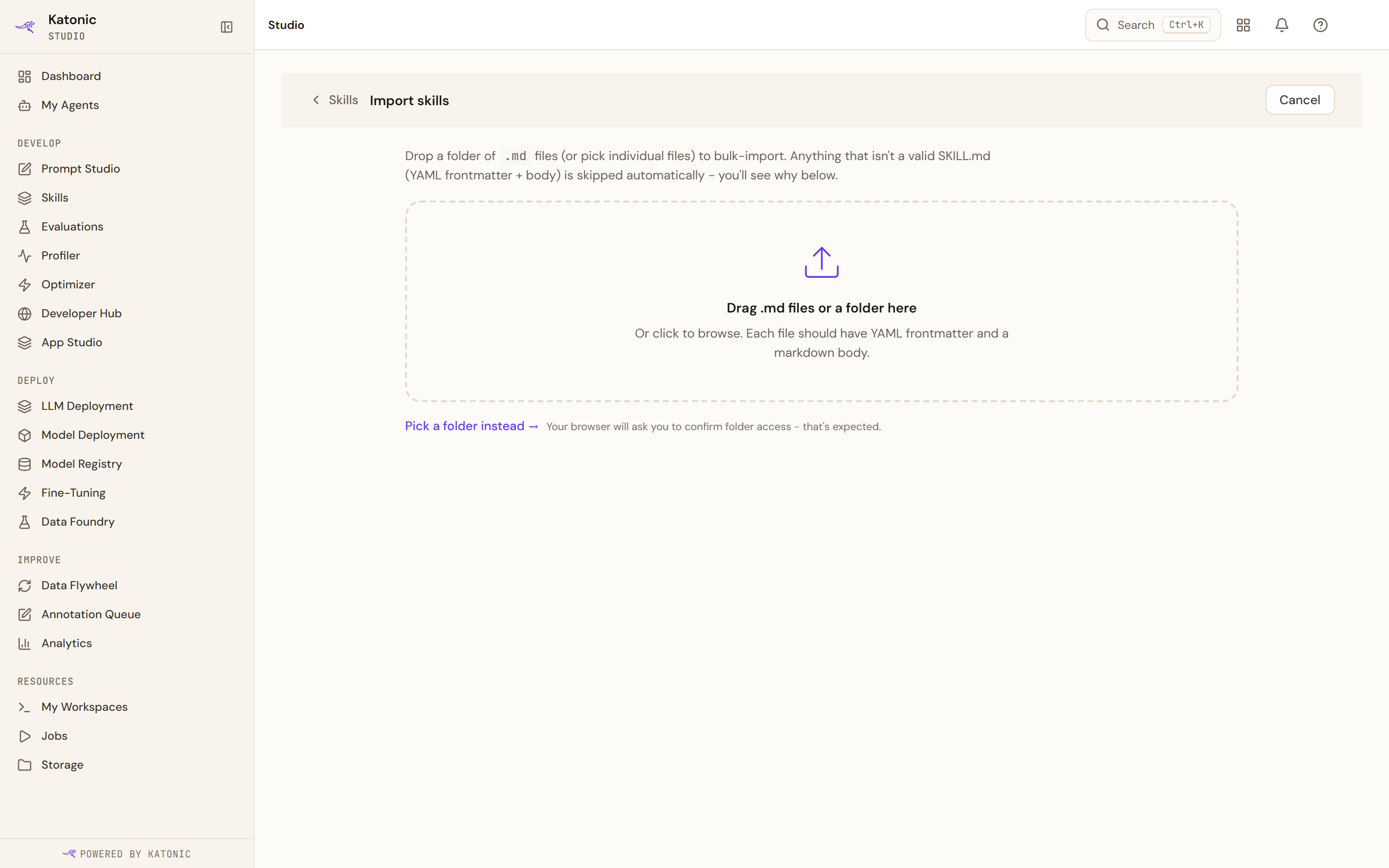
- Give it the files
Drag Markdown files or a folder onto the drop area, or select it to browse. Pick a folder instead opens a folder chooser; the browser asks you to confirm access to the folder, which is the browser asking rather than the platform. The two are separate on purpose, so choosing a single file never triggers the folder prompt.
- Read the list before importing
Every file is parsed as you add it and listed either as a name and version with its description, or as a filename and the reason it cannot be imported. The drop area counts them: how many are valid, how many are not, how many there are.
- Choose what happens to duplicates
On conflict decides what to do when a skill of that name and version already exists: Bump, the default, saves the file as a new version named after the old one with an import suffix; Skip keeps what you have; and Error stops the import.
Default vertical and Default role apply only to files whose own front matter leaves them out, so a folder of files from one team can be classified in one go.
- Import
The button counts what it will do. Afterwards, the result says how many of the total were imported, and marks each file as created, bumped, skipped or failed. Import more returns to the drop area; View library opens the library.
Why a file was skipped
| The reason | What it means |
|---|---|
| No YAML front matter | The file does not begin with a front-matter block |
| Front matter not closed | The block was opened and never closed |
| Missing a required field | The front matter has no name, or no description |
| The body is empty | There is front matter but no instructions |
Nothing invalid stops the rest: the valid files still import, and the invalid ones are listed with their reason.
Troubleshooting
- Dragging a folder does nothing. Not every browser supports folder drops. The importer says so when it detects one, and the file picker handles folders in every browser.
- A skill imported under a name you did not expect. The name comes from the front matter, not the file name.
- Everything was skipped. Check the conflict setting. Skip keeps what you already have, so re-importing the same files under it changes nothing; the default is Bump, which saves them as new versions instead.