Connect GitHub
Knowledge
The GitHub connector indexes code and the documents around it from a GitHub account you sign in to, so agents can answer from them. This page covers what is specific to GitHub; the steps every connector shares are in Add a knowledge source.
Who can use it: the Builder role, or a Member holding the Knowledge Admin grant, in a tenant licensed for knowledge. One-click sign-in also needs an administrator to have stored a GitHub OAuth app on the Credentials tab of Knowledge Management.
What it brings in
In the wizard, GitHub sits in the Recommended row and under the Code chip, described as Repos & code. The Catalog's Connectors section lists it with the same description and says how it signs in. The connector can read only what the GitHub account you sign in with can reach. Who may use the source inside Katonic is a separate choice, made on the Schedule & Access step.
Prerequisites
- An embedding model configured on the Settings tab of Knowledge Management. Until then Connect Source is disabled.
- A GitHub account with access to the repositories you want indexed.
- Either a GitHub OAuth app stored by your administrator, which gives one-click sign-in (see Set up connector credentials), or your own OAuth app's Client ID and Client Secret.
- Pop-ups allowed for the Katonic site: the sign-in opens in a pop-up window.
Connect the source
- Pick GitHub
In the Control Room, open Knowledge and select Connect Source. On Select Source, choose GitHub in the Recommended row, or filter by Code and select its card; the wizard moves to Configure. From the Catalog's Connectors section, Connect on the GitHub card opens Connect Source with GitHub already chosen.
- Name the source and pick its resources
Enter a Knowledge Name. Under Resources, keep the preselected option or pick another: each one says what kind of documents it is meant for.
- Sign in to GitHub
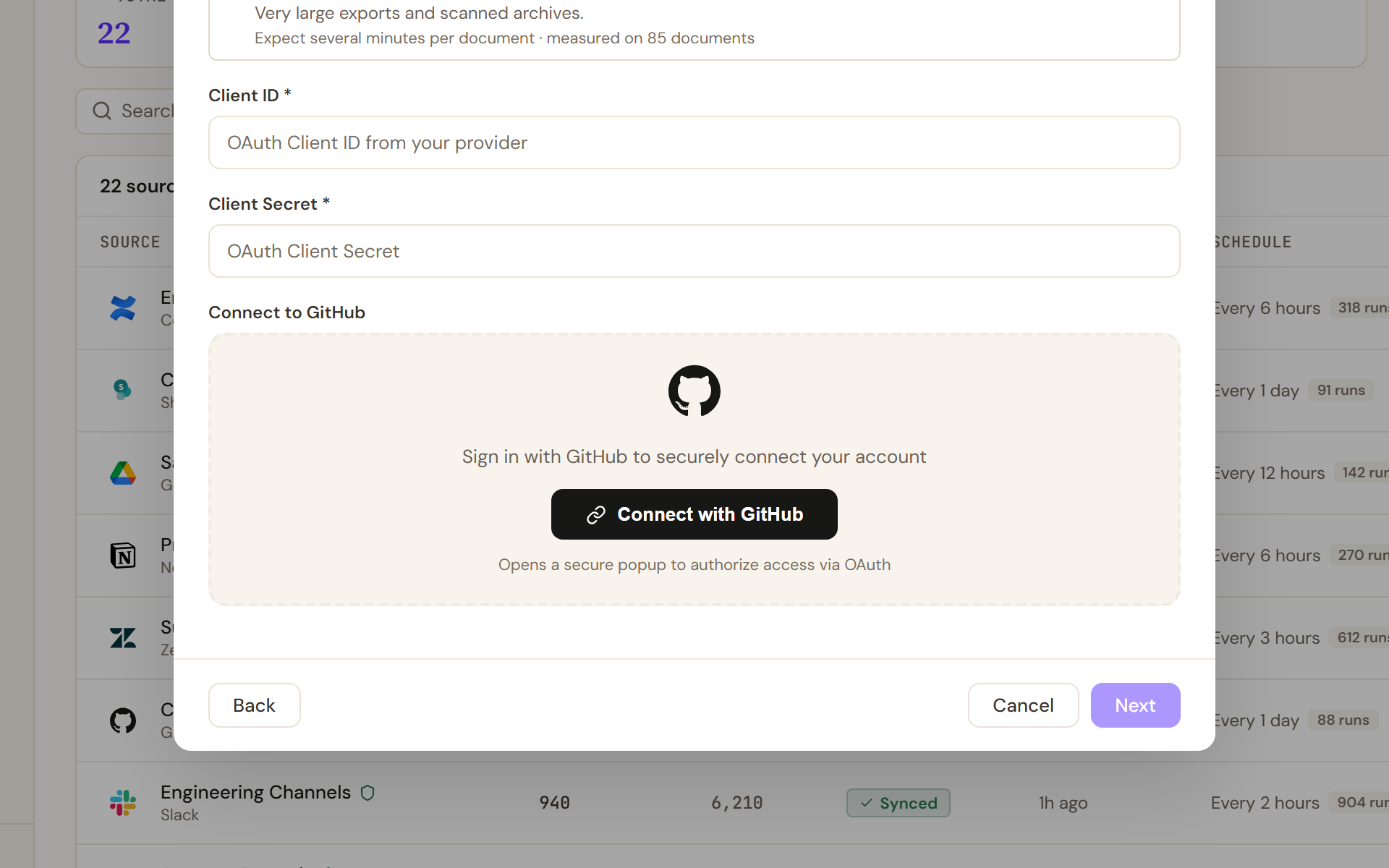
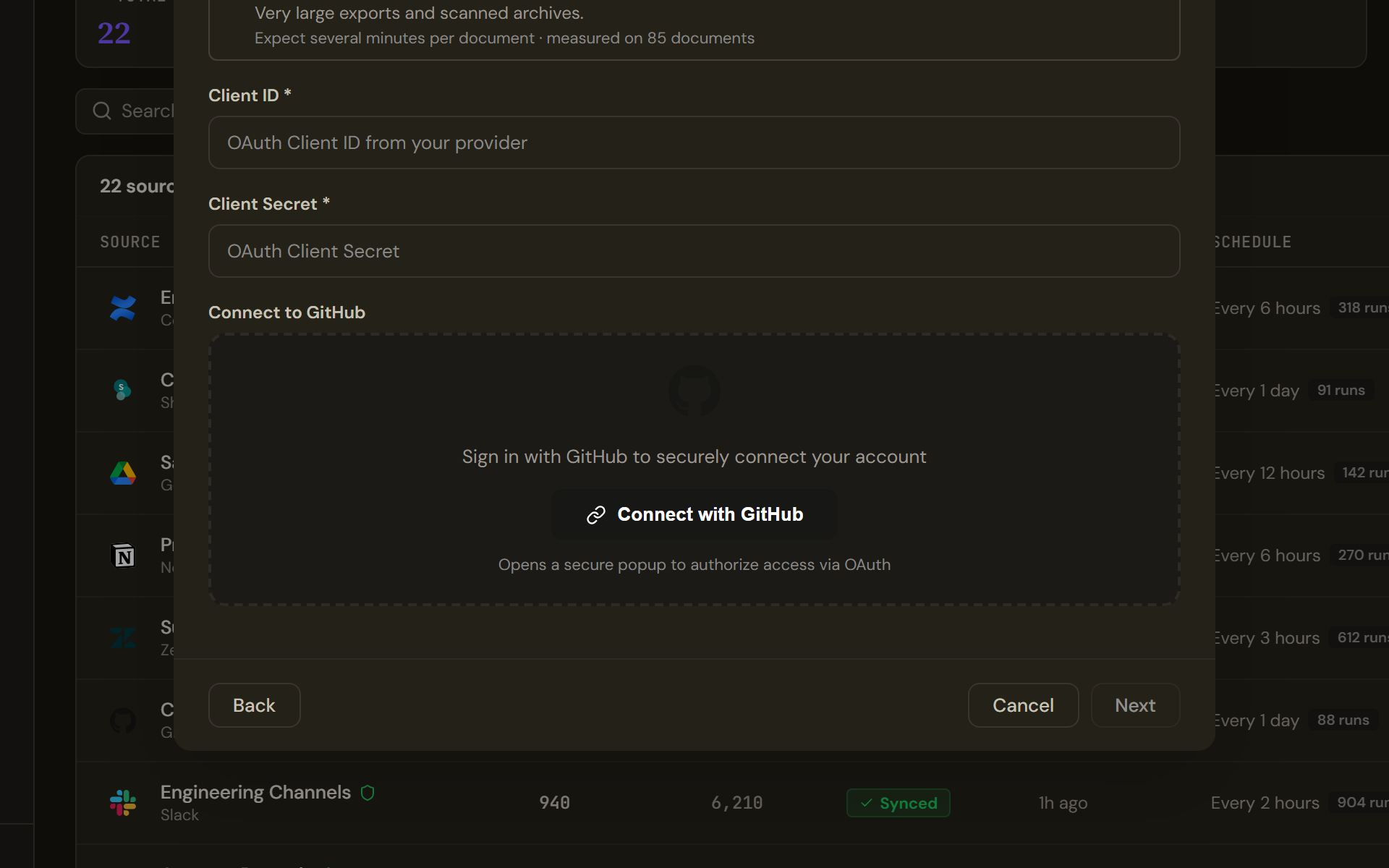
Configure for GitHub when no OAuth app is stored for the tenant: the step asks for your own Client ID and Client Secret, then Connect with GitHub opens the sign-in pop-up. Next stays disabled until the connection succeeds. If your administrator has stored a GitHub OAuth app, the Connect to GitHub box reads Click below to sign in with GitHub - credentials are pre-configured by your admin and you go straight to the button. Otherwise the step asks for a Client ID and a Client Secret first, and the box reads Sign in with GitHub to securely connect your account. Connect with GitHub opens a secure pop-up where you sign in to GitHub and grant access; the button reads Connecting… while the wizard waits. On success the box changes to Connected to GitHub with OAuth authorization successful, a toast confirms it, and Disconnect lets you start again. Next stays disabled until the source is named and connected.
- Nothing else to configure
After the connection the step asks for nothing more: there is no repository field and no token field. The connector works from the signed-in account, so what it indexes is what that account can reach. A connector may add settings of its own to this step.
- Schedule, access and review
Select Next. Schedule & Access is the same for every connector: Sync Schedule, Knowledge plane and Access. GitHub has no permission sync; the Access choice decides who inside Katonic can open the source and does not change what the connector reads. Select Review. The summary lists Source, Name, Authentication as OAuth (connected), Schedule, Graph Extraction, Access and ACL Sync as None (open access). Select Connect Source: it reads Creating... while the source is created, and the first sync starts straight away.
Verify
The new row appears on the Sources tab as Syncing, then Synced with a document count when the first sync finishes. Open the source: its Documents tab lists the indexed files. Once a few syncs have run, the Quality tab of Knowledge Management shows the source's health next to your other sources. See Check knowledge quality.
Troubleshooting
- Client ID and Client Secret are required. You selected Connect with GitHub without filling both fields. Fill them, or ask your administrator to store the app on the Credentials tab so the fields disappear.
- Popup blocked. Please allow popups for this site. Allow pop-ups for the Katonic site in your browser, then select Connect with GitHub again.
- OAuth didn't complete - the popup may have been closed. Try again. The wizard waits about two minutes for the sign-in to finish. Keep the pop-up open until it closes by itself, then retry.
- OAuth connection failed. Please try again., or a reason from the provider: the sign-in could not start, or GitHub rejected it. Check the Client ID and Client Secret, or ask your administrator to run Test on the stored credential.
- Next stays disabled. The source needs a Knowledge Name and a completed connection.
- Source created, but the first sync couldn't start - open it and click Reindex. The source exists but nothing is indexed yet. Open it and select Reindex.
- The source indexes more or less than you wanted. The wizard has no repository filter, so the connector follows the signed-in account's access. Sign in with an account whose access matches what you want indexed, then reindex.