Set up connector credentials
Connectors that sign in with OAuth need an OAuth app registered with the provider. The Credentials tab of Knowledge Management stores that app's Client ID and Client Secret once per provider, so the people who connect knowledge sources sign in with one click instead of supplying their own.
Who can use it: the Admin role or the Knowledge Admin grant, in Control Room under Knowledge. Everyone who adds a knowledge source benefits from a configured provider.
Prerequisites
- An OAuth app registered in the provider's developer console, with its Client ID and Client Secret. The tab links to Learn how to set up an OAuth app.
- For some providers, the subdomain of your instance, or the Directory (Tenant) ID of a single-tenant Microsoft app.
How it works
- The tab, OAuth Provider Credentials, shows one card per provider the knowledge engine offers, grouped by category when the catalog is large, and counts how many are configured, unconfigured and total.
- A configured provider shows Configured, when it was last updated and by whom, and a status dot that reads Not tested yet, Last test passed or Last test failed. It offers Test, Edit and Remove credentials (the bin). An unconfigured one reads Not configured and offers Configure.
- When a provider is configured, the Add Knowledge Source wizard shows a Connect with button for it and says the credentials are pre-configured by your admin. Without a stored credential the wizard asks the person for a Client ID and Client Secret first.
- The secret is stored encrypted and is never shown again, not even to you.
- This is not the Credentials tab of Platform Settings: that one holds the Hugging Face access token and the NVIDIA NGC API key for models and GPU parsing, not connector sign-in.
Configure a provider
- Find the provider
Type in Search providers... or switch the filter between All, Configured and Unconfigured.
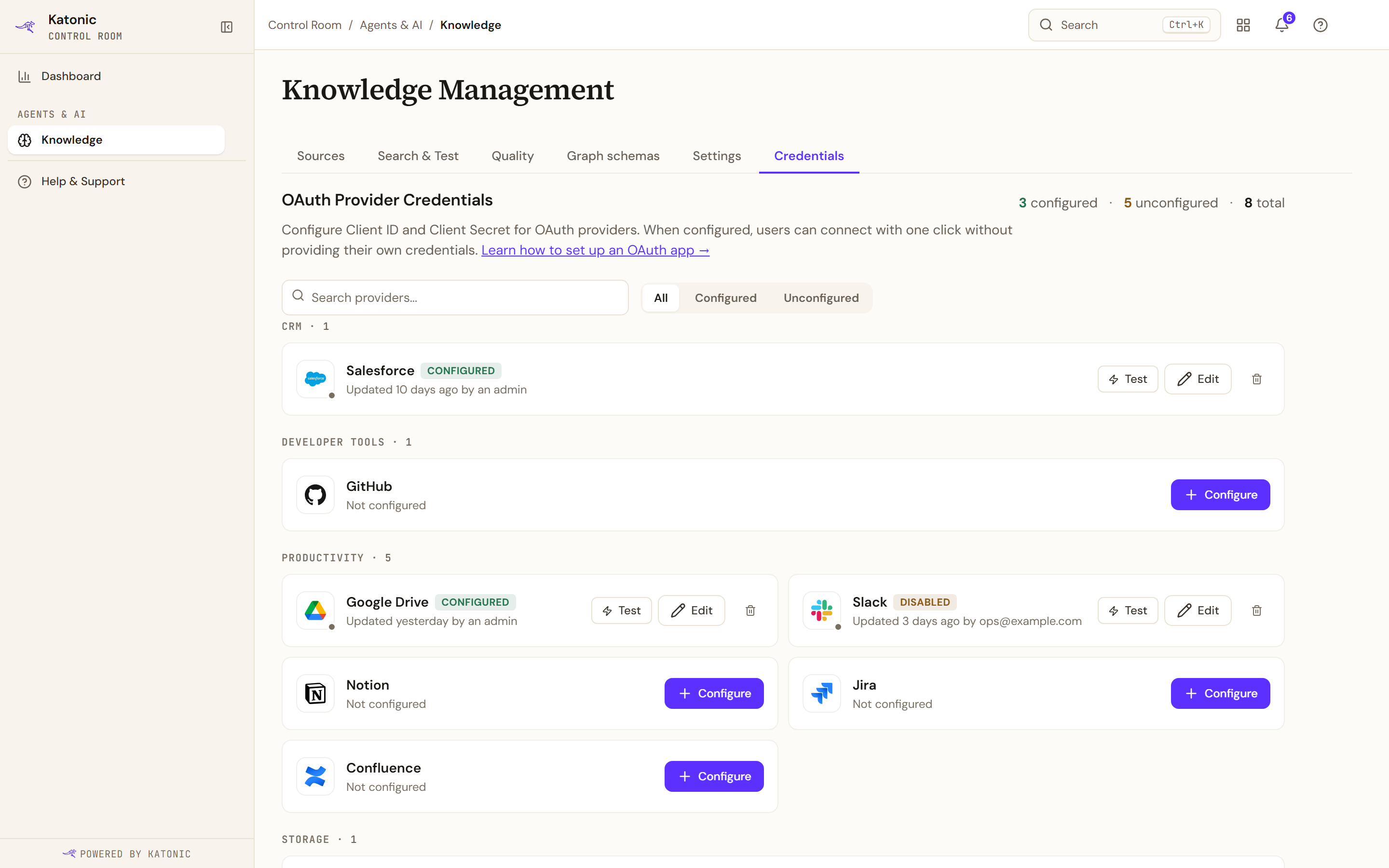
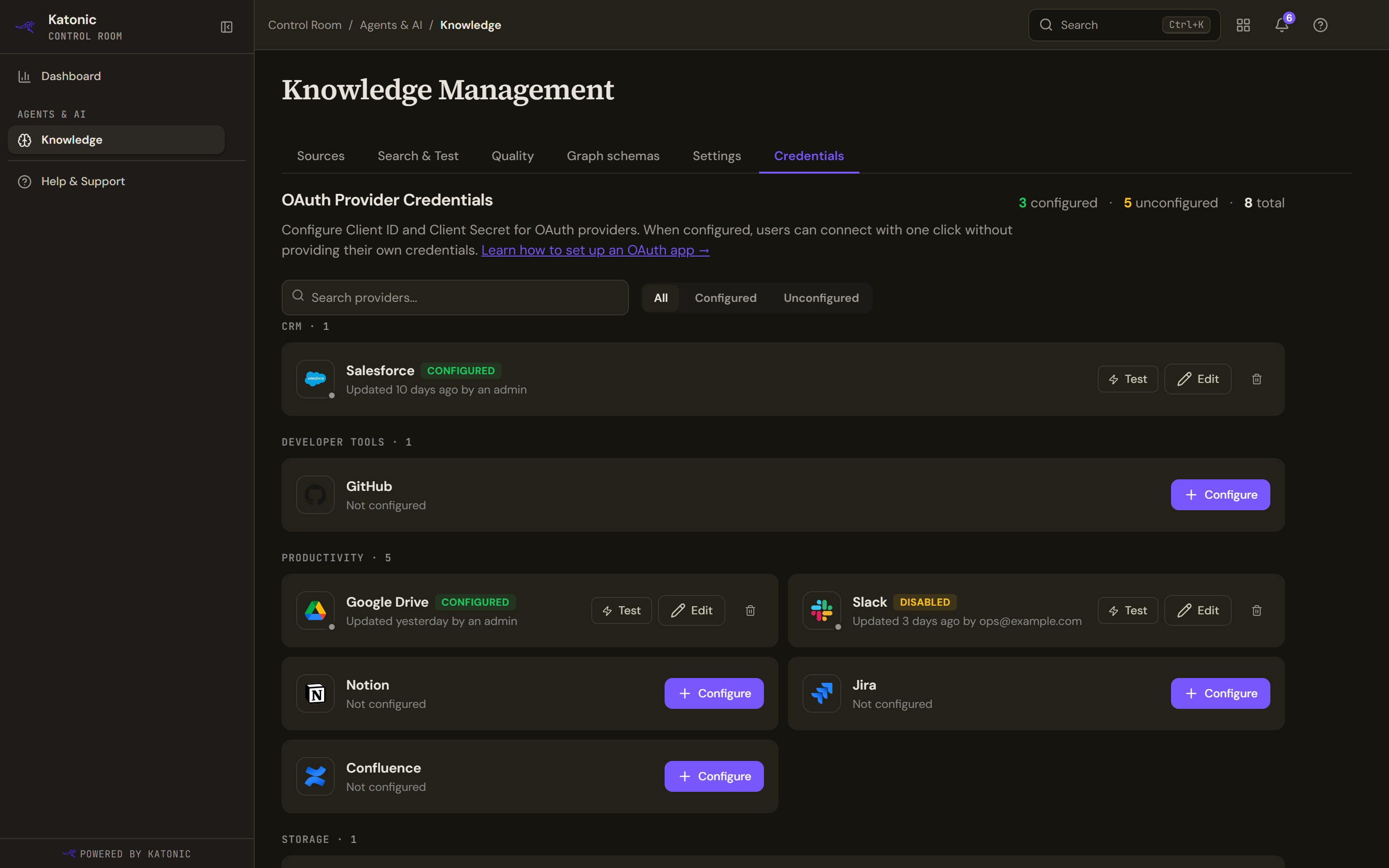
OAuth Provider Credentials, one card per connector. A configured provider shows when it was last updated and offers Test and Edit; an unconfigured one offers Configure. - Enter the OAuth app's details
Select Configure. The dialog names the provider and asks for the Client ID and the Client Secret. Providers that need it also ask for an Instance Subdomain, shown with the provider's domain after it, or a Directory (Tenant) ID, so that sign-in goes to your directory rather than the common endpoint.
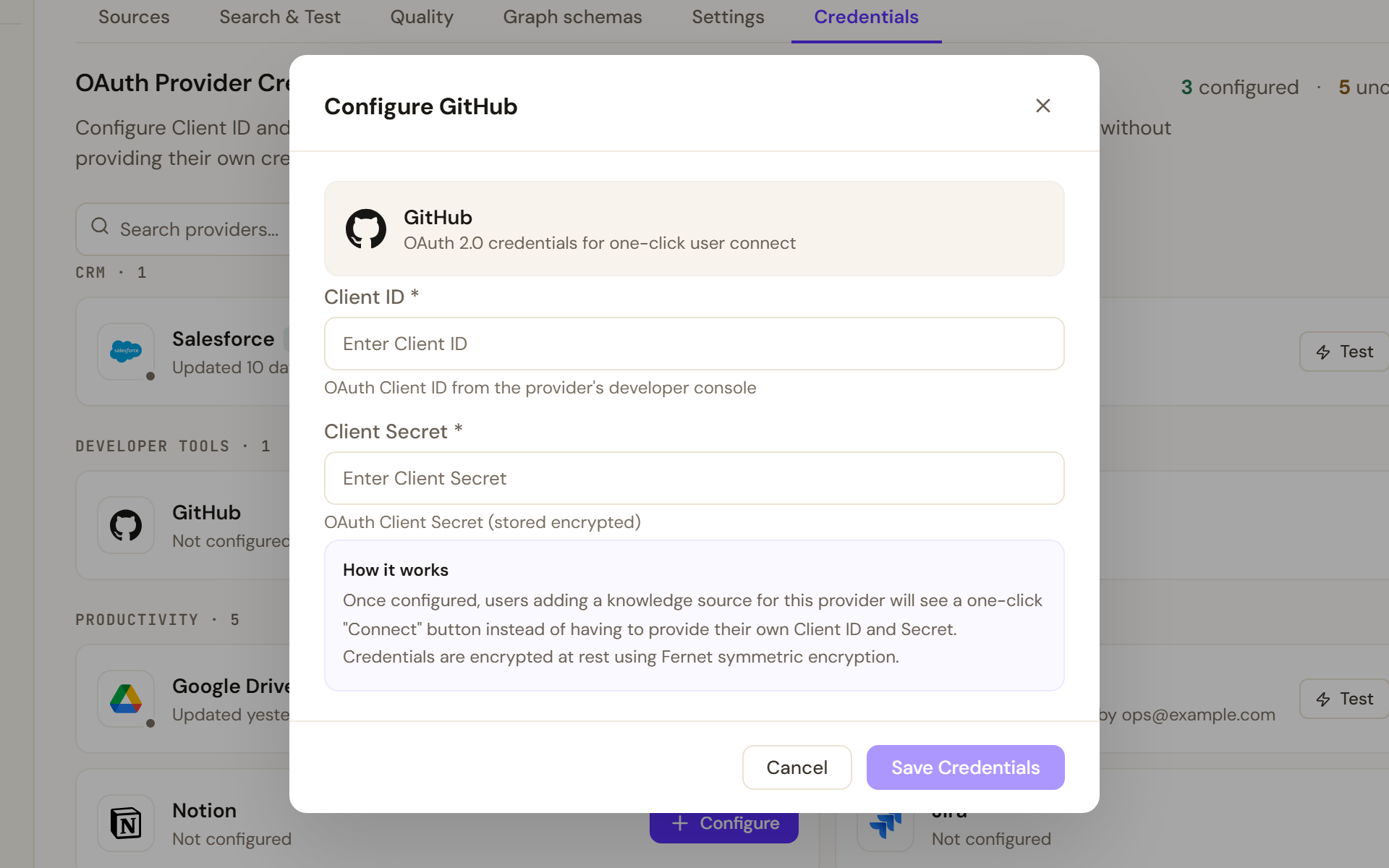
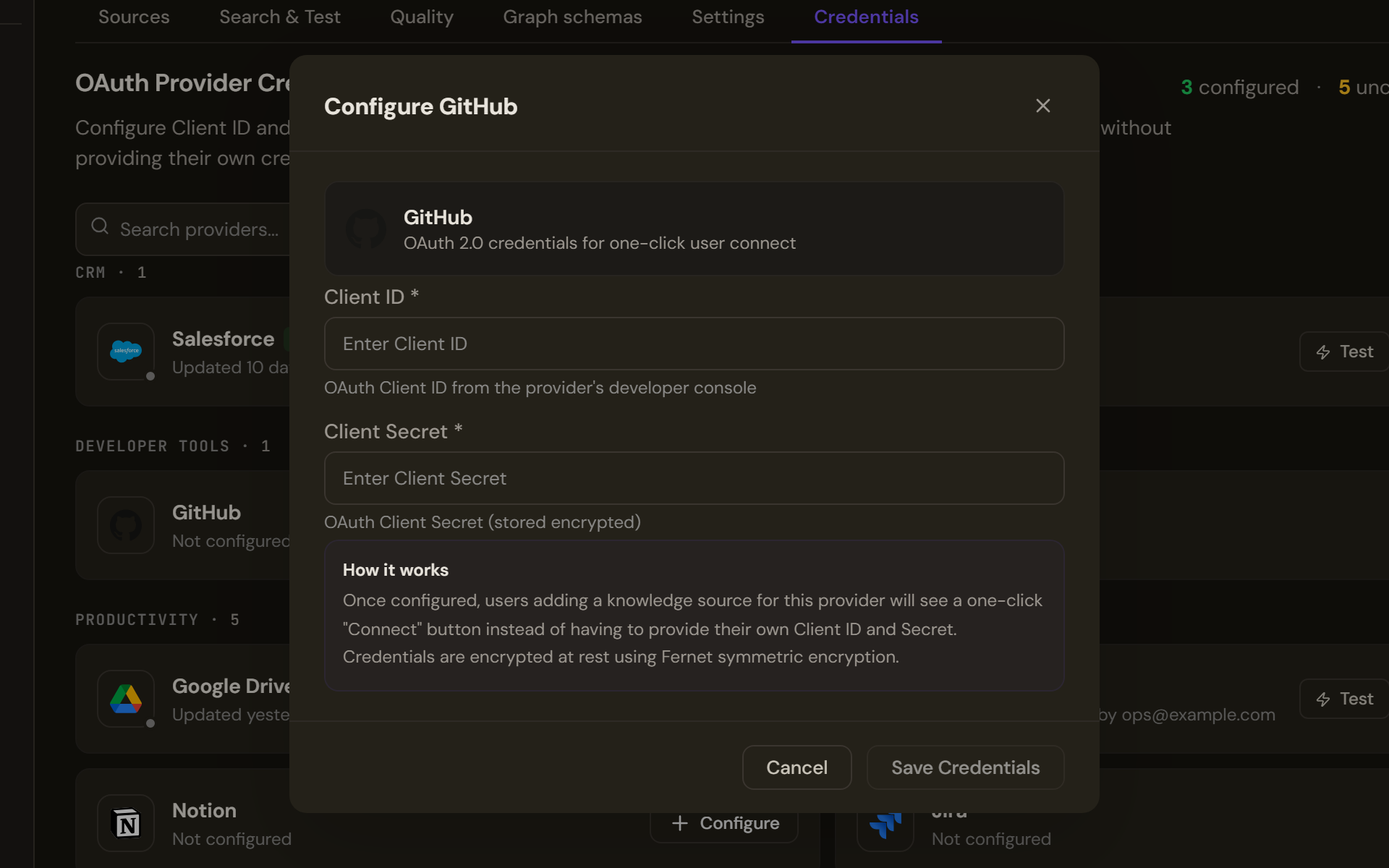
Configure asks for the OAuth app's Client ID and Client Secret. Providers that need it also ask for an Instance Subdomain or a Directory (Tenant) ID. Save Credentials stays disabled until the required fields are filled. - Save
Select Save Credentials. It stays disabled until the Client ID and Client Secret are filled and any subdomain or tenant ID is well formed. A toast confirms the provider was configured and the card switches to Configured.
- Test the credential
Select Test. The platform attempts a token exchange with the provider and reports the result in a toast; the card's status dot keeps the latest result while you stay on the tab.
Change or remove a credential
- Edit reopens the dialog with the Client ID, and any subdomain or tenant ID, filled in. The secret is not filled in: enter it again, then Save Credentials.
- A card marked Disabled holds a credential that is configured but turned off; open Edit and save to re-enable it.
- Remove credentials asks you to type the provider's name and confirm. It removes the stored Client ID and Client Secret: people then have to provide their own credentials, or an administrator must reconfigure the provider before one-click sign-in works again.
Verify
The provider's card reads Configured with an Updated line, and Test reports success. In the Add Knowledge Source wizard, that provider's Configure step offers Connect with the provider without asking for a Client ID or Client Secret.
Troubleshooting
- Client ID and Client Secret are required: both fields must be filled before saving.
- Instance subdomain is required for this provider or Invalid subdomain. Use letters, digits, and hyphens only (1-63 chars).: enter only the subdomain, not the full address.
- Invalid tenant id. Use a GUID or a verified domain (letters, digits, dots, hyphens).: copy the Directory (tenant) ID from the app registration's overview.
- Test failed, or the dot reads Last test failed with the provider's message: the provider rejected the token exchange. Check the Client ID and Client Secret, and that the OAuth app is enabled at the provider.
- OAuth catalog could not be loaded: the knowledge engine returned no providers. Refresh; if it persists, ask your administrator.
- Could not load data. Please try again.: the provider list could not be fetched; the counts show as dashes until it loads.
- No providers match: change the search term or clear the filter. No providers configured yet appears under the Configured filter on a fresh tenant; Browse all providers returns to All.