Govern knowledge graphs with schemas
Knowledge
A graph schema is the vocabulary a knowledge source's domain graph promises to keep: which node types exist, which properties identify each node, and which relationships may connect them. You author schemas on the Graph schemas tab of Knowledge Management and attach a published version to a source, so that every load into that source's domain graph is checked against it.
Who can use it: the Admin role or the Knowledge Admin grant, in a tenant licensed for knowledge, in Control Room under Knowledge. The same roles open a source's Domain graph tab.
How it works
A source's domain graph
Every source's detail page has a Domain graph tab: a separate, typed layer of nodes and relationships that agents query with a graph query tool. It does not change search ranking, and the source's documents are searchable regardless. The tab has four views:
- Ontology, the default: one card per node type with its count, properties and sample values, then a Relationships list with edge counts.
- Canvas: an interactive drawing of the graph with Search the graph…, a Node types legend, Fit, Re-layout, saved Views and Export. Select a node to inspect it, double-click to expand it.
- Explore: pick a Node type, add property filters and select Run query; results are capped at 50 rows, and a row shows its Connections one hop away.
- Schema: the source's schema posture, described below.
A graph fills in one of two ways. When a schema is attached, the platform extracts typed nodes and relationships from the source's documents during a reindex, which attaching a schema starts for you. Alternatively, Load data takes JSON files of nodes and edges from your own extraction pipeline, with Replace the existing graph choosing between a refresh and a merge. Until then the tab says No graph data and offers Set up a schema.
What a graph schema is
A schema declares Node types, each with a label, an optional Display name and properties (a name, a type of string, number, boolean or date, and whether it is part of the Key, is Required or has Allowed values), and Relationships, each a relationship type from one node type to another. Validation is open-world: properties on loaded data that the schema does not declare are always fine.
A schema is a series of numbered versions. A Draft is editable; a Published version is immutable and sources attach that exact version. To change a published schema you create a New version, which clones it into a fresh draft. The Graph schemas tab lists one row per schema with its Versions, Node types, Relationships and Updated time, filtered by All, Drafts or Published.
How a schema is attached and checked
The Schema view of a source's Domain graph has three cards. Attached graph schemas lists the attached versions; pick one under Pick a published schema… and select Attach, or detach one from its chip. Publishing a newer version changes nothing until you attach it. Enforcement is Off (loads are accepted as they are), Advisory (loads are validated, always accepted, and violations are reported: the safe default) or Strict (a load with any violation is rejected whole). Conformance shows the last evaluated load: nothing yet, Last load conforms to the attached versions, or a count of violations with a report grouped by rule (such as Unknown node label, Missing key property or Unknown relationship) with examples. Acknowledge & baseline clears the badge while keeping the report.
The same posture appears as a pill in the Domain graph header and on the Sources table for rows that carry a domain graph.
The knowledge engine's Entity graph setting is a different thing: entity extraction at ingest that boosts or injects related passages at query time, separate from any source's domain graph. See Tune the knowledge engine.
Create, publish and attach a schema
- Start a draft
On the Graph schemas tab, New schema opens an empty editor. New from source opens Promote a schema from a source: choose a Source with a domain graph and select Discover schema. The source's loaded graph (labels, properties, observed values) becomes an editable draft, and nothing is saved until you save it. A source's Ontology view offers the same as Promote to graph schema.
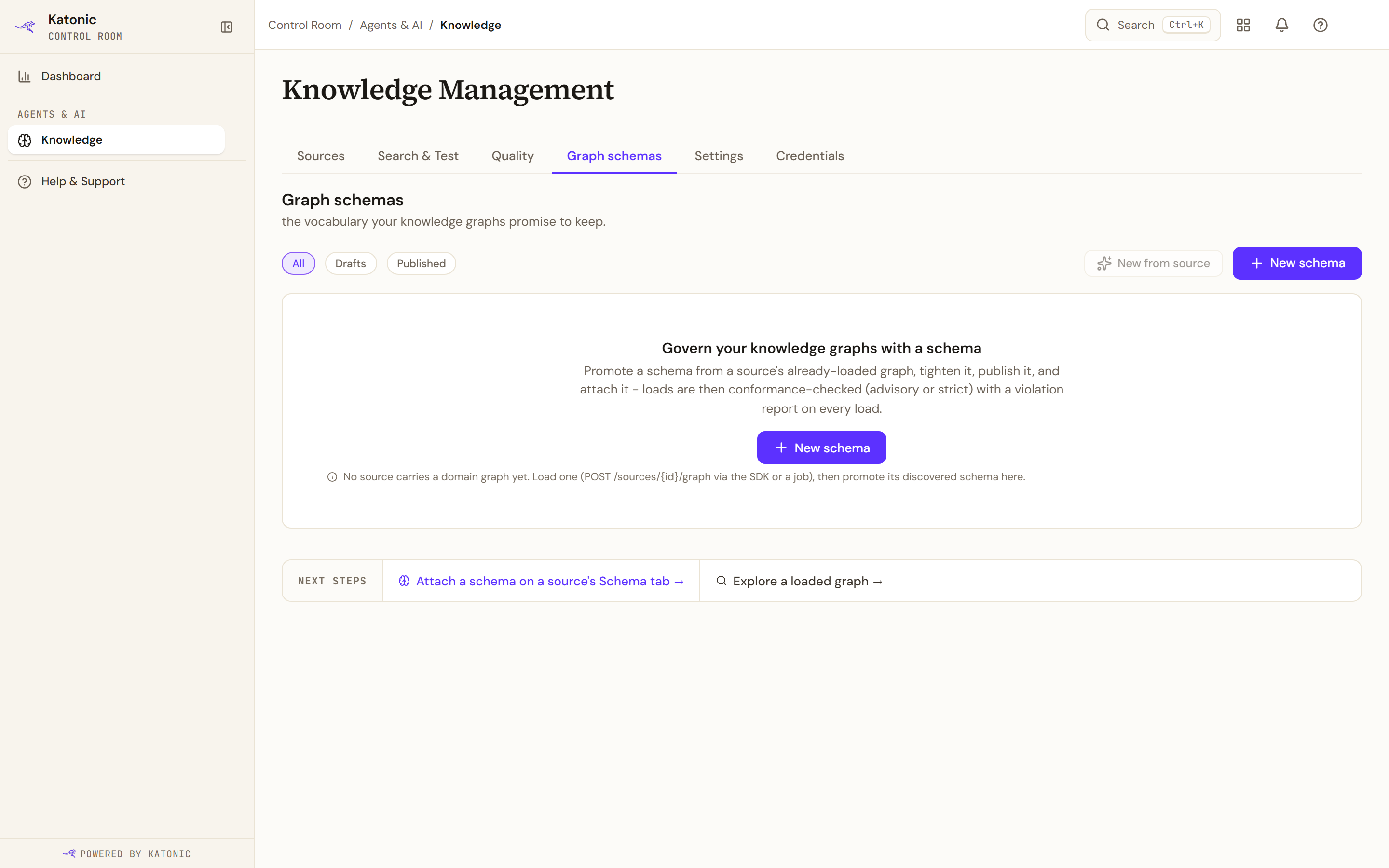
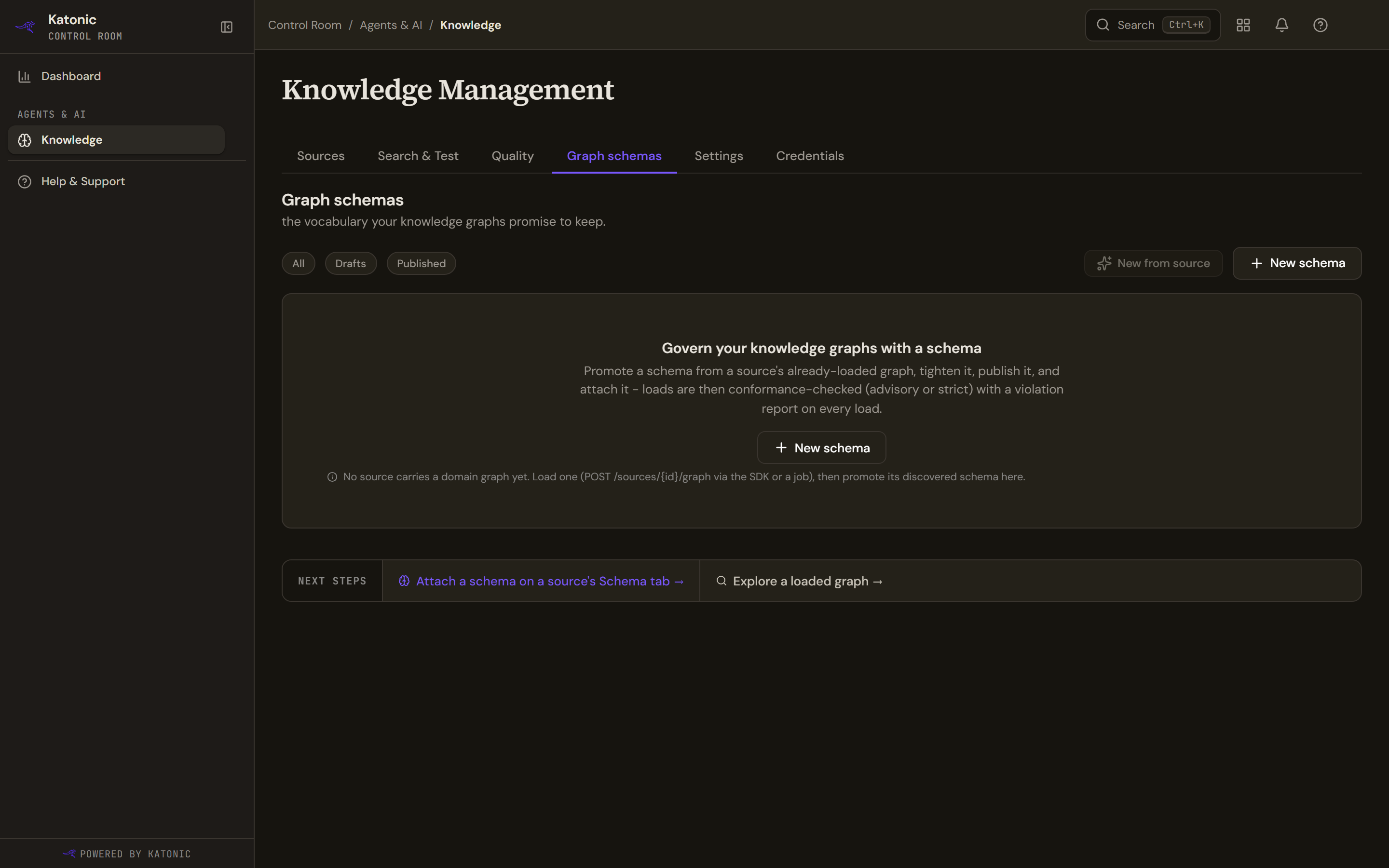
The Graph schemas tab before any schema exists. Filter by All, Drafts or Published; New schema starts an empty draft, and New from source promotes a draft from a source that already carries a domain graph. A source's Schema view adds a Create a schema card: Generate a schema from your documents drafts one from the source's text, and Import schema (JSON) takes your own file; both publish and attach the schema in one action with Advisory enforcement and start a reindex.
- Define node types and relationships
Give the draft a Schema name and a Description. Add node type adds a card: type its label, add properties, tick Key on those that identify a node and Required on those every node must carry, and list Allowed values for coded fields. Add relationship takes a from node type, a relationship type and a to node type. The Fix before saving: banner lists what still fails; Save draft stores the draft and Cancel leaves the editor.
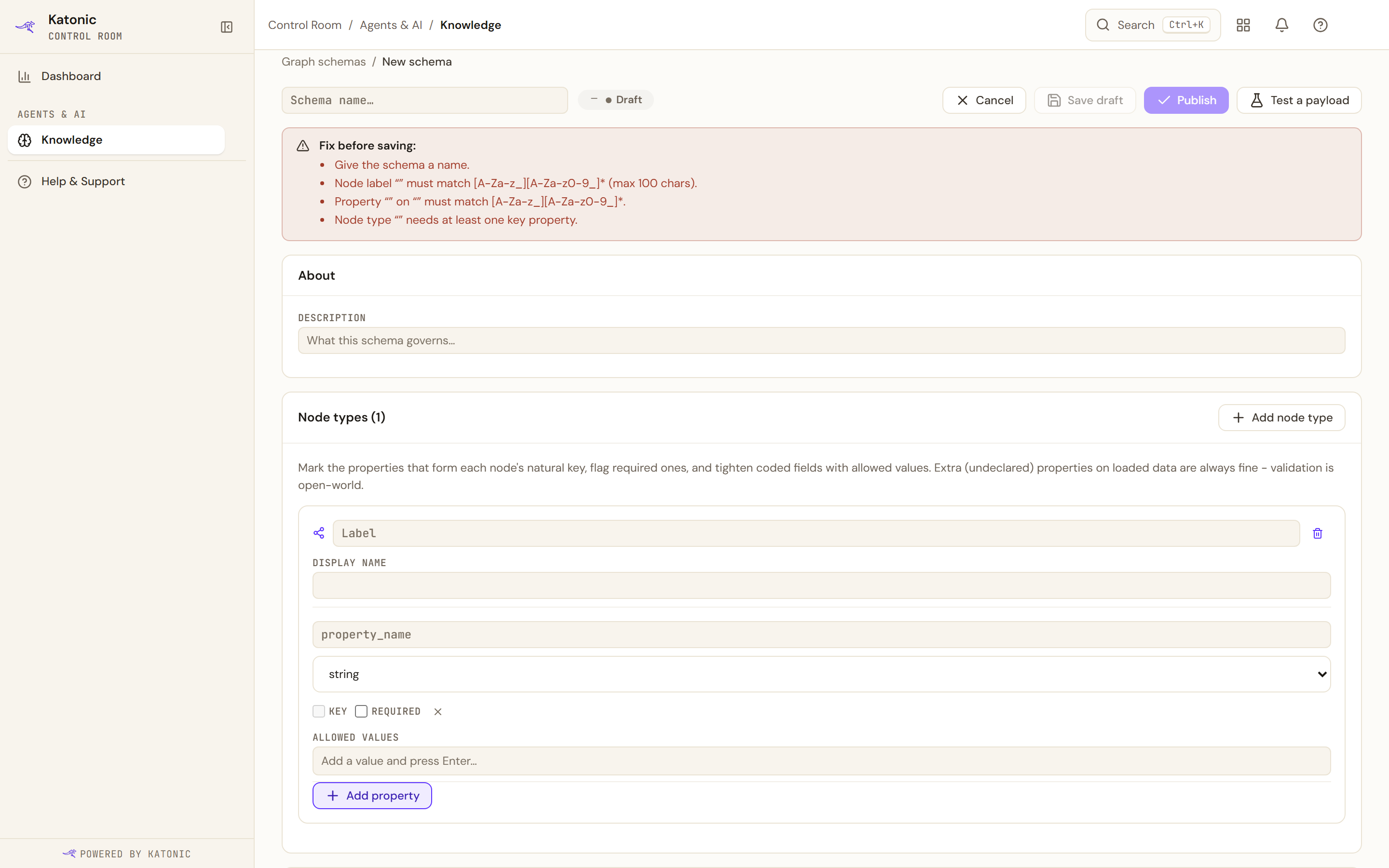
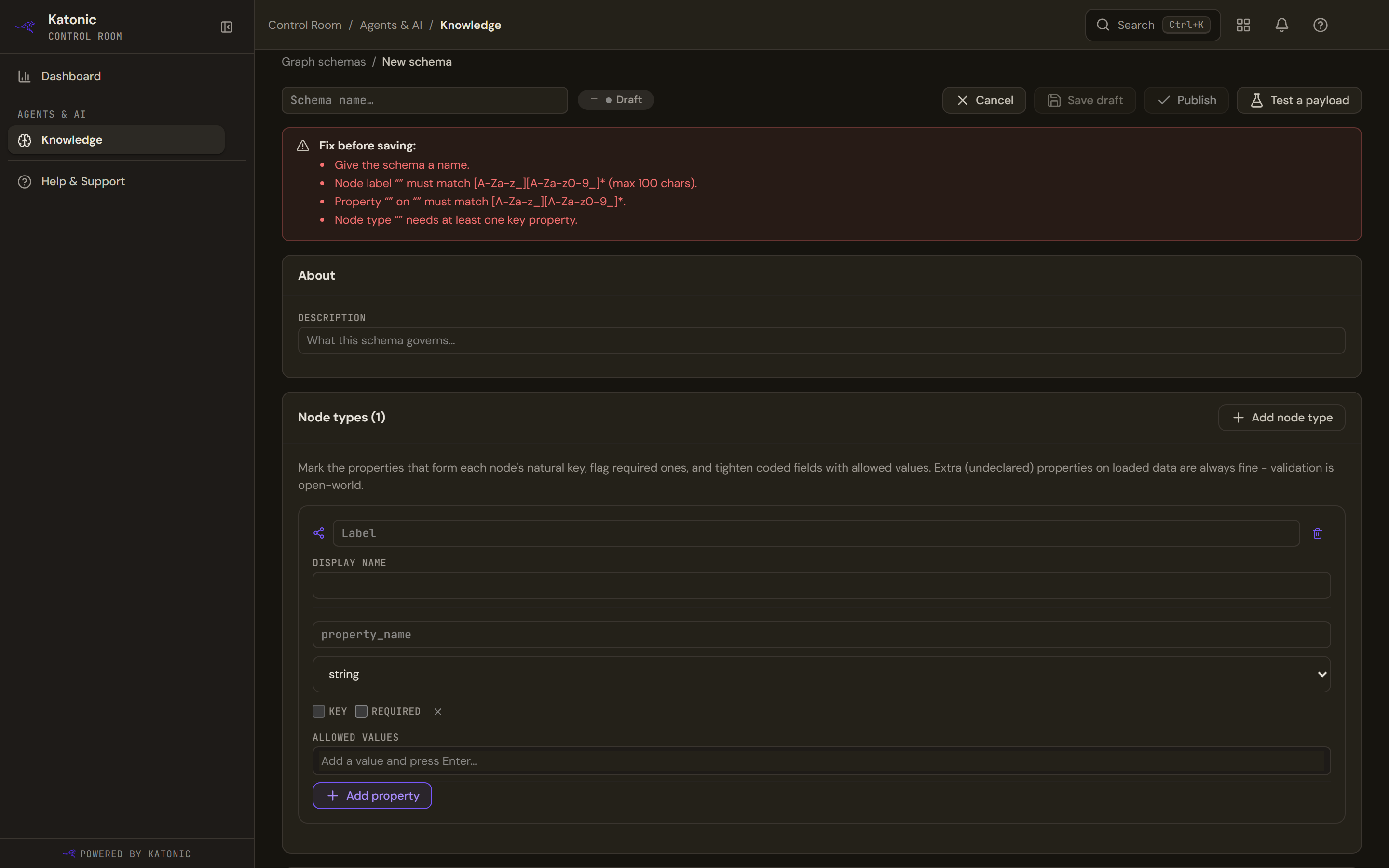
A new draft in the schema editor. Fix before saving lists what the definition still needs; each node type card takes a label, its properties and which of them form the key. Save draft keeps it editable, Publish freezes the version. Test a payload validates a pasted payload against the definition without writing anything.
- Publish
Select Publish and confirm. The confirmation reminds you to attach it to a source to enforce it.
- Attach and choose enforcement
Open the source, then Domain graph, then Schema. Pick the version, select Attach and set Enforcement. Start with Advisory, and move to Strict once Conformance reports a clean load.
Limits and behaviour
- Labels, property names and relationship types start with a letter or underscore, use only letters, digits and underscores, and are at most 100 characters. entity, chunk and document are reserved labels; relates_to, mentions and mentioned_in are reserved relationship types.
- Every node type needs at least one property and at least one key property; Allowed values apply to string properties only; a relationship must point at declared node types.
- Deleting a draft removes it permanently; deleting a published version archives it, and a version attached to a source cannot be deleted until it is detached. A schema has one open draft at a time.
- Attaching a schema whose declarations clash with one already attached is refused. Strict has no effect while nothing is attached.
- A payload file holds at most 10,000 nodes and 20,000 edges, and one load takes up to 50 files; a load that stops part way resumes from the failed file with Retry from.
- When the graph backend is unreachable the tab says Graph unavailable; search on the source is unaffected.