Tune the knowledge engine
The Settings tab of Knowledge Management configures the knowledge engine behind every knowledge source: how documents are parsed and split, which embedding model turns them into vectors, how retrieval ranks results, and what curators may do with document metadata. A change applies to every source and takes effect without a restart.
Who can use it: the Admin role or the Knowledge Admin grant, in Control Room under Knowledge. A Super Admin's changes are saved platform-wide; another administrator's changes apply to your organisation only.
Prerequisites
- An embedding model in the AI Gateway's Embedding tier. The Model field lists those models; without any, you can type a model ID.
- For GPU parsing, an NGC API key on the Credentials tab of Platform Settings and GPU capacity.
How settings are layered
Defaults come from the environment. Overrides are stored at two levels, platform-wide and per organisation, and merged on every request. A field marked Override was customised at your level: Reset removes the override, and Reset section clears every override in a section. Inherited marks a platform-wide value you cannot reset here; Unsaved marks an edit not yet saved, with Undo change (the circular arrow) beside it.
Presets: stage a set of edits for review: Accuracy (larger chunks, the semantic strategy, more rerank candidates, HyDE on), Speed (small chunks, token splitting, fewer candidates, query routing, no HyDE) and Balanced (the environment defaults). Applying one asks you to confirm, then shows the changes as unsaved edits.
Search settings... filters fields, the strip of section names jumps to a section, and Advanced (N settings) reveals the rarely changed fields; the fields of HyDE, Entity graph and Document metadata are disabled while the section's first toggle is off.
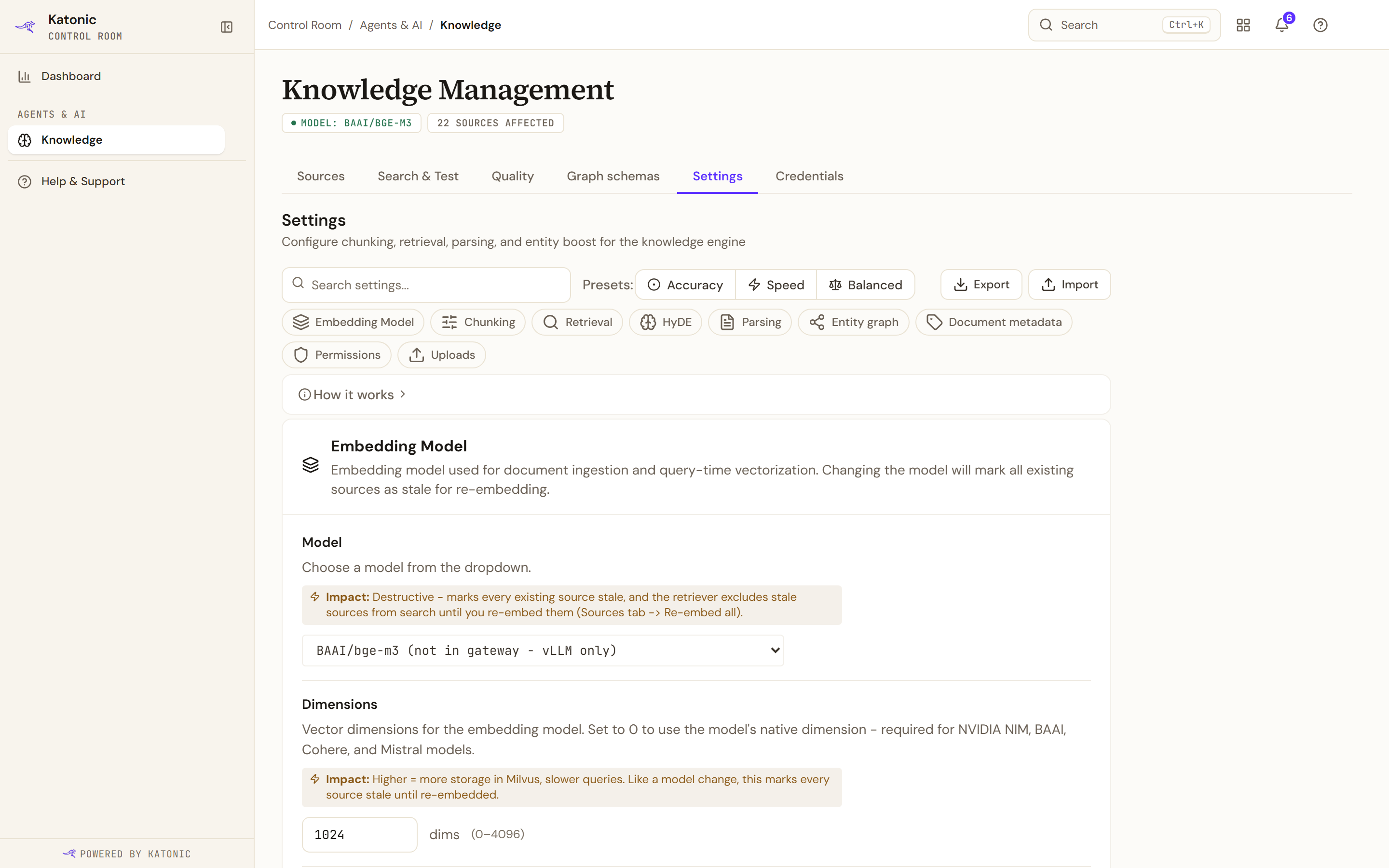
The nine sections
| Section | What it controls | What you decide |
|---|---|---|
| Embedding Model | The model, its dimensions, batch size, concurrency and vector normalisation. | Which model; changing it later re-embeds everything. |
| Chunking | Chunk size and overlap, token or semantic splitting, headings and tables. | Chunk size and overlap. |
| Retrieval | Results returned, search timeout, reranking and its thresholds, dense weight, query routing. | Whether reranking is on. |
| HyDE | Embedding a generated hypothetical answer instead of the raw question. | Extra recall against added latency and one more model call per query. |
| Parsing | CPU or GPU document parsing and image OCR through a vision model. | The parsing mode. |
| Entity graph | Entity extraction at ingest that boosts or injects related passages at query time. | Whether ingest may take twice as long. |
| Document metadata | Showing, curating and filtering by extracted metadata, and the Metadata fields registry. | Whether curators may correct metadata. |
| Permissions | Permission cache lifetimes and the pre-filter threshold. | Fresher access checks against more load. |
| Uploads | The largest file and request accepted by direct upload. | The caps for your organisation. |
Decide on day one
- Choose the embedding model
Model lists the gateway's embedding models with their dimensions and provider. Picking one fills Dimensions, Batch Size, Chunk Size and Chunk Overlap from the model's profile, shown under Auto-configured for the model. Changing the model later warns that every existing source becomes stale and needs a full re-embedding.
- Set chunk size and overlap
Chunk Size (64 to 4,096 tokens) trades context per result against precision: doubling it roughly halves the chunk count. Chunk Overlap (0 to 512 tokens) keeps context across chunk boundaries at the cost of more chunks. Strategy is token_based or semantic, Respect Headings never splits across a heading, and Table Strategy keeps a table whole or splits it by row.
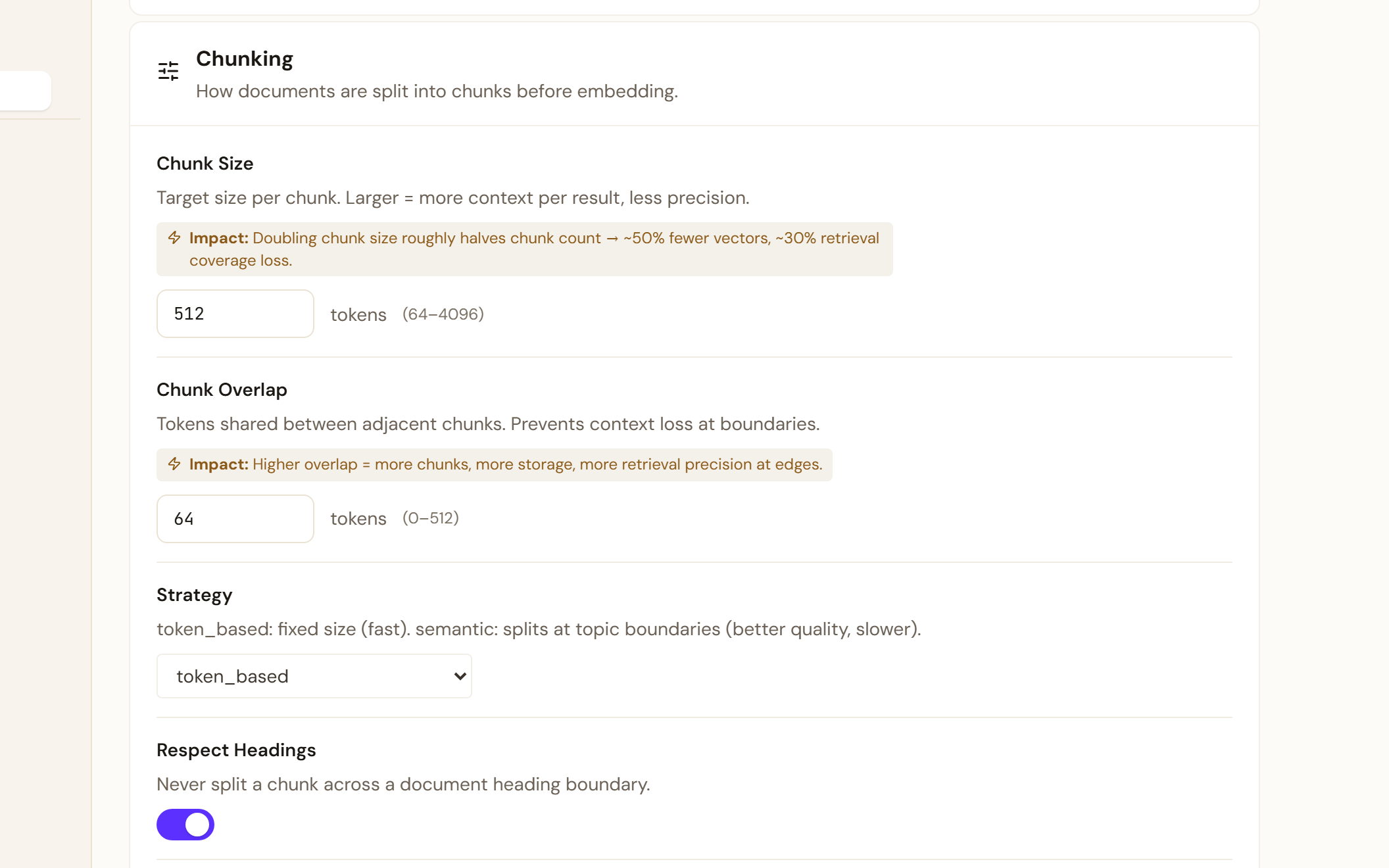
Chunking decides how documents are split before embedding. Chunk Size and Chunk Overlap are the two values to decide on day one; their Impact lines say what doubling either one costs. - Decide on reranking
Enable Reranking is on by default and calls the AI Gateway's reranking tier on every search. While no model is assigned to that tier, turn it off: results then come back in similarity order, gated by the Similarity Threshold instead of the Rerank Threshold.
- Pick the parsing mode
Parsing Mode is unstructured (CPU, the default) or nvidia (GPU, several times faster on PDFs and images, and it needs the NGC API key and GPU capacity). Image OCR (vision) is off by default and needs a vision-capable model in the gateway. Set Image OCR Model (under Advanced) to a registered vision model's exact ID: nothing validates it, and an untagged
gpt-4o-miniis only the default. - Decide on metadata curation
Enable metadata features shows extracted metadata on the Documents tab. Allow curation lets curators correct values, which are stored separately and survive a re-sync. Auto-declare found keys makes the keys documents carry filterable, and Narrow by the question (off by default) searches matching documents first. Under Metadata fields, Define a metadata field adds a custom field with a key, label and type.
Save and review
- A section with edits shows Save changes, which opens Review changes listing each field's old and new value; Confirm & Save applies them. When the embedding model or its dimensions change, the review warns This change requires re-embedding ALL knowledge sources and the button reads I understand - Save & re-embed.
- With edits in several sections, a bar counts the unsaved changes with Discard and Save all; Save all asks you to confirm, or warns that a re-embed is required.
- After a model change, sources not yet re-embedded are excluded from search and marked Stale on the Sources tab, whose banner offers Re-embed all.
Export and import
Export downloads the current settings as a JSON file. Import opens Import Settings: paste a previously exported file or Choose File, Review Changes lists what would change, and Confirm & Import overwrites the matching sections.
Verify
The saved fields show Override, the section header counts its overrides, and a toast confirms the section was saved or All settings saved. Run a query on Search & Test to see the effect.
Troubleshooting
- knowledge-engine not reachable.: the engine is down. Ask your administrator to check the service and reload.
- knowledge-engine is busy.: the request timed out, often during a large sync. Reload in a moment.
- Fix validation errors before saving: a number is outside its range or not a number.
- No active embedding models found in AI Gateway. Add models to the Embedding tier in AI Gateway, or type a model ID manually.: the gateway has no embedding model yet.
- No embedding model configured. on the Sources tab, with Connect Source disabled: save a Model here first.