Host a custom MCP image
Tools
Add MCP Server will run an image you built as a tool server on your own cluster. The platform creates a deployment and an internal address for it, discovers its tools and puts them on All tools. This page is the contract your image has to satisfy and the deploy itself; Add an MCP server covers the dialog field by field.
Who can use it: the Admin role, in a tenant licensed for tools.
What the platform expects of your image
- Serve MCP on port 8080. The pod is wired to one port, 8080. Serve the protocol there and nothing else; there is no second port and no way to publish one.
- Answer the SSE handshake. A container is registered at the server-sent-events path on that port, whichever Transport you choose in the dialog. Offer streamable HTTP as well if you like, but the handshake has to answer at the SSE path, or discovery finds the server and every call afterwards fails.
- Hold no state, and expect one replica. The deployment runs a single replica. Nothing survives a restart, so a tool that writes a file for the next call to read will work until the day the pod moves.
- Expect no inbound authentication of your own. Calls arrive from the platform over the internal address. Your server does not see an end user and should not try to authenticate one. Who may call it is decided by its access groups and your tool policies.
- Read your data at start-up. There is no volume to mount. Reference tables are either baked into the image, which makes the image as sensitive as they are and means a private registry, or fetched when the container starts. Either way, say in your health response when the data was loaded and how many rows it holds.
- Publish it where the platform may pull from. Images are accepted from a fixed set of registry prefixes, from your platform's configured registry, and from anything the catalog already knows, so a personal namespace on a public registry is usually refused. Tag versions, never a floating tag, so you can tell which build answered a call. A private image needs a pull secret, which your administrator configures once for all tool servers.
Deploy it
- Open the dialog
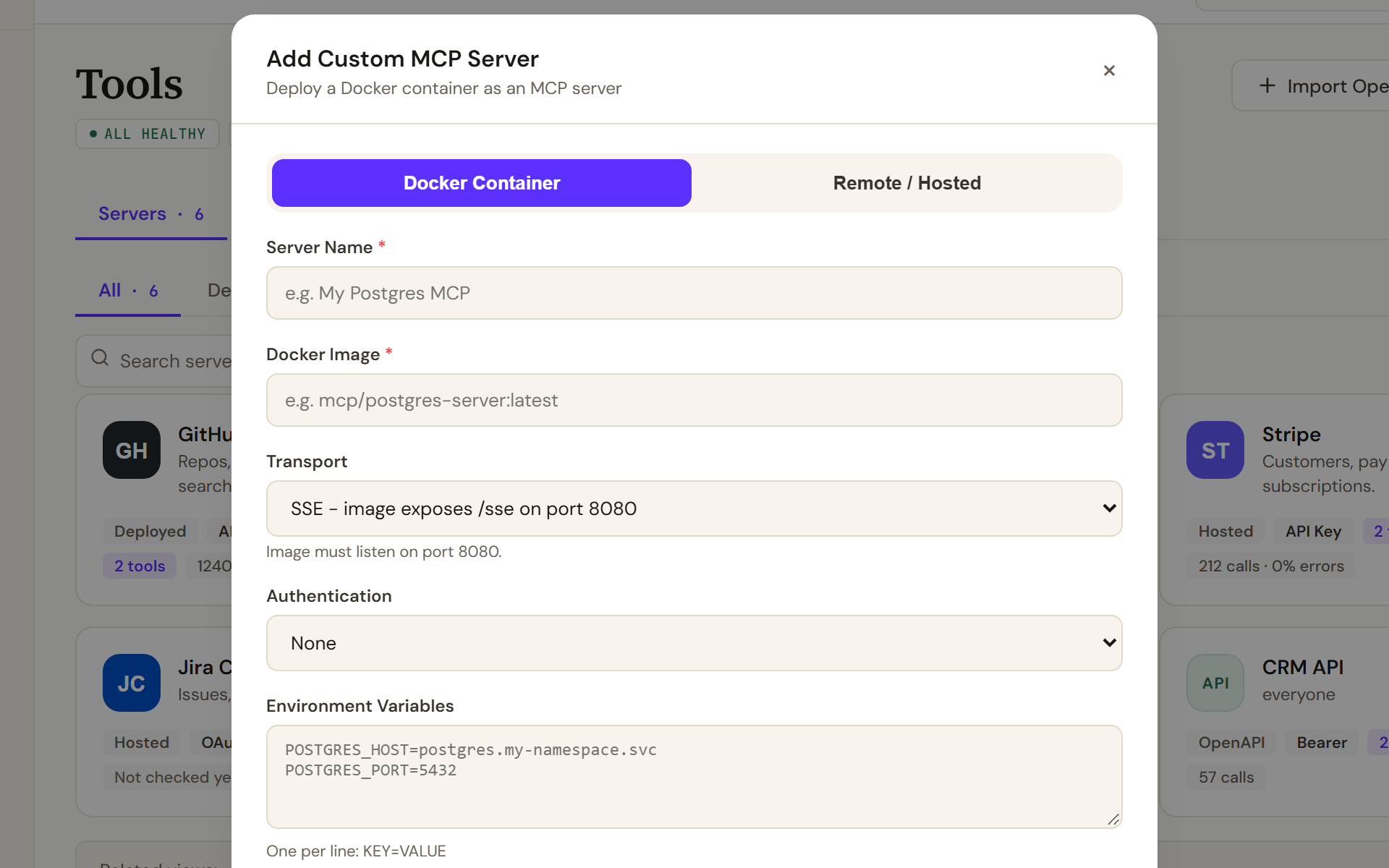
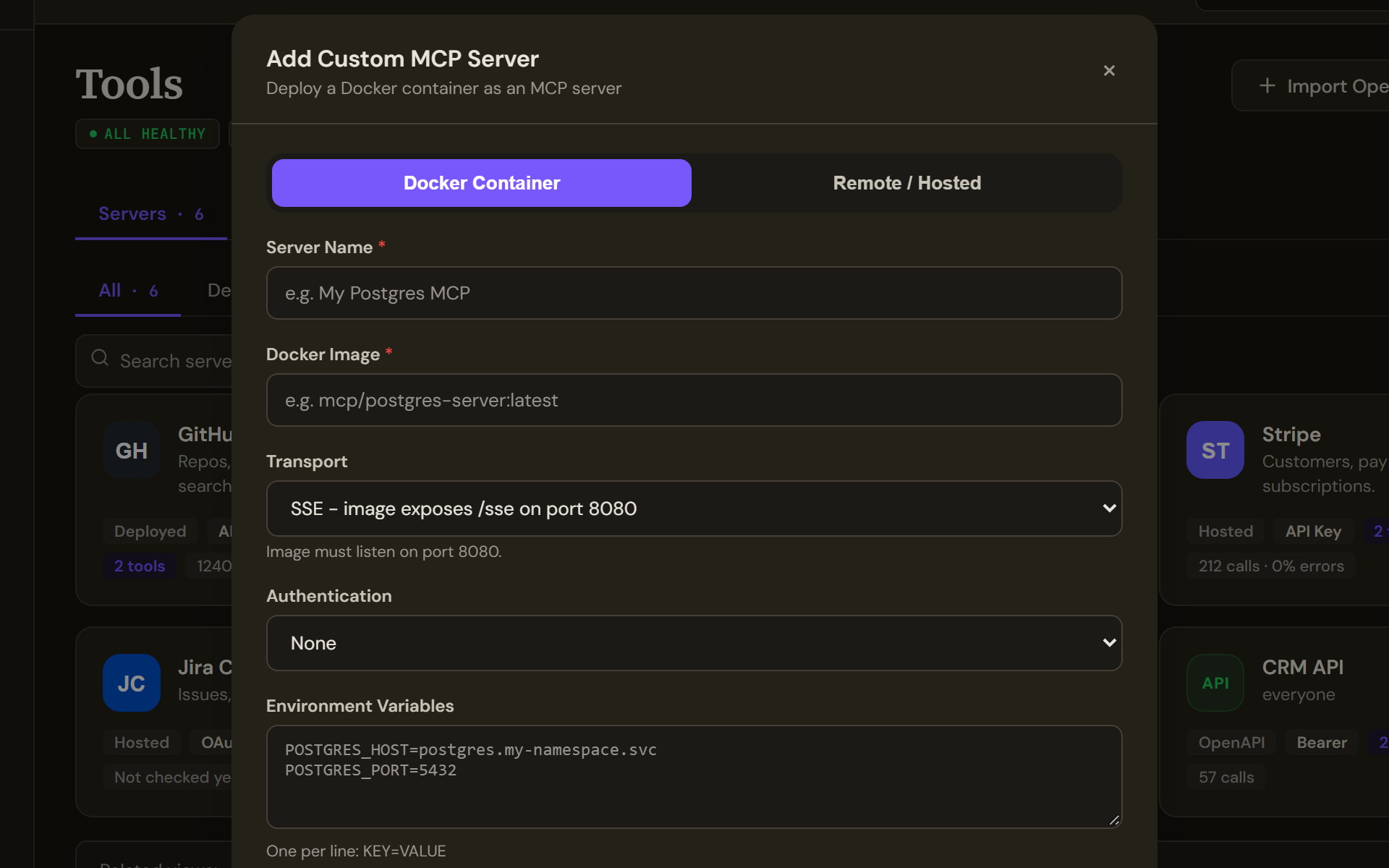
Add MCP Server opens Add Custom MCP Server for a server that is not in the catalog: deploy an image as a Docker Container, or connect to a Remote / Hosted server by its endpoint. Authentication, resources and at least one access group follow below. In the Control Room, open Tools, select Add MCP Server, and choose Docker Container.
- Name the server and the image
Enter a Server Name and the Docker Image with its tag. Set Transport to the one your server offers, remembering that the path the platform probes does not change with it.
- Pass configuration and secrets
Environment Variables takes one per line as a name and value. A handful of names are refused because they would let a value change how the container runs: the process path, home, user and shell, the Node options, the Python start-up and path variables, and anything beginning with the Kubernetes, container runtime or dynamic loader prefixes. The names the dialog itself uses for credentials are refused on the same grounds: anything beginning with the header prefix, the two auth header names, and the API key name when that is the chosen auth type. The dialog lists these problems and will not deploy until they are gone. Values are cleaned of invisible characters and trimmed before they reach the container, so a key pasted with a trailing space still works. One trap worth knowing: the server runs in the cluster, so a value pointing at localhost points at the server's own pod, not at yours. Use an in-cluster service name or a public host.
- Size it and set the groups
Pick Small, Medium or Large. A tool server that parses a few tables at start-up and answers lookups fits the smallest comfortably. Under Access Groups, choose the groups that may use its tools; at least one is required. Select Deploy.
Verify
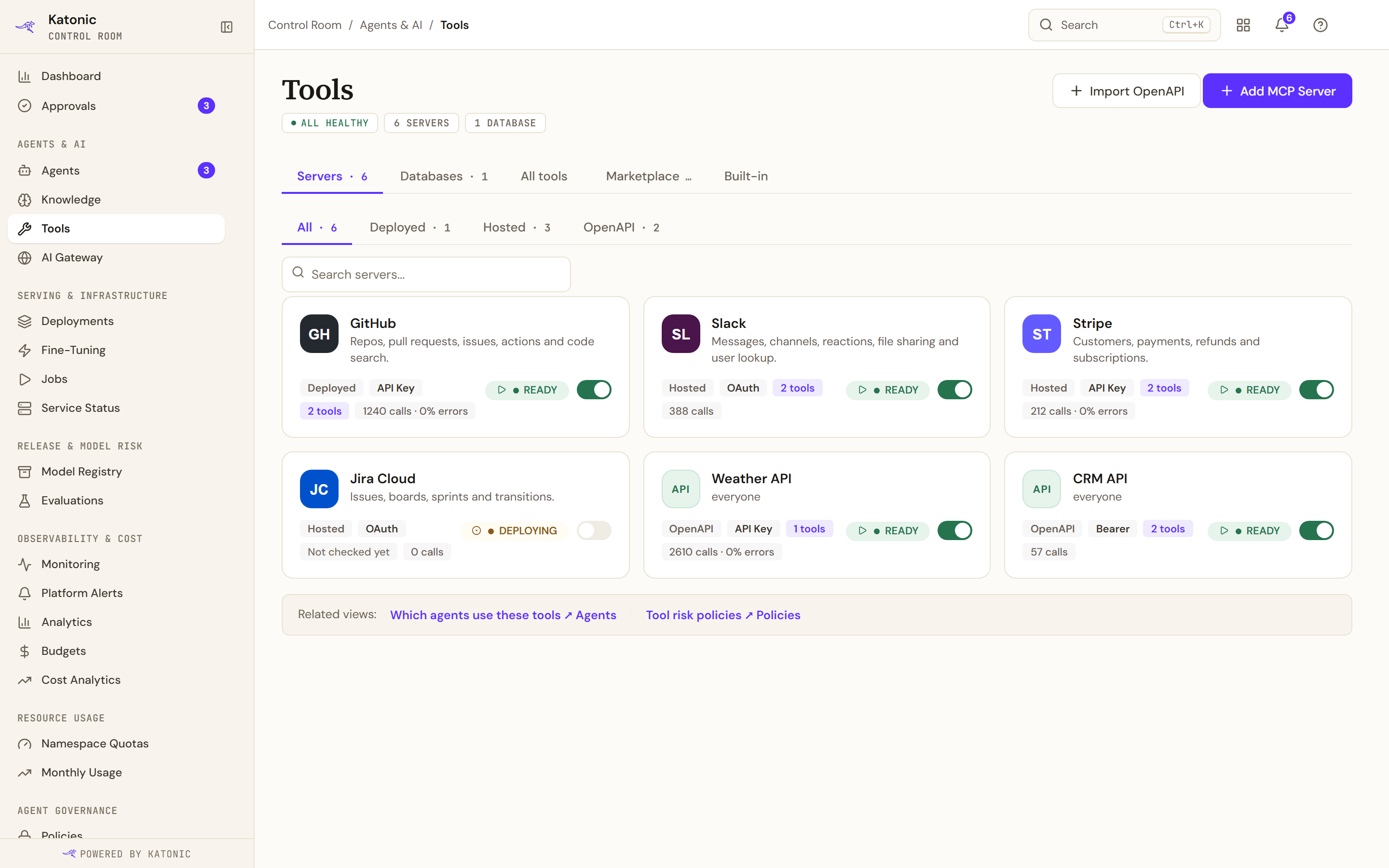
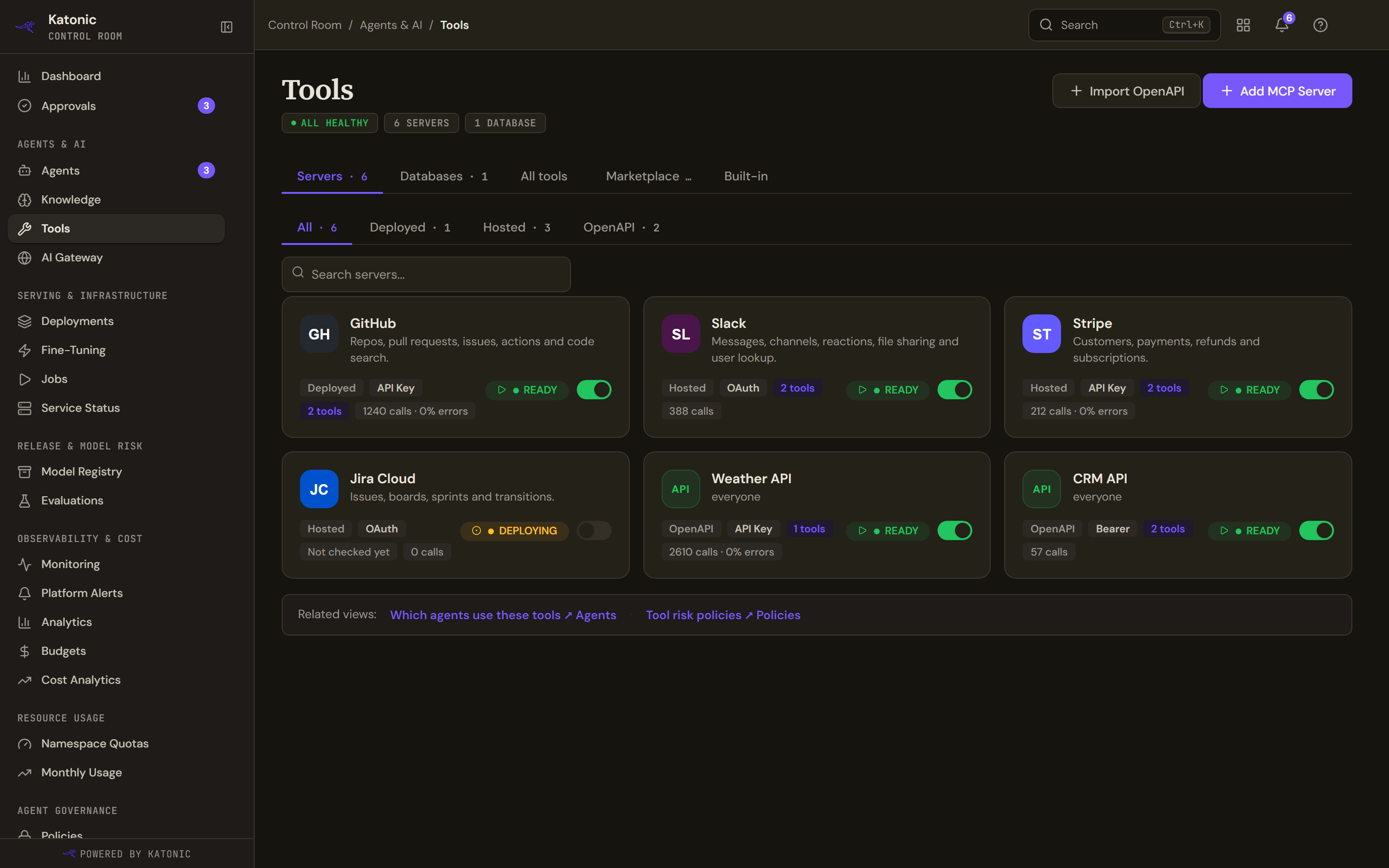
The card on Servers reads DEPLOYING, then RUNNING with a tool count. Open it: Type reads Self-hosted, Endpoint shows the internal address with Copy URL, and Tools lists what discovery found. Until it finishes, the detail says tools will be discovered after deployment.
Call one tool from the agent's test panel in Studio before you attach the server to anything. A server that lists its tools and fails on the first call is the most common outcome of a transport mismatch, and the list on its own does not catch it.
Troubleshooting
- The server never leaves DEPLOYING, or goes straight to ERROR. The image could not be pulled, or the container exited. Check that the registry is one the platform accepts, that the tag exists, and that a private image has a pull secret. Start is deliberately inert while a server is in error, so the way back is Edit and a corrected configuration, not a retry. Your platform team can read the pod's logs.
- A tool count of zero on a RUNNING server. Discovery has not finished, or it could not reach your server. Wait, then Stop and Start it from the detail to send discovery round again. Reconnect is not the control for this, whatever its name suggests: it appears only on a remote server whose OAuth has expired. If the count stays at zero, your server is not answering on port 8080.
- Tools are listed but every call fails. The transport the platform uses is not the one your server answers on. Serve the SSE handshake at its usual path on port 8080 and redeploy.
- The deploy is refused over the image. The registry prefix is not accepted. Push to your platform's registry, or ask your administrator to add yours to the accepted list.
- An environment variable did not arrive. Its name is on the blocked list. Rename it; a tool server rarely needs one of those names, and the platform will not pass it through.
- The data is stale after a refresh. Files are read once at start-up. Replace them, rebuild or repoint the source, then Stop and Start the server from its detail. There is no restart control; that pair is what stands in for one.