Go live
Going live means people can open the Work Room and use a published agent under rules you chose. In this stage you set the promotion policy, publish and promote the first agents, decide what waits for a person, set the workspace policy for the two chat rooms, and invite Members.
Who can use it: the Admin or Super Admin role. A Release Approver or Model Risk Approver decides promotions from Approvals; tool-call approvals are reserved for administrators.
Recorded on .
Prerequisites
- Agents built in Studio: the Agents page says Agents are created in Studio and published here.
- A model routed by the AI Gateway, so an agent can answer: see Configure the AI Gateway and models.
Decide how agents reach production
- Open the Governance tab
Open Platform Settings; the Governance tab opens first.
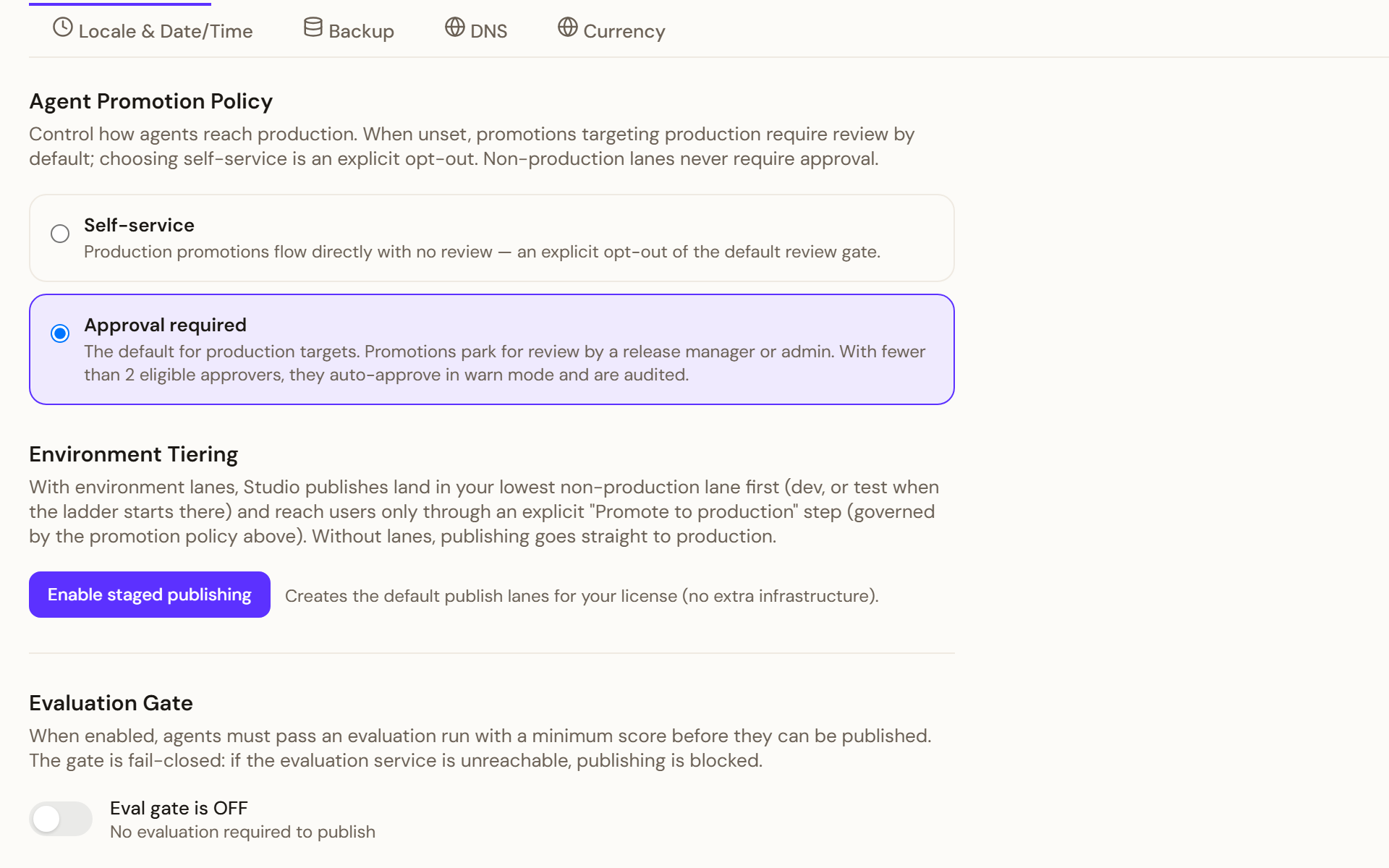
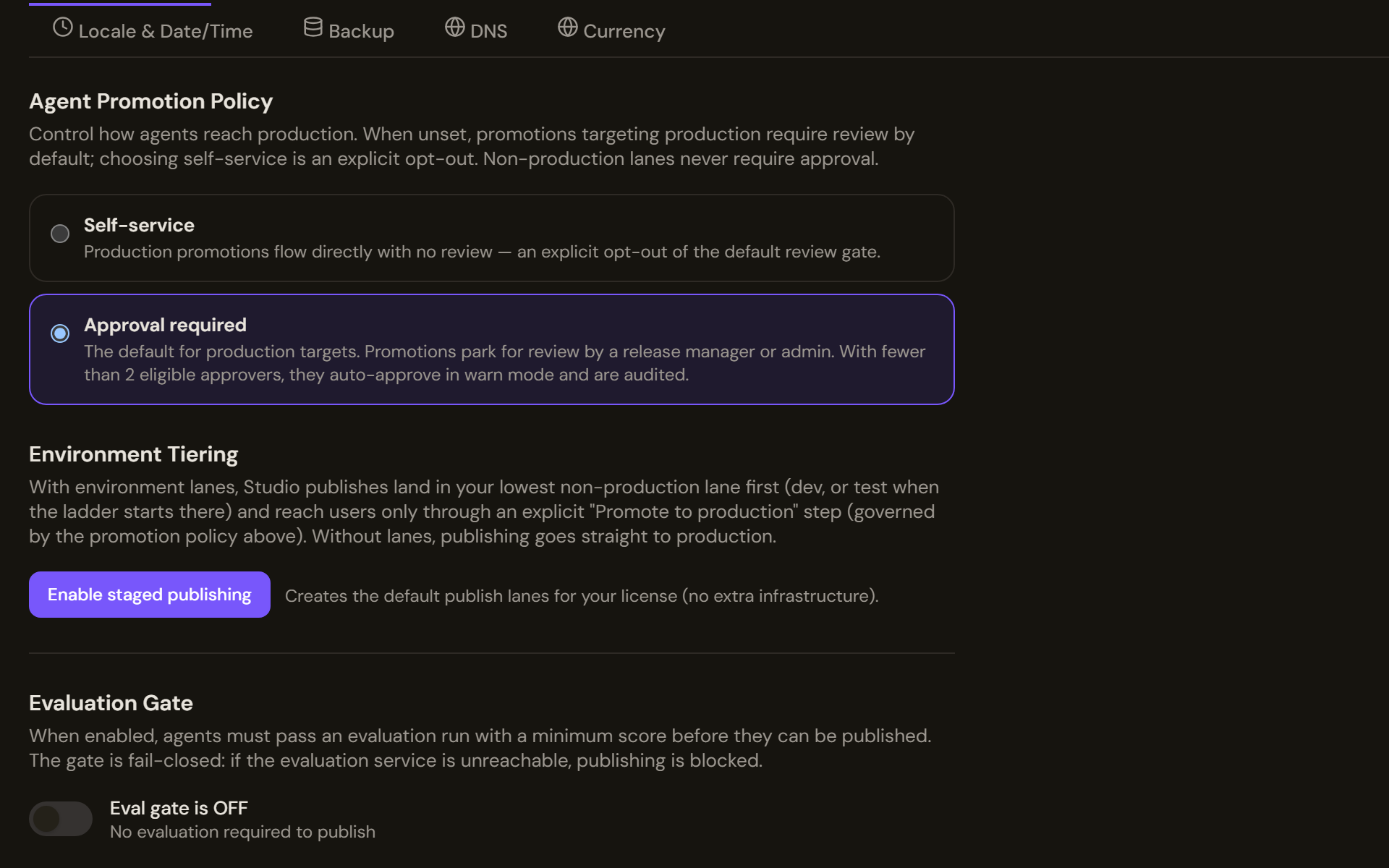
The Governance tab decides how agents reach production: the promotion policy, the staged publishing lanes and the evaluation gate. Approval required is the default for production targets. - Choose the Agent Promotion Policy
Approval required is the default for production targets: promotions park for review, and with fewer than two eligible approvers they auto-approve in warn mode and are audited. Self-service lets production promotions flow with no review. Non-production lanes never require approval.
- Decide on Environment Tiering
Without lanes, publishing goes straight to production. Enable staged publishing creates the default publish lanes: Studio publishes then land in your lowest non-production lane and reach users only through an explicit promotion. Once lanes exist, the block reads Enabled and names them.
- Set the Evaluation Gate
The gate starts off (Eval gate is OFF). Switched on, agents must pass an evaluation run before they can be published, and it fails closed: if the evaluation service is unreachable, publishing is blocked. Set the Minimum passing score (85% at first), Require evaluation to exist and Maximum eval age (No limit at first).
- Add Alert Notifications and save
Enter a Webhook URL to be told when an agent's failure rate exceeds 30% in the last hour, even when nobody has the Control Room open. Select Save governance settings in the bar that appears once you change anything.
Review and publish agents
- Find the agent
Open Agents. The filters All, Pending Review, Published, Draft, Archived and Disabled count the agents in each state, and Search agents… narrows the grid. Build new agent takes you to Studio.
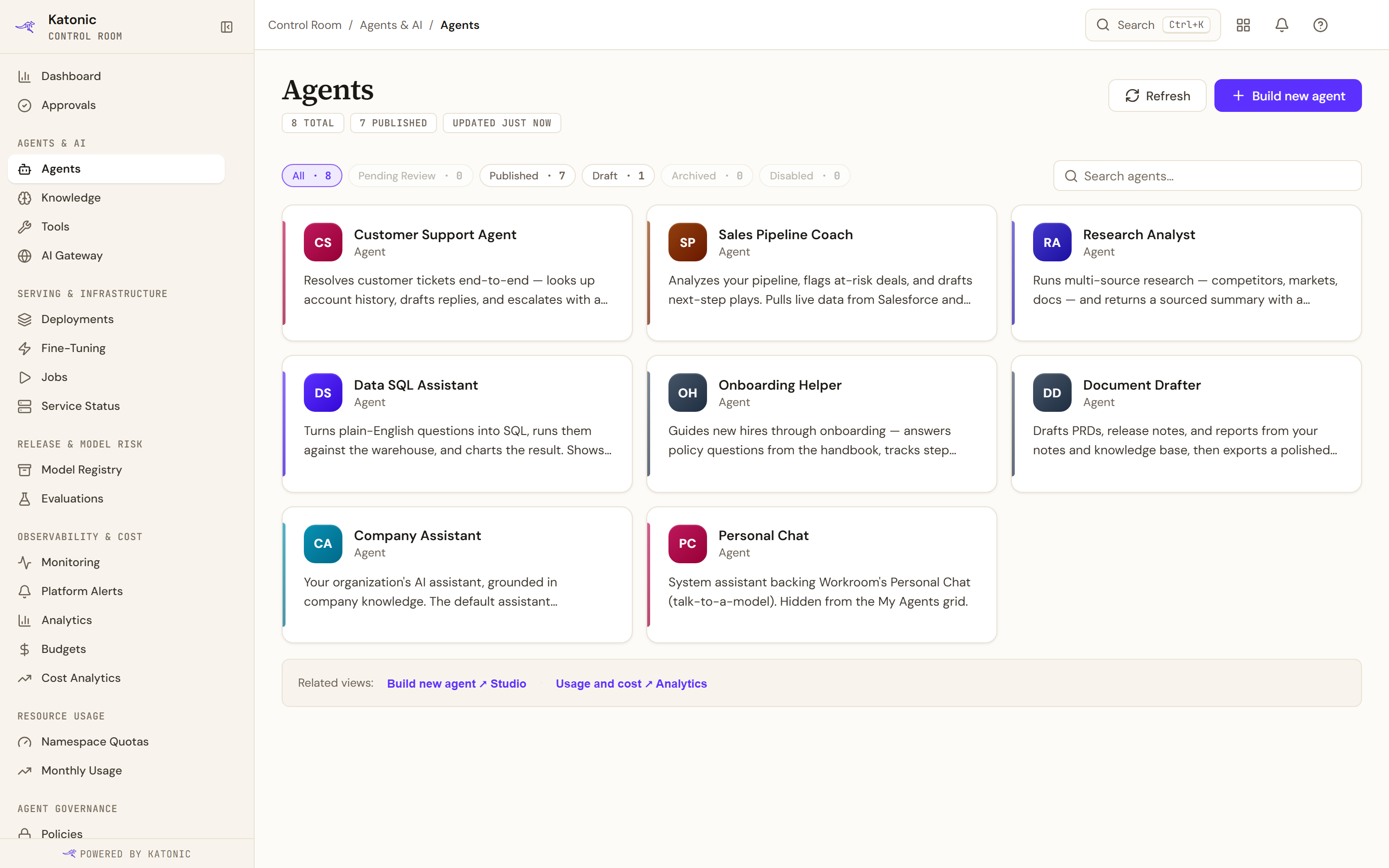
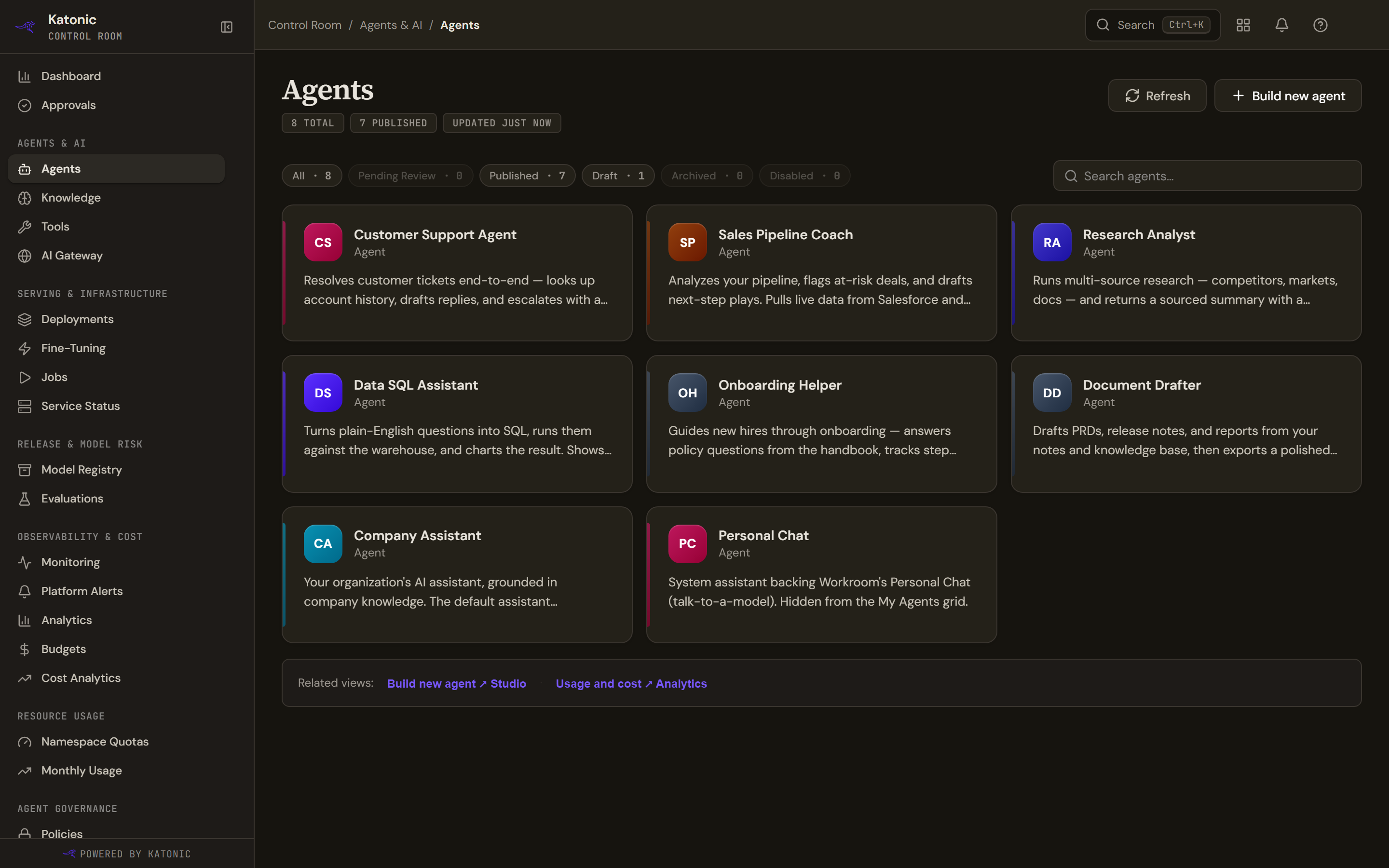
The Agents page lists every agent with its status. Filter by Pending Review to find promotions waiting for you, and select a card to publish, promote or roll back. - Open the agent
Select a card. The header offers Edit in Studio and Delete, and the tabs are Overview, Versions, Eval History, Optimization and Activity. Delete warns when the agent is live and asks you to type its slug.
- Publish a version
On Versions, the live version carries a LIVE badge. Select Publish on the version you want; it takes effect immediately for all active sessions. Set Live on an earlier version rolls back to it; on a newer version it files a promotion request instead.
- Promote to an environment
On Overview, Promote to environment lists your lanes. Pick one and select Request promotion; the promotion policy decides whether it deploys at once or waits for review. A waiting request shows on the same page as Promotion pending, with Approve and promote and Send back with notes for a reviewer. Until a version is published, the block says Publish a version first - only a published version can be promoted.
Decide approvals
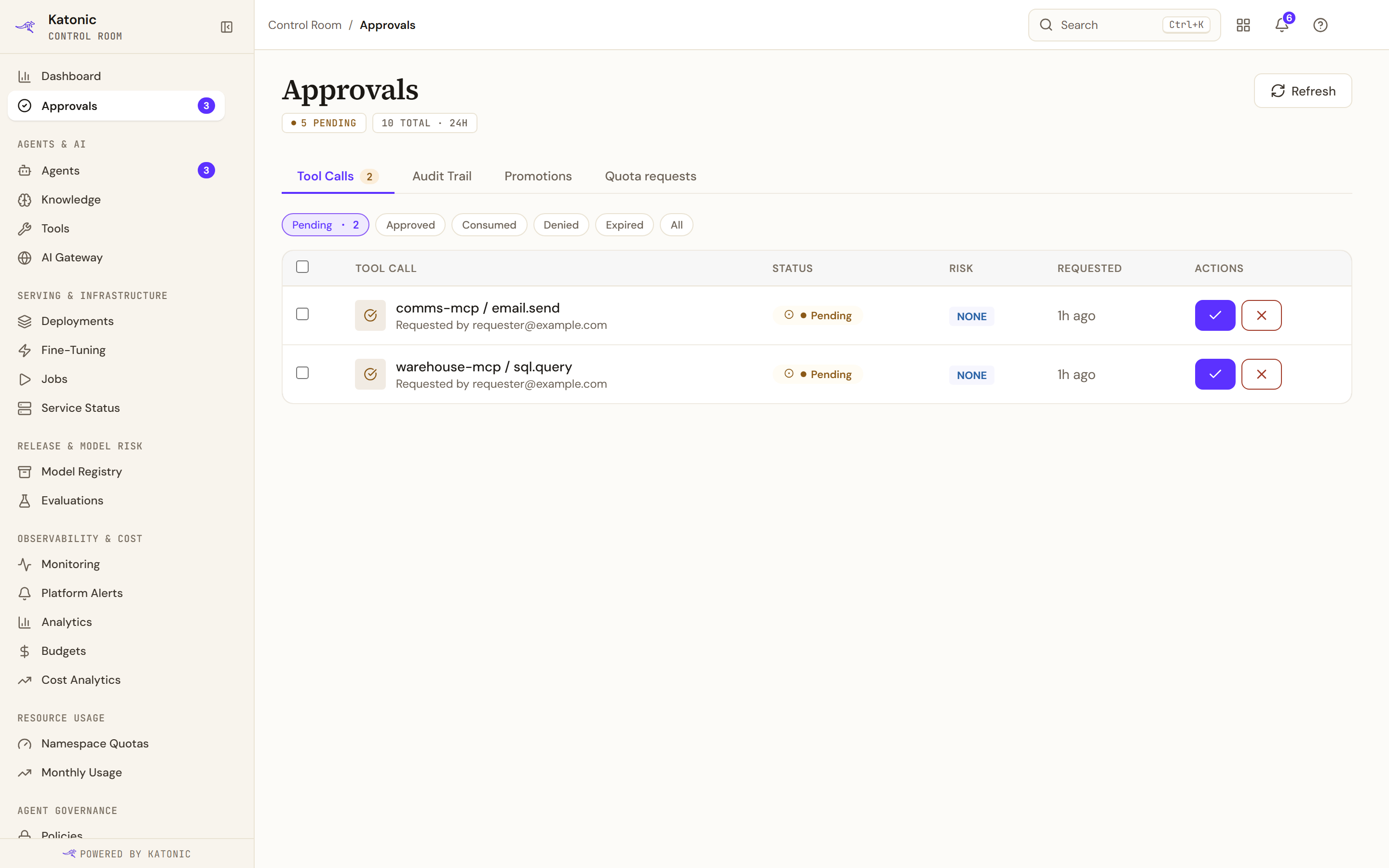
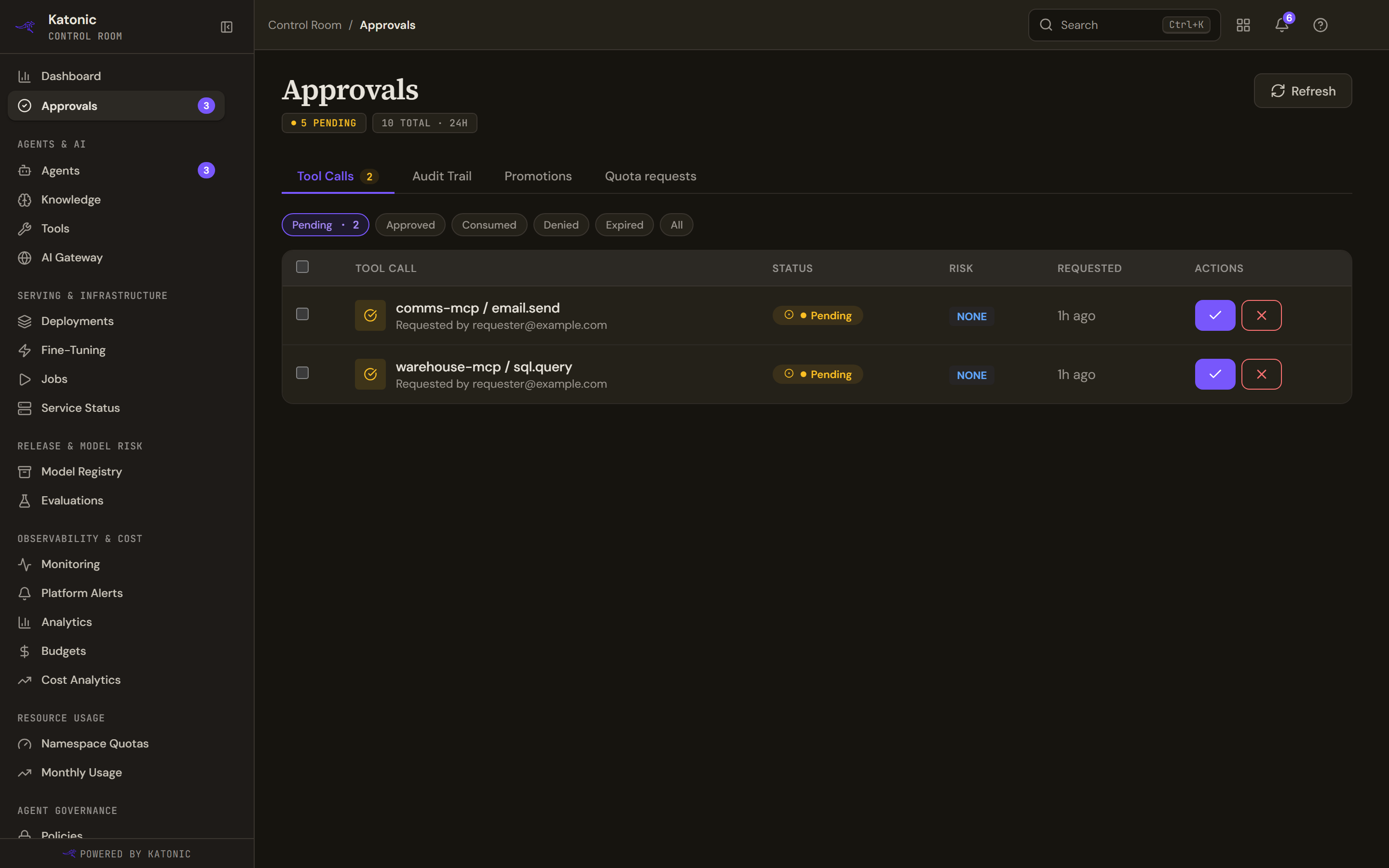
Approvals has three tabs. Tool Calls lists tool calls parked by a policy whose action is Requires Approval: filter by Pending, Approved, Consumed, Denied, Expired or All, then select the tick or the cross on a row to Approve or Deny it with a Decision Note, or tick several rows and decide them together. An approved call is awaiting re-run until its step runs again, and a request expires at its Expires at time if nobody acts. Promotions holds agent promotions waiting under an approval-required policy, with Approve and Reject; whoever requested a promotion cannot approve it. Audit Trail records every decision, with Export CSV.
Workflow runs paused for approval are decided on the run itself, not here: the banner counts them and Review paused runs opens them in the Work Room. See Automations and approvals.
Set the workspace policy
Workspace Policy governs the two chat rooms. The Company room card mirrors the default assistant read-only (Edit in Studio changes it) and sets Daily turns per person and a Monthly spend cap. The Personal room card has Availability (off hides the Chat option and the chat service refuses personal turns), a Default model tier, Session files retention and its own limits. The Workspace strip sets Web access, off by default, and the Default room a new chat opens in. Below, a safety section picks the Guardrail Profile and a Burst limit, Model access assigns models to teams, Voice switches dictation and read-aloud, and Appearance, Chat titles, Follow-up suggestions and Chat hints shape what people see. Each control carries a chip saying whether it is enforced, display-only, or recorded but not yet enforced. Test Config opens a sandboxed chat on your unsaved changes; Save & Test in Work Room saves them.
Invite Members
Invite the people who will use the agents: see Invite people and assign roles.
Verify
A Member signs in, opens the Work Room and finds the published agent under Agents. In the Control Room, the agent counts under Published, and an approved promotion is listed on its Overview under Environments.
Troubleshooting
- Approvals isn't enabled in this license: the tool-call approvals surface is a licensed capability. Check License & Entitlements.
- Publish a version first - only a published version can be promoted.: publish on the Versions tab, then promote.
- No deployment environments configured. Create dev / test / uat / prod: no lanes exist yet. Use Enable staged publishing on the Governance tab, or create them under Environments.
- Publishing is blocked while the eval gate is on: run an evaluation from the agent's Eval History tab (Run evaluation), or check that the evaluation service is reachable, because the gate fails closed.
- Tool-call approvals need the governance:approve capability: that queue is reserved for administrators; release approvers find their work on Promotions.
Go deeper
The Control Room pages behind this journey, each with every field, state and message: