Configure the AI Gateway and models
LLM gateway
Every model call an agent makes goes through the AI Gateway. In this stage you connect the providers your organisation may use, decide which models sit in each routing tier, cap how fast anyone can call them, and learn where to watch the traffic.
Who can use it: the Admin role or the Operator grant, in a tenant licensed for the LLM gateway. On AI Cloud, providers and models are managed by your distributor.
Recorded on .
Prerequisites
- API keys for the providers you plan to use, or the URL of a self-hosted endpoint.
- To import the provider catalogue, Ops Hub connected under Platform Settings; see Set up platform settings.
Add a provider
- Open the gateway
In the Control Room, open AI Gateway. A header chip says whether Ops Hub is connected, next to the buttons Rate Limits, Logs and Settings. The Providers tab opens first, with tiles counting providers, models and providers With API Keys and Without Keys, then request, cost, success-rate and latency tiles.
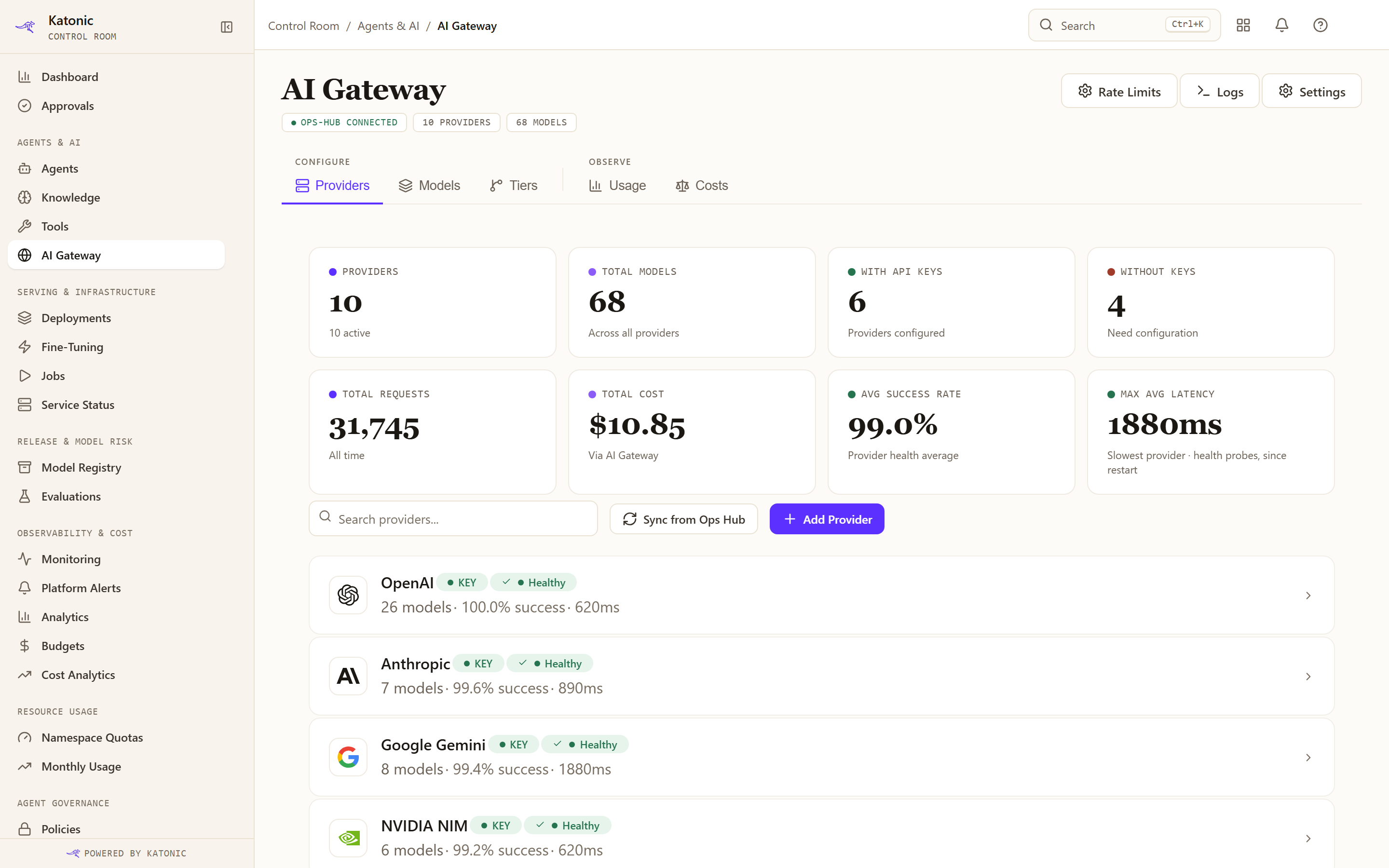
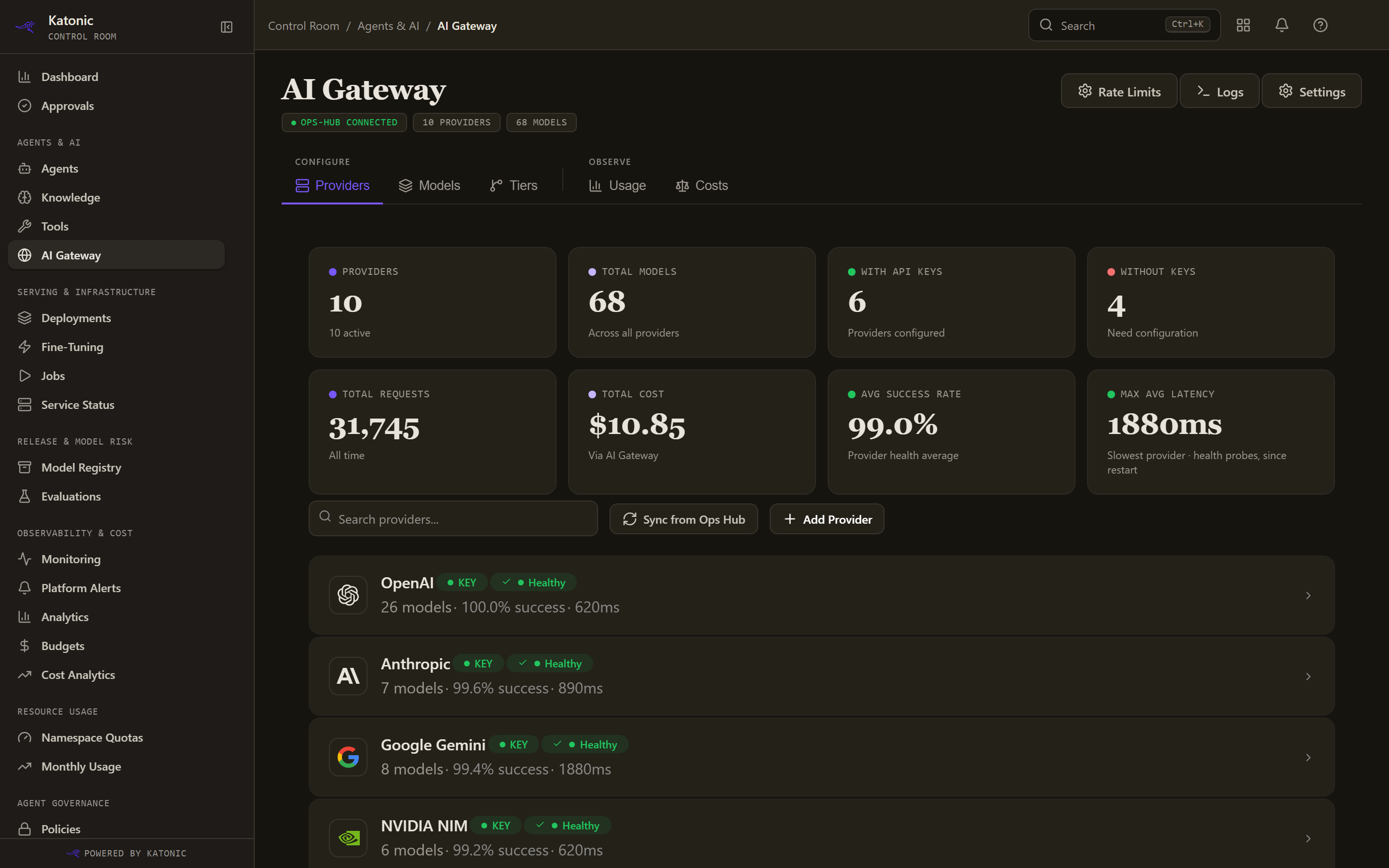
The Providers tab of the AI Gateway. Each row shows whether the provider has a key and how healthy it is; Refresh Catalog imports the catalogue and Add Provider adds one by hand. - Import or add providers
Refresh Catalog imports the provider catalogue; when the list is empty and Ops Hub is reachable, the page does this once by itself. Add Provider opens a dialog: enter a Provider Name, pick a Provider Type and set the Base URL, which is prefilled for hosted services, built from fields such as a region or resource name for some, and required for a self-hosted endpoint. Add an API Key (optional here; Test checks it), use Discover Models to list the provider's models and tick the ones to import with a tier each, then select Add Provider.
- Configure a key
Rows without a credential show NO KEY and a Configure Key button, which opens Manage API Key. Enter the API Key, choose its Environment, select Validate, then Save Key: one key per provider, shared by all its models. A keyed row shows KEY and a health badge, Healthy, Degraded or Unhealthy, judged against success-rate thresholds set under Settings. PLATFORM-MANAGED marks a provider created by the platform's own LLM deployments; it needs no key. Select a row to open the provider's page.
Enable models and assign tiers
The Models tab lists every model under three origins, Provider, Deployed and Hosted, with Search models... and an All Tiers filter. The columns are Model, Tier, Priority, Context, Cost ($/1M), Status, Health and Latency, and Status reads Active, Disabled or No Key. The pencil at the end of a row opens Edit, where you set the model's Tier, switch it between Enabled and Disabled and record its costs. A provider's page adds models with Add Model or Discover.
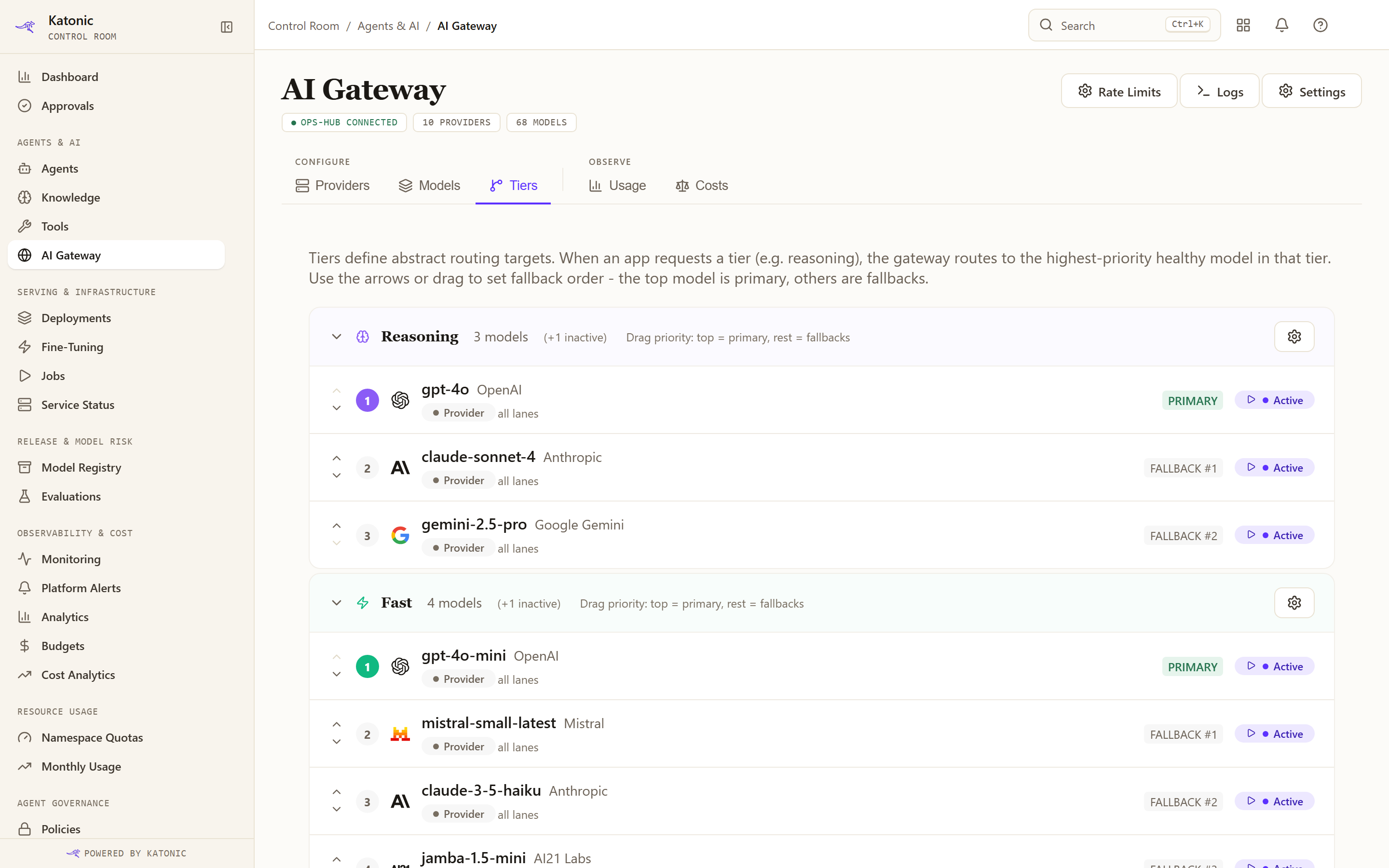
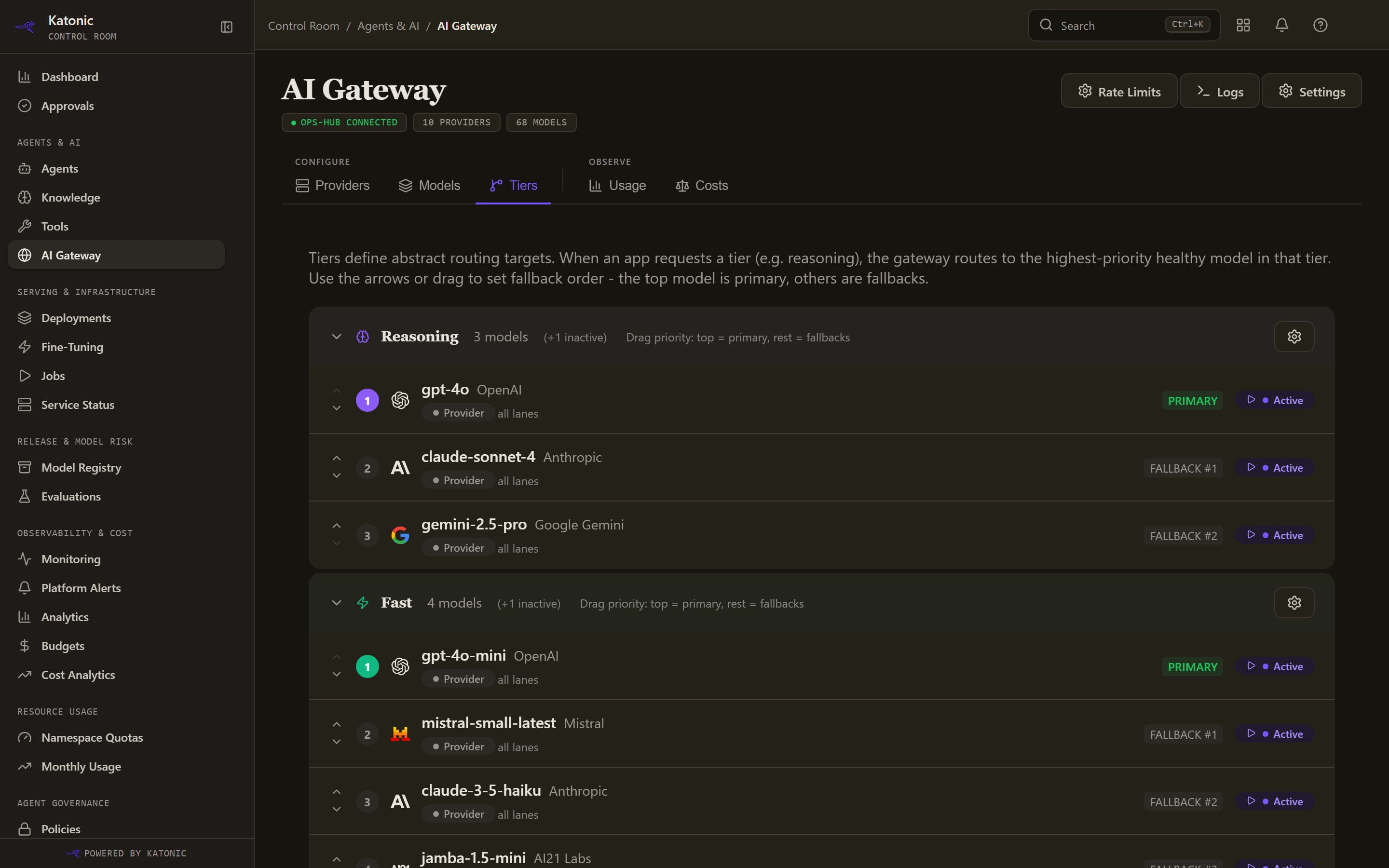
A tier is an abstract routing target: when an agent asks for Reasoning, the gateway routes to the highest-priority healthy model in that tier. The Tiers tab lists Reasoning, Fast, Balanced, Guard, Embedding, Reranking, Stt, Tts, Vision and Code. In each, the top model is PRIMARY and the rest are fallbacks; use Move up (higher priority) and Move down (lower priority) or drag to reorder, and Tier settings (the gear) to pick the Primary Model. Models that are disabled, have no API key or whose key has not been validated are excluded from routing and counted as inactive.
Set rate limits
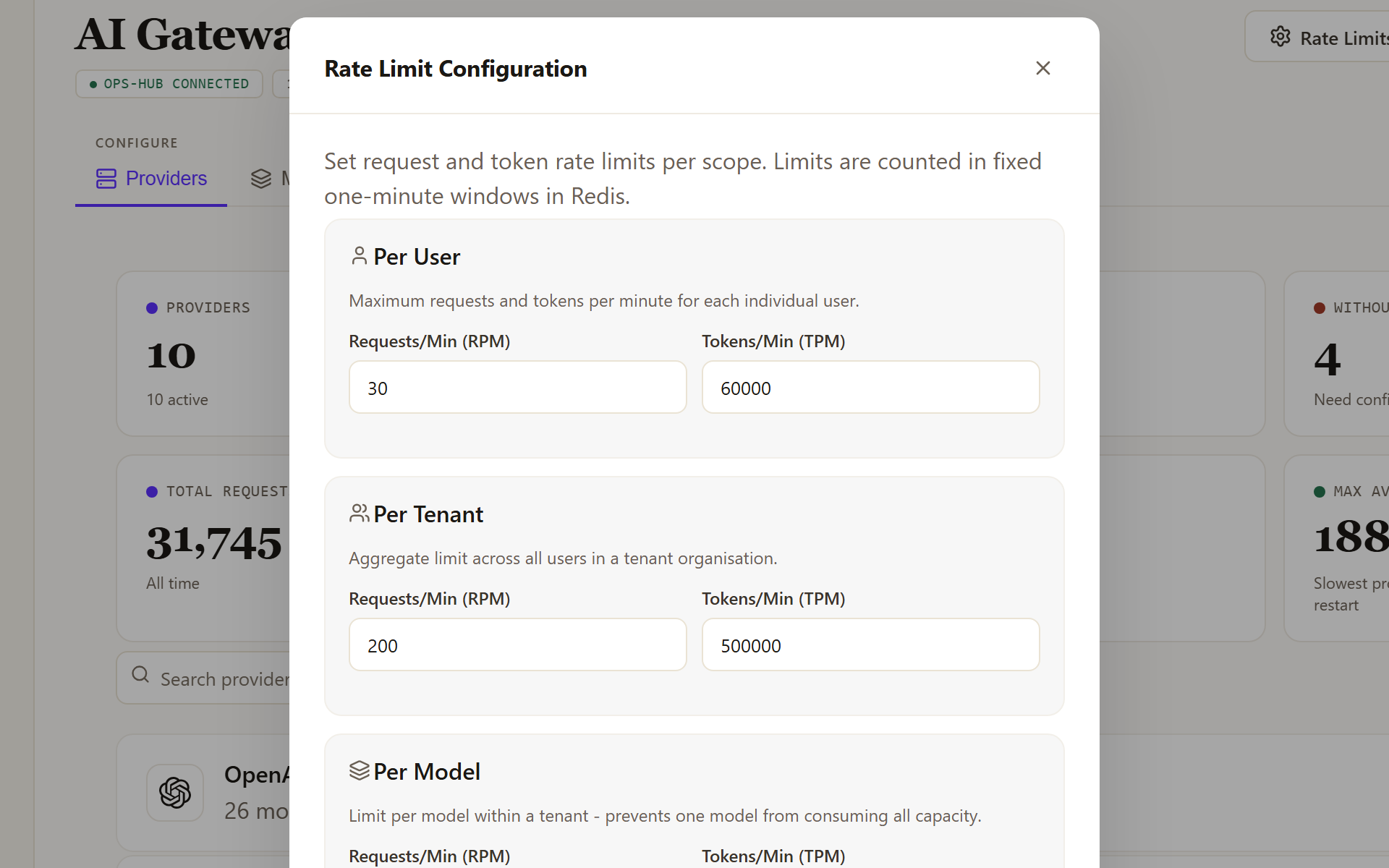
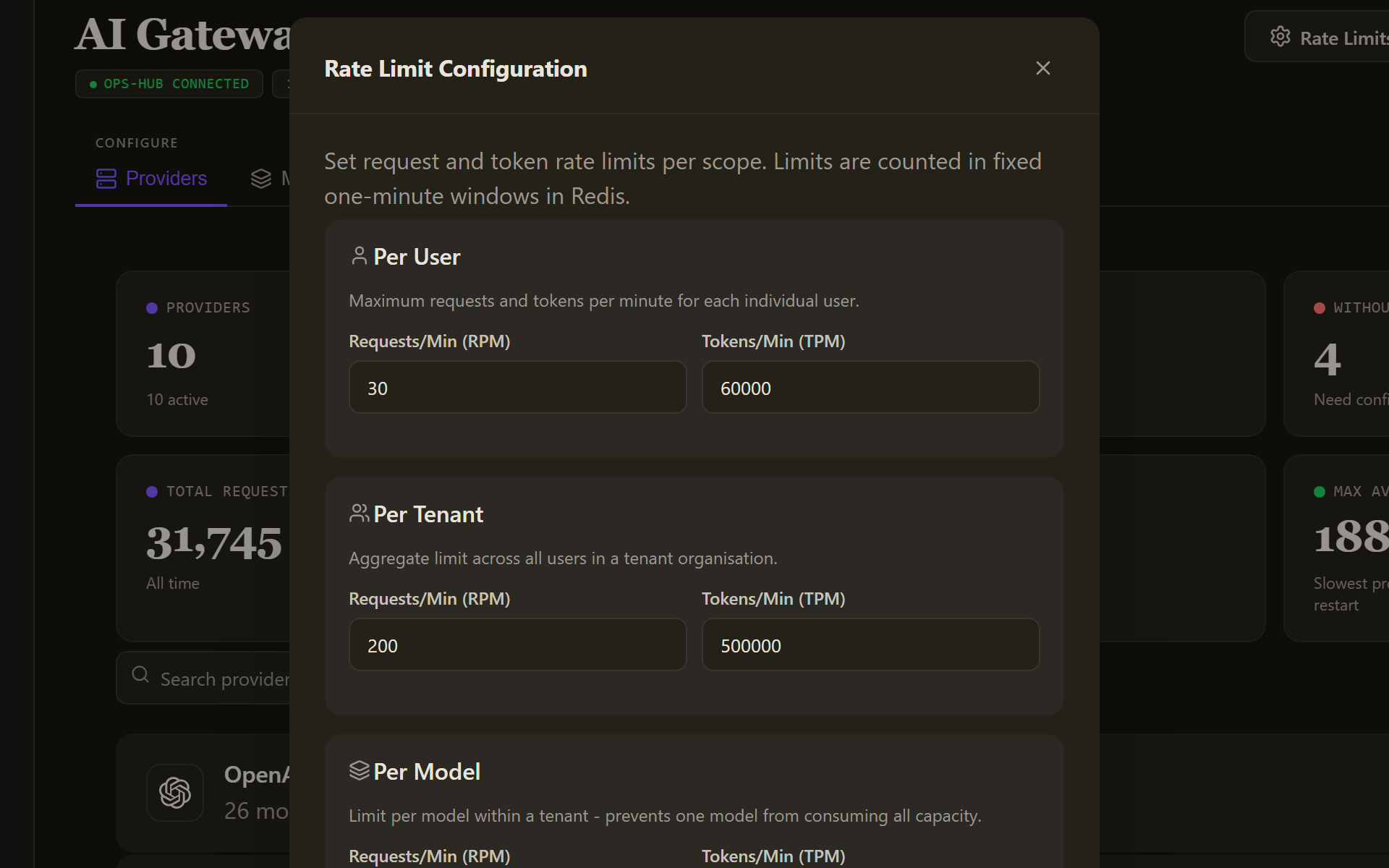
Select Rate Limits. Rate Limit Configuration has three scopes, Per User, Per Tenant and Per Model, each with Requests/Min (RPM) and Tokens/Min (TPM). The dialog describes them as sliding windows; the gateway counts them in fixed one-minute windows, so a burst that empties a minute's allowance is refused until the next minute begins. The shipped values are 30 and 60,000 per user, 200 and 500,000 per tenant, and 100 and 200,000 per model. Save Changes applies yours; Reset Defaults restores those values.
Watch it
Usage shows requests, success rate, latency and provider health for a time range, plus traffic by origin. Costs shows total and per-request cost, a breakdown by model and by origin, and budget alerts. Logs lists recent gateway requests, each opening to its Request Info and Tokens & Cost. Budgets belong to the next stage: see Govern the platform day to day.
Verify
On Tiers, the tier your agents use lists at least one model marked PRIMARY with the status Active, and its provider row reads KEY and Healthy. In the Work Room, a message to an agent gets an answer, and Usage counts the request.
Troubleshooting
- Ops Hub is not connected. Please connect Ops Hub from Platform Settings to sync providers.: connect Ops Hub on its Platform Settings tab, or add providers by hand.
- No providers configured yet. or No models configured. Add a provider first.: select Refresh Catalog or Add Provider.
- Invalid API key. or Saved key could not be decrypted. Re-enter the key.: fix the key in Manage API Key.
- Provider is unreachable. Check the Base URL and network., Base URL is required for this provider. or Base URL is invalid. Check for unresolved placeholders or missing scheme.: correct the endpoint on the provider's page.
- Provider's TLS certificate is not trusted.: for a trusted internal endpoint, tick the TLS verification option in the provider dialog to skip certificate checks.
- Provider catalog is empty. Sync providers, then retry.: run Refresh Catalog; if the catalogue was never pushed to your workspace, ask your platform operator.
- Usage or Costs shows a lock: your account lacks the permission or licence to view usage and cost data; the panel says which.
Go deeper
The Control Room pages behind this journey, each with every field, state and message: