Connect your organisation's knowledge
Knowledge
Knowledge is what lets agents answer from your organisation's own documents rather than from the model alone. This stage sequences the work: one decision about the embedding model, then the first knowledge source, its first sync, who may use it, and a test that the right passages come back. Each step points to the page that covers it fully.
Who can use it: the Admin role or the Knowledge Admin grant opens Knowledge in the Control Room, in a tenant licensed for knowledge. Builders reach their sources from Knowledge Sources in Studio; the Settings and Credentials tabs used below exist only in the Control Room.
Recorded on .
Prerequisites
- An embedding model the knowledge engine can use. The Model field of the Embedding Model section lists the active models in the AI Gateway's Embedding tier; while there are none, it is a text field for a model ID with the notice No active embedding models found in AI Gateway. Add models to the Embedding tier in AI Gateway, or type a model ID manually. Adding gateway models is the next stage, Configure the AI Gateway and models; you can return here afterwards.
- For connectors that sign people in with one click, the provider's OAuth client ID and client secret.
- Teams, if the first source is to be shared rather than kept personal; see Invite people and assign roles.
Connect the first source
- Choose the embedding model
In the Control Room, select Knowledge, then the Settings tab. Under Embedding Model, pick a Model; choosing one from the list also fills in the Dimensions it needs. Select Save changes for the section and confirm. Until a model is saved, Connect Source stays disabled with Configure an embedding model in the Settings tab first, and the Sources tab says No embedding model configured. Decide this once: changing the model later marks every source stale until it is re-embedded. The other sections are covered in Tune the knowledge engine.
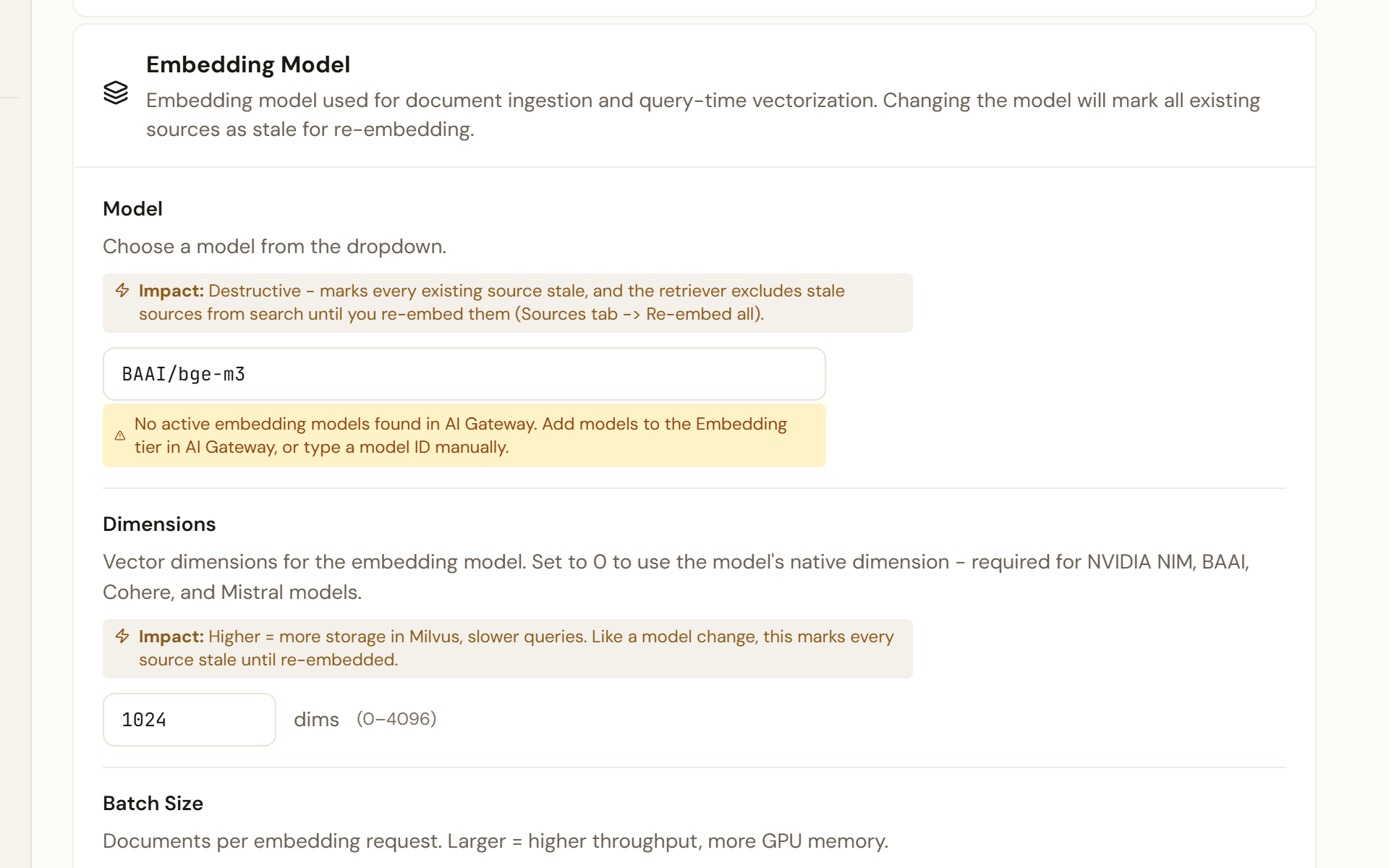
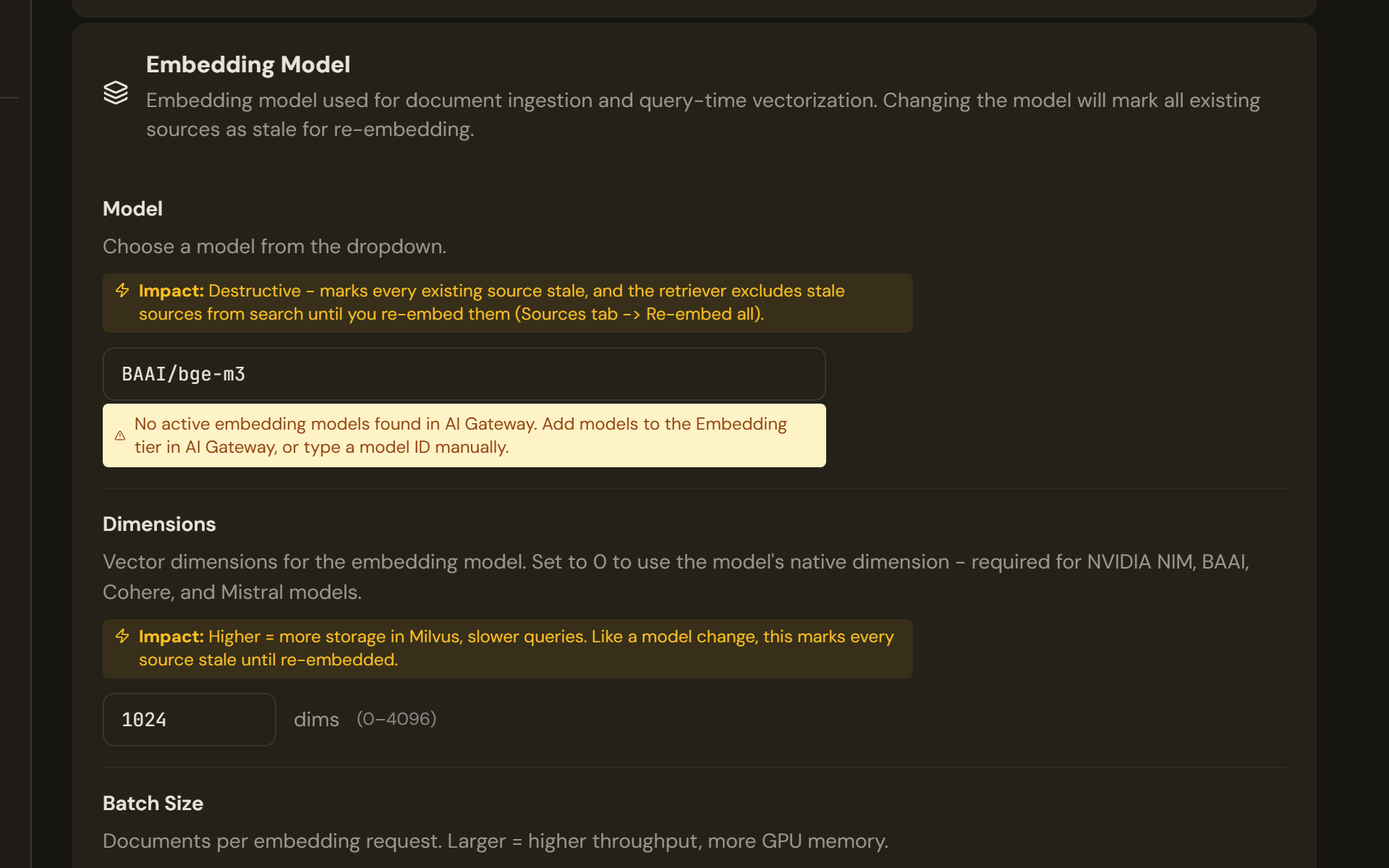
Embedding Model on the Settings tab. Model lists the active models in the AI Gateway's Embedding tier; without one it takes a model ID and a notice says why. Changing the model later marks every source stale. - Configure connector credentials
On the Credentials tab, OAuth Provider Credentials takes a client ID and secret per provider, so that people connect a source with one click instead of entering their own credentials. This is separate from the Credentials tab of Platform Settings, which holds model-hub tokens. See Set up connector credentials.
- Add the first source
Back on Sources, select Connect Source and walk the Add Knowledge Source wizard: a file upload or a connector, a name, the schedule and access, then a review. See Add a knowledge source.
- Run and follow the first sync
The new row shows Pending, then Syncing, then Synced with a document count. Open the row: the Runs tab lists what each run processed and the Logs tab holds the detail, and Sync now and Reindex sit in the source header. See Follow sync runs and logs and Connect sources.
- Decide who can use it
On the source's Access tab, keep it Personal or share it with Teams. Access governs who inside Katonic can retrieve from the source; connectors that sync the source system's permissions also hide what a person cannot open there. See Control who can use a knowledge source.
- Test retrieval
On Search & Test, ask a question the source answers and read which documents and passages come back, with their scores. See Search and test your knowledge.
- Ask in the Work Room
Agents answer from the knowledge sources attached to them in Studio. In the Work Room, the composer's Knowledge chip shows how many of the agent's sources are in scope, and the receipt under an answer reads Searched knowledge base with a source count when passages were retrieved. See Home and chat.
Verify
On the Sources tab the row reads Synced with a document count, and the chip under the page title names the embedding model. A question in Search & Test returns the document you expected near the top, and the same question in the Work Room produces an answer whose receipt says Searched knowledge base.
Troubleshooting
- Connect Source is disabled, or the Sources tab says No embedding model configured.: save a model under Settings, Embedding Model first. Trying to add a source anyway switches you to Settings with the message Configure an embedding model in the Settings tab before adding knowledge sources.
- No active embedding models found in AI Gateway: no model sits in the gateway's Embedding tier. Add one there, or type the ID of a model your platform serves itself.
- Couldn't check knowledge settings - the embedding-model status is unknown, not missing.: the settings could not be read. Select Retry; Connect Source is not disabled while the status is unknown.
- A banner says sources have stale embeddings: the embedding model changed after they were indexed. Select Re-embed all; until it completes, those sources return no results.
- A row reads Failed: open the source and read Runs and Logs. Provider credentials and permissions are the usual causes.
Go deeper
The Control Room pages behind this journey, each with every field, state and message: