Invite people and assign roles
With single sign-on connected, the next stage is people: who gets in, with which role, and in which teams. This page walks the Users & Teams page of the Control Room for a first round of invitations. It keeps to what this stage needs; bulk actions, filters and the teams export belong to the Admin Guide.
Who can use it: the Super Admin role, or the User Admin grant, to invite people and assign roles. An Admin can open Users & Teams, deactivate accounts and manage teams, but Invite users and Import CSV are disabled for an Admin without that grant, with the tooltip Your role can't add users. Whoever invites can assign only roles at or below their own. Grants are changed by the same people.
Recorded on .
Prerequisites
- Outbound email configured on the SMTP tab of Platform Settings, so the set-password email reaches invitees; see Set up platform settings. Without it you can still invite: the platform hands you a one-time temporary password instead.
- A free seat on your licence. At the limit the invite controls are disabled with Seat limit reached - free a seat or upgrade.
- If you want to add people to teams as you invite them, create the teams first (below).
Invite one person
- Open Users & Teams
In the Control Room, under Administration, select Users & Teams. The page opens on the Users tab with the cards Members, Teams and Role distribution, and a table of everyone in your organisation.
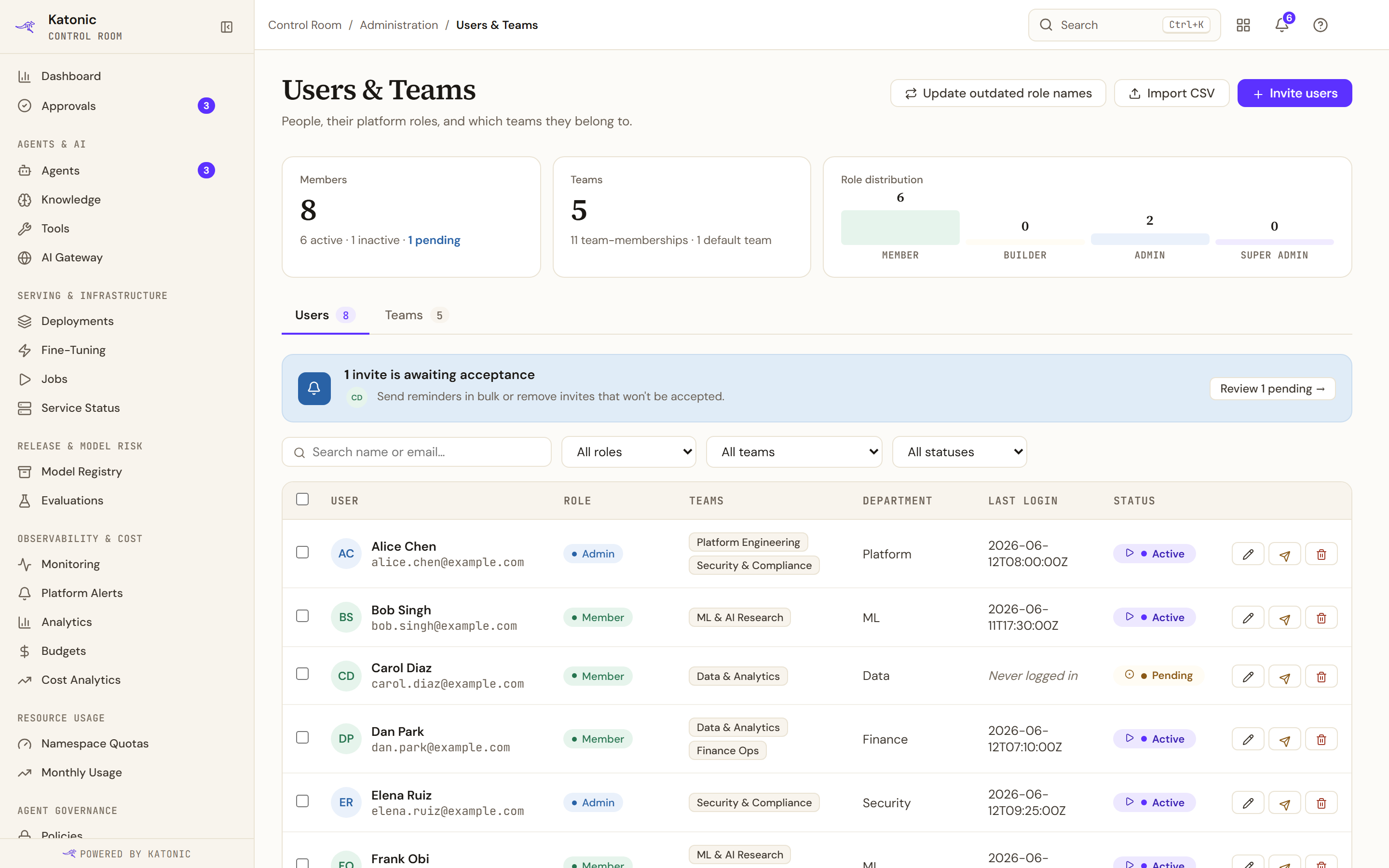
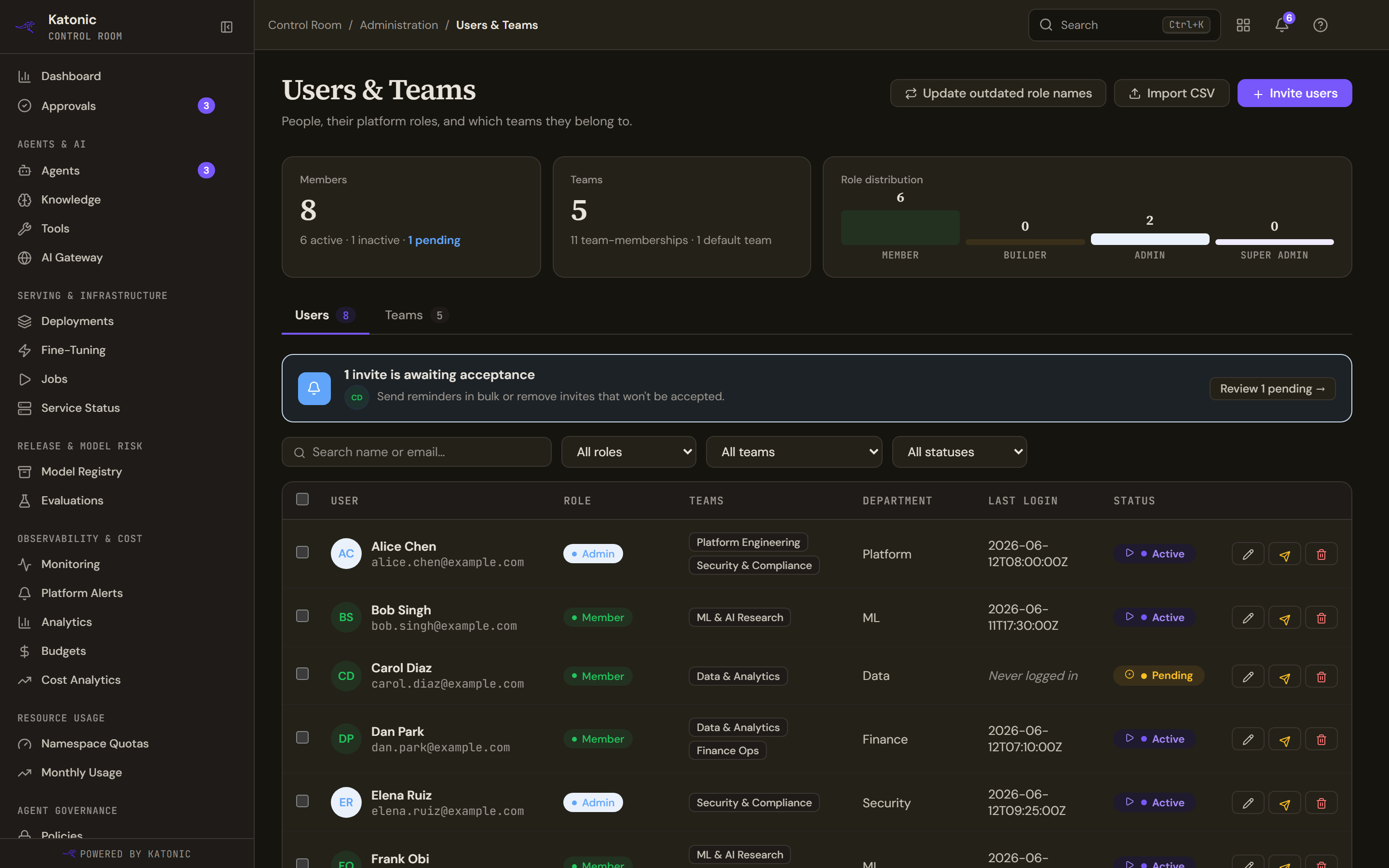
Users & Teams opens on the Users tab: each person's role, teams, department, last login and status. Invite users and Import CSV sit in the header, and Update outdated role names appears for a Super Admin. - Fill in the invitation
Select Invite users. In Single mode, enter First Name, Last Name and Email.
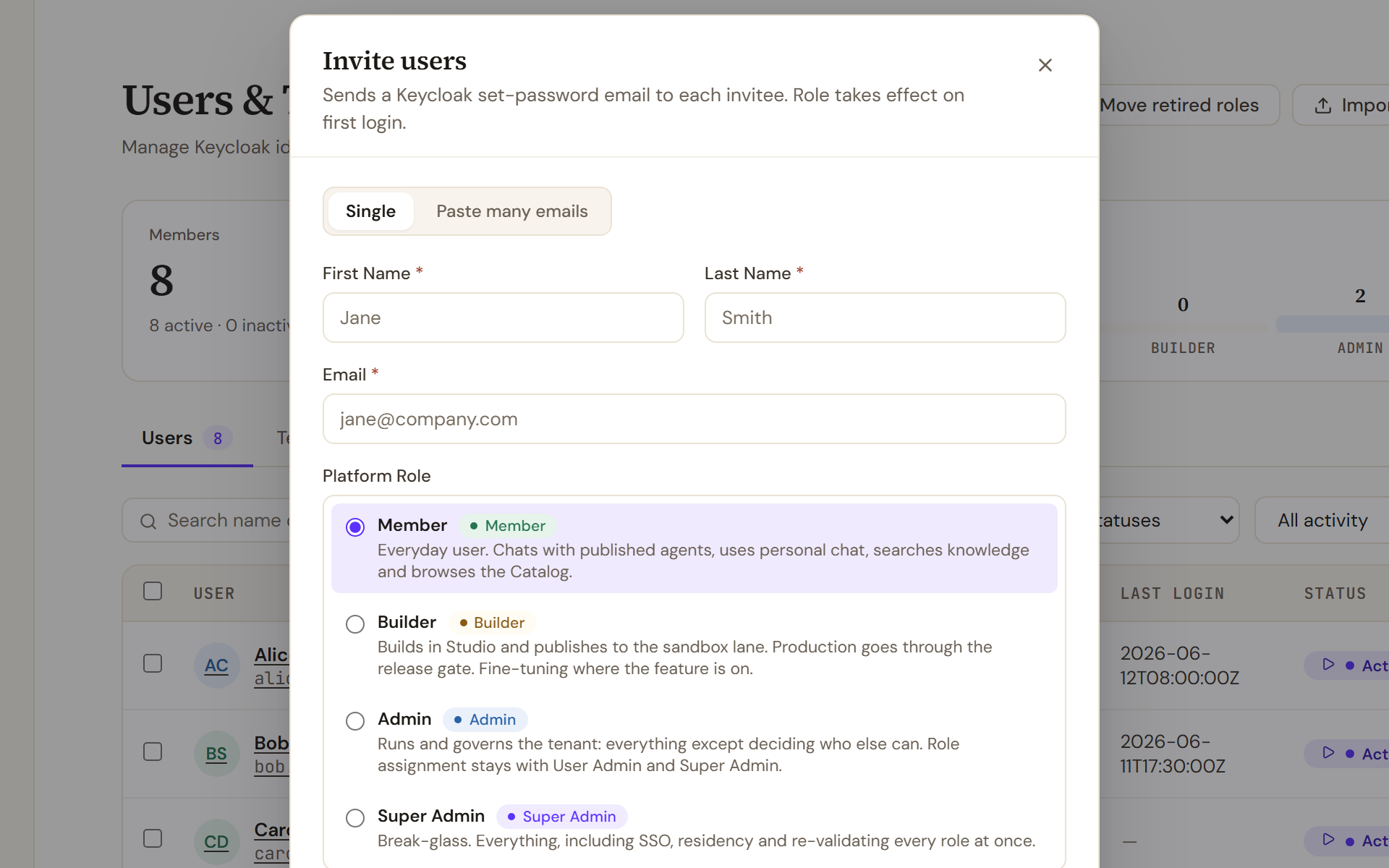
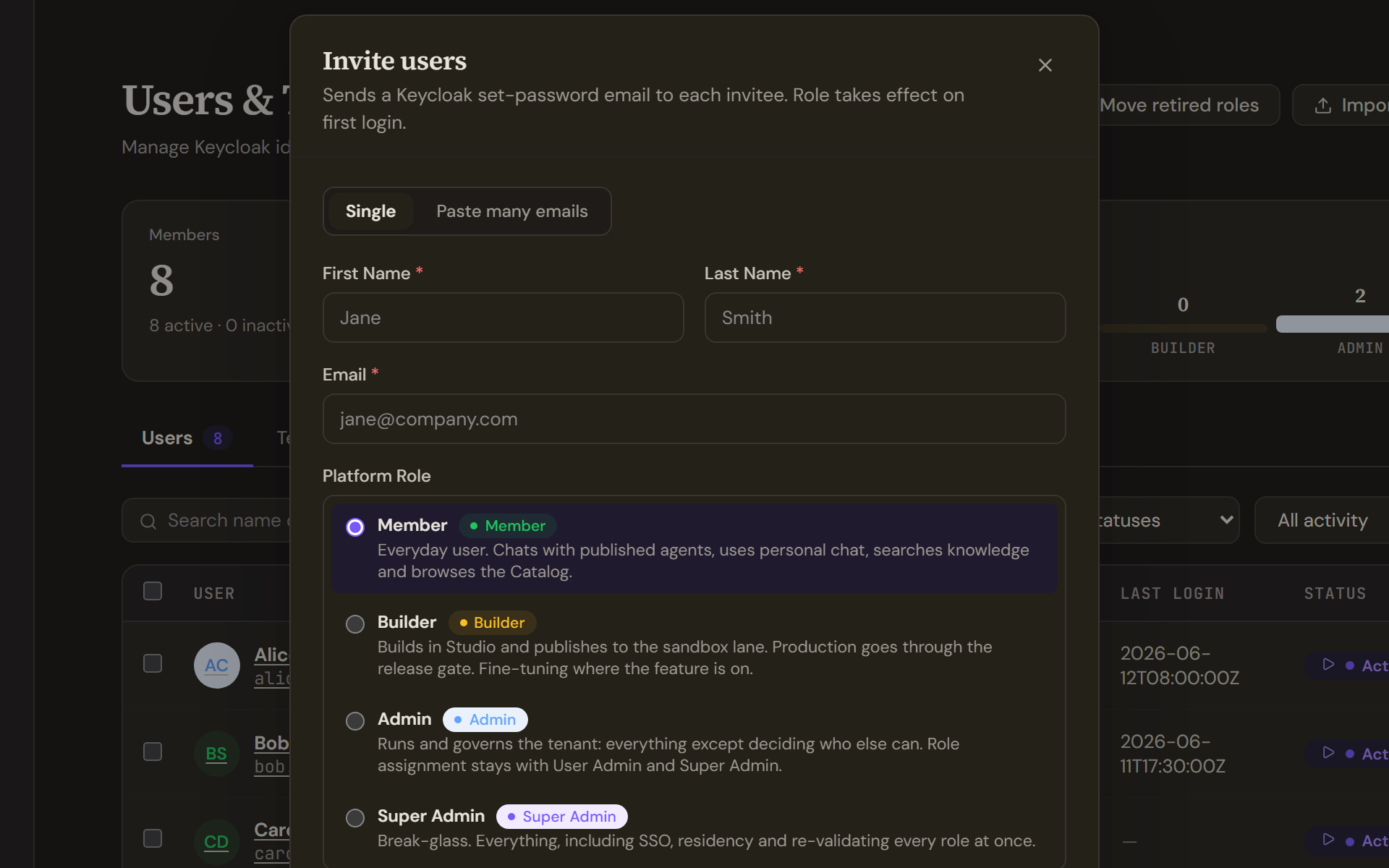
Invite users in Single mode: name, email and the Platform Role picker, whose four options each carry a description. A role above your own is greyed out with the reason. - Choose the role
Under Platform Role, pick Member, Builder, Admin or Super Admin; each option carries a one-line description. A role above your own is greyed out, as is Super Admin when the licence's super-admin limit is reached. Tick teams under Add to teams if they already exist.
- Send it
Select Send Invite. The account is created with that role, a set-password email goes to the address, and a User invited dialog shows a one-time temporary password with Copy. Copy it now if you may need to hand it over: it is not shown again. The role takes effect when the person first signs in.
Invite many
Switch the dialog to Paste many emails and paste addresses under Email addresses, one per line or separated by commas or spaces. One Platform Role applies to the whole batch, and names are derived from each address, so correct them later with Edit (the pencil) on the row. Send N invites sends them, and N users invited lists every address with its temporary password and Copy all.
Import CSV opens Import users from CSV, which previews the file's rows before Import N Users.
Assign roles and grants
To change a role, use Edit on the person's row or Edit user on their detail page. The Platform Role picker is the one from the invitation, with the same locks, and you cannot change your own role. What each of the four roles opens is described in Roles and access.
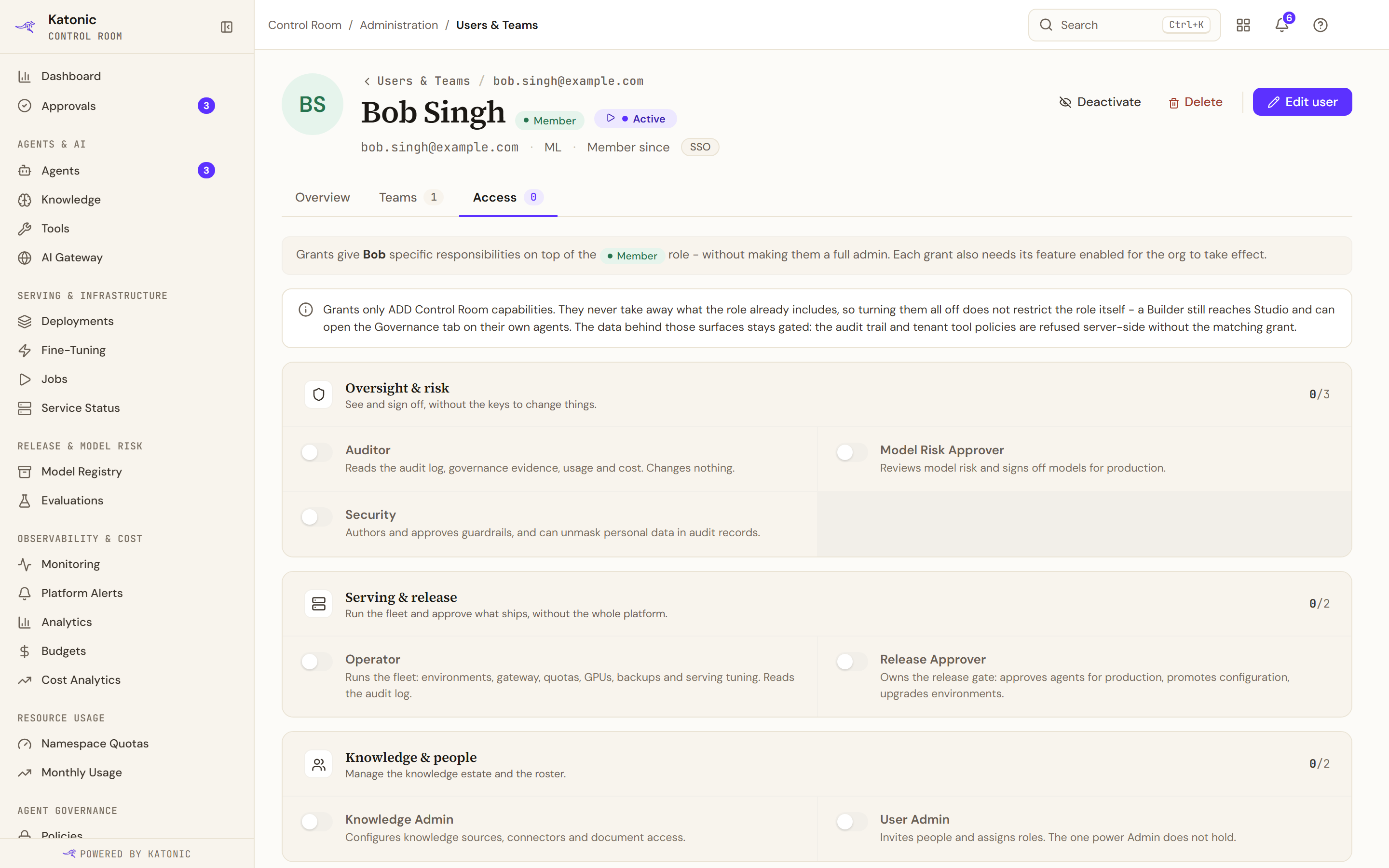
Grants add one slice of Admin to a Member or Builder. Select a person's name to open their detail page, then the Access tab: the seven grants sit in the groups Oversight & risk, Serving & release and Knowledge & people, each with a switch and a description. The Super Admin role or the User Admin grant moves the switches, and Save grants appears once something changes. A grant needs its feature licensed to take effect, and a Super Admin already holds every grant.
Update outdated role names, for a Super Admin only, lists accounts that still carry a retired role name and moves them to the current names once you acknowledge and apply.
Organise teams
Teams group people and decide which platform components they can reach. On the Teams tab, select Create Team and give it a Team Name, a Description and, if you like, Initial members. Open a team to manage it: Members adds and removes people; Access lists the platform components in the groups Build, Run, Ops and Differentiators with a switch each, then an Environments card for the deployment lanes the team can reach (off by default; a production lane needs a Super Admin). Save changes applies your edits. The default team, where new users land, must keep at least one component enabled.
Deactivate or remove someone
On a person's detail page, Deactivate refuses their next Control Room request, stops their API keys and keeps the account so that Reactivate can restore it. Offboard does the same and hands everything they own to an heir, a person or a team. Delete removes the identity permanently; a later invitation of the same address restores its history. You cannot act on your own account or on anyone above your tier. Offboard a person has the detail.
Verify
The new person appears in the Users tab with the role you chose, and Role distribution counts them. Until they sign in, Last login reads Never logged in, and setting All statuses to Pending invite lists everyone still to arrive. Once they sign in, the role chip in their top bar shows the role, and a Member finds only the Work Room and the Catalog under Switch workspace (the grid icon).
Troubleshooting
- User created, but the set-password email could not be sent - SMTP may not be configured for this org.: configure the SMTP tab of Platform Settings, then select Resend set-password email (the paper plane) on the person's row, or give them the temporary password from the User invited dialog.
- Seat limit reached - free a seat or upgrade: the licence has no seat left. Remove an account you no longer need, or update the licence under License & Entitlements.
- Your role can't add users: inviting needs the User Admin grant or the Super Admin role. Ask a Super Admin to send the invitation or to give you the grant.
- A role option reads is above your own role: you cannot hand out a role above your own tier. Ask someone who holds that role.
- Failed to load users with tenant-manager unreachable.: the directory service did not answer. Select Retry, and ask your platform operator if it persists.
Go deeper
The Control Room pages behind this journey, each with every field, state and message: