Open the Control Room and check your licence
The Control Room is the zone where you govern and operate Katonic. This first stage gets you into it, teaches you to read its Dashboard, and has you confirm the licence before you set anything up, because the licence decides which features the later stages can switch on.
Who can use it: the Super Admin role for the first sign-in, then the Admin role. Only a Super Admin can apply a licence or read the licence key.
Recorded on .
Prerequisites
- A Super Admin account on your Katonic installation.
- If no licence has been applied yet, the signed licence key or file issued for your organisation.
Switch to the Control Room
- Sign in
Sign in with your Super Admin account.
- Open the Control Room
Select Switch workspace (the grid icon) at the right of the top bar and choose Control Room, or press Ctrl+3. The menu lists only the zones your role can open. The sidebar head now reads Control Room, and your role chip sits next to the breadcrumb.
- Know the sidebar
Dashboard and Approvals come first, then Agents & AI (Agents, Knowledge, Tools, AI Gateway), Serving & Infrastructure (Deployments, Fine-Tuning, Jobs, Service Status), Release & Model Risk (Model Registry, Evaluations), Observability & Cost (Monitoring, Platform Alerts, Analytics, Budgets, Cost Analytics), Resource Usage (Namespace Quotas, Monthly Usage), Agent Governance (Policies, Audit Log), Security (Security & Compliance, Guardrails) and Administration (Users & Teams, License & Entitlements, Environments, Platform Settings, Languages, Workspace Policy), where this stage happens. Resources appears only for Super Admins on AI Platform, and Help & Support is last. A lock marks a feature that is not licensed, and someone who enters through a grant sees only the entries tied to it, as Roles and access explains.
Read the Dashboard
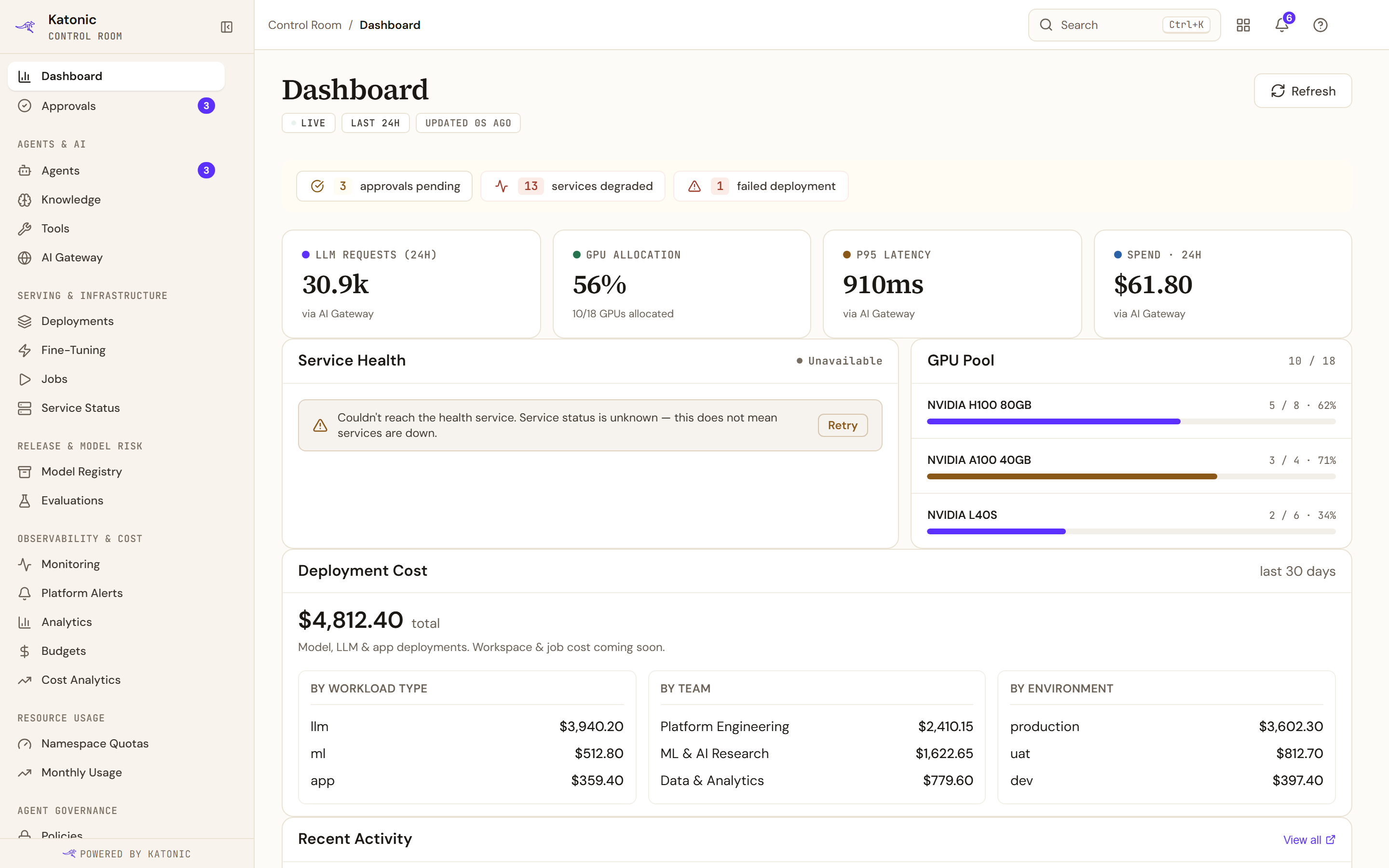
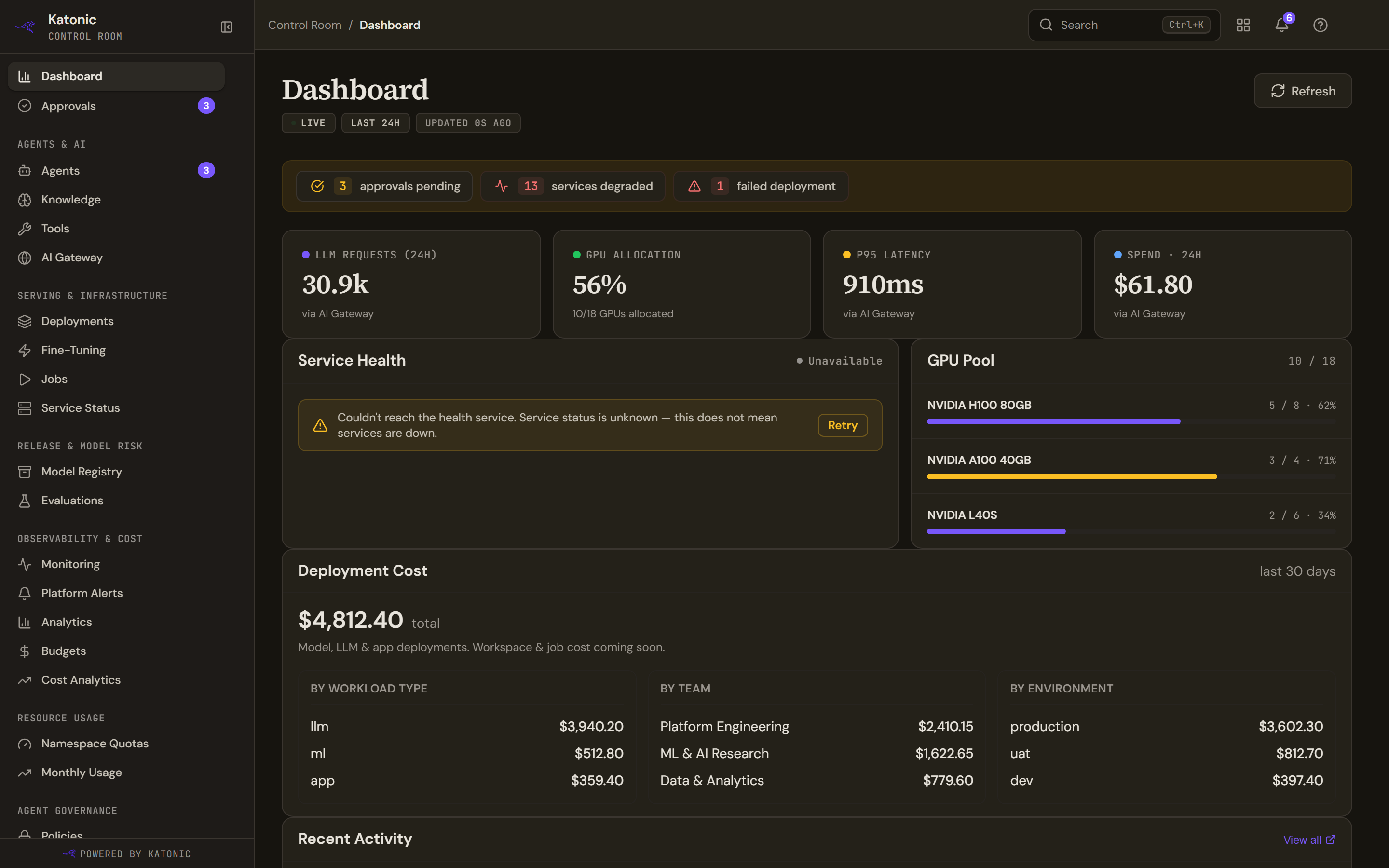
- The chips live and last 24h sit under the title with the time of the last update; Refresh re-reads every block.
- A strip of chips appears only when something needs you: approvals pending, services degraded, failed deployments, guardrail blocks in the last 24 hours, or budgets at risk. Each opens the page that deals with it.
- Four tiles: LLM Requests (24h), GPU Allocation (GPUs held out of the total), P95 Latency and Spend · 24h. Each opens Analytics, GPU Management, Monitoring or Budgets.
- Service Health lists each platform service as OK, DOWN or Not installed. If the health service itself cannot be reached, the card reads Unavailable, says that this does not mean services are down, and offers Retry.
- GPU Pool shows allocation and utilisation per GPU type, or No GPU pools configured.
- Deployment Cost totals the last 30 days for model, LLM and app deployments by workload type, team and environment; a new tenant reads No cost recorded yet.
- Recent Activity lists the newest admin actions; View all opens the Audit Log.
Check the licence
Under Administration, open License & Entitlements.
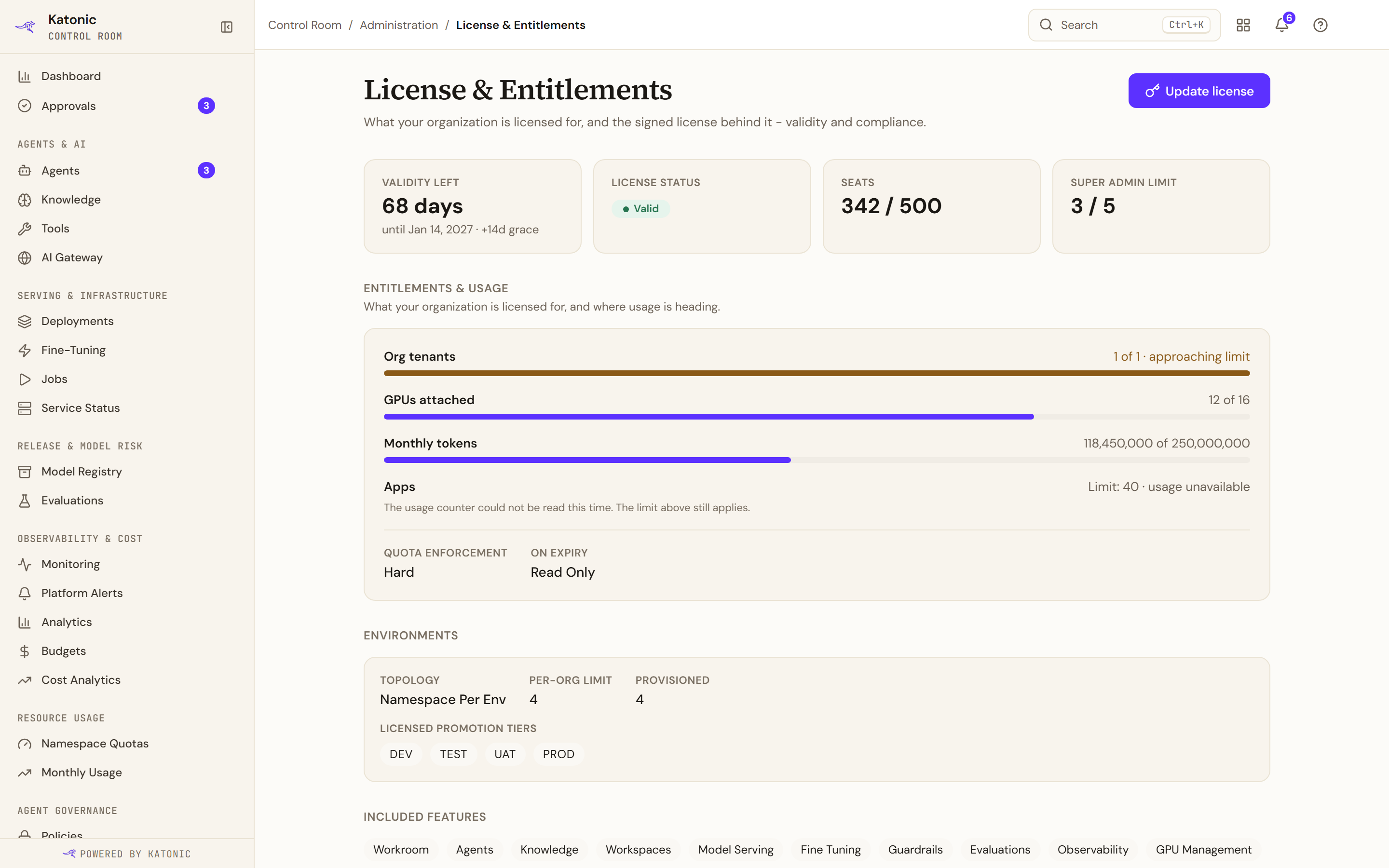
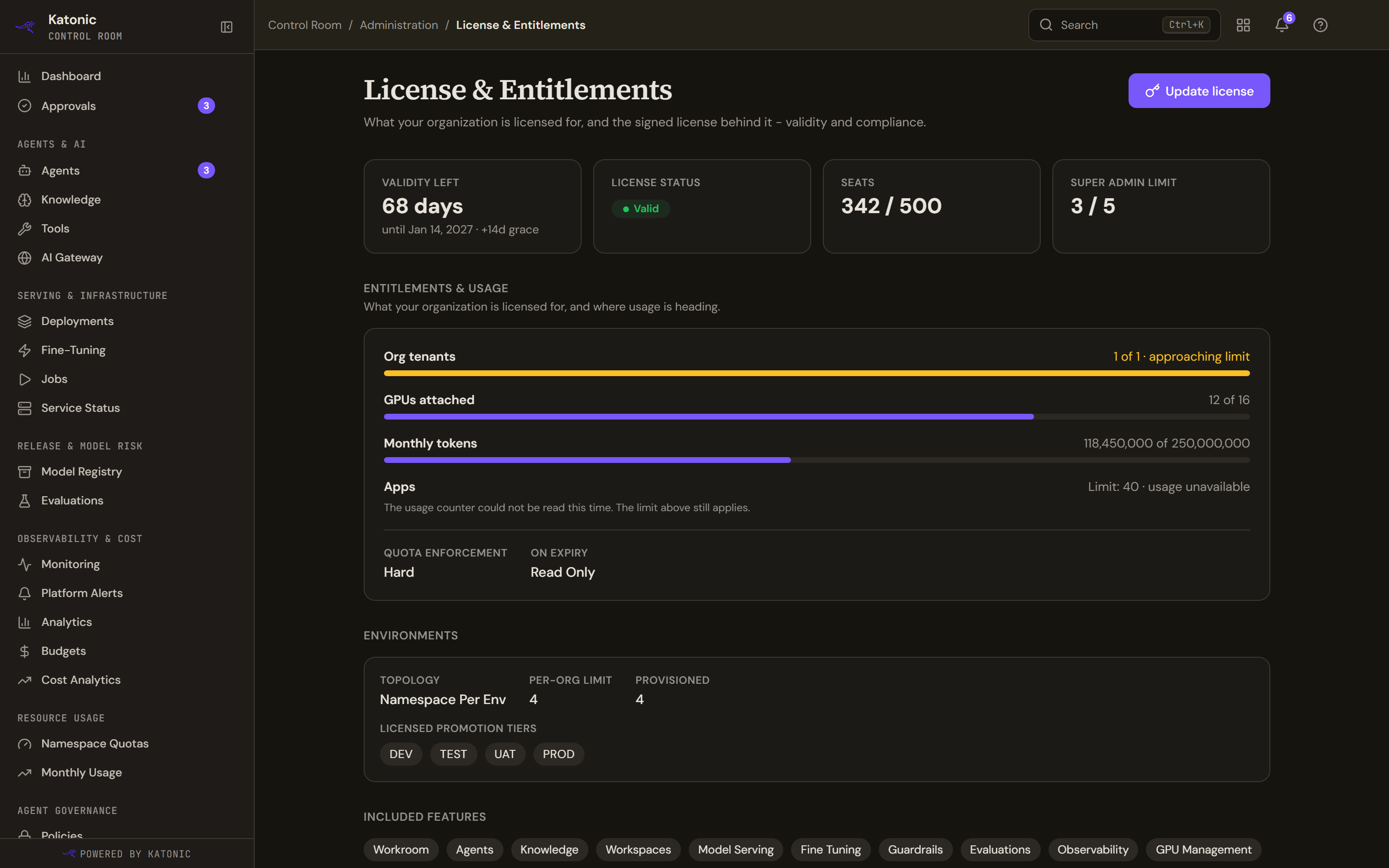
Read these on day one:
- The cards Validity left (days remaining, the end date and any grace period), License status, Seats (used against the limit, or Unlimited) and Super admin limit.
- License status is Valid, Verifying, Not yet active, In grace, Expired · read-only, Expired, Revoked, Locked or No license; anything but Valid adds a banner saying what to do.
- Entitlements & usage: pooled limits when the plan has them, Quota enforcement, On expiry, the Environments the licence grants, and Included features, the licensed features or None. A locked sidebar entry always traces back to this list.
- License details: Edition, Cluster type, Issued, Valid from, Valid until, Connectivity with its last verification date, Topology and Env tiers, each marked as granted by the licence or as a platform default.
- License key, masked and shown to Super Admins only, with Reveal, Copy and Download. Treat it like a credential, as the page says: you need it for support tickets and re-installs, so store it with your other secrets.
- Compliance & signing: the modes the licence enables (FIPS, Air-gap, Hardware-bound) or No compliance modes enabled. Super Admins also see the signing details and Recent updates.
To apply a licence, select Update license; anyone else reads Read-only · updating requires a super admin. The Update your license dialog takes the signed key pasted in, or a file through Upload license file for offline installs, shows a License preview that is verified on activation, and applies it with Activate. Newly licensed entries unlock in the sidebar without a reload.
Verify
The sidebar head reads Control Room, the Dashboard shows its four tiles, and Service Health names every service as OK or tells you which is not. License & Entitlements shows License status as Valid, a Validity left count and the Included features you expect.
Troubleshooting
- No license or No license active: nothing has been applied yet. Use Update license.
- Not yet active: the licence is not valid yet; if the dates look wrong, check the cluster clock (NTP).
- In grace: the licence has expired but still works for the days shown. Apply the renewed licence before they run out.
- Expired · read-only, Expired or Locked: the platform is read-only until a valid licence is applied, and this page stays available for that. Revoked needs a re-issued licence.
- Entitlement details are temporarily unavailable.: the entitlement read failed while the licence loaded. Reload; if it persists, involve your platform operator.
- That doesn't look like a license: re-copy the full key or upload the file again. Bound to a different cluster needs a re-issue for this cluster, and Too many attempts means wait a minute.
Go deeper
The Control Room pages behind this journey, each with every field, state and message: