Set up platform settings
Platform Settings, under Administration in the Control Room, holds the tenant-wide settings this journey depends on: how agents reach production, where telemetry goes, which external services are connected, and how sign-in, email and the login page behave. This stage maps its tabs to the stages that need them, then configures the two you need before inviting anyone: email and branding.
Who can use it: the Admin role. Holders of the Operator grant see Platform Settings without the identity, mail, credential, Ops Hub, backup and DNS tabs, and without the admin role every panel's controls are disabled with You need the admin role to change these settings.
Recorded on .
Prerequisites
- For email: your mail server's host, port and credentials, and the sender address for invitations.
- For branding: PNG logos within the limits below, and your colours as hex values.
The tabs
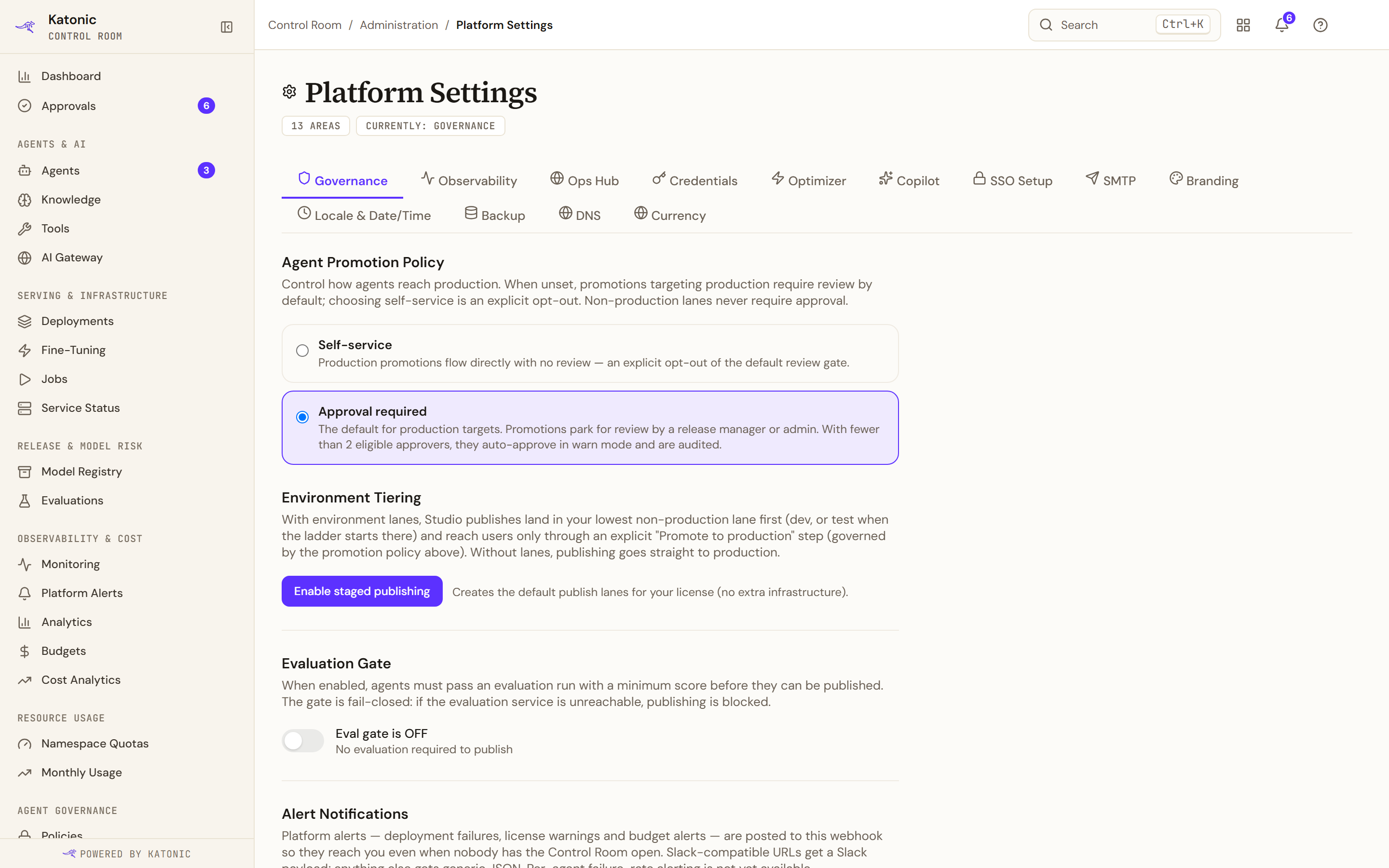
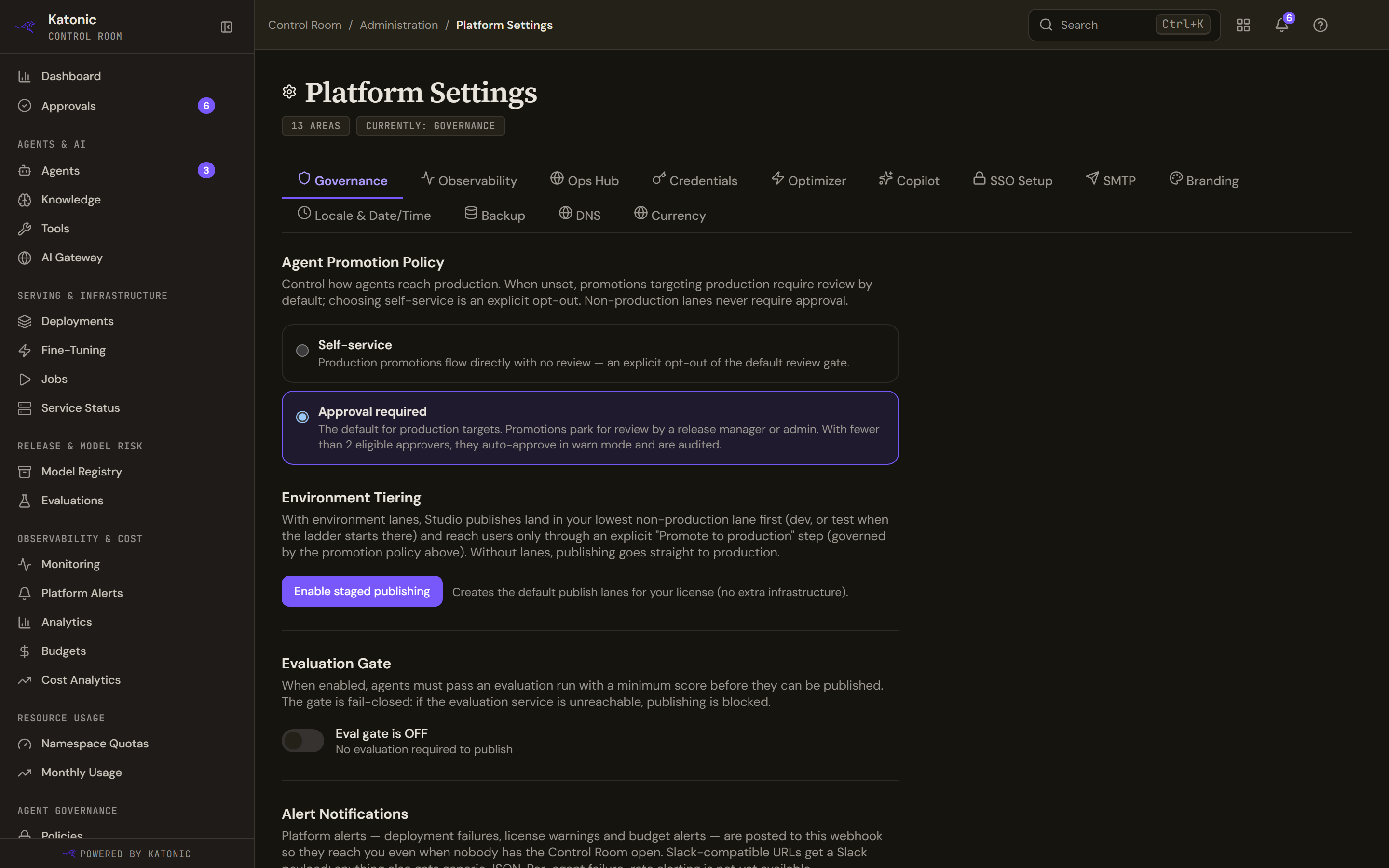
Platform Settings opens on Governance, and the header counts the areas you can see.
| Tab | What it configures | When you need it |
|---|---|---|
| Governance | Agent Promotion Policy, Environment Tiering with Enable staged publishing, Evaluation Gate, Alert Notifications. | Go live. |
| Observability | OpenTelemetry exporters to your monitoring stack; Save configuration stores the collector configuration for your operator to roll out and connect the destination. | When you connect your monitoring stack. |
| Ops Hub | The Katonic Ops Hub connection (Ops Hub URL, Platform API Key, Test Connection) that supplies the tools catalog and provider metadata. | Before you sync providers into the AI Gateway. |
| Credentials | The NVIDIA NGC key for GPU document parsing and the Hugging Face token for gated models. | Before NVIDIA parsing or gated models. |
| Optimizer | The AI Gateway tier the Prompt Optimizer routes through; a tier must exist first. | When Builders start using Studio. |
| Copilot | The Workflow Copilot on the workflow canvas: on or off, and Automatic model choice or a pinned model. | When Builders start using Studio. |
| SSO Setup | Your OpenID Connect identity provider and its role mapping. | Connect single sign-on, the next stage. |
| SMTP | The outbound mail server for password resets, invitations and notifications. | Now, before you invite anyone. |
| Branding | Product name, colours, logos, login page text and zone names. | Any time; now, so the first invitees see your name. |
| Locale & Date/Time | How agents write dates and times. | Before go-live. |
| Backup | The scheduled platform backup: Backups enabled, Schedule, Retention (days), Pause schedule, recent backups. | Before go-live. On AI Cloud the distributor runs backups. |
| DNS | The platform's DNS records. | When you add an environment or a custom domain. |
| Currency | The currency costs are displayed in. | Any time. |
Configure email
- Open the SMTP tab
Select SMTP. The Email / SMTP panel is the outbound mail server for password resets, user invites and system notifications; saved settings are applied to your sign-in realm, so that mail leaves through your own server.
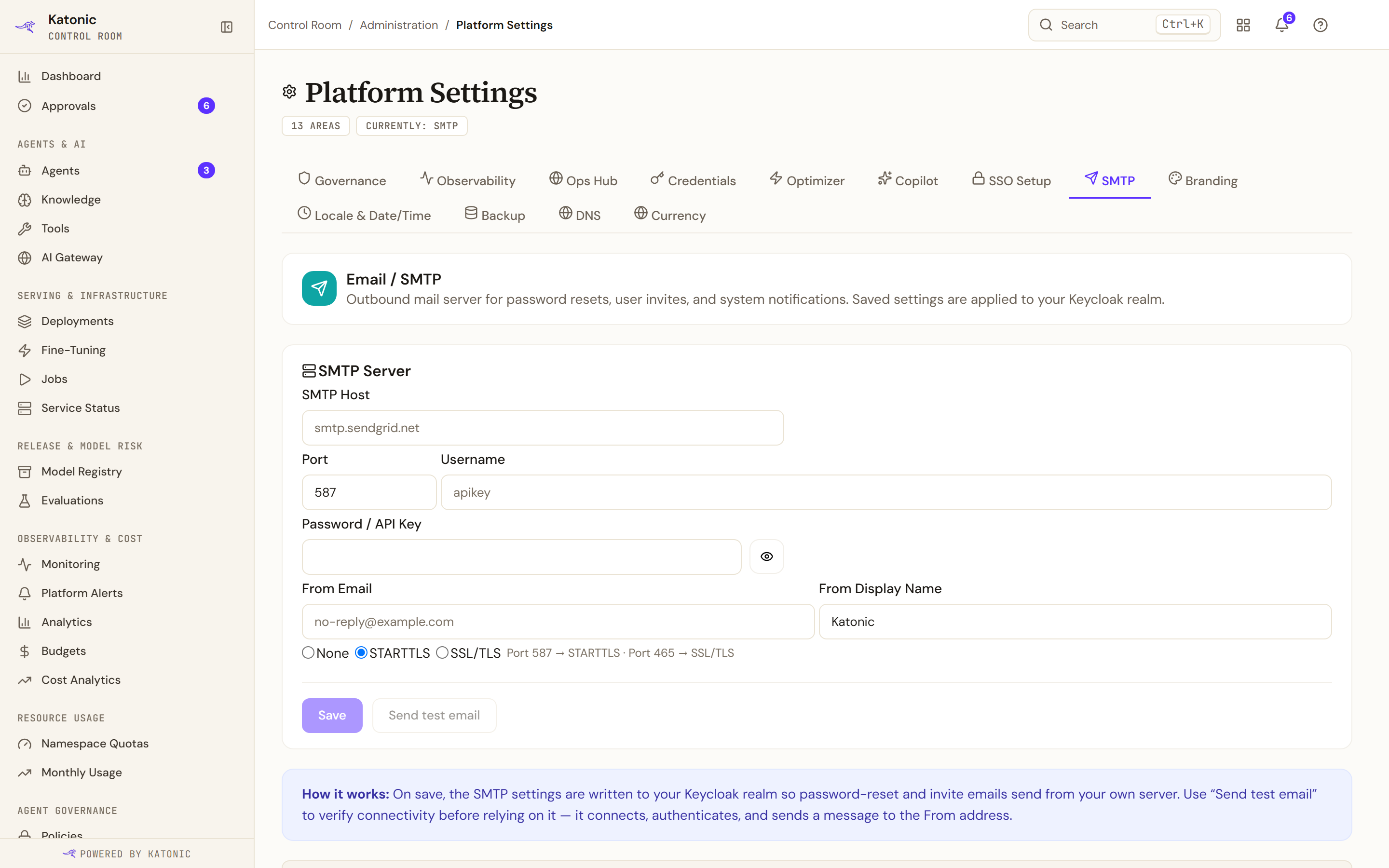
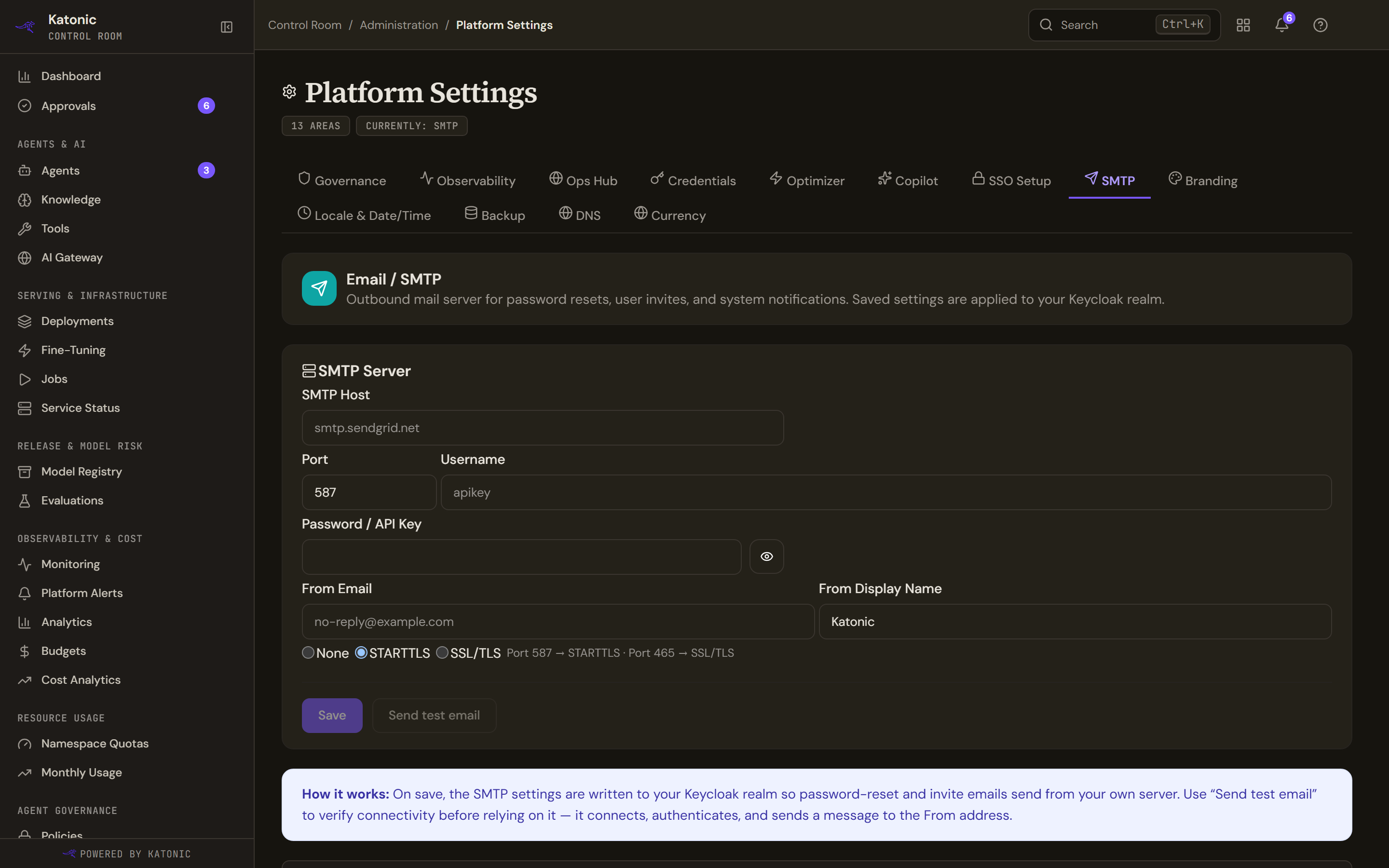
The SMTP panel. Save and Send test email stay disabled until SMTP Host and From Email are filled; the password is write-only, so a saved one shows as a marker rather than its value. - Enter the server
Under SMTP Server, fill SMTP Host, Port (587 by default), Username, Password / API Key, From Email and From Display Name. Tick STARTTLS or SSL/TLS to match the port; the hint pairs 587 with STARTTLS and 465 with SSL/TLS. A saved password shows as a marker with (leave blank to keep saved value).
- Send a test
Send test email connects, authenticates and sends a message to the From address, then reports Test email sent to that address or SMTP test failed with the server's reason. It and Save stay disabled until SMTP Host and From Email are filled.
- Save
Select Save. The panel reports SMTP settings saved, or a warning if the server accepted the settings with a caveat. On AI Cloud they apply to your organisation's own realm.
Set your branding
- Open the Branding tab
Select Branding. Changes reach everyone within about five minutes. On AI Cloud, fields your provider has fixed are disabled and marked Managed by your provider.
- Name the product and the login page
Fill Product name, Login page title and Login page message.
- Choose colours
Set Primary color with the picker or a hex value, and optionally Accent color (optional). The rest of the palette is derived and kept readable unless you tick Use my colors exactly (skip readability adjustment), which warns about WCAG AA contrast and is recorded in the audit log. Palette preview (as last saved) appears after a save.
- Upload logos
Logo (light theme) and Logo (dark theme) take a PNG up to 512 KB; Favicon takes a PNG up to 64 KB. Upload PNG saves the image at once; SVG is refused. A missing dark logo falls back to the light one, and a monogram stands in until you upload one.
- Rename zones and save
Terminology renames the product and each zone; a blank field resets it. Save sends only what you changed and reports Branding saved, or Saved - some colors were adjusted to stay readable. Send test invite to me emails you a branded message and needs SMTP. Revert last save asks Restore the previous branding? first.
Verify
- Send test email reports success and the message arrives at the From address; after Save, the password field shows its saved marker.
- Within about five minutes the top bar shows your product name and colours, and the login page shows your title and message.
Troubleshooting
- SMTP test failed: the text after it is the server's reason. Check host and port, that the TLS box matches the port, and the credentials.
- You need the admin role to change these settings.: you reached the page through a grant. Ask an Admin.
- Couldn't load these settings, so nothing is shown rather than a guess: the read failed, and the form is withheld so you cannot save defaults over a live configuration. Retry.
- Could not send the test email on Branding: finish the SMTP tab first.
- The Branding editor is locked with a note about your plan: white-label self-service is not in your licence, and branding applied at setup stays. Your workspace is still being set up means provisioning has not finished.
- Tabs are missing: you hold a grant rather than the Admin role, or you are on AI Cloud, where Backup is not offered.
Go deeper
The Control Room pages behind this journey, each with every field, state and message: