Connect an API as a tool
Tools
Any REST API described by an OpenAPI or Swagger spec can become a set of tools: Katonic reads the spec and turns each operation into a tool an agent can call. No server runs for it; requests are made on demand when an agent calls a tool. This page covers importing a spec from Tools in the Control Room, and what you can do with the source afterwards.
Who can use it: the Admin role, in a tenant licensed for tools.
Recorded on .
Where to start
The Catalog does not offer API specs: every spec is imported from the Control Room. Import OpenAPI on Tools opens the Import OpenAPI Spec dialog for any spec, in two steps: Spec Source and Configure.
Import a spec from Tools
- Provide the spec
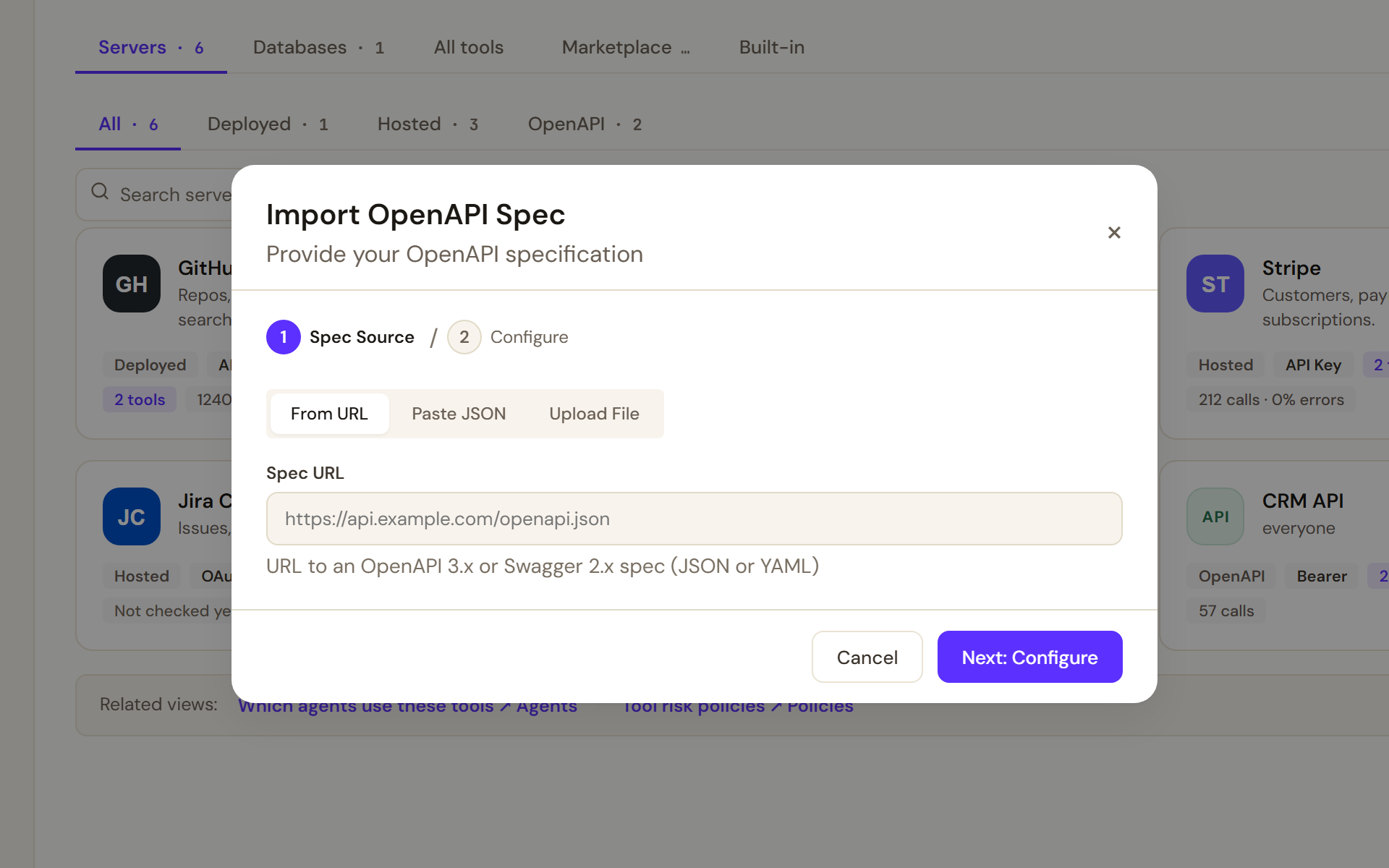
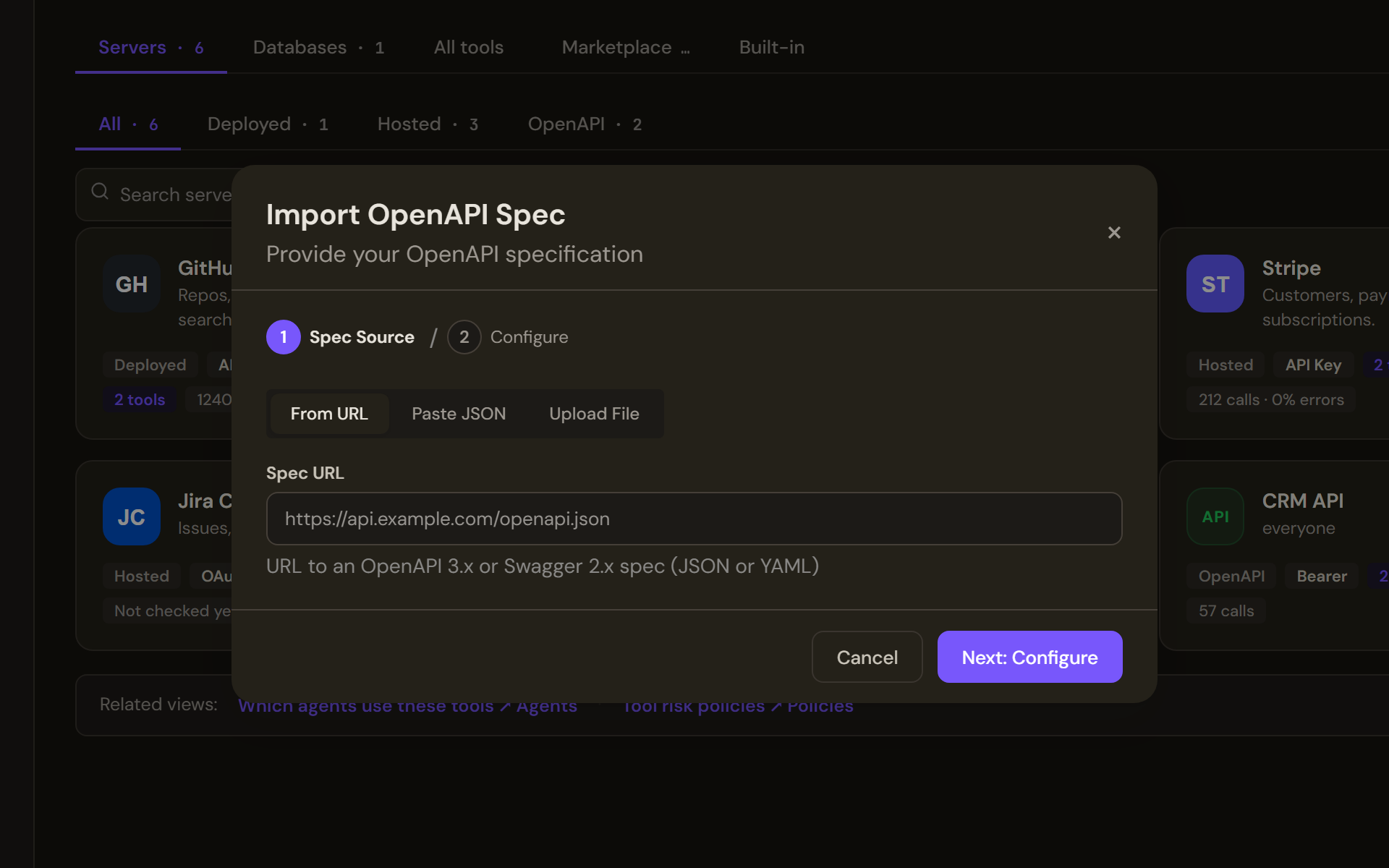
Step 1, Spec Source: give the spec by URL, paste it as JSON or upload a .json or .yaml file, then select Next: Configure. On Spec Source, choose From URL and enter the Spec URL of an OpenAPI 3.x or Swagger 2.x spec in JSON or YAML, or Paste JSON into Spec Content, or Upload File and select Click to upload .json or .yaml file. Select Next: Configure; it reads Parsing... while the spec is read.
- Read the validation
The dialog reports Validating spec..., then either Spec validated successfully -- no issues found., a list of Warnings with the note that you can proceed and unsupported features will be skipped, or Errors, which stop the import until the spec is fixed.
- Name it and set the base URL
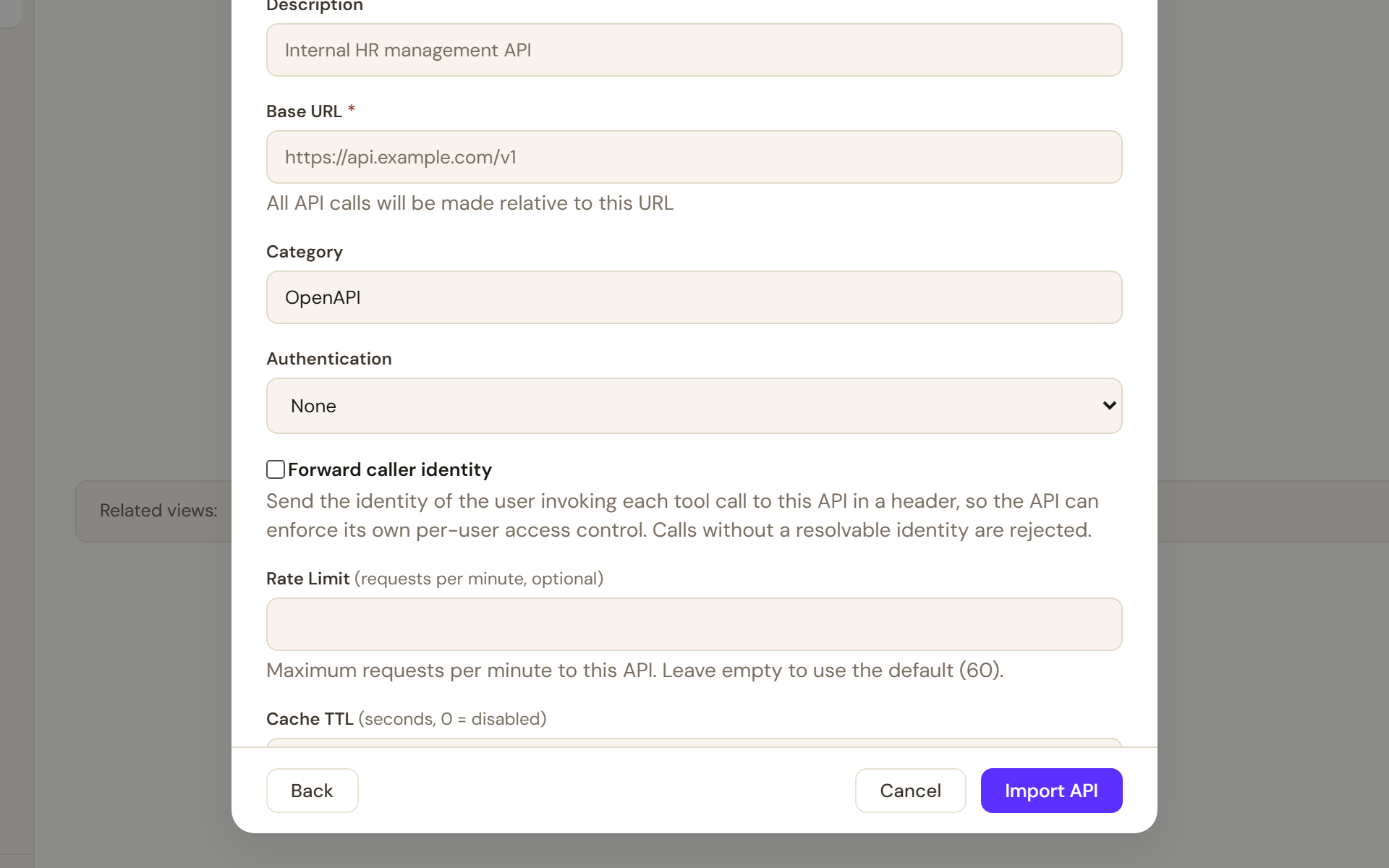
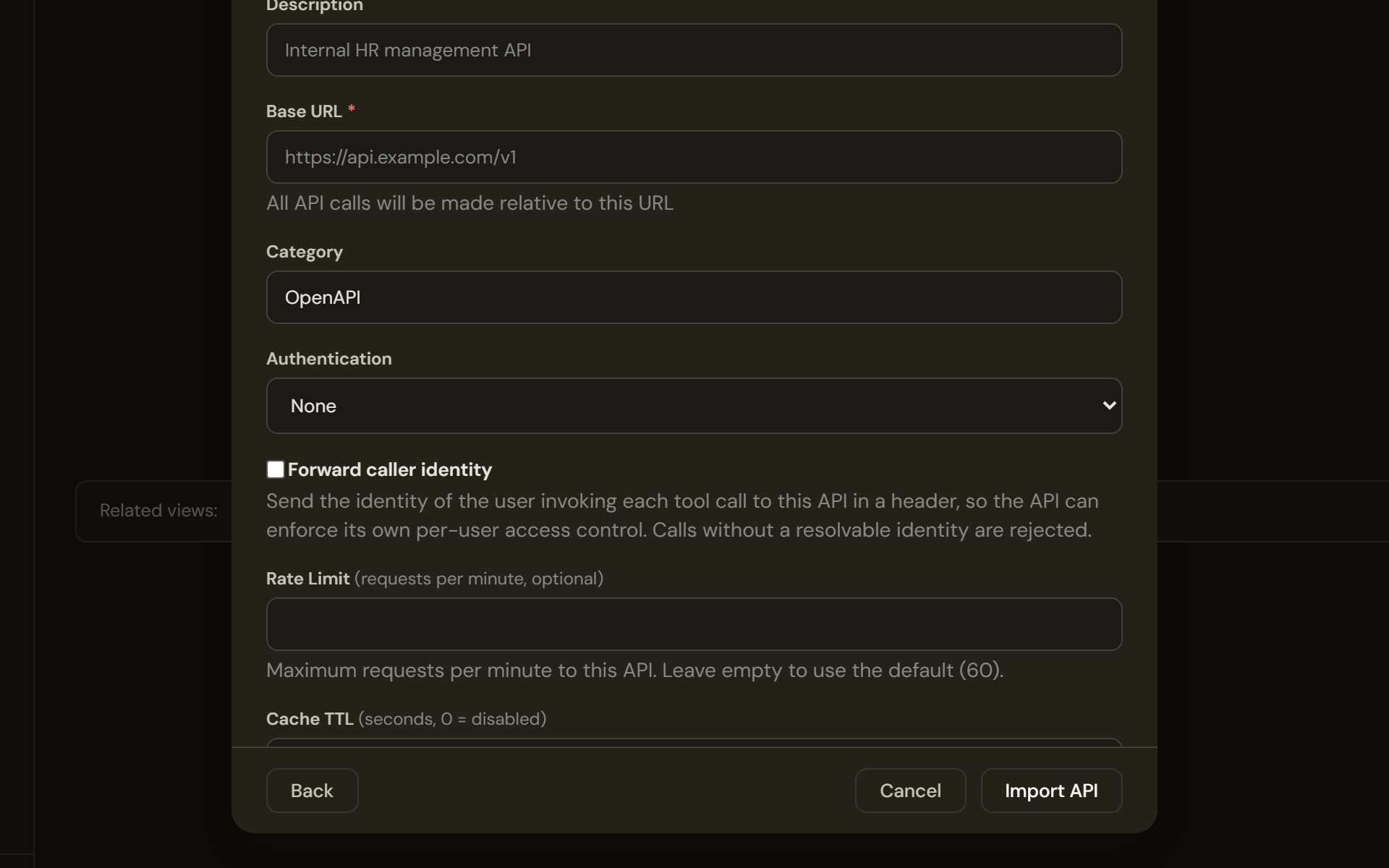
Step 2, Configure: set the Base URL, choose the authentication, decide whether to forward the caller's identity, cap requests per minute and cache responses, then select Import API. On Configure, enter a Name and a Description, choose a Category, and set the Base URL: all API calls are made relative to it.
- Choose the authentication
Authentication offers None, API Key (Header) with a Header Name and Header Value, Bearer Token, Basic Auth with a Username and Password, and OAuth2. For OAuth2 the dialog says to save the connection first and connect through OAuth from the edit screen; a connected source later shows Connected via OAuth2.
- Decide whether to forward the caller's identity
Switch on Forward caller identity to send the identity of the person whose agent is calling to the API in a header, so the API can apply its own per-user access control. Set the Identity Header, X-Principal by default, and the Identity Value: User ID or Email. With this on, calls without a resolvable identity are rejected.
- Set limits and groups
Rate Limit caps requests per minute to this API; empty means the default of 60. Cache TTL caches identical requests for that many seconds, and 0 disables caching. Under Access Groups, choose who may use the tools. Select Import API; it reads Importing... until the source is created. Back returns to the spec.
After the import
The source appears on the Servers tab as an OpenAPI card with ENABLED or DISABLED, its authentication and its tool count. The switch enables or disables it for agents; there is no server to start. Select the card for its detail: Status, Base URL, Auth Type, Spec Version, Enabled Tools, Groups, Principal Forwarding, which reads Forwarded - calls carry the end user's identity or Not forwarded - all users share the service identity, and Operations, each marked ON or OFF. Health Check calls the API and reports a Health Issue if it fails; Refresh Spec re-reads the spec and updates the tools; Edit reopens the dialog as Edit OpenAPI Source with Update; Delete removes the source after a confirmation.
The operations appear on All tools with a Risk of Read or Write decided from each operation's HTTP method, so a Basis of From HTTP method. Builders attach them to agents in Studio.
Verify
On Servers, the card reads ENABLED with the tool count you expect. Run Health Check from the detail and confirm no Health Issue appears. On All tools, filter by OpenAPI and check the operations and their risk.
Troubleshooting
- Errors after validation. The spec is not valid OpenAPI 3.x or Swagger 2.x, or could not be fetched from the URL. Fix the spec or paste it instead, then select Next: Configure again.
- Warnings after validation. Some features are unsupported and will be skipped; the import still works. Check on All tools that the operations you need are present.
- A Health Issue on the detail. The API did not answer from the Base URL with the configured authentication. Check the URL, the credential and network access from the platform.
- Calls fail with identity forwarding on. The caller has no resolvable identity of the chosen kind, so the call is rejected. Switch Identity Value between User ID and Email, or switch forwarding off.
- The credential seems lost after an edit. A credential field left empty when saving replaces the stored value. Re-enter it to keep the connection working.