Find your way around
Every zone in Katonic shares the same frame: a sidebar on the left, a top bar across the top, and the page in between. Once you know the frame in one zone you know it everywhere.
Who can use it: any signed-in user. Which zones and entries appear depends on your role; see Roles and access, which sits with the rest of the roles and grants pages under Users & Teams in the Admin Guide.
Recorded on .
The sidebar
The head of the sidebar shows the product name and the zone you are in. Below it come the zone's entries, and at the foot the Powered by Katonic mark.
- Each entry is a link. A plain click opens it in place; Ctrl+click or middle-click opens it in a new browser tab.
- A count on an entry is work waiting for you. In the Work Room, Automations shows how many runs are waiting for your approval.
- A lock icon means the feature is not licensed for your organisation.
- Collapse sidebar in the head shrinks the sidebar to a rail of icons; its tooltip shows the shortcut, Ctrl+\. Collapsed, the logo becomes Expand sidebar and hovering an icon shows its name. Your choice is remembered across zones and sign-ins, and in a narrow window the sidebar starts collapsed.
In the Work Room the sidebar also carries your conversations: New conversation (Alt+N), Search chats (press / to jump to it), a Favorites list once you have starred threads, and Recent. View all opens the Conversations page. Each thread has a More options menu (the three dots) with Open, Add to Favorites or Remove from Favorites, Rename, Share, Remove from Recent and Delete. This panel is hidden while the sidebar is collapsed.
Reorder the entries
- Move an entry
Hover an entry and use Move up or Move down, or drag the entry to a new position. Entries move within their own section only.
- Reset
Once you have changed the order, Reset navigation order appears under the list. Select it to return to the default.
The order is saved to your account, separately for each zone. If your saved order cannot be loaded, the sidebar says so and shows the default order.
The top bar
On the left, the breadcrumb names the zone, the section and the page you are on; it is a label, not a set of links. Next to it, a chip shows your role. On the right, from left to right:
- Search opens the command palette (Ctrl+K).
- Switch workspace (the grid icon) lists the zones you can open, marks the one you are in as Current, and appears only when you can open more than one zone.
- Notifications (the bell) shows what is waiting for you in this zone.
- Help & Support (the question mark) opens the help menu.
- Account (the user icon) shows your name, email and role, and offers Profile, Preferences, Toggle theme and Sign out.
The command palette
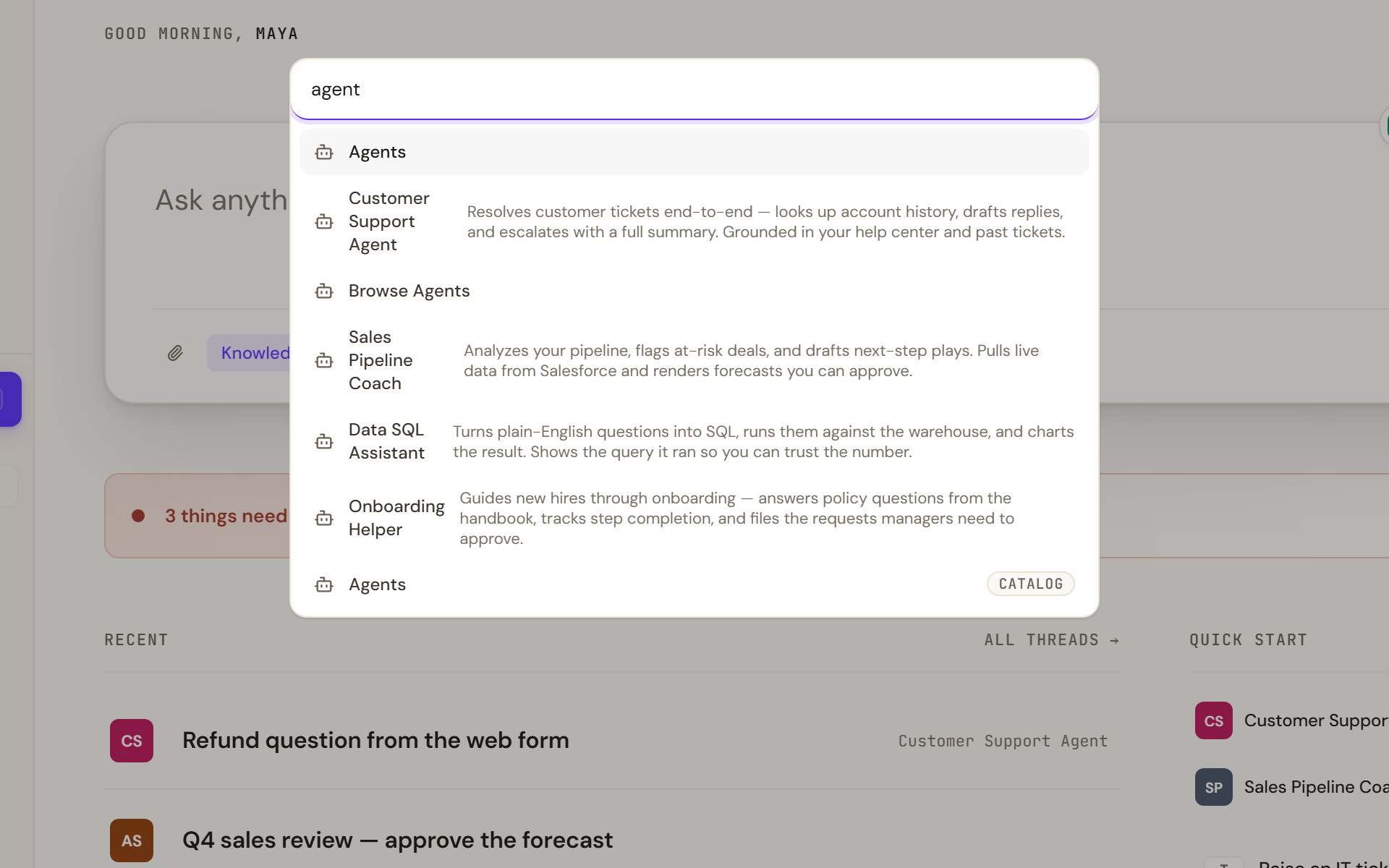
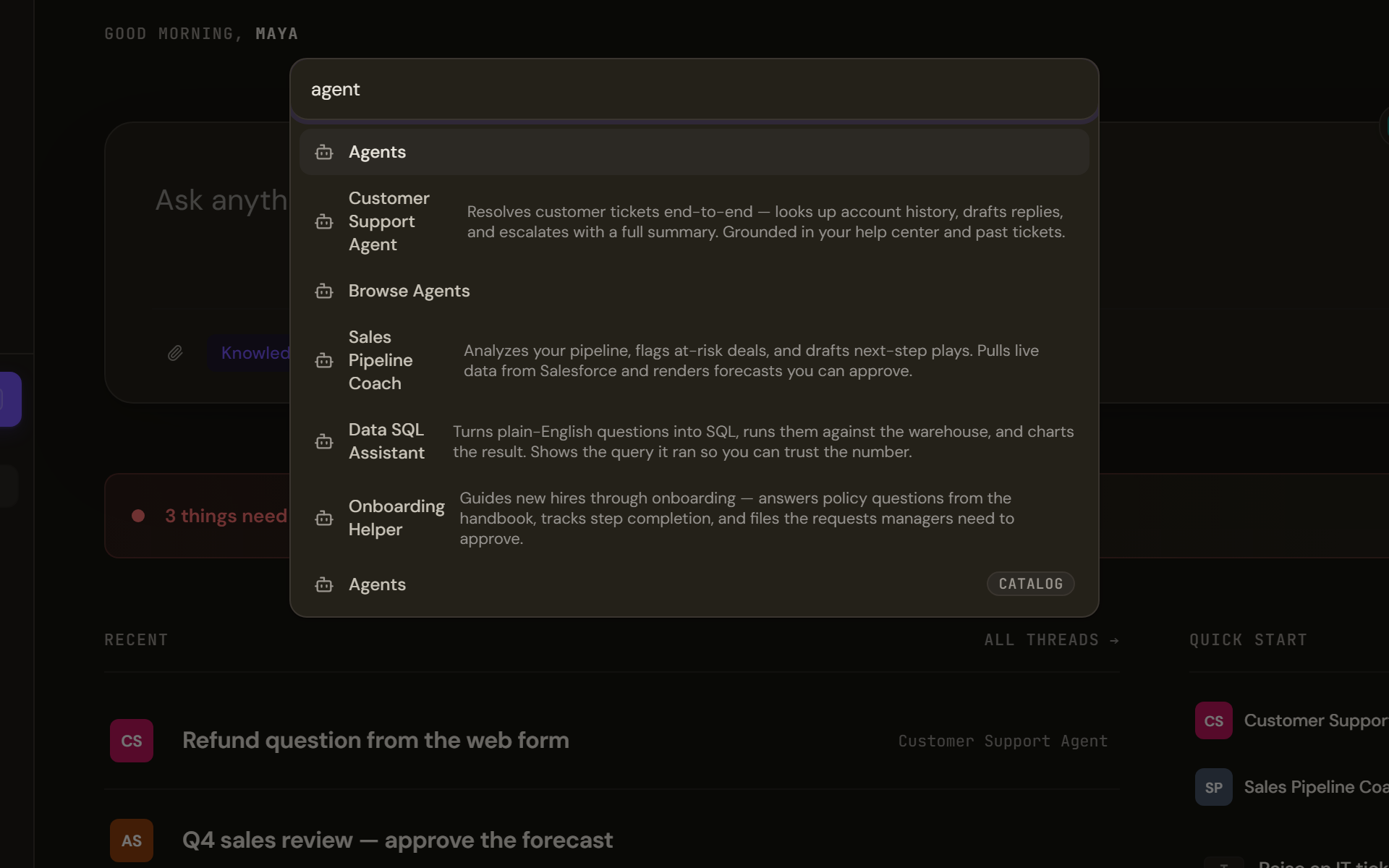
Open it with Ctrl+K or Search. The box reads Search pages and actions... and, until you type, Type to search across the platform. As you type, it searches the pages of every zone you can open and, in the Work Room, your conversations, agents and artifacts, plus three actions: New conversation, Preferences and Browse Agents. In Studio it also finds agents, knowledge sources and MCP servers, and offers Studio actions.
Results from the zone you are in come first. Results from other zones follow, each with a zone chip, so leaving the zone is always a visible choice. Use the Up and Down arrows to move, Enter to open, Escape to close. When nothing matches, the palette says No results.
Notifications
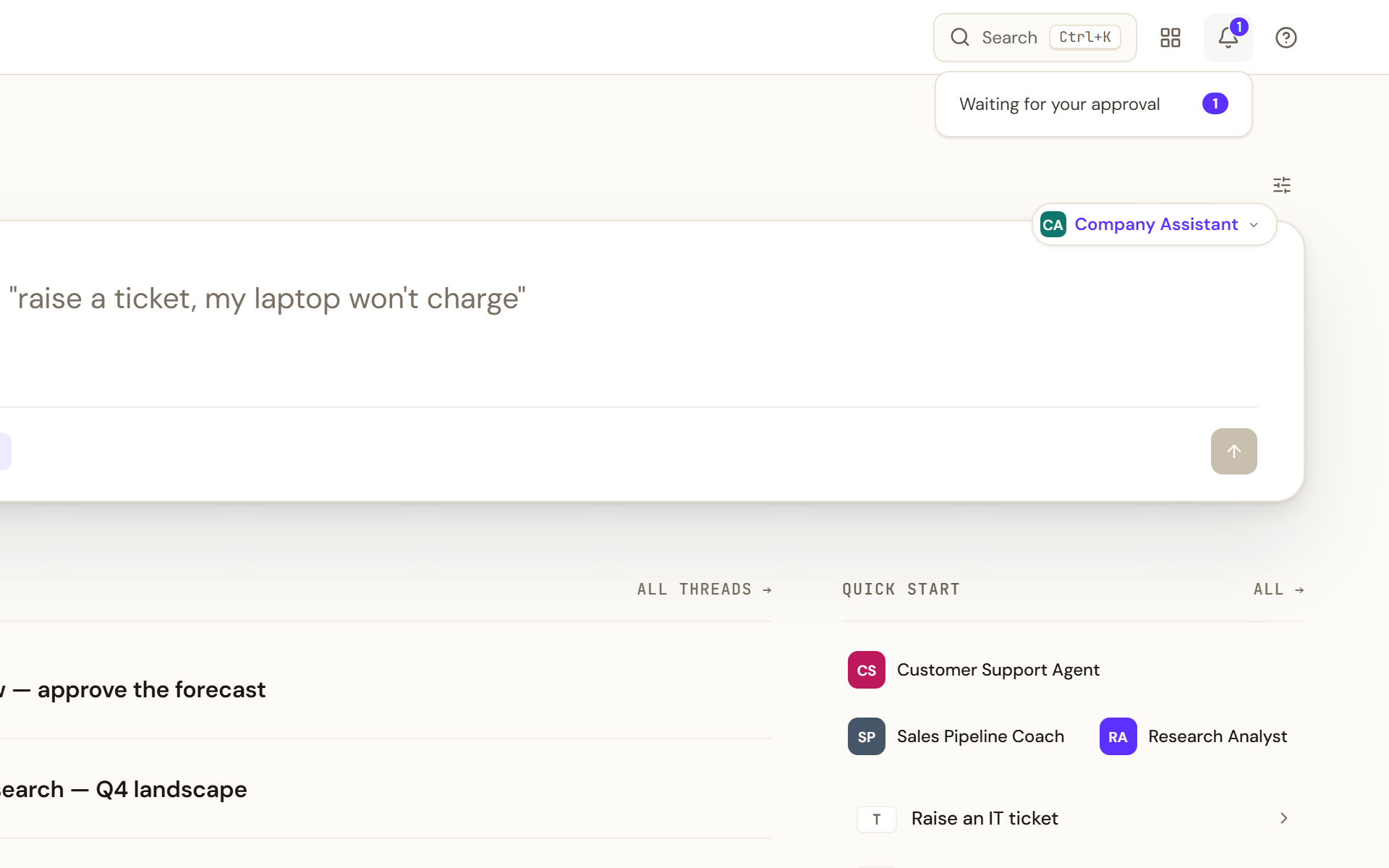
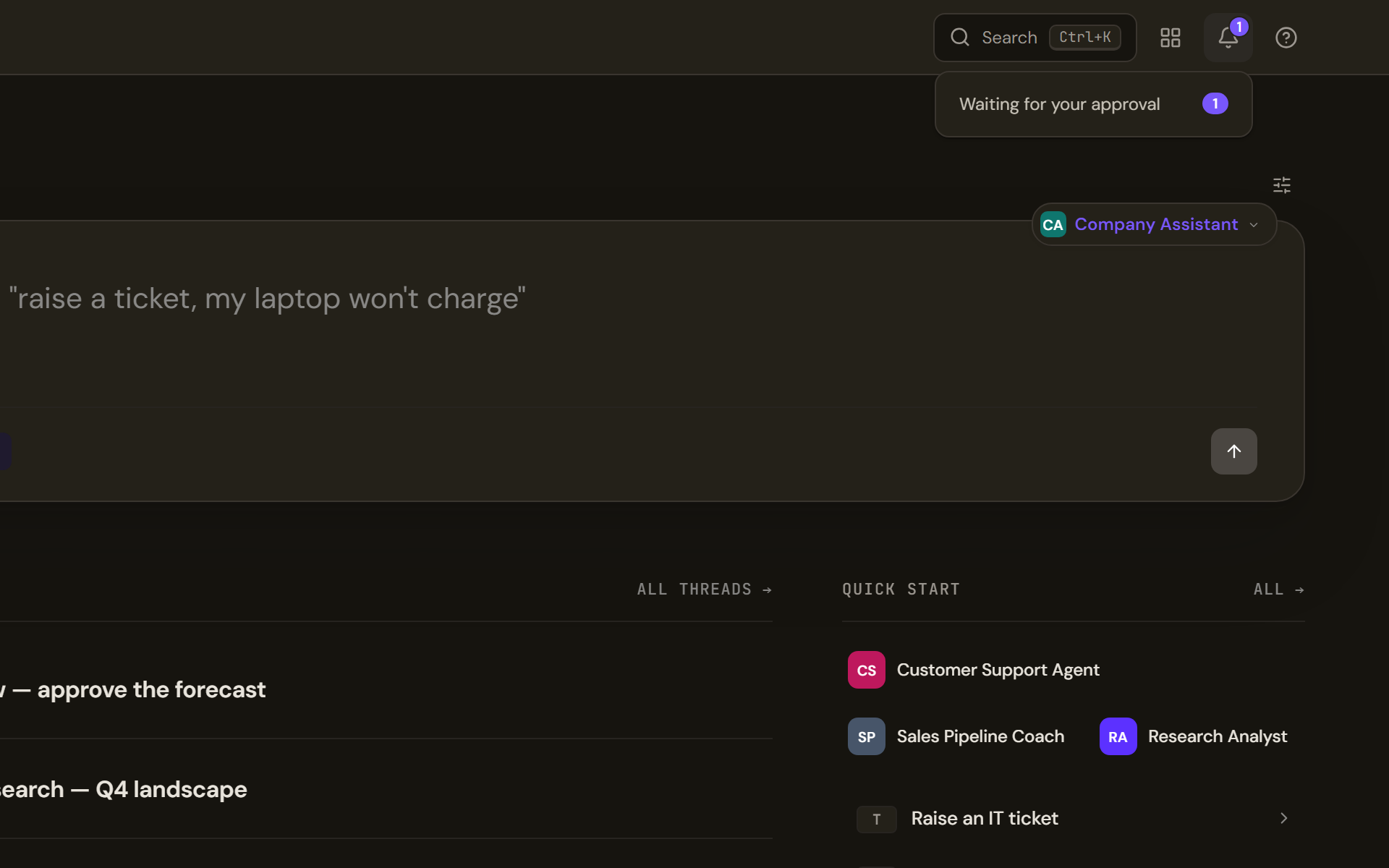
The bell's badge is the total of what is waiting for you in the zone you are in, and each row of the popover opens the place to deal with it. In the Work Room, Waiting for your approval counts automation runs paused for a decision and opens Automations filtered to those runs. In the Control Room, Approvals and Agents awaiting review count the governance queue and the agents pending review. The same numbers appear as badges on the matching sidebar entries. With nothing waiting, the popover says All caught up. Counts refresh on their own.
Help & Support
The menu has three entries: Documentation, which opens this help centre in a new browser tab; Contact Support; and Keyboard shortcuts (Ctrl+/), which opens the shortcuts panel. In the Control Room, Help & Support is also the last entry of the sidebar.
Names that changed
Two zone names were retired and still appear in older material and screenshots.
| You may have | Write, and look for, this now |
|---|---|
Workroom, WorkRoom | Work Room |
Marketplace | Catalog |
Role and grant names also changed; Roles and access has that table.
Limits and behaviour
- Menus and popovers close with Escape or a click elsewhere. While the palette or the shortcuts panel is open, the other keyboard shortcuts pause.
- The Work Room's New conversation button and the palette's New conversation action appear only for roles that can start a chat.
- A link to a page that does not exist shows Page not found with a Go to Work Room button.
- Press Tab on a freshly loaded page to reveal Skip to main content, which jumps past the sidebar and top bar.