Your first day in the Work Room
The Work Room is where most people spend their time in Katonic: you ask questions, use the agents your organisation has published, and keep what they produce. This page is the order to do things in on day one. Each stage links to the fuller page.
Who can use it: any signed-in user; the Member role is enough for every stage. If Switch workspace (the grid icon) also offers Studio or the Control Room, you hold a wider role, and Get started for builders or Get started for administrators is yours as well.
Recorded on .
The stages
- Get your bearings
Every zone shares one frame. The sidebar lists the Work Room's entries: Home, Personal chat, Conversations, Agents, Apps, Automations, Artifacts and Shared with me. The top bar carries Search (Ctrl+K), Switch workspace, Notifications (the bell), Help & Support (the question mark) and Account (the user icon), with a chip showing your role. What is Katonic, Find your way around and Roles and access.
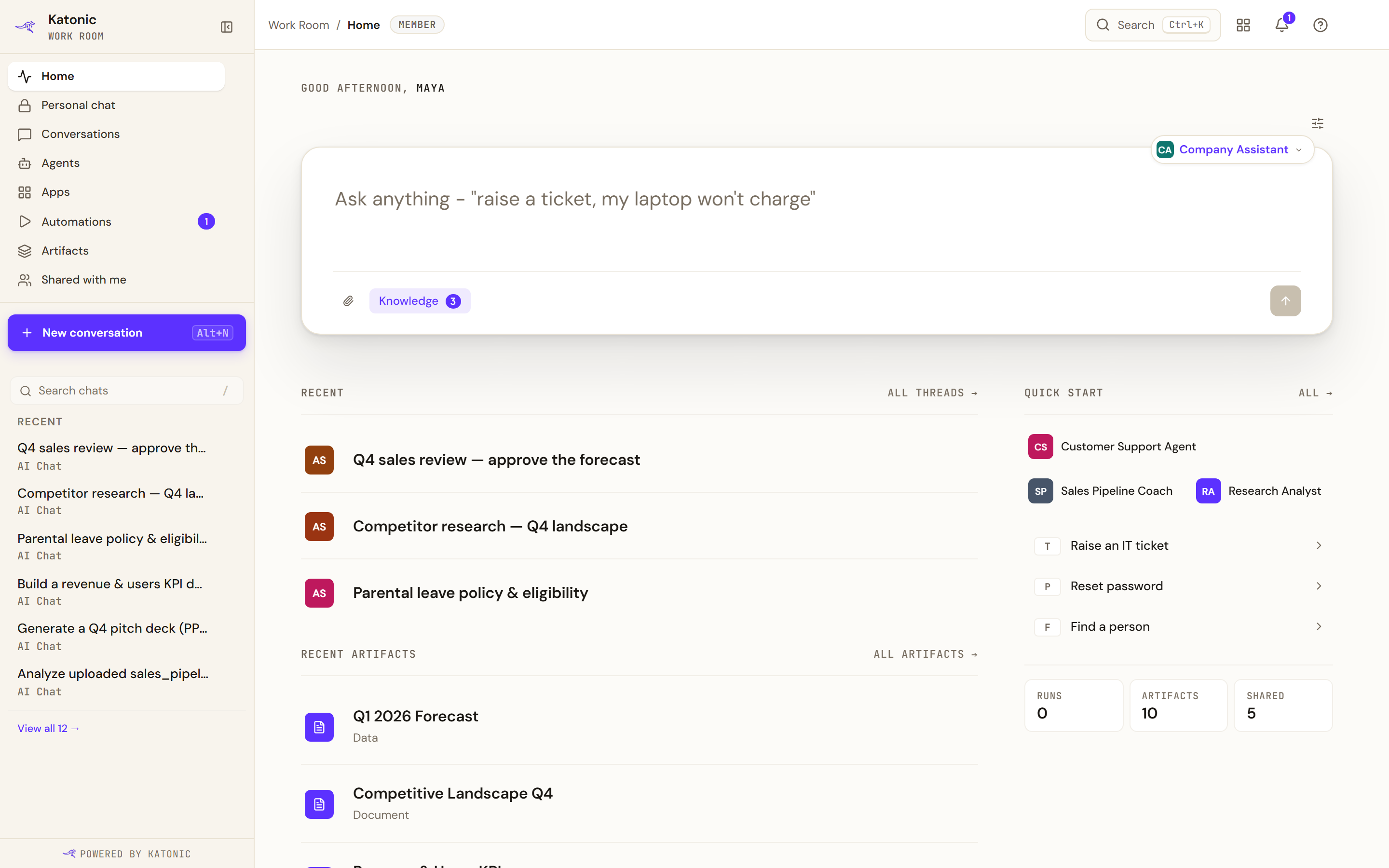
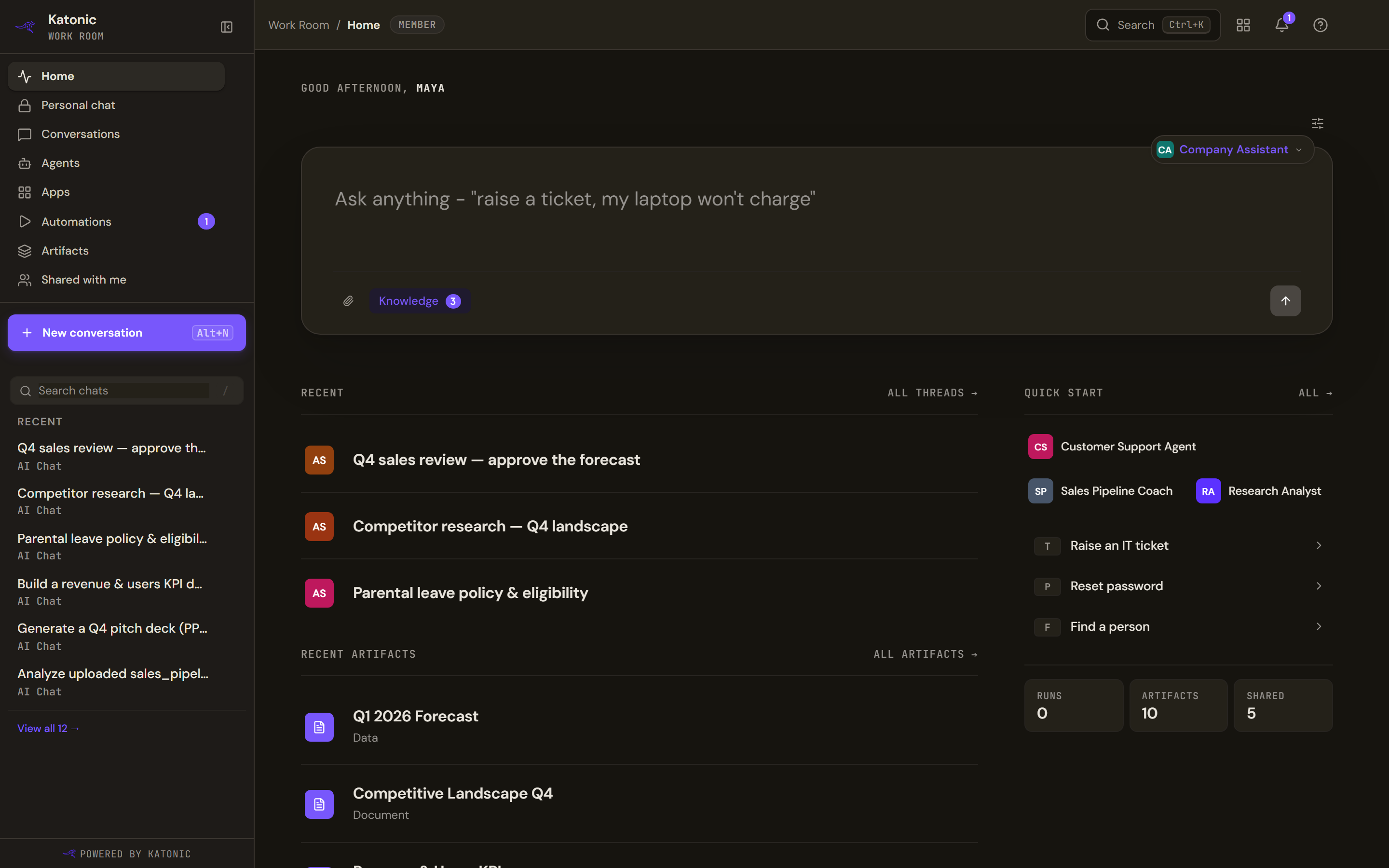
Day one as a Member: the Work Room sidebar, the composer with its Knowledge chip, and your role chip in the top bar. - Ask your first question
On Home, type a question in the composer and press Send. The default agent answers unless you pick another with Switch agent. Read the receipt line under the answer: Searched knowledge base with a source count means the answer came from your organisation's documents, and the citation chips point to them; Model knowledge means it came from the model alone. Good response and Bad response send feedback to the people who maintain the agent. For a general question that has nothing to do with your organisation's documents, use Personal chat, which talks to a model directly. Home and chat and Cards and reasoning.
- Meet the agents
Open Agents. The default agent sits at the top, marked Default · everyone on your team; the chips filter the rest by type, Conversational, Workflow and Coordinator. Select Details on a card to read What this agent can do and its Try asking prompts, then Start Conversation. A workflow agent starts a run instead, with Run workflow. Using agents and Start an automation.
- Hand an agent a file
In any conversation, select Attach (the paperclip) or drop files onto the thread: PDF, Word documents, images, spreadsheets and code, up to eight files of 25 MB each per message. Ask about them in the same message. When an answer cites your organisation's documents, you can open the source it used. Files and documents.
- Ask for a document, and find it again
Ask an agent for a PDF, a PowerPoint or a Word document and it arrives as a chip under the reply, with Download. Everything agents produce for you is collected in Artifacts, filtered by Documents, Data and Decks, where Download and Copy share link sit on each card. Generate a document and Artifacts.
- Find your way back
The sidebar keeps your Recent threads, and Search chats (press /) finds one by name. The Conversations page lists all of them: Star the ones you return to, tick several to Export or Delete. Search (Ctrl+K) finds pages, conversations, agents and artifacts from anywhere. Conversations and Keyboard shortcuts.
- Check what is waiting for you
A count on Automations in the sidebar is the number of runs paused for your approval; the bell shows the same under Waiting for your approval. Shared with me collects the conversations, artifacts, agents and runs teammates have handed to you. Automations and approvals and Shared with me.
- Make it yours
Open Account and then Preferences. Profile sets your Interface language and the Content language agents answer in. Style sets the Response length and Tone agents use for you. Appearance picks Light, Dark or System, and Home decides which sections show on your home screen. Preferences and Voice.
Look further
- Apps lists the web applications your administrator has deployed for your team. Apps.
- The Catalog is the zone where you can browse the agent templates, skills, apps, MCP servers and connectors that can be added to your organisation's Katonic; taking one into use is Builder or administrator work. Browse the Catalog.
- If a zone or an entry you expected is missing, Roles and access explains why, and your administrator can change it.