Shared with me
Shared with me collects everything a teammate has handed to you: a conversation (thread) you can join with its full history, an artifact to review, an agent to try, or a workflow run to approve. It is the last entry in the Work Room sidebar.
Who can use it: the Member role. Sharing a conversation needs a role that can chat. Sharing an agent needs the Builder role and you must own the agent, unless you are an Admin.
Recorded on .
Prerequisites
- Someone has shared an item with you. Until then the page shows Nothing shared with you yet with a card for each kind of item that can arrive here.
Find a shared item
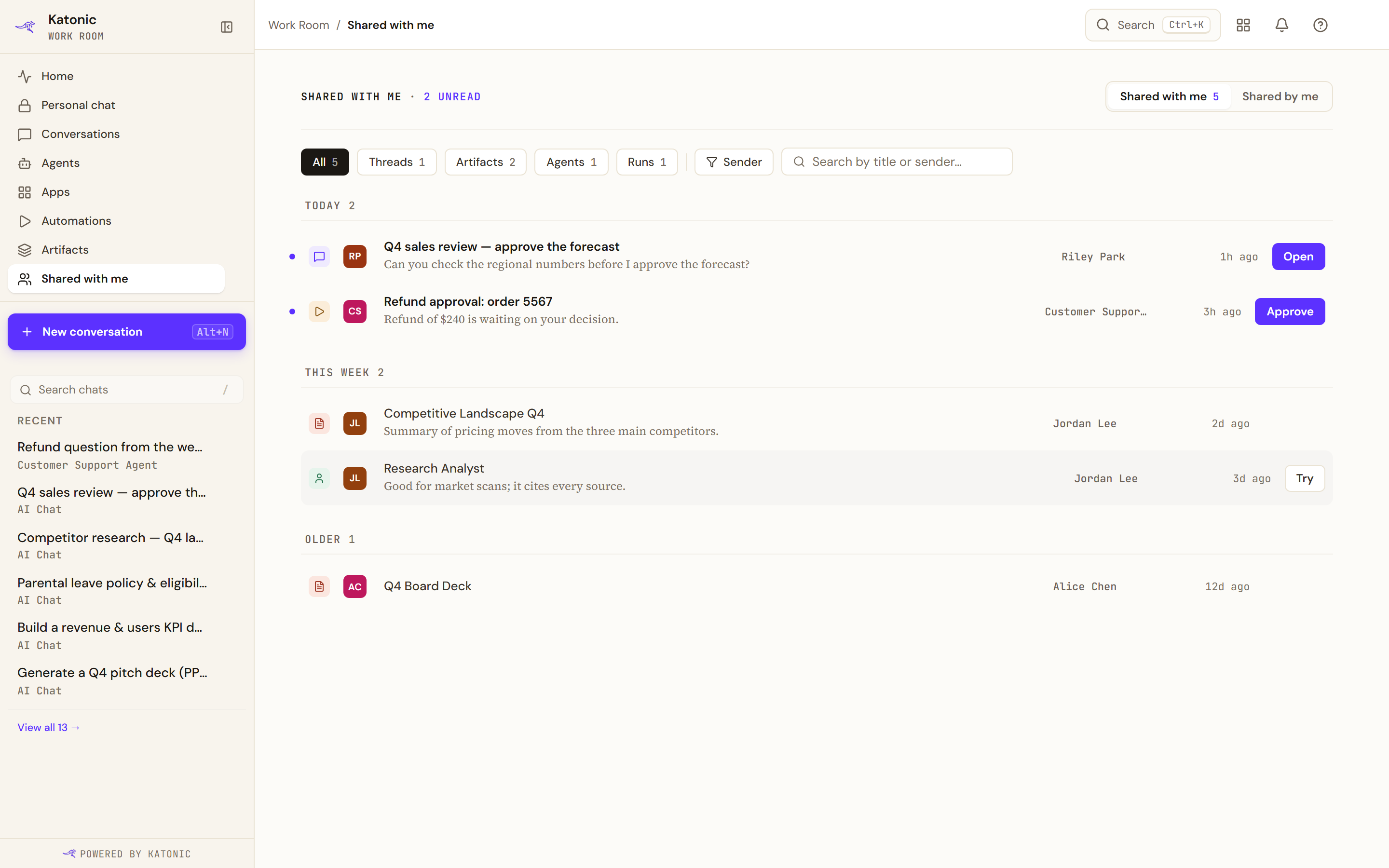
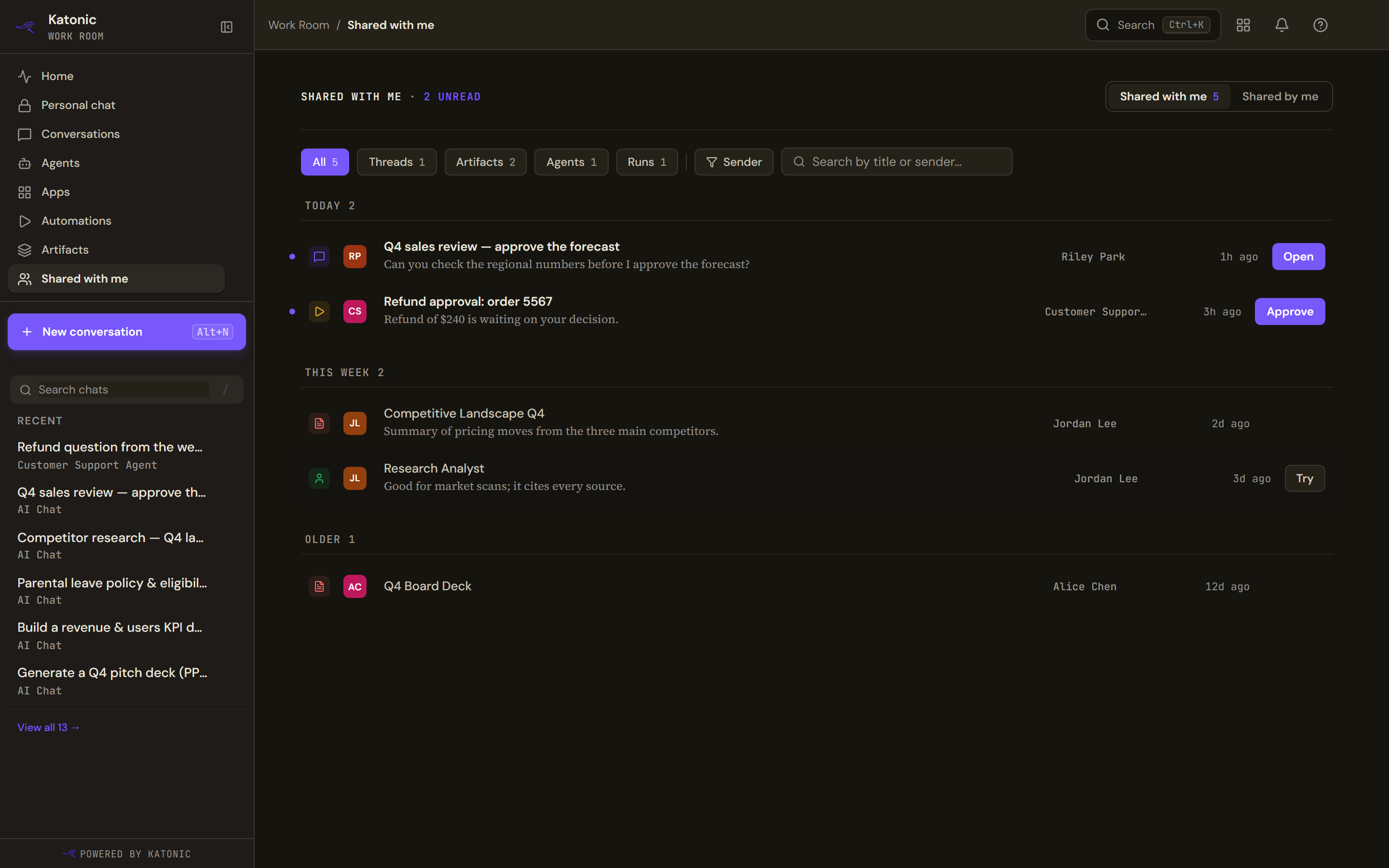
- The header reads Shared with me with the total; when items are unread it shows the unread count instead.
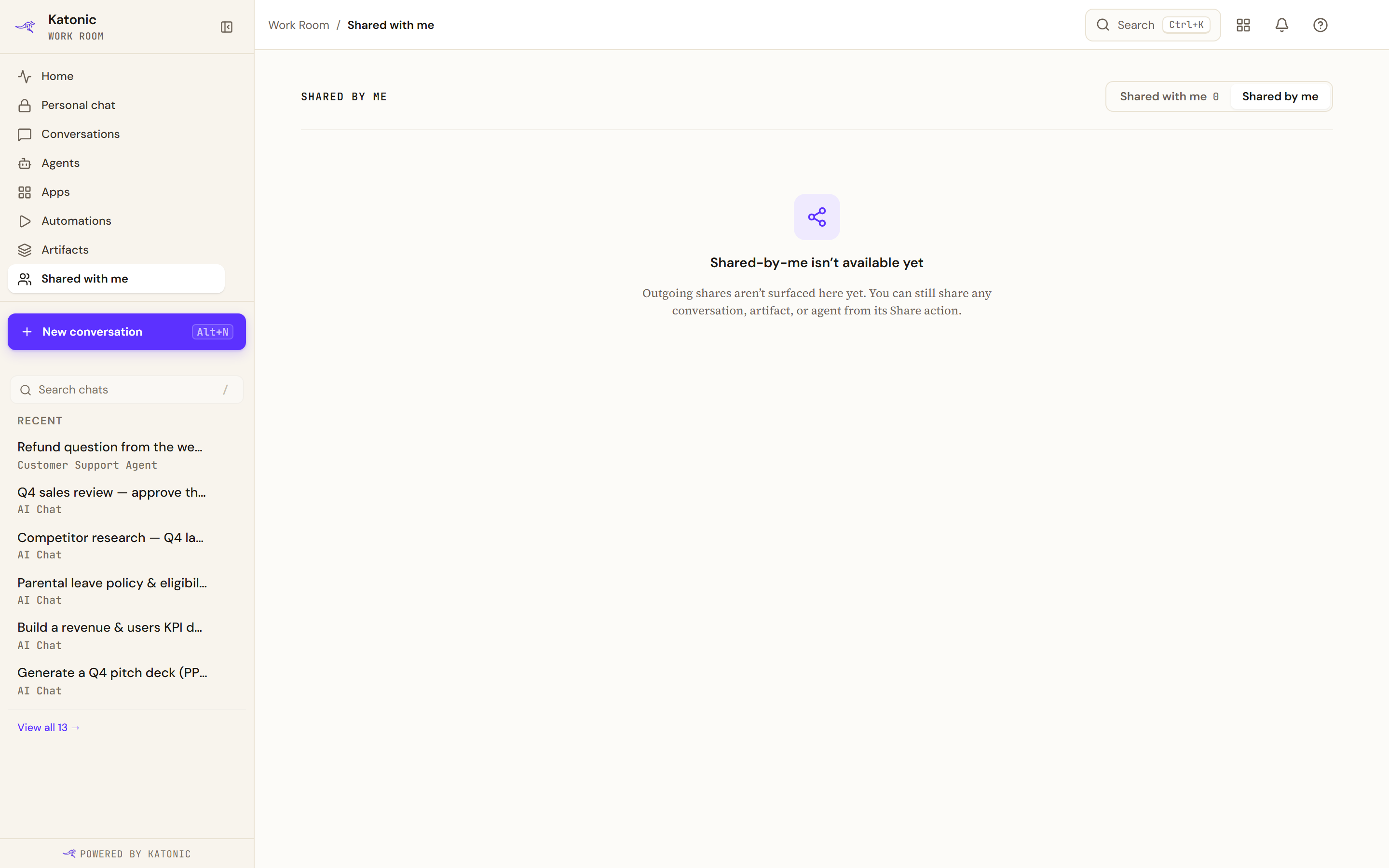
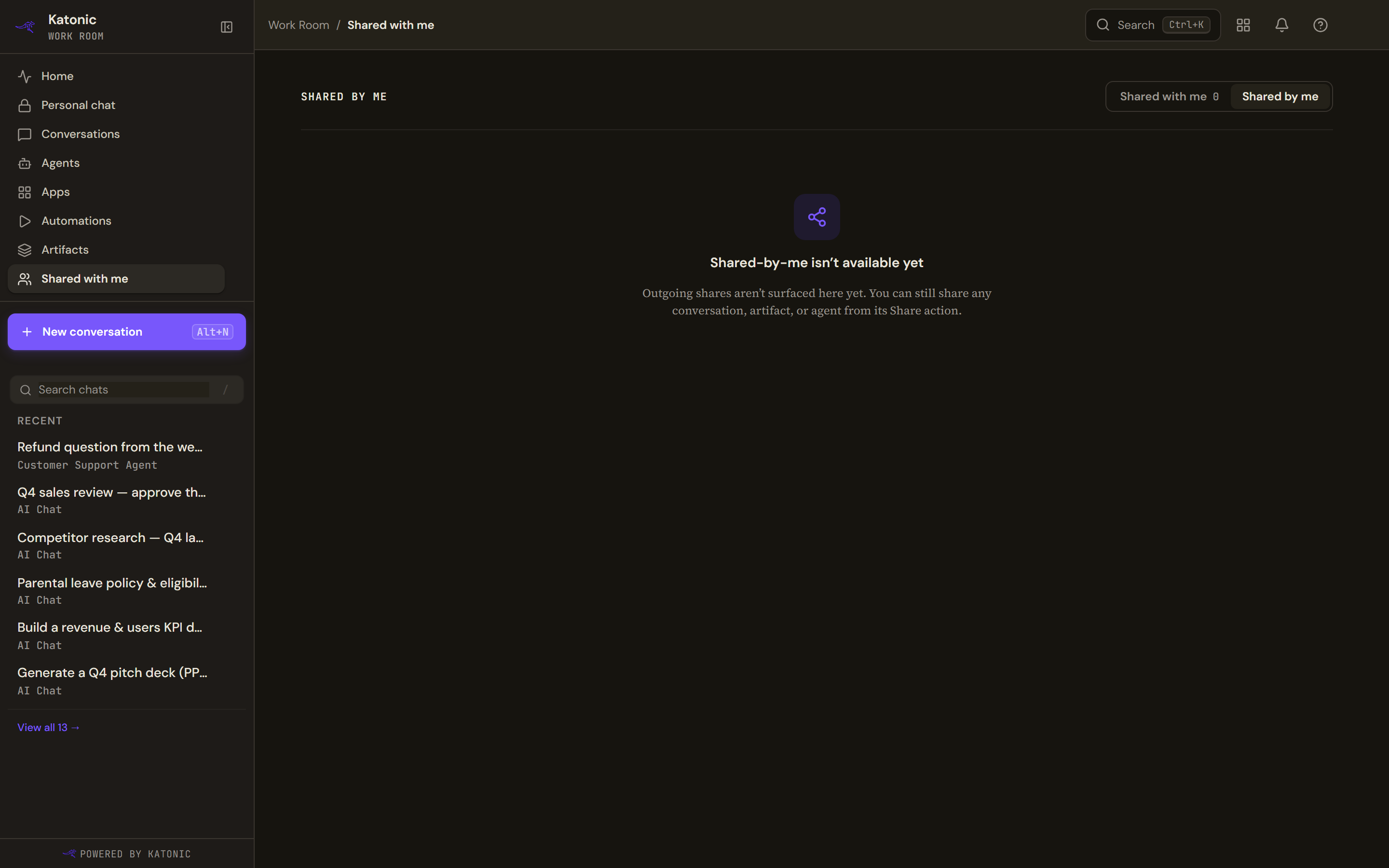
- Shared with me and Shared by me switch the view. Shared by me is not available yet: the page says so and reminds you that you can still share any conversation, artifact or agent from its Share action. There is no list behind it and no count on its tab, because the platform has no way yet to list what you sent.
- Opening an unread item clears its marker on your screen and nowhere else. The platform is not told you read it, so the marker can return on another device.
- The chips All, Threads, Artifacts, Agents and Runs filter by kind and show a count each. Select a chip to filter; select it again to clear it.
- Sender opens a menu with All senders and one entry per teammate who has shared with you. The chip then names the sender; Clear (the cross on the chip) removes the filter.
- The search box (Search by title or sender…) matches titles, previews and sender names.
- Items are grouped by when they were shared: Today, This week and Older.
- Each row shows the kind (Thread, Artifact, Agent or Workflow run), the sender's initials and name, the title, a preview when there is one, when it was shared, and an action button. Unread rows carry a marker and a bold title, and always show their action button; on a row you have read, the button appears when you point at the row or move to it with the keyboard.
Open a shared item
Select a row, or its action button, to open the item.
- Thread: Open
Open takes you into the conversation with its full history, where you can continue it.
- Artifact: Review
Review opens the artifact in its viewer.
- Agent: Try
Try opens the agent's detail page, where Start Conversation begins a thread with it.
- Workflow run: Approve
Approve opens the run. See Automations and approvals for how a decision is recorded.
Share your own work
- Open the Share dialog
For a conversation, select More options (the three dots) next to it in the sidebar's recent list and choose Share. For an agent, select Share on its detail page. The dialog is titled Share followed by the item's name and lists who already has it.
- Choose who
Select Add people or teams, then User (enter an email), Team (enter a team name) or Everyone. Pick a permission: View (can see the item), Use (can interact, such as chat or query), Edit (can modify settings) or Admin (full control and can re-share). Select Share.
- Copy a link
For a conversation the dialog also offers Copy link, confirmed with Link copied to clipboard.
- Revoke or finish
Each existing share lists who it went to, their permission and who shared it. Revoke (the cross) removes a share you created; admins can revoke any. The footer counts the shares. Select Done to close.
Artifacts work differently: Copy share link on an artifact card copies a link to the artifact, confirmed with Link copied.
Verify
Reopen the Share dialog on the item: the person or team appears in the list with the permission you chose, and the footer count has gone up.
Troubleshooting
- Couldn't load this or You don't have access to this with Retry: the list could not be fetched. This is not the same as having nothing shared; retry or check back shortly.
- Only the owner can share this: you do not own the item. Ask its owner or an admin to share it for you.
- This can't be shared here: sharing for that kind of item is currently limited to admins.
- Enter a user email or team name: the User and Team options need a target before Share works.
- No Share button on an agent: only Builders who own the agent, and admins, can share it.