Apps
An app is a web application your administrator has deployed to the platform: a Streamlit, Gradio or Dash data app, or a React front end. The Apps page lists the apps provisioned for your team so you can open them without leaving the Work Room.
Who can use it: the Member role. Deploying, updating and removing apps happens in Control Room, so you need an administrator for that; the page header says so with managed by IT Admin.
Recorded on .
Prerequisites
- At least one app deployed for your team. Until then the page shows No apps provisioned yet.
Find an app
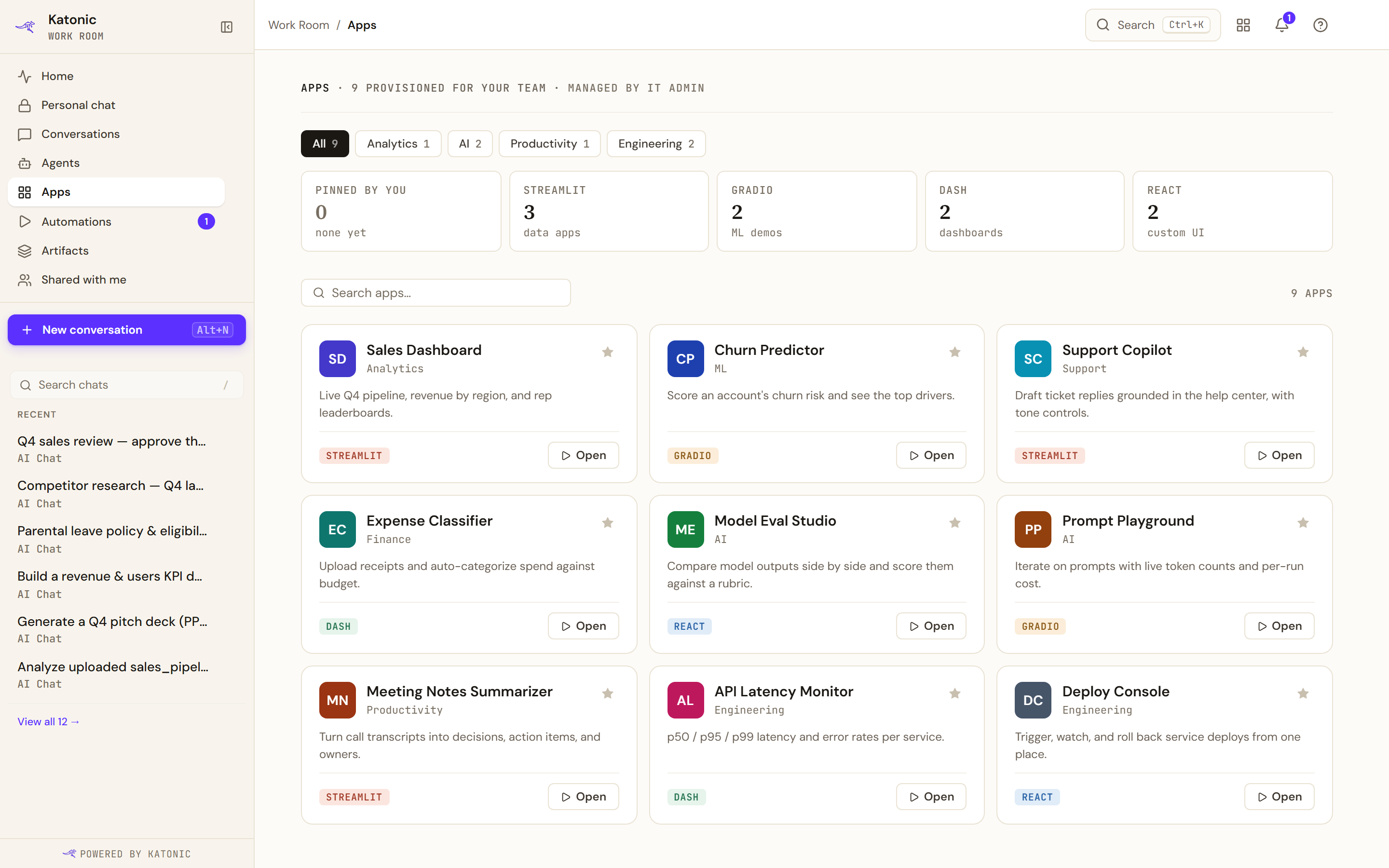
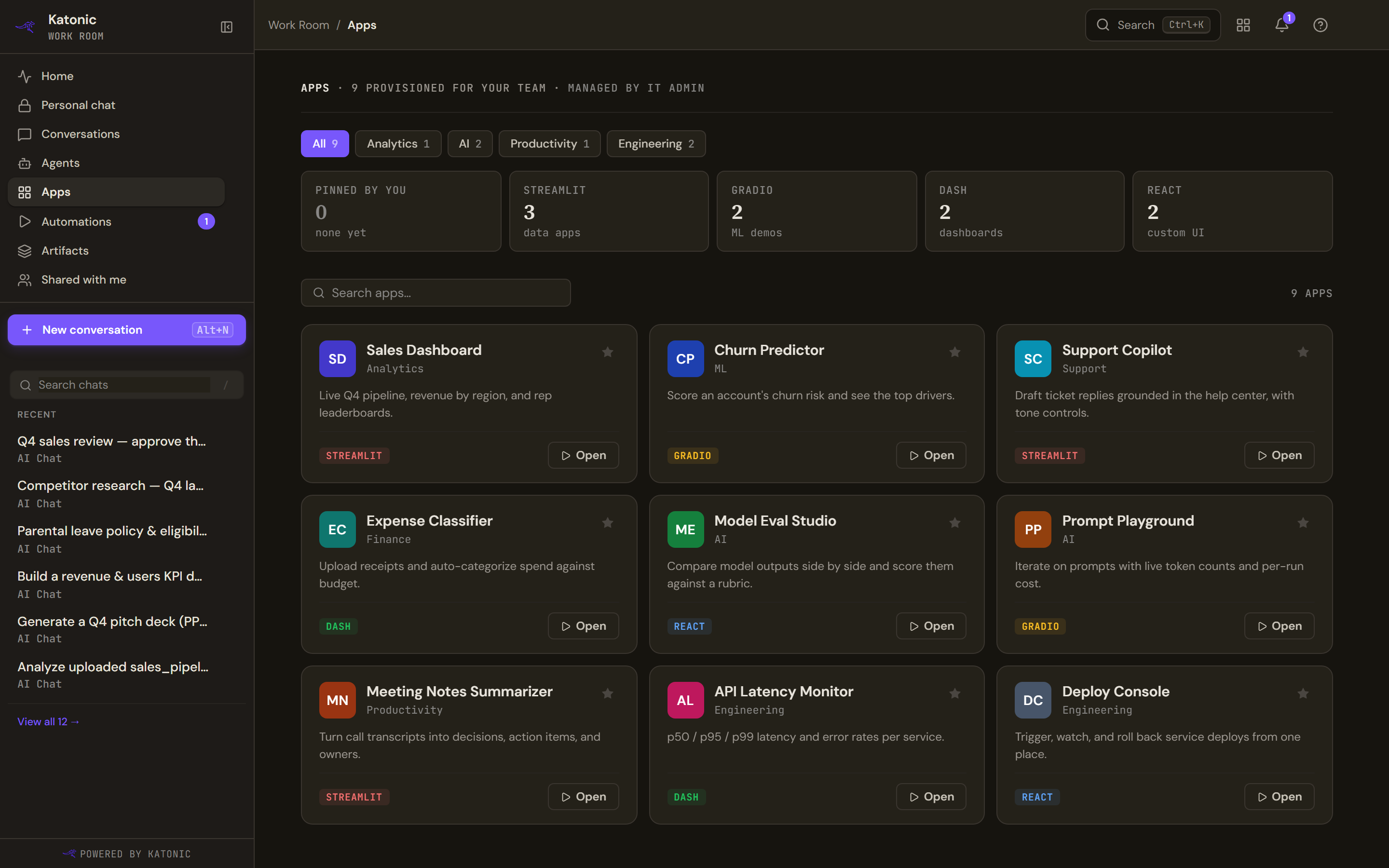
- The header counts the apps provisioned for your team.
- The chips All, Analytics, AI, Productivity and Engineering filter by category and show a count each. Select a chip to filter; select it again to clear it.
- The tiles Pinned by you, Streamlit, Gradio, Dash and React count apps by framework and filter the same way.
- The search box (Search apps…) matches names and descriptions. The count on the right says how many apps match.
- Each card shows the app's name, category and description, a framework tag, Open and a star.
When nothing matches, the page says No apps match and offers Clear filters.
Pin an app
- Pin
Select the star on a card (Pin to favorites). A message confirms it, the Pinned by you tile counts it, and while no filter or search is active a Pinned by you row of tiles appears above the search box for one-click access.
- Unpin
Select the star again (Unpin from favorites). Pins are stored in your browser, not in your account, so they do not follow you to another device.
Open an app
- Open the launcher
Select a card or its Open button. The app opens in a launcher over the page and runs in its body. The header shows the app's name, framework and category, a star to Pin or Unpin it, and four icon controls: Reload the app (the circular arrows), Open the app in a new browser tab (the arrow leaving a box), Open the app full page (the diagonal arrows) and Close (the cross).
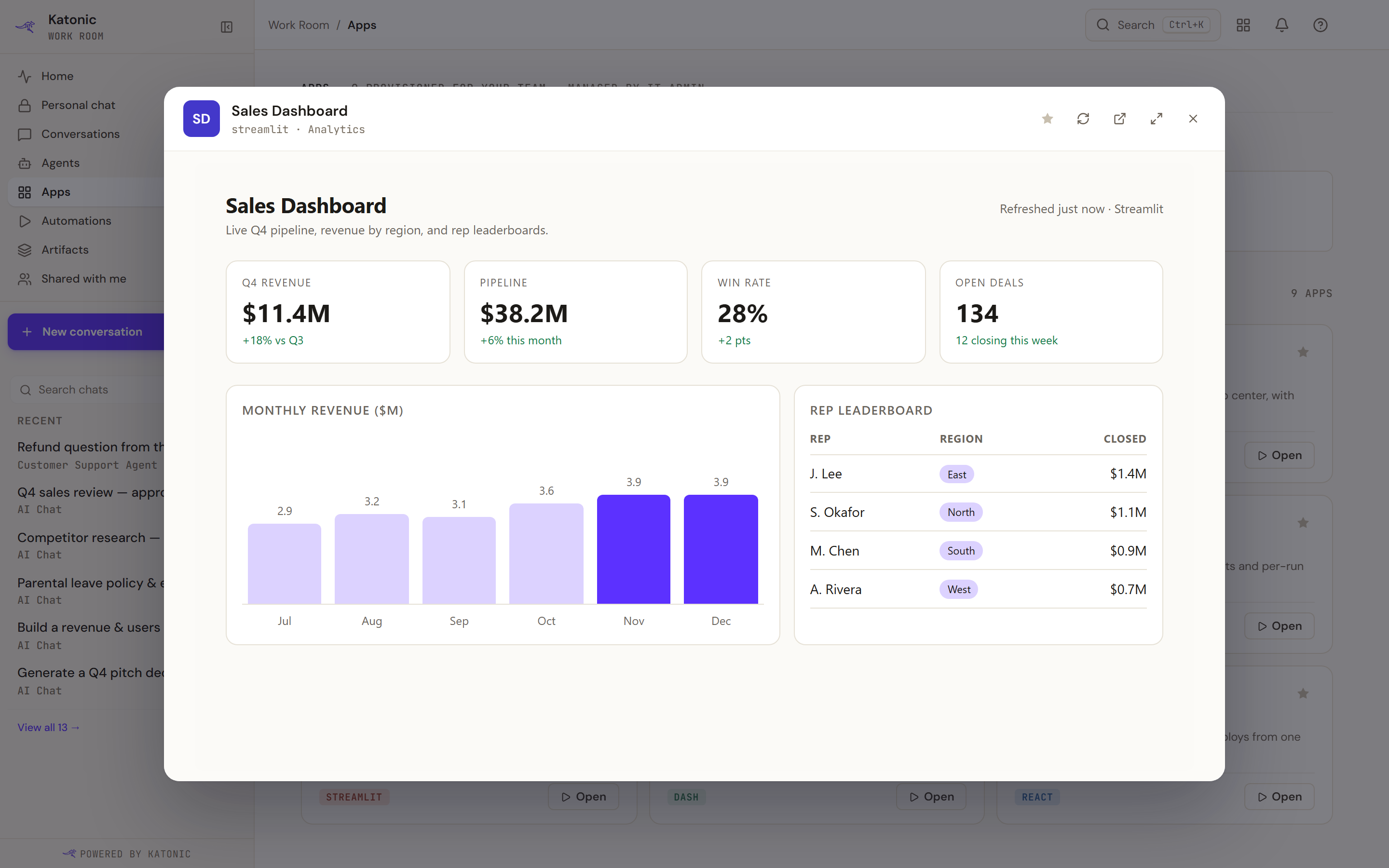
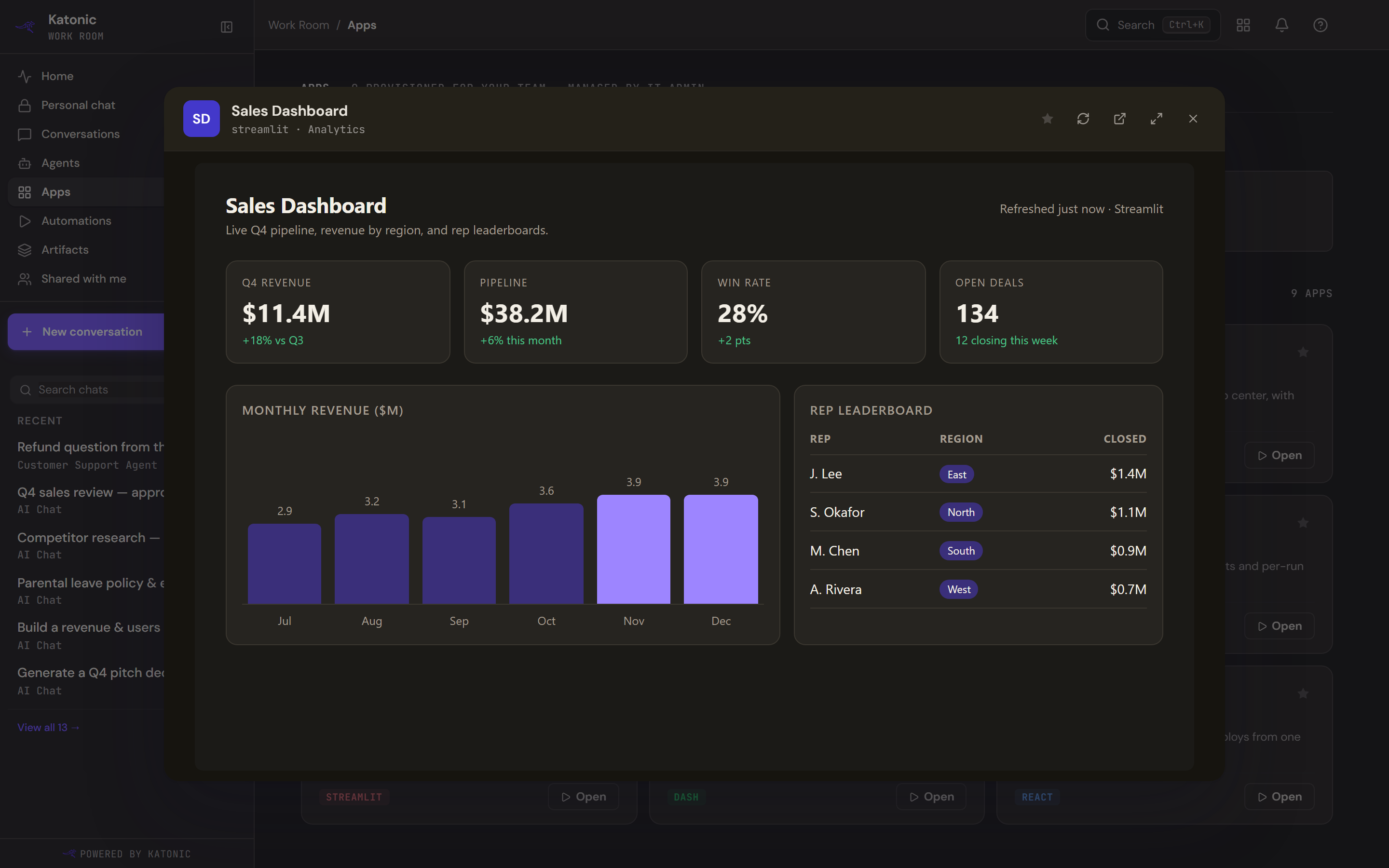
Open launches the app over the page. The header holds the pin star and the icon controls Reload the app, Open the app in a new browser tab, Open the app full page and Close; the app runs in the body. While an app is still deploying, the body says No preview URL for this app yet instead.
- Work in the app
The app runs inside the launcher with its own controls. If a link inside the app takes the frame away from it, the header replaces the framework line with an External page notice saying that what you see is not the app, and the tooltip on Close warns that closing discards anything unsaved in the app. Reload the app brings the app back without closing the launcher.
- Go full page
Open the app full page moves the app to its own page.
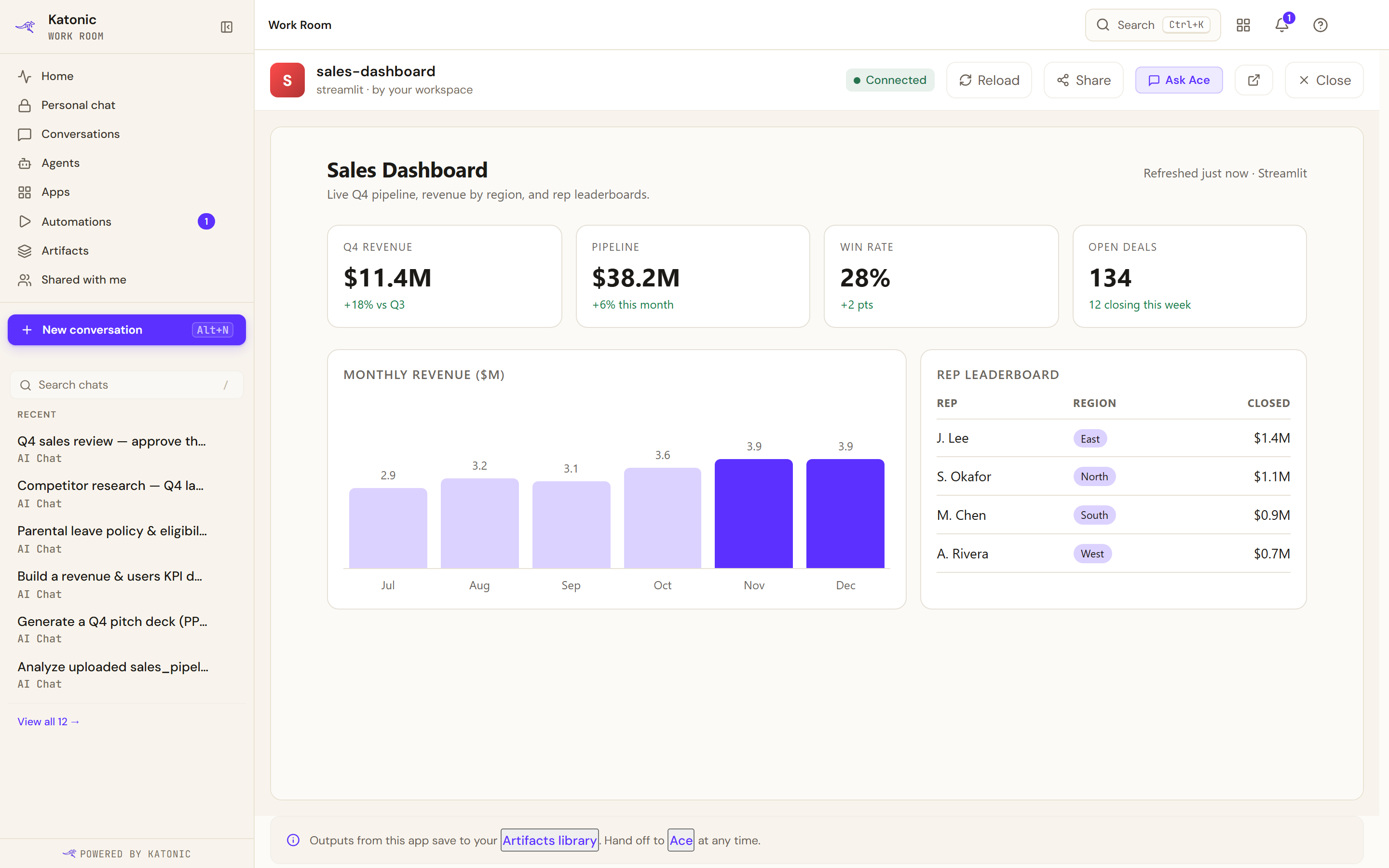
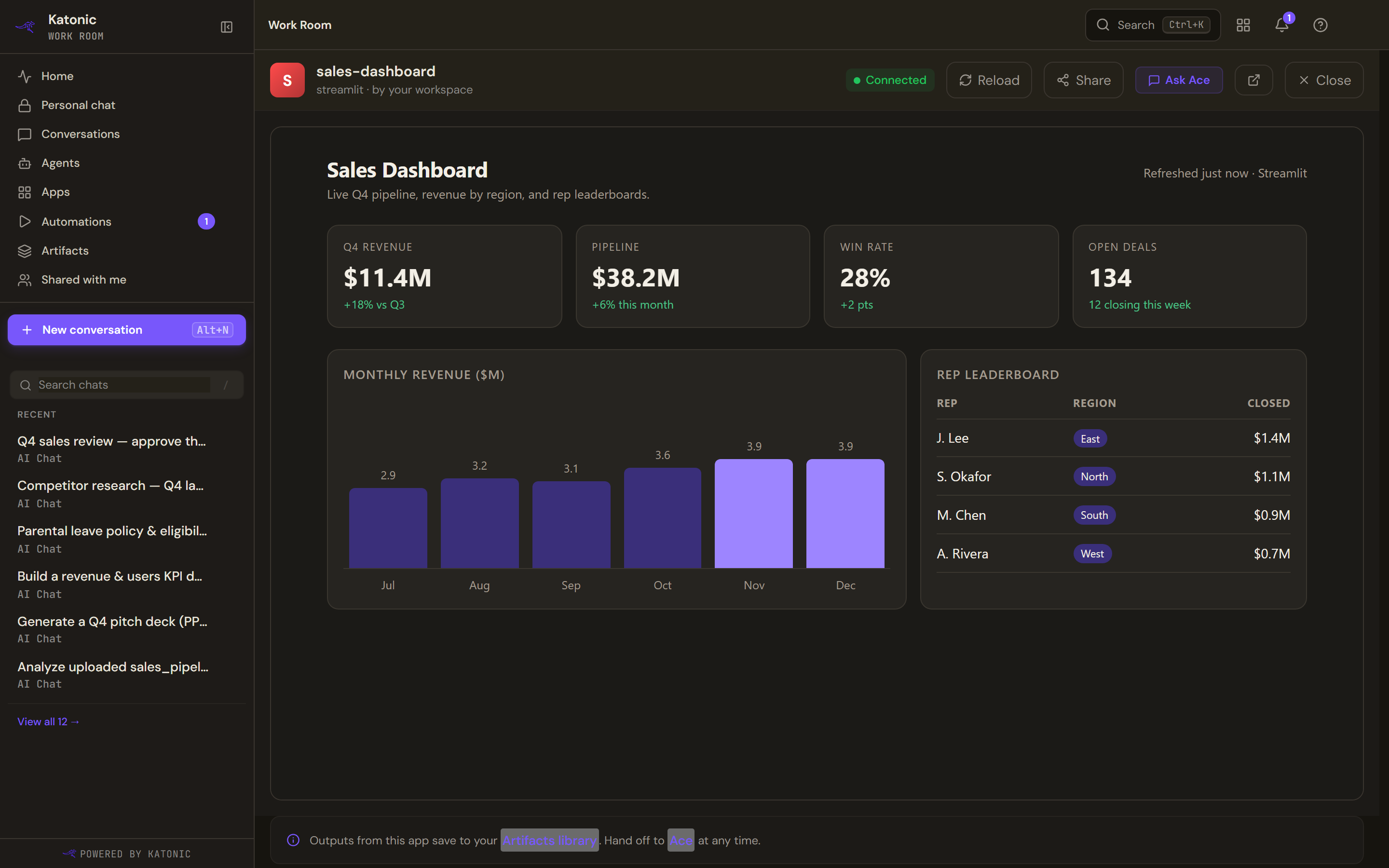
Open the app full page gives the app the whole page. The toolbar shows its status, Reload, Share, Ask Ace, Open the app in a new browser tab (the arrow leaving a box) and Close; the app itself runs below. The toolbar shows the app's name and framework, a status chip (Connected, Starting, Stopped, Failed or Unknown), Reload, Share, which copies a link to the app to your clipboard, Ask Ace, which starts a new conversation with your default agent whose first message says which app you were using, Open the app in a new browser tab (the arrow leaving a box) and Close, which returns you to Apps. A banner under the app links to your Artifacts library and to a new conversation.
- Close
In the launcher, select Close, press Escape or select the page behind it. On the full page, select Close.
What the page knows about an app
The list is the apps deployed in App Studio, and nothing else. The category chips are worked out here from each app's framework, because the platform records no category; an app that fits no rule lands in Engineering rather than somewhere wrong. Every role sees the same apps with the same permissions.
The banner says that apps that support hand-off can save their outputs to your Artifacts library. It describes how apps are meant to be built, not something the page checks: an app saves to Artifacts only if whoever built it made it do so.
Verify
The app's own interface shows inside the launcher or the full page, and on the full page the status chip reads Connected while the app is running.
Troubleshooting
- No apps provisioned yet: nothing has been deployed for your team. Ask your administrator; apps are deployed in Control Room.
- No preview URL for this app yet or This app doesn't expose a public URL yet: the app is still deploying or has not been exposed. Try again later or ask the administrator who deployed it.
- The full page says the app couldn't start: Retry loads it again and Back to apps returns to the list. App not found. It may have been uninstalled. means the app is no longer deployed.
- The frame shows a page that is not the app: Reload the app in the launcher, or Reload on the full page, returns to it.