Automations and approvals
An automation is a workflow agent's run. Runs start on a schedule, from a connected app, from a continuous-integration job, or when you start one by hand. Some pause partway and wait for a person to decide before they continue.
Who can use it: the Member role. Deciding an approval needs to be one of the run's reviewers; some approvals are reserved for administrators.
Recorded on .
Follow your runs
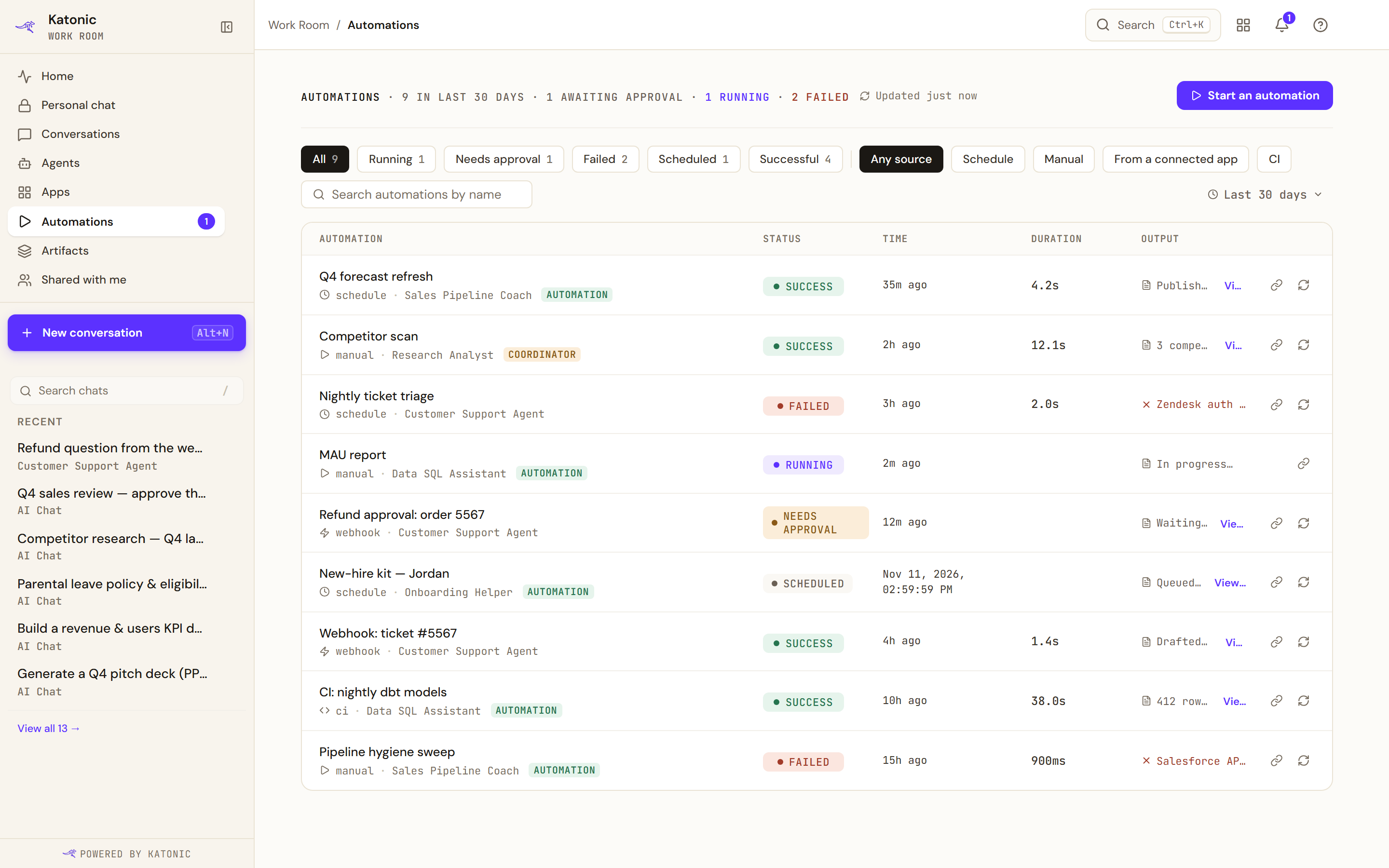
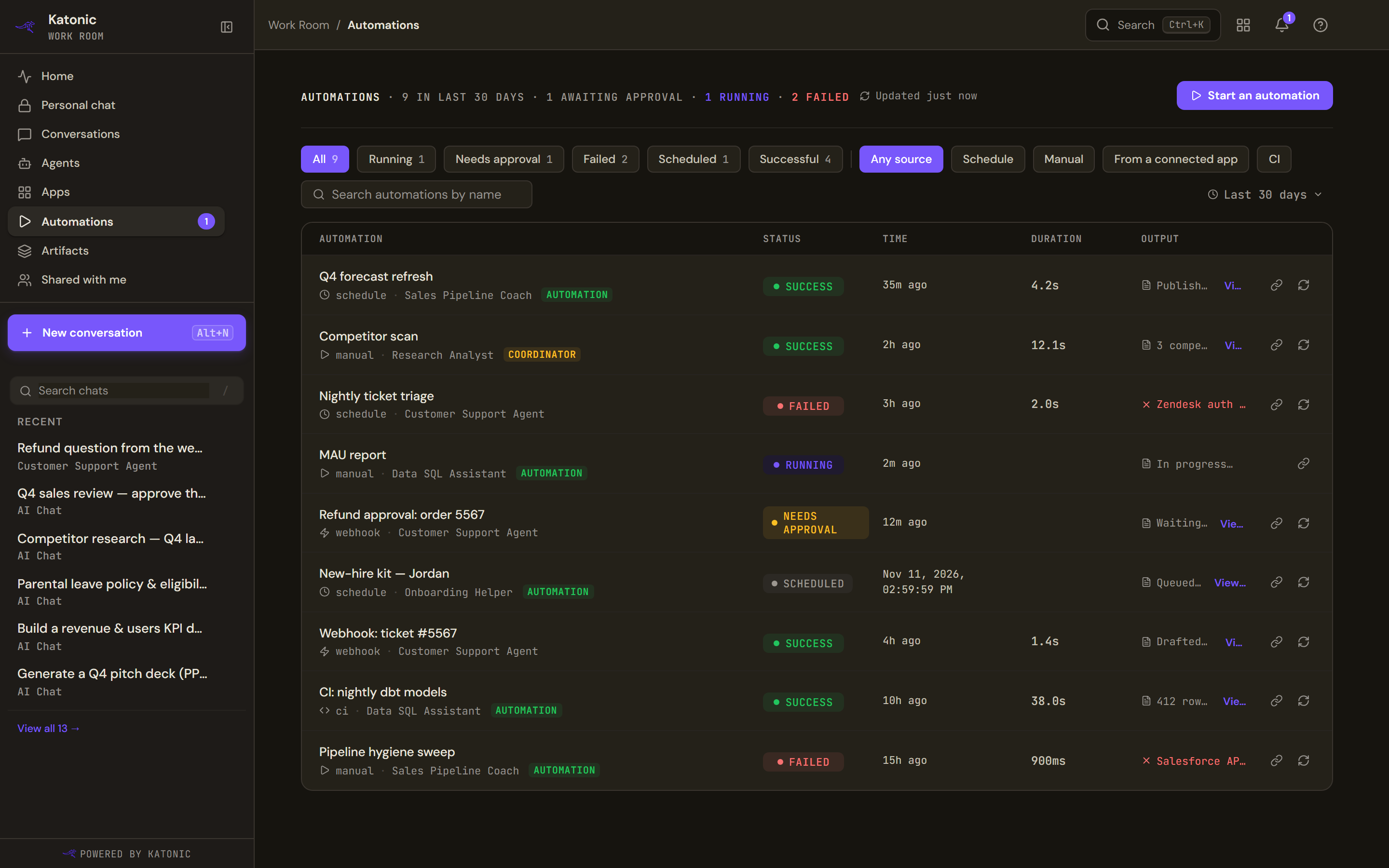
The header counts the runs in the selected range and how many are running or failed.
- The chips filter by status: All, Running, Needs approval, Failed, Scheduled and Successful.
- The source filter narrows by trigger: Any source, Schedule, Manual, From a connected app or CI.
- The range menu offers the Last 24 hours, 7 days, 30 days or 90 days.
- The table shows Automation, Status, Time, Duration and Output. View output opens the run's artifacts. Re-run starts it again. Copy link copies a link to the run.
| Status | What it means |
|---|---|
| waiting | Queued, not yet started |
| scheduled | Will start on its schedule |
| running | In progress |
| needs approval | Paused for a person |
| success | Finished |
| failed | Ended with an error |
| stopped | A person stopped it. Deliberately not the same as failed |
From a connected app in the source filter is what the platform calls a webhook trigger.
Start an automation
Start an automation takes you to the Agents page filtered to workflow agents, where Run workflow on an agent starts a run by hand. The dialog, its inputs and following the run are covered in Start an automation.
Read a run
- Open the run
Select a row. The run page shows the agent, the run's title, its status and how many of its steps are complete. While it runs you see Step X of Y and a Stop control.
- Read the result
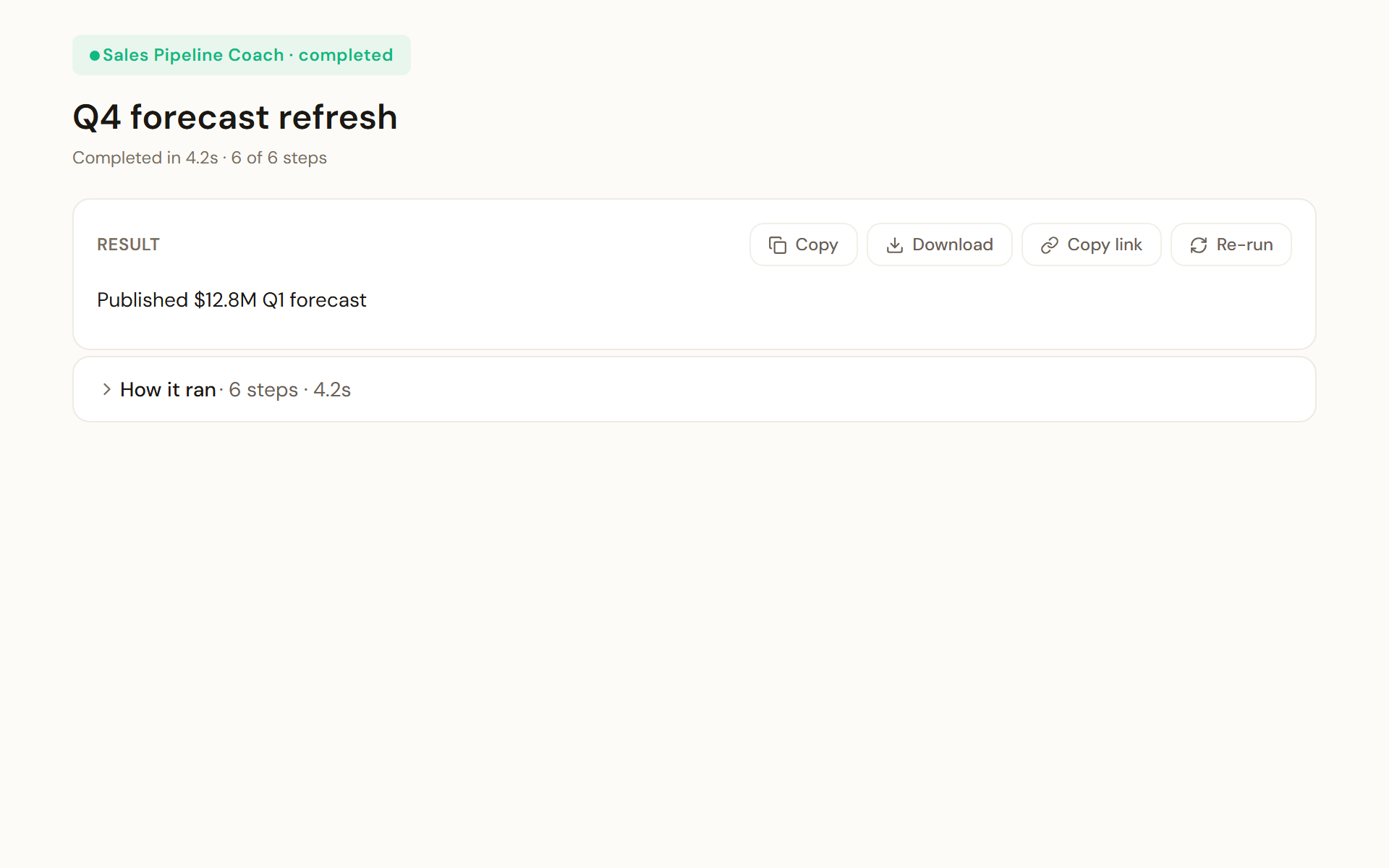
A finished run shows its result first. Copy, Download, Copy link and Re-run sit above it; How it ran opens the step-by-step record. Result holds what the automation produced, with Copy, Download, Copy link and Re-run above it. If the automation produced a document, Open document takes you to it.
- See how it ran
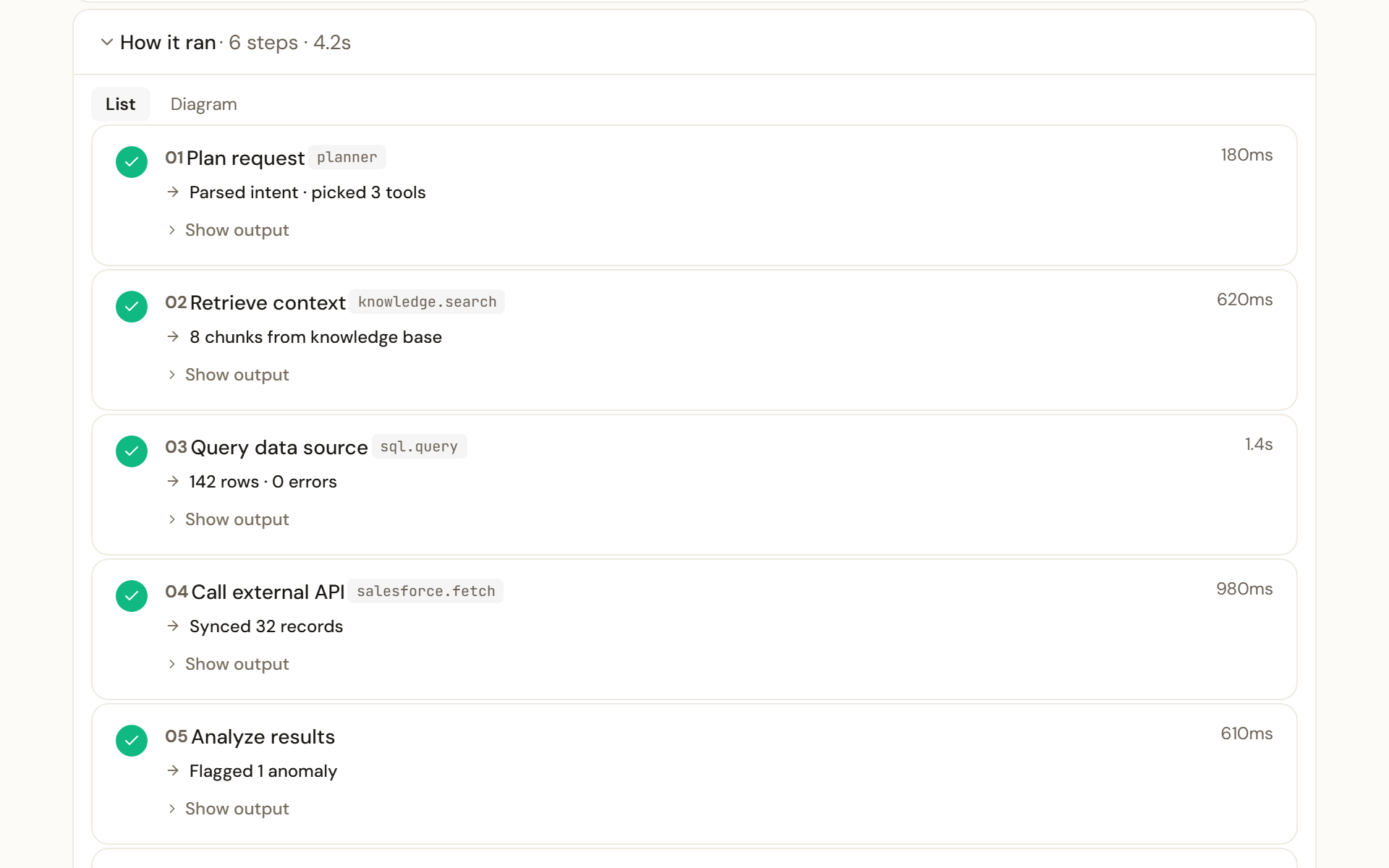
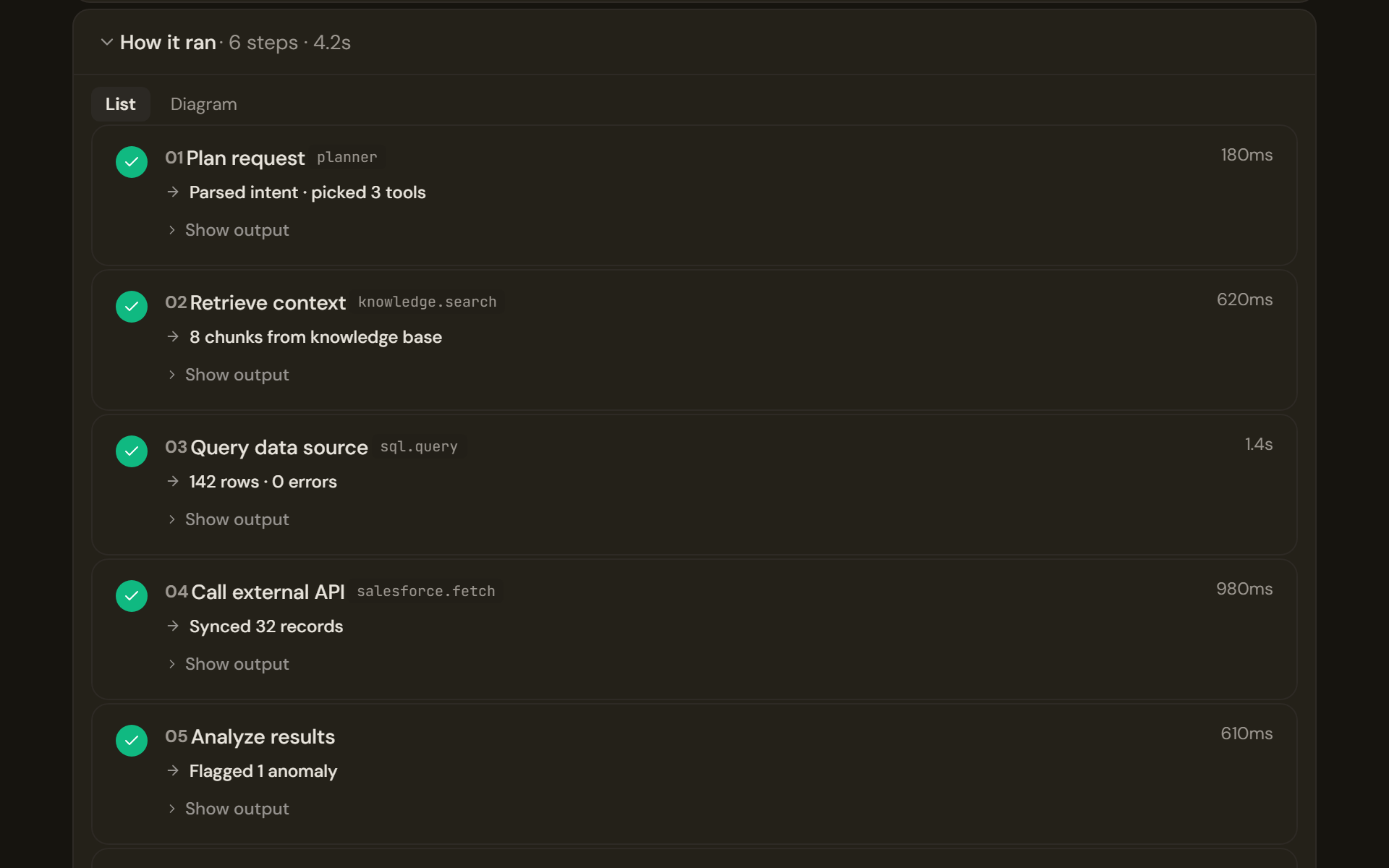
How it ran lists each step the run took, with its status, a summary and its duration. Show output opens a step's full output. How it ran lists each step, its status and its duration, so you can see what happened before you rely on the result.
Approve or reject a paused run
A workflow can include an approval step. When the run reaches it, the run's status becomes paused, the step line reads Paused for approval, and the page shows the output of the step under review.
- Find runs waiting for you
The Automations entry in the sidebar shows a count of runs waiting for a decision, and Notifications in the top bar lists them under Waiting for your approval. On the Automations page, the Needs approval chip lists them. Runs shared with you for review also appear under Shared with me.
- Review
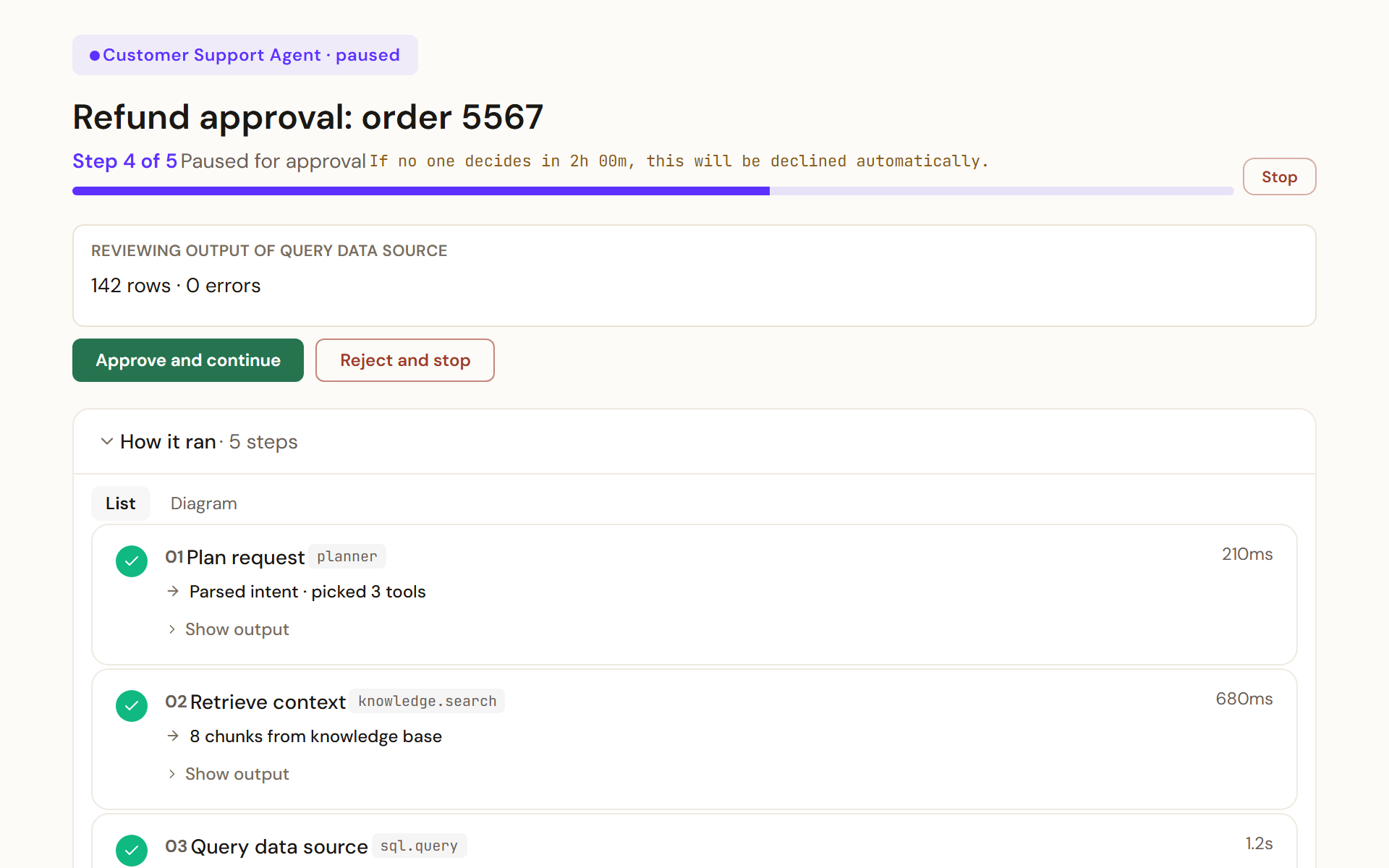
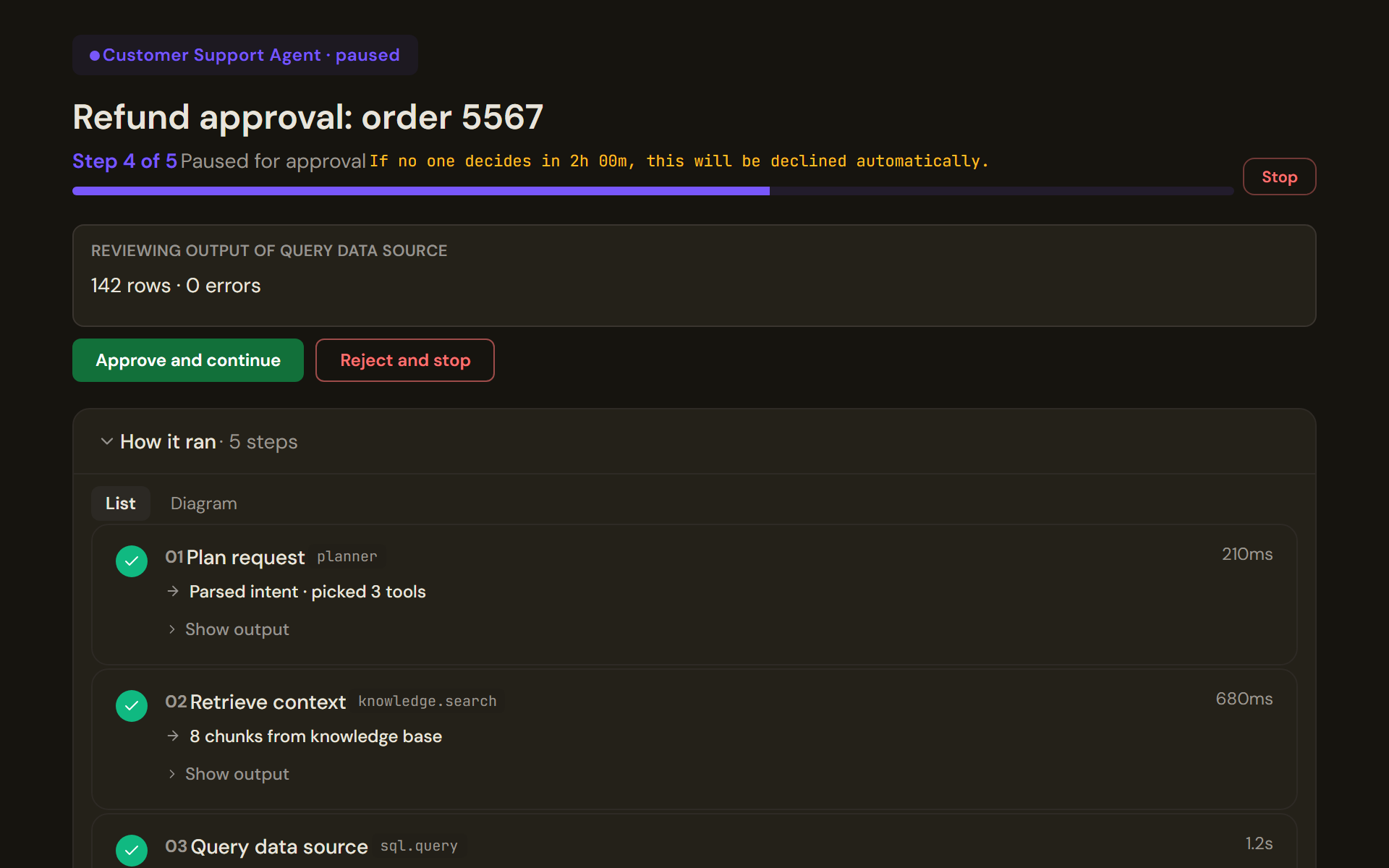
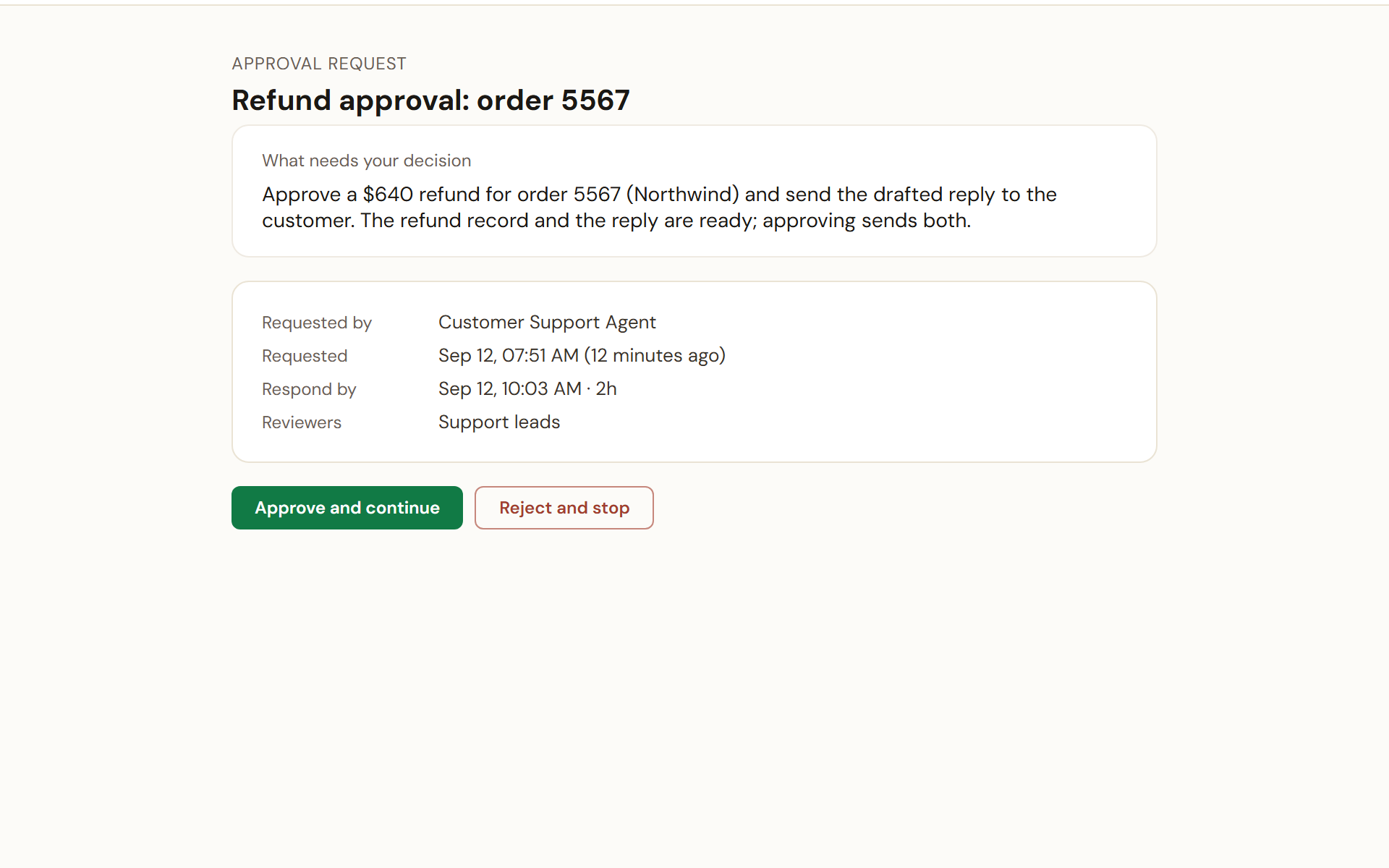
A paused run shows the output under review, how long is left before the automatic decision, and the two choices: Approve and continue or Reject and stop. Open the run and read the output of the step under review, shown under Reviewing output of and the step's name. If the approval has a deadline, a line above it says how long is left and what happens when time runs out: approved, declined or escalated automatically. How it ran shows what led to it.
- Decide
Approve and continue lets the run carry on. Reject and stop ends it; you can add a rejection reason first. The decision and who made it are recorded on the run.
If you started the run yourself you cannot decide it. The page says so: a different authorised approver must, as a separation of duties, and the buttons are disabled for you. If two people decide at once, the second sees who won rather than an error.
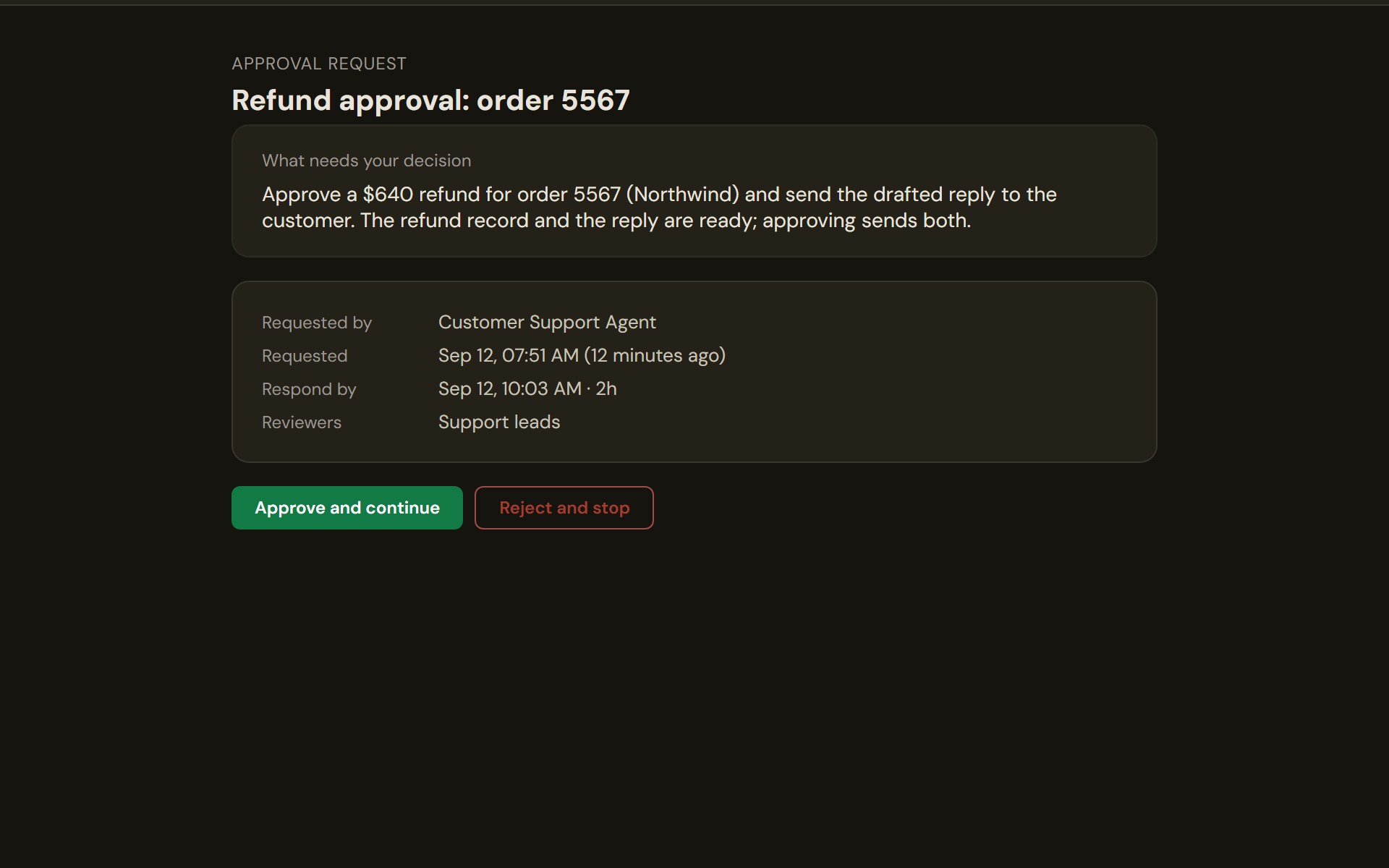
An approval can also arrive as a link, for example from a notification or a teammate. The approval page shows What needs your decision, who requested it, when, the Respond by deadline and the Reviewers, with the same two decisions. Once decided, the page shows Approved or Rejected, who decided and any note.
Limits and behaviour
- Approvals have a deadline. If time runs out before anyone decides, the run is resolved automatically and the page says so. The deadline is shown as a time, not a ticking countdown, on purpose: the platform holds the real clock.
- Stop is offered only to the person who started the run, and only when the platform has a live execution to stop. An older run with no execution behind it never offers it.
- If you are not one of the reviewers, the page says the approval needs an administrator and points you to the Approvals page in the Control Room.
- A failed run shows the failing step and the error under How it ran. Re-run starts a fresh run; it does not resume the failed one.
- Stopping a run marks it stopped. Steps that already completed are not undone.