Conversations
A conversation, or thread, is one exchange with an agent. The Conversations page lists all of yours; the sidebar shows the most recent ones while you work.
Who can use it: the Member role. A role with read-only access to the Work Room can see conversations shared with it but cannot start one.
Recorded on .
Find a conversation
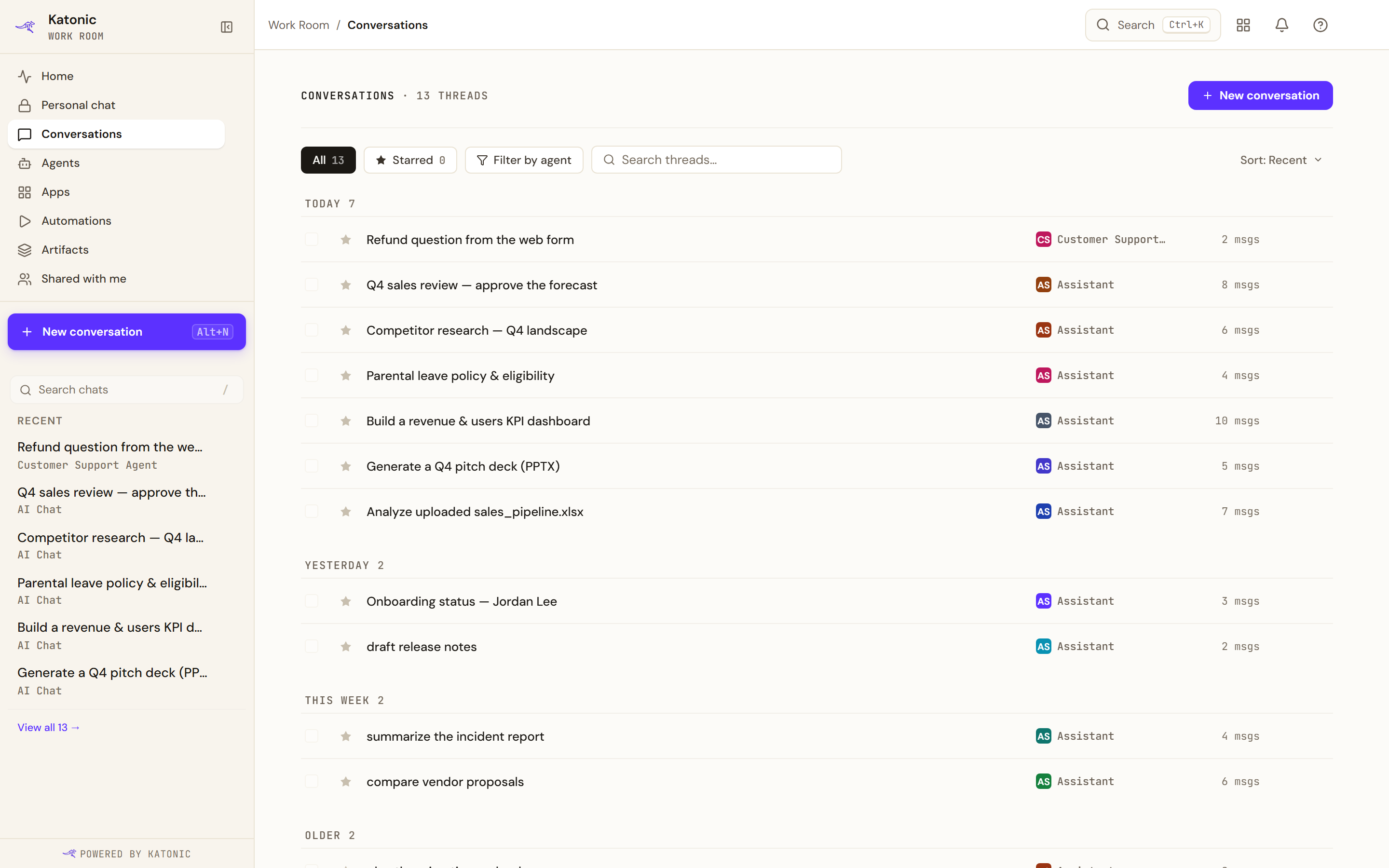
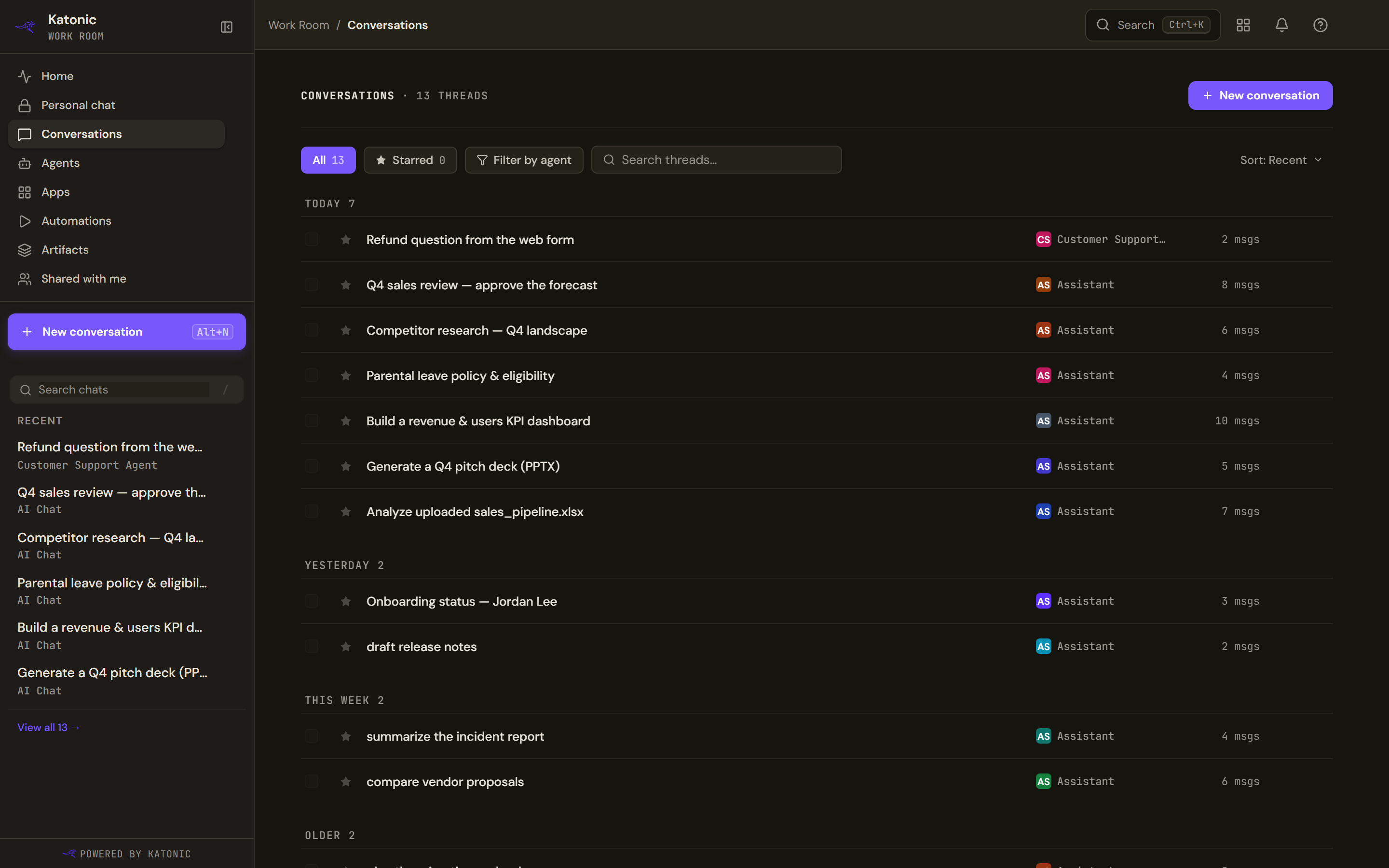
The list is grouped by when you last touched each thread: Today, Yesterday, This week and Older. Each row shows the agent that answered and the number of messages.
- All and Starred switch between every thread and the ones you starred.
- Filter by agent narrows the list to one agent. Clear filter removes it.
- Sort offers Recent, Longest first and Shortest first.
- The search box finds threads by title.
New conversation starts a fresh thread. From anywhere in the Work Room the keyboard shortcut Alt+N does the same, opening in whichever room your workspace policy has set as the default.
Two words are used for the same thing. The chip, the button and the heading say Star and Starred; a few of the confirmations still say favorites. It is one concept.
Continue a conversation
Select a row to open the thread.
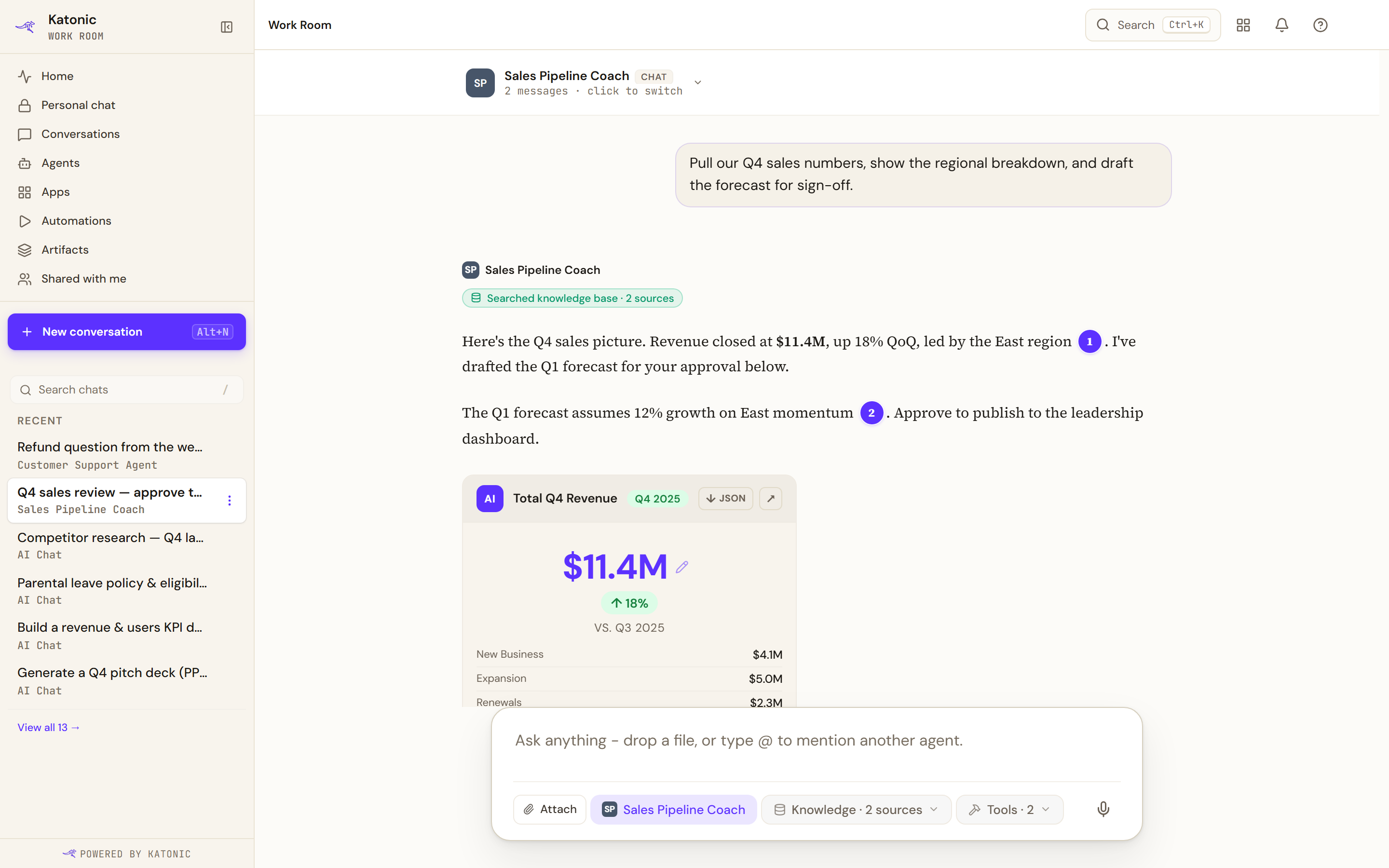
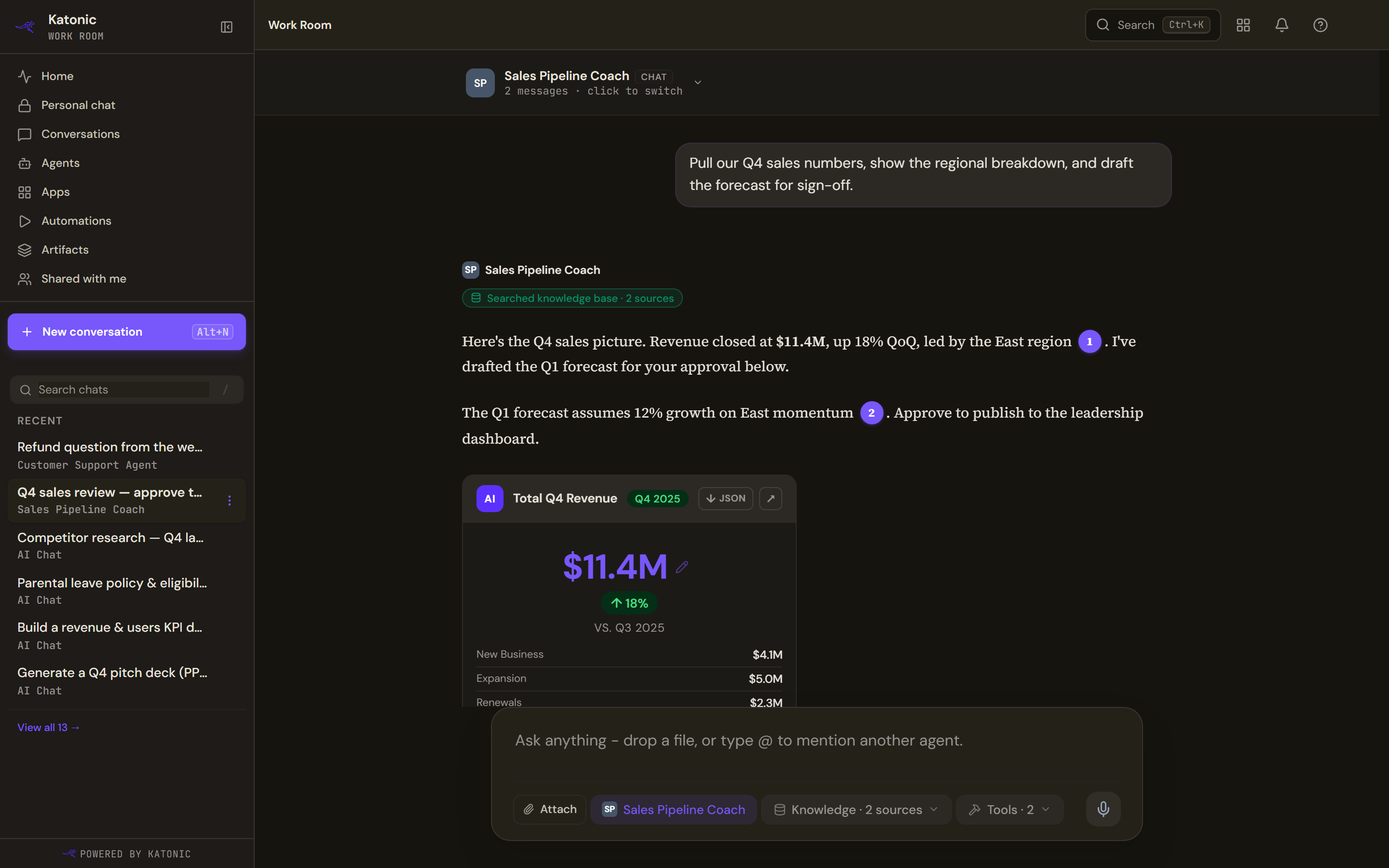
- The header names the agent and shows the message count. Select it to Switch agent for your next message.
- Each answer carries a receipt line: whether the agent searched your knowledge sources and how many it used, answered from model knowledge alone, called specialist agents, or applied a skill. When knowledge was used, citation chips under the answer point to the sources.
- Good response, Bad response, Copy, Read aloud and Regenerate response are the icon buttons under every answer.
- Some agents reply with cards rather than text: figures, charts, tables or an action that asks for your decision. Cards have their own download and open controls.
The composer stays at the bottom. Attach adds documents; typing @ mentions another agent.
Rename and share a conversation
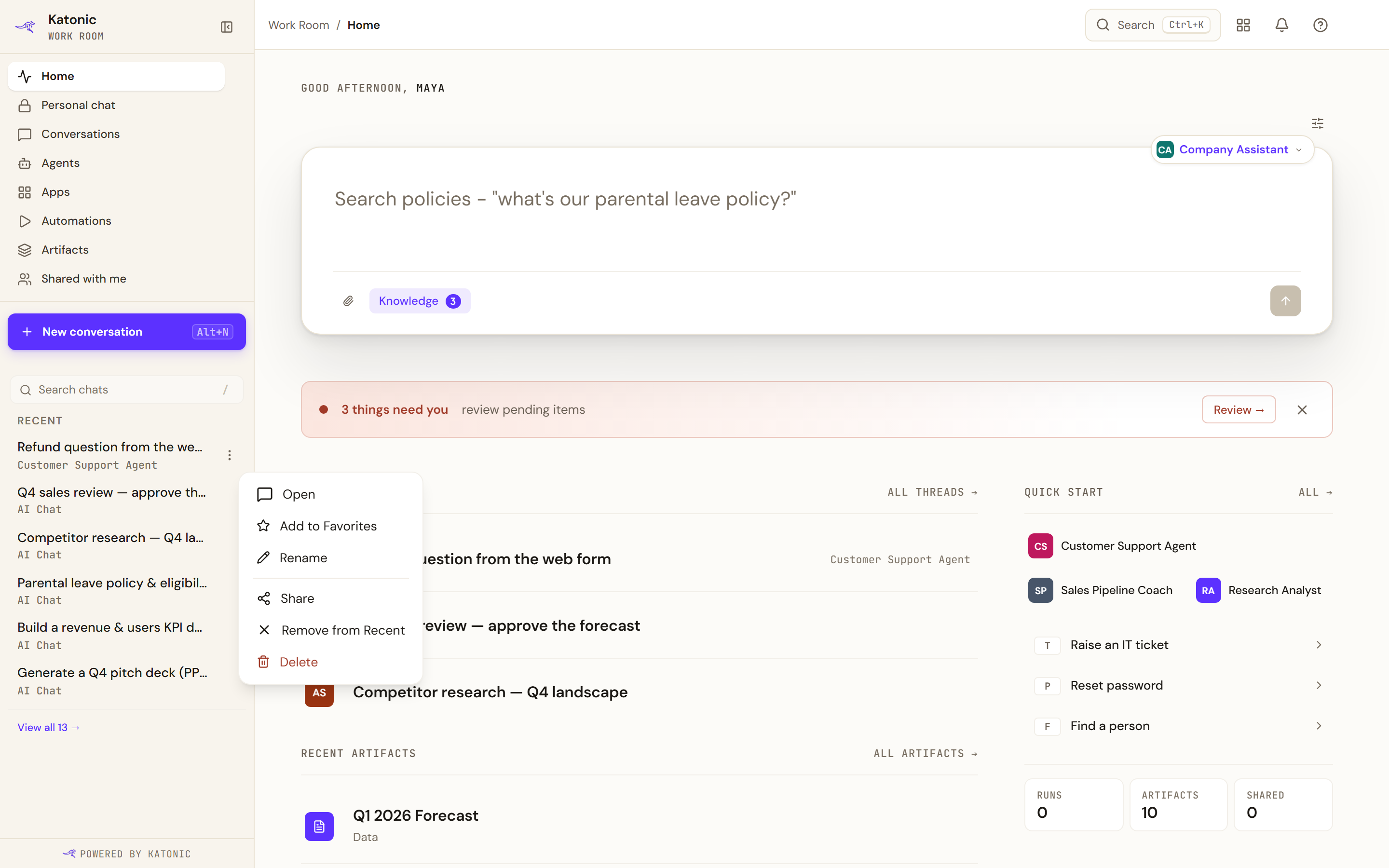
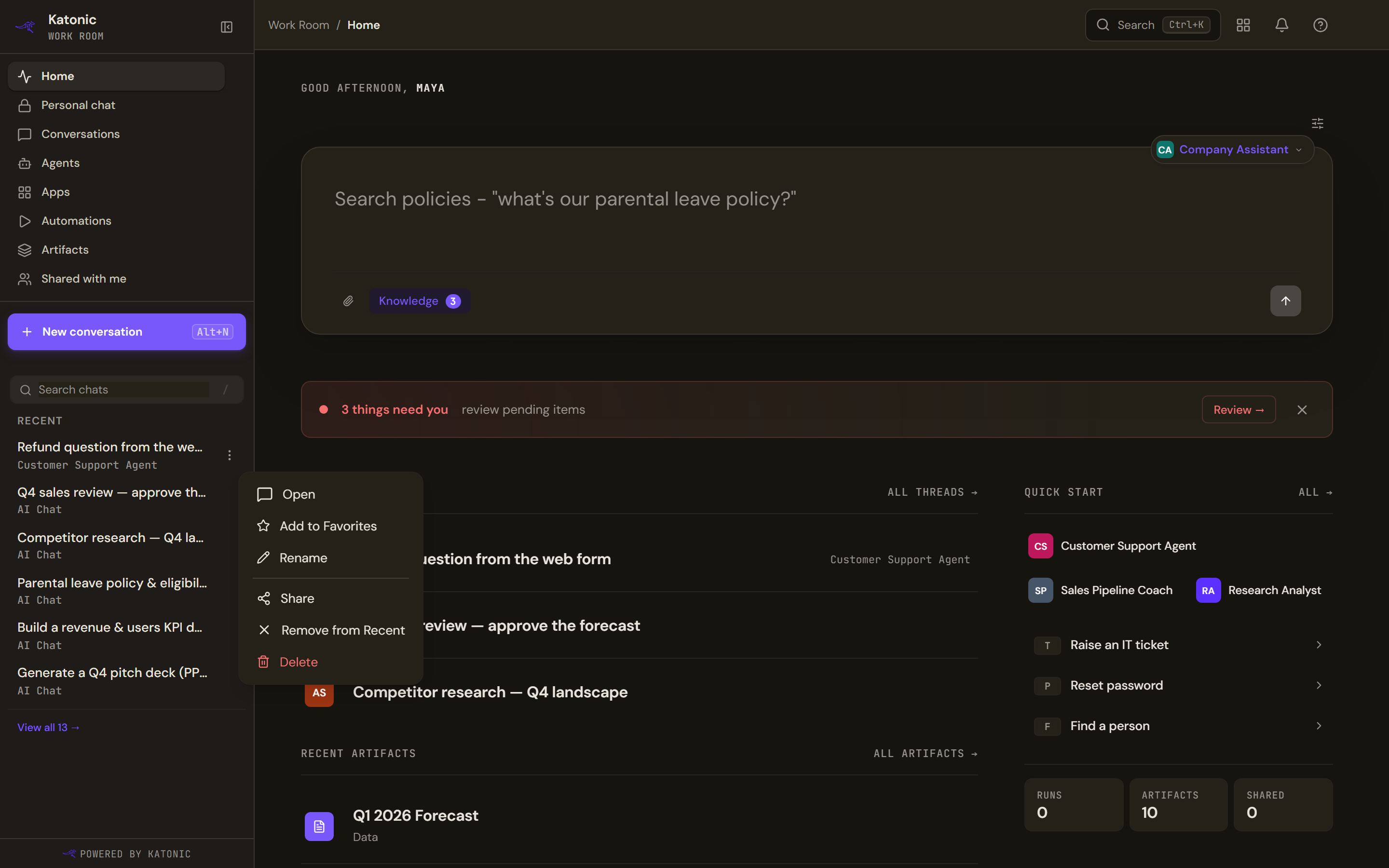
Renaming and sharing live in the sidebar rather than on this page. More options (the three dots) on a conversation in the sidebar's recent list offers Open, Add to Favorites (Remove from Favorites on a starred one), Rename, Share, Remove from Recent and Delete. Remove from Recent hides the thread from your recent lists without deleting it. Rename opens a small dialog; Save stays disabled until the name has changed. A conversation's title is otherwise set by the platform from its first exchange, and there is no way to name one at creation.
Share opens the sharing dialog with a copy-link option. Sharing a conversation is reserved for administrators on the platform side: for anyone else the dialog is offered and the platform refuses, so treat the copy link as the thing that works.
The header inside a thread shows the agent and the message count and nothing else. There is no star or share control there; both are in the sidebar.
Star, export and delete
- Star a thread
Use Star on the row. Starred threads appear under the Starred chip and in the sidebar for quick access. Unstar removes the pin.
- Select several threads
Tick the rows you want. The bar shows how many are selected and offers Export and Delete.
- Export
Export downloads the selected threads as one JSON file named for the date. The file is assembled in your browser from what the page has already loaded, so it holds what you can see and nothing the page has not fetched. A confirmation tells you how many were exported.
- Delete
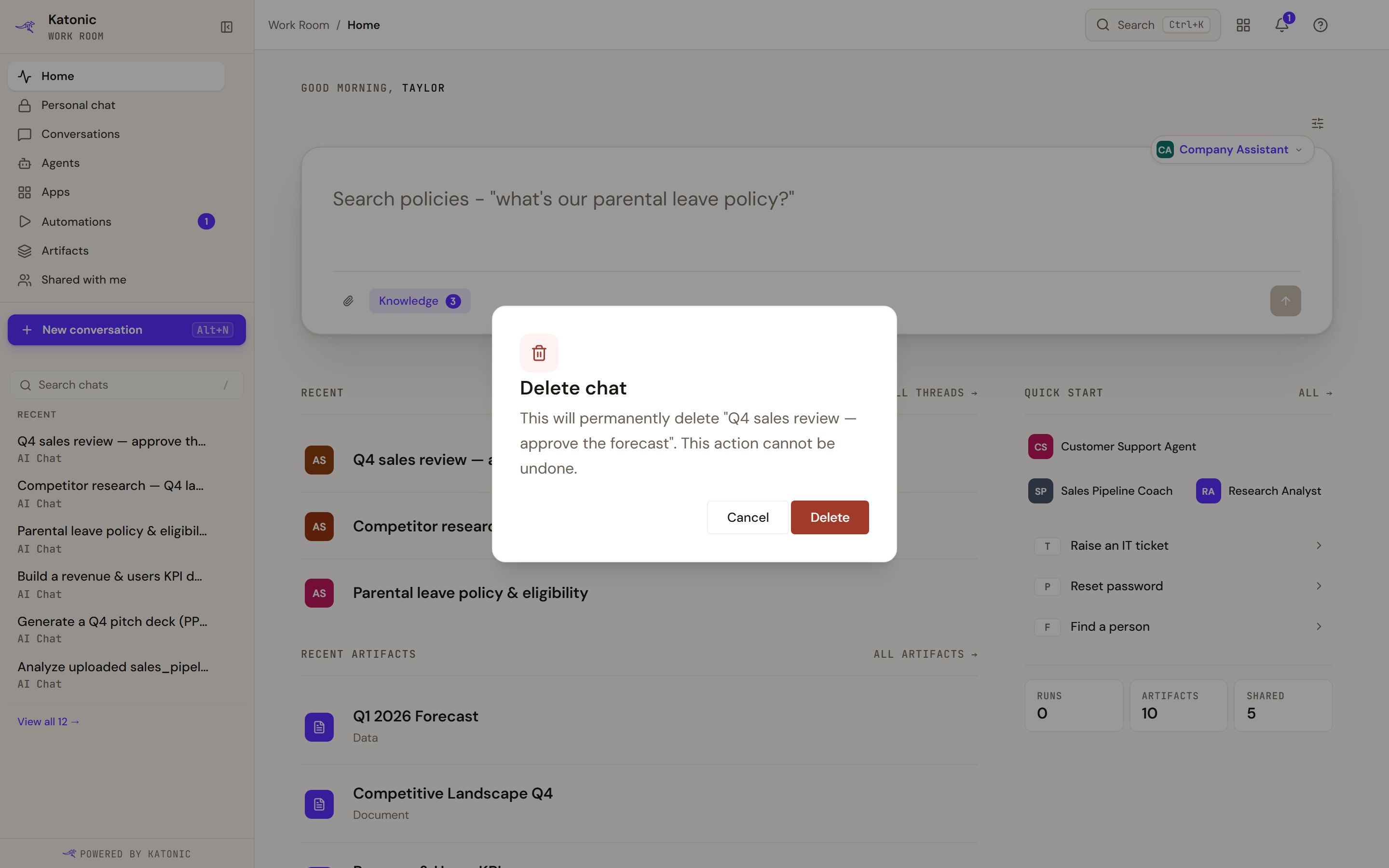
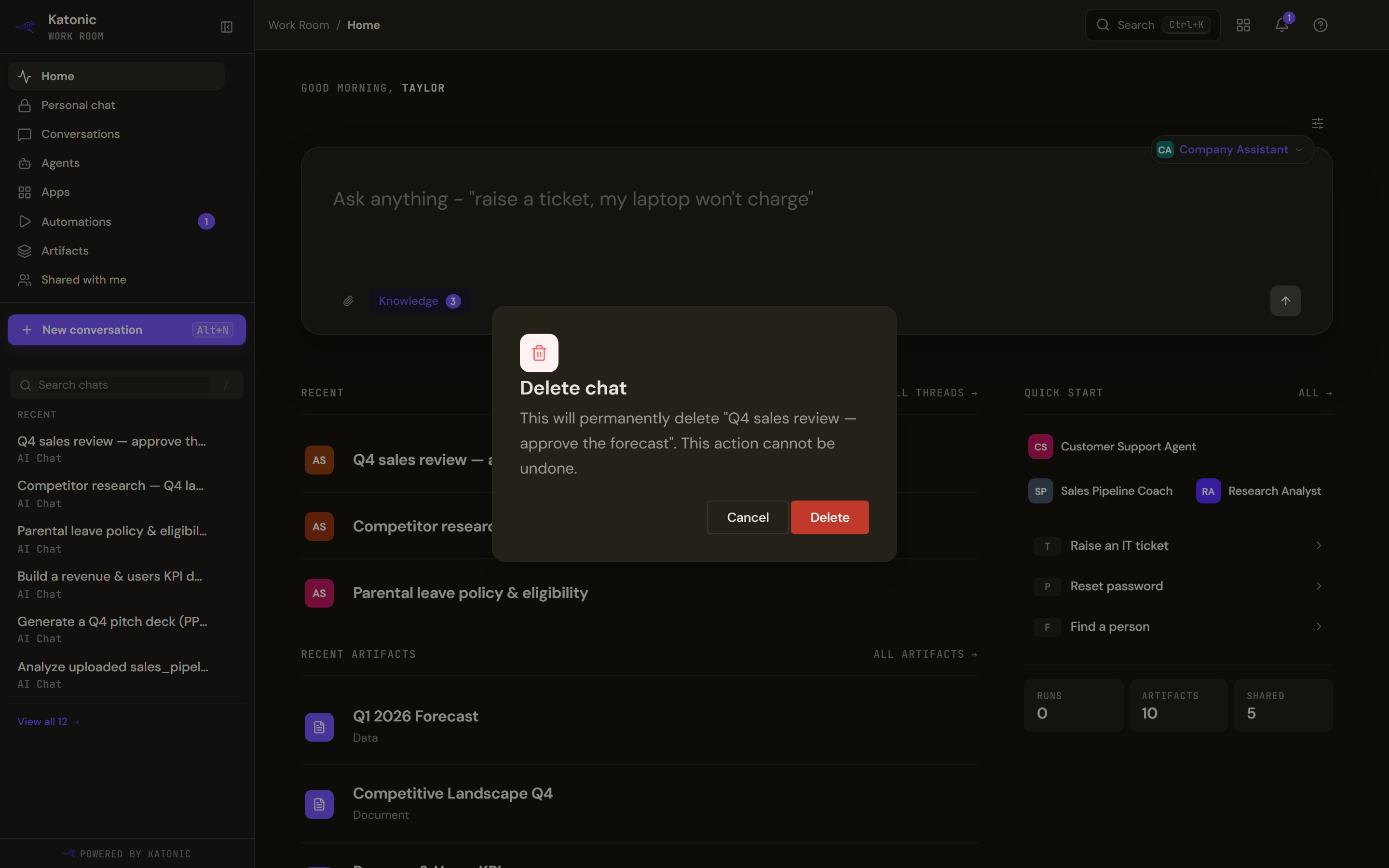
Deleting names the conversation and says it cannot be undone. A delete that fails keeps this dialog open with the error in it. Delete asks you to confirm. Deleting permanently removes the selected conversations and cannot be undone. Several are deleted one at a time, and the confirmation says how many succeeded and how many did not. From the sidebar, a delete that fails keeps the dialog open with the error in it rather than claiming success.
Conversations and API sessions
A conversation and a session are the same thing seen from two sides: the Work Room shows you yours, and a developer's application reaches the same rows through the public API as sessions belonging to the key's owner.
| In the Work Room | Through the public API | |
|---|---|---|
| Started by | New conversation, or the first message in a room | The first turn that names a session id, or a create call |
| Listed for | You, on this page and in the sidebar | The key's owner, and only sessions that hold at least one message |
| Title | Set by the platform from the first exchange, renamed from the sidebar | Set at creation, or from the first message and later replaced by a generated one |
| Star, share, export | Here | Not available |
| Delete | Here, permanently | The delete route, permanently; another owner's session is refused |
| History | The thread view | The history route, which any key in the tenant can read by id |
Do this from your own code
Limits and behaviour
- Archive in the selection bar is disabled and marked coming soon. There is no archive on the platform yet, and the button says so rather than pretending.
- If the list fails to load, the page says so and offers Retry. Your history is not gone; the list could not be fetched.
- If a thread cannot be restored after your connection dropped, the page keeps the agent selected and asks you to refresh.
- Conversations shared with you appear here and under Shared with me, where you can join them with their full history.