Start an automation
An automation is a run of a workflow agent: instead of answering in a chat, the agent works through its steps and leaves what it produces in Artifacts. Most runs start on a schedule or from a trigger; you can also start one yourself from the agent's page or from a conversation.
Who can use it: the Member role. Only agents of the Workflow type run this way; other agents start a conversation instead.
Recorded on .
Prerequisites
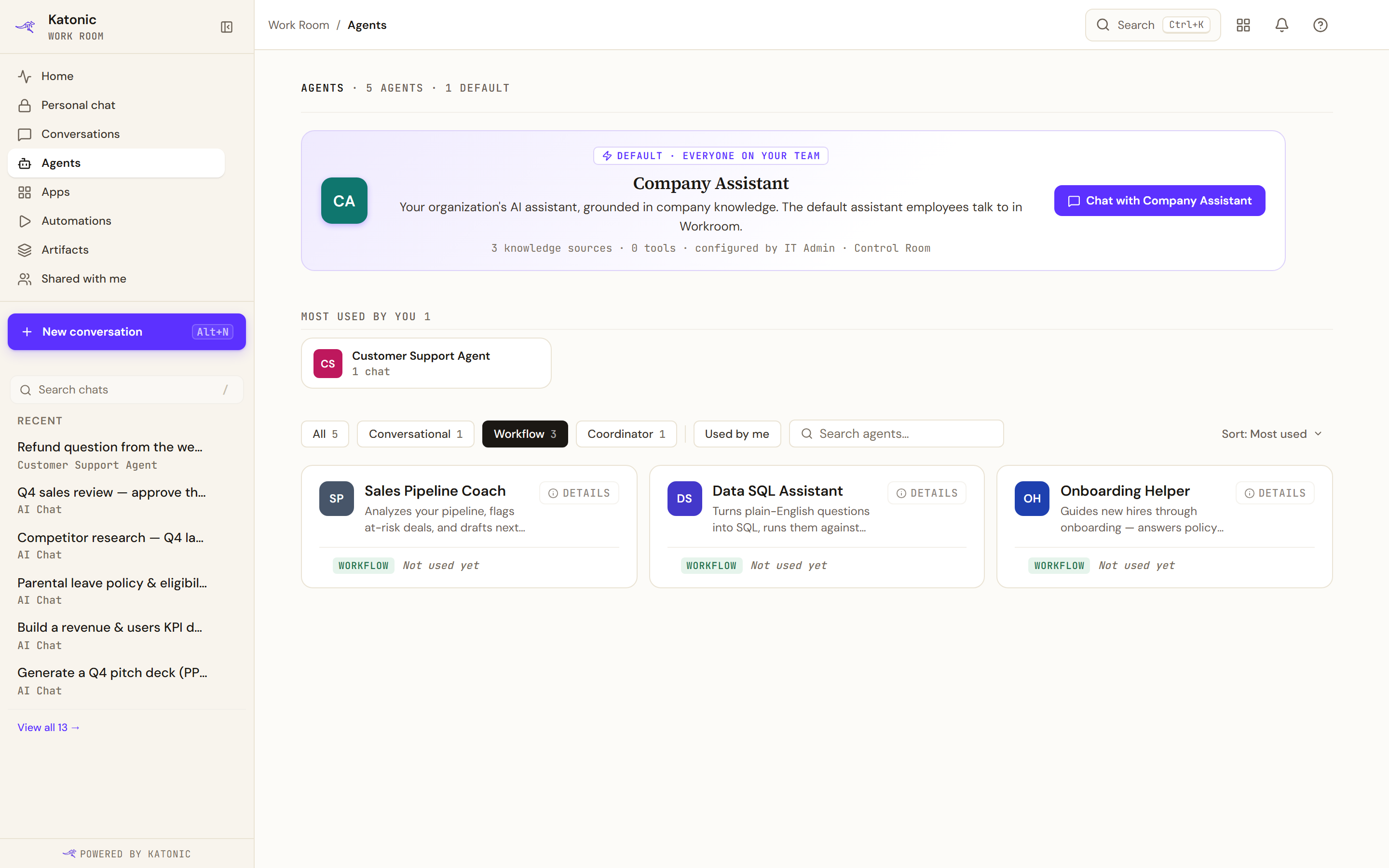
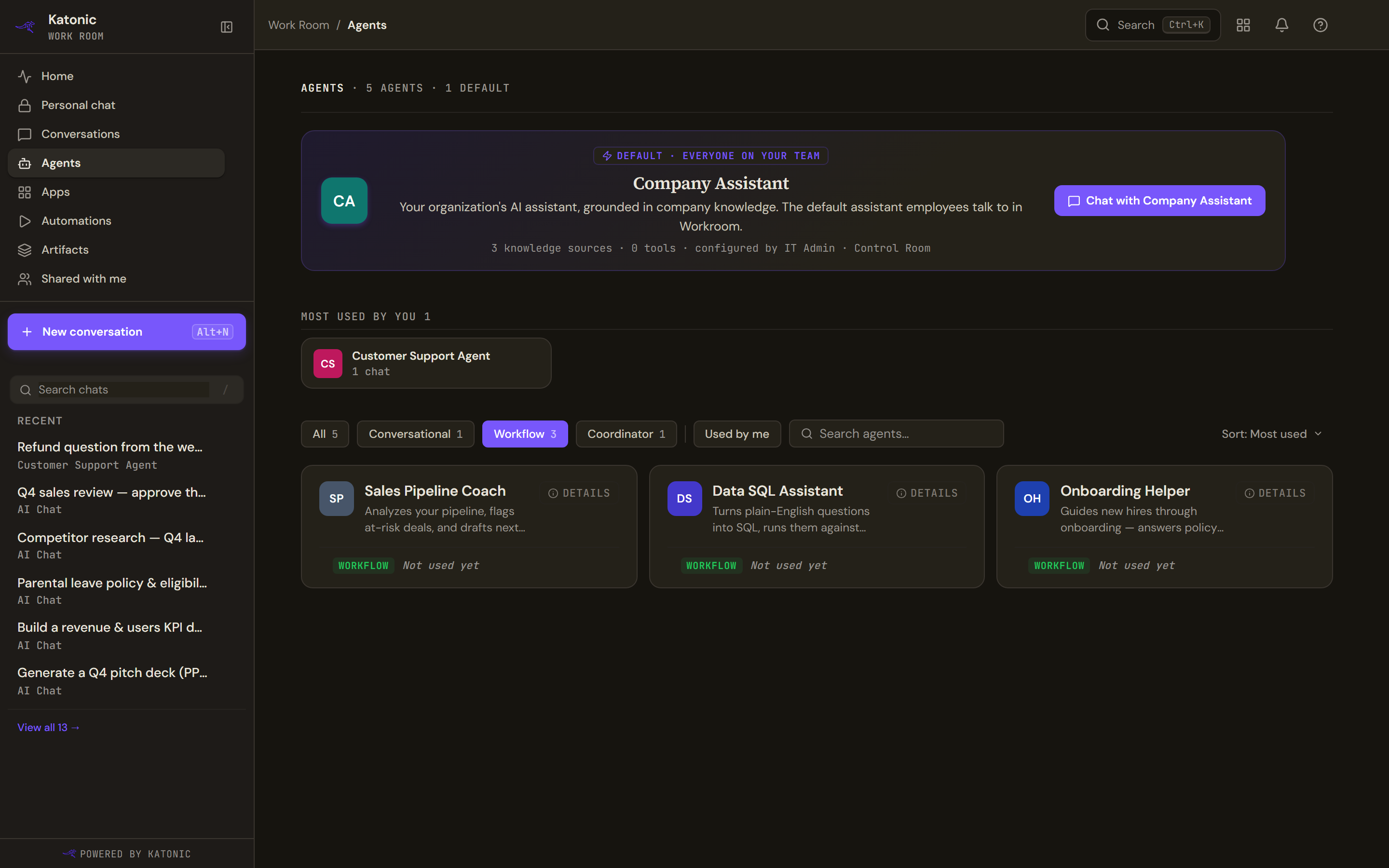
- A published workflow agent. On the Agents page the Workflow chip filters the list to them. A card counts only your conversations with the agent, so a workflow agent you run rather than chat with reads Not used yet. A workflow agent's page shows Automated workflow under What this agent can do.
Start from the agent page
- Open the agent
Select Details on the agent's card, or follow Start an automation from the Automations page. The agent's page opens with Back to agents, Run workflow and its run history.
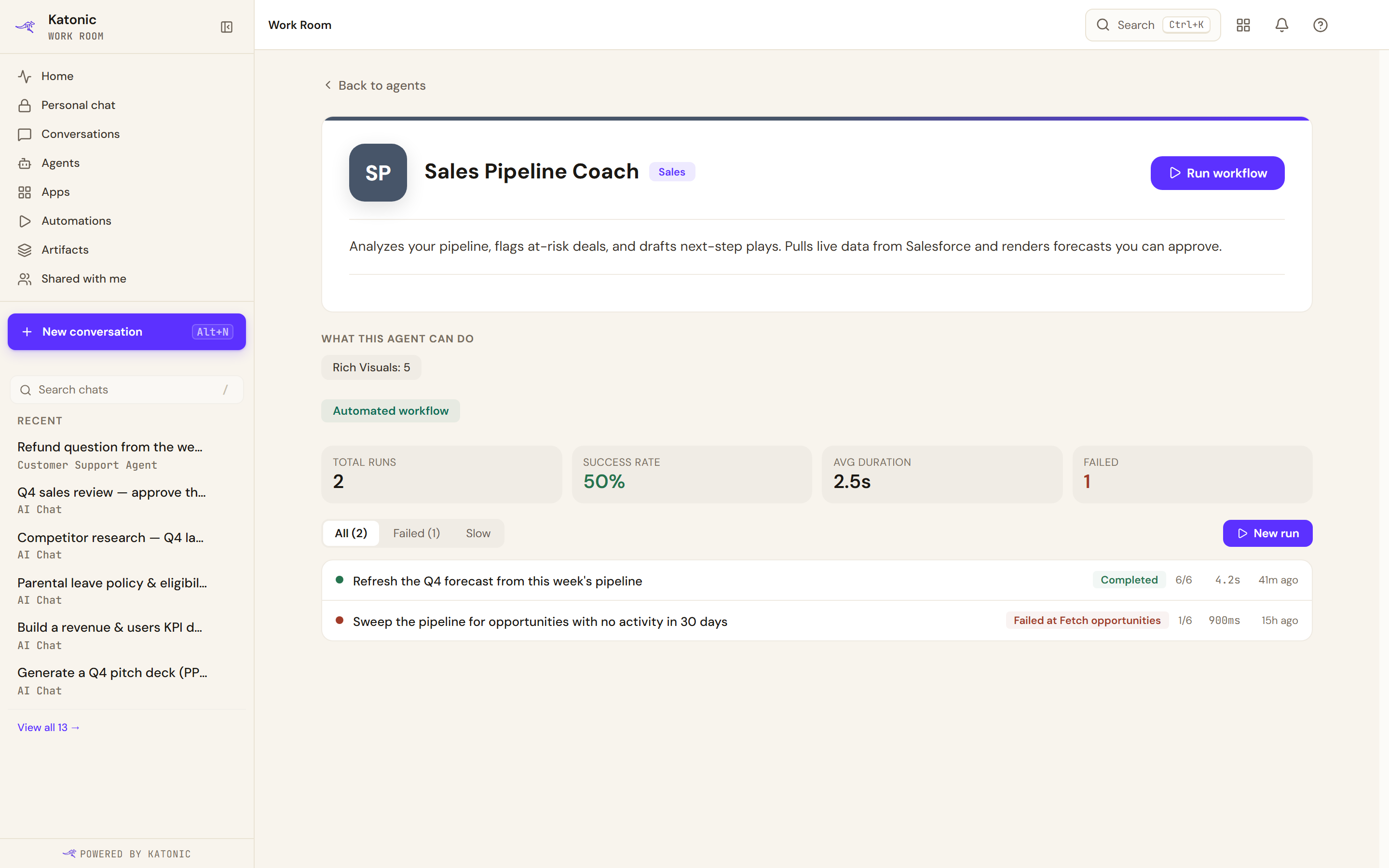
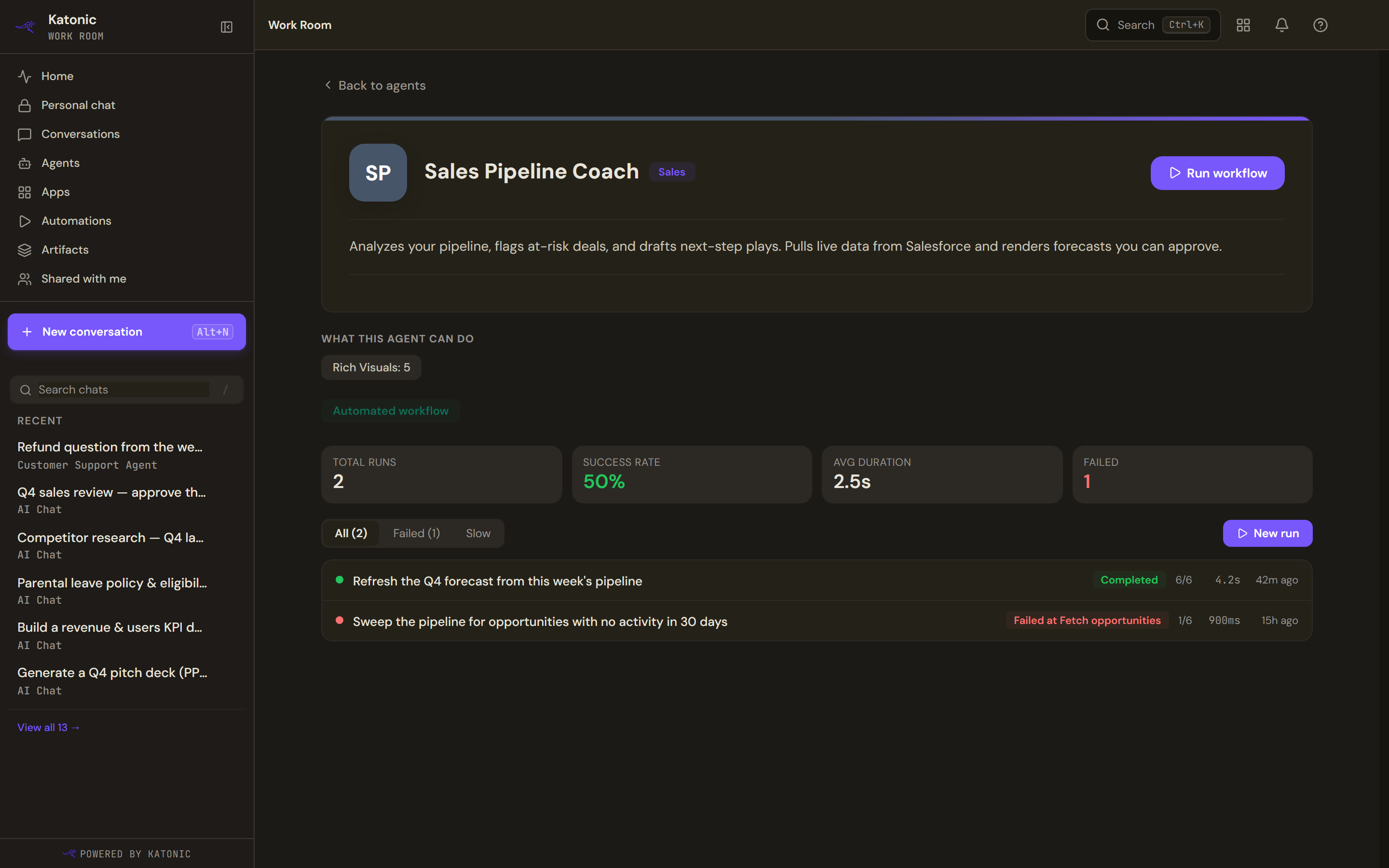
A workflow agent's page ends in its run history. Run workflow at the top and New run above the list open the same dialog. - Select Run workflow
A dialog headed Start this automation opens with the agent's name and description.
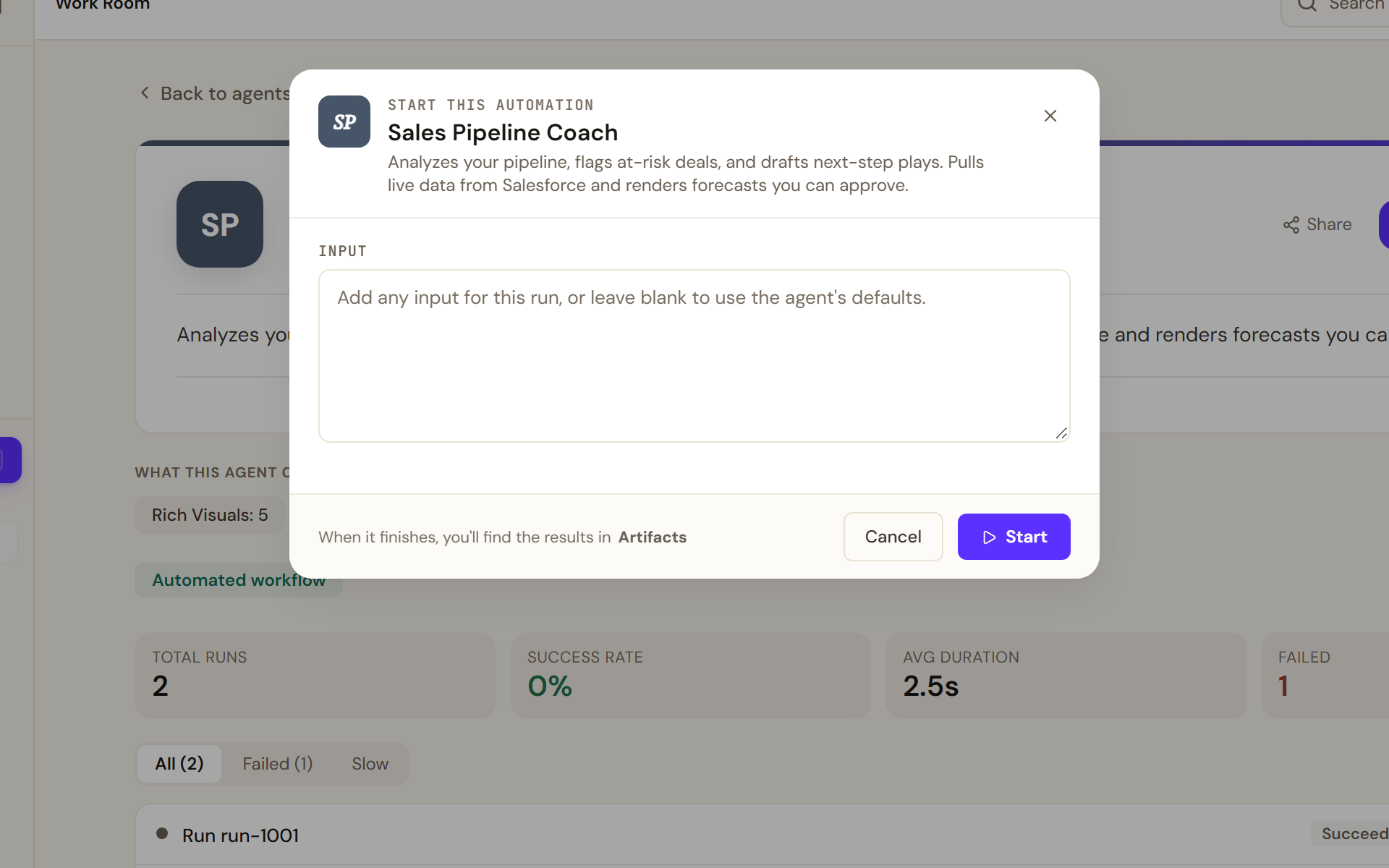
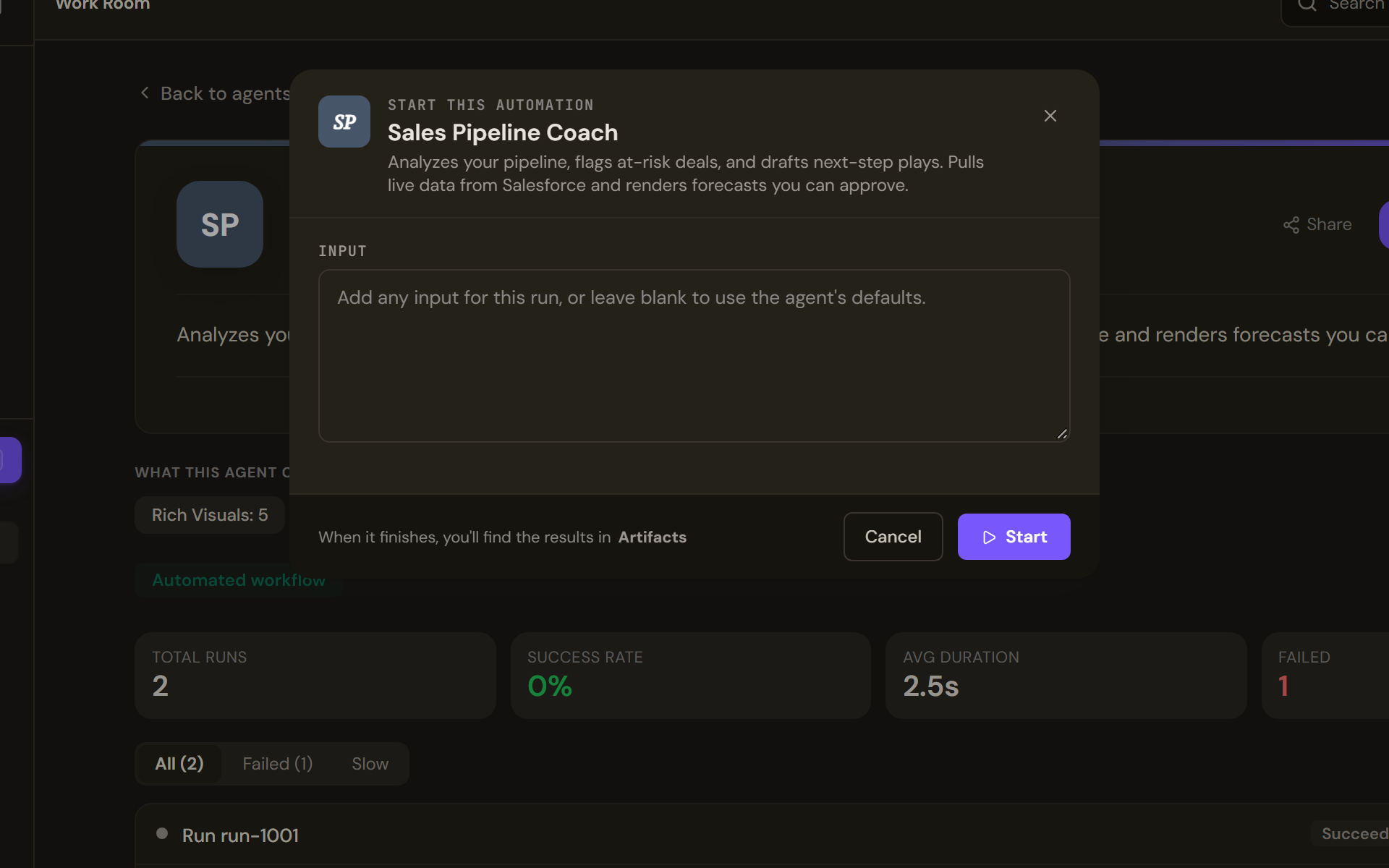
Run workflow opens the Start this automation dialog. With no defined inputs it offers one Input box; leave it blank to run with the agent's defaults, then select Start. - Fill in the inputs
What the dialog asks for depends on how the agent was built.
- With no defined inputs, it shows one Input box: add any input for this run, or leave it blank to use the agent's defaults. If the builder configured example inputs, chips under the box fill it with one click. Selecting a workflow agent's card on the Agents page opens the same dialog, with a required Brief box in place of Input.
- With defined inputs, it shows one field per input: a text box, a longer text area, a list to Select… from, knowledge source chips, or a file field. Required fields are marked with an asterisk, and Start stays unavailable until they are filled.
- A file field takes PDF, Excel, CSV, Word or text files, dropped in or added with Add file(s). Each file is uploaded and its text extracted for the agent: Uploading…, Extracting text…, then Text extracted. A warning tells you when only the first part of a large file was extracted, or when no text could be extracted and the file will not reach the agent. Upload failed offers Retry; Remove (the cross) drops a file.
- Start
Select Start. It reads Starting… while the run is created, then the run's page opens so you can follow it; see Automations and approvals. Cancel, Close (the cross) or Escape closes the dialog without starting anything.
Start from a conversation
You can also start a run from a conversation with the agent; see Using agents.
- If the builder defined inputs, the empty conversation shows a card headed Workflow inputs · fill in and run above the composer, with the same fields. Fill it in and select Run workflow: your inputs become your message in the thread, one line per field, and the run starts.
- If the builder defined no inputs, the message you send is the run's input.
Follow the run in the thread
A status strip under the agent's message tracks the run:
- Automation running, with N of M steps and the name of the step in progress.
- Stop asks the run to stop; the strip reads Stopping the automation until it confirms, or Couldn't stop the run if the request failed.
- Automation finished, Automation didn't finish or Automation stopped when it ends.
Some runs also show a step tracker listing each step with its status (Pending, Running, Awaiting approval, Done, Failed or Skipped) and duration. Select a finished or failed step to read its output or error.
Approve a paused step
When a step needs a person, the tracker shows Human approval required, the builder's prompt and, when the step carries data for review, Entries under review. If there is a deadline, a line says whether the step will be approved, declined or escalated automatically when time runs out.
- Approve and continue resumes the run; a notice confirms the automation is continuing.
- Reject and stop asks for a Rejection reason (optional), then ends the run; a notice confirms it will stop.
If someone else decided first, the deadline passed, or you may not decide this step, the notice says so.
Run history on the agent page
A workflow agent's page also shows Total runs, Success rate, Avg duration and Failed, then its runs filtered by All (N), Failed (N) or Slow, which keeps the longest fifth. Each row shows the run's name, status, steps completed, duration and start time; select it to see its steps, or its prompt and output when it has no step records. New run opens the same dialog as Run workflow.
Verify
The run's page opens after Start, and the run appears at the top of the Automations page and in the agent's run history. When it finishes, its results are listed in Artifacts.
Troubleshooting
- Couldn't start the run. Please try again. in the dialog: the run was not created and your inputs are kept, so select Start again. From the Agents page the notice reads Could not start run; open the dialog again.
- We couldn't load this automation's questions.: the defined inputs could not be loaded; describe what you want in the Brief box instead.
- Start stays unavailable: a required field is empty, or a file is still uploading or being extracted; a file with no extracted text does not count.