Working sessions
A working session shows an artifact and the conversation that produced it side by side: the document on the left, the thread on the right. Every artifact you open from Artifacts or Shared with me opens this way, so you can read what an agent made and see how it got there.
Who can use it: the Member role, for any artifact you have access to. Open in Studio leads into Studio, which needs the Builder role.
Recorded on .
How it works
Open a working session
- From Artifacts
Select an artifact's card. The working session opens with the artifact in the Document pane and its conversation in the Chat pane.
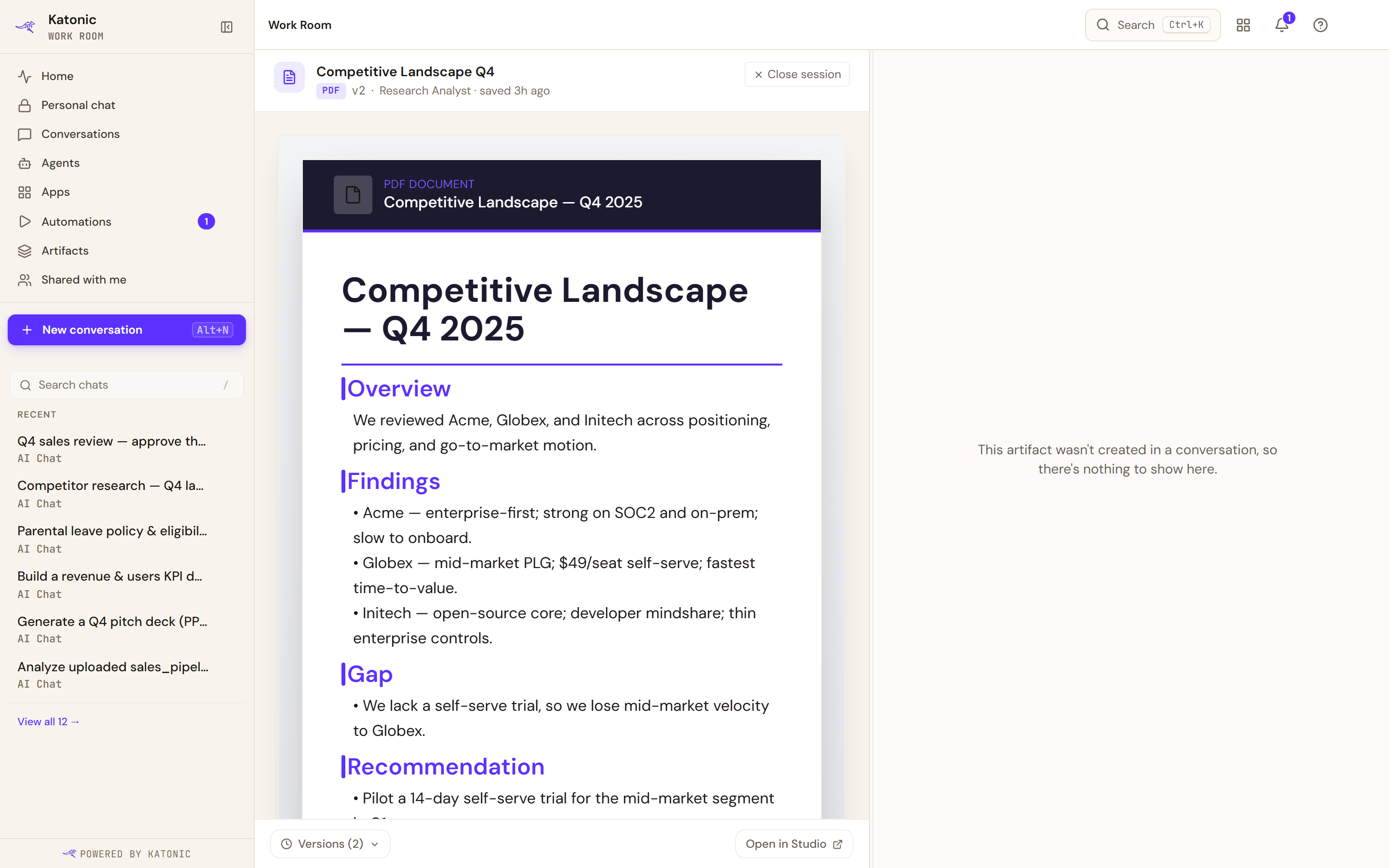
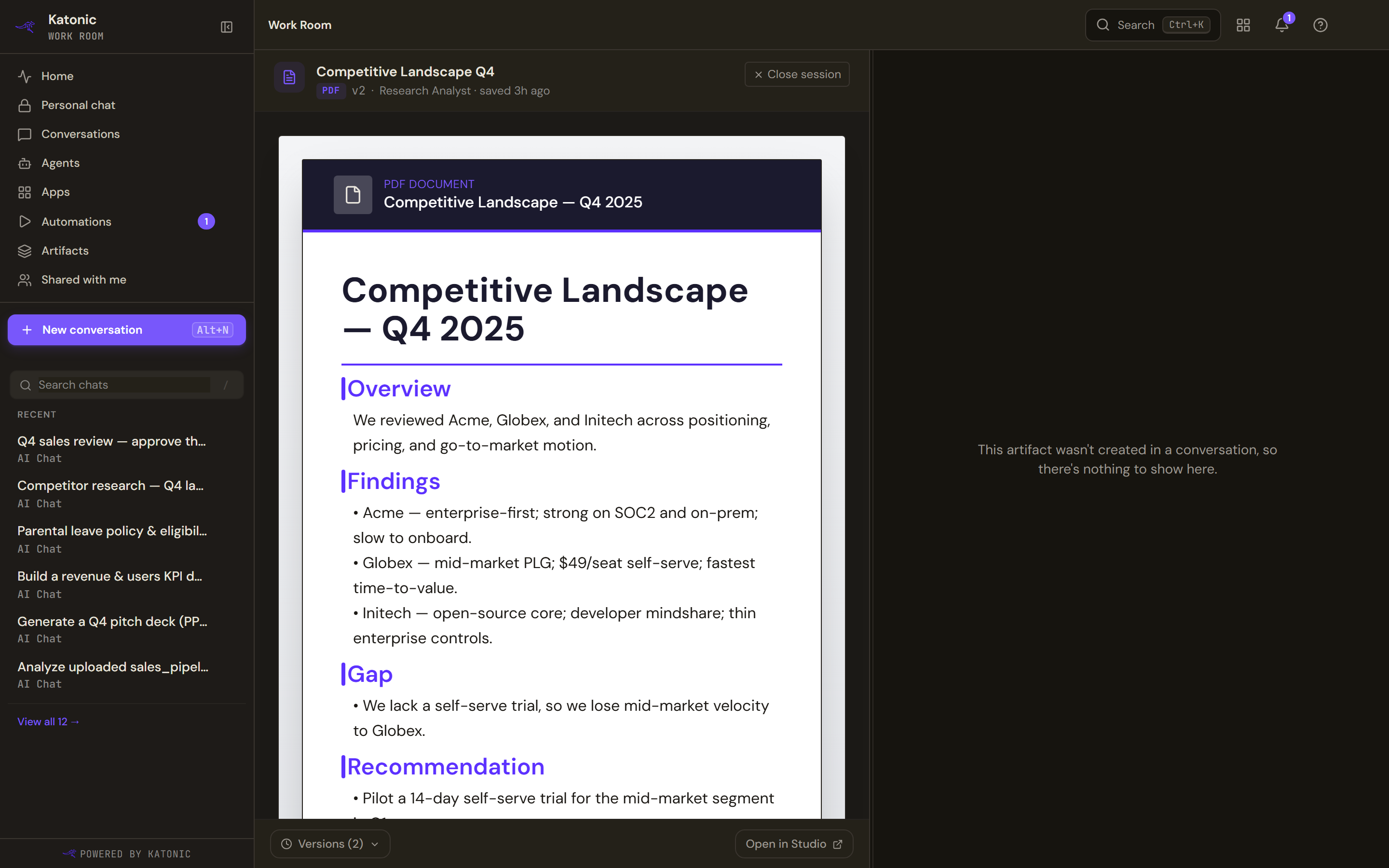
A working session puts the artifact on the left and its conversation on the right. An artifact that came from an automation rather than a chat has no conversation to show. - From Shared with me
Select Review on an artifact row, or the row itself.
- Close
Close session in the document header (its tooltip reads Close working session) returns you to Artifacts.
The Document pane
The header shows the artifact's title, a badge for its format (such as PDF, DOCX, XLSX, MD or CHART; data tables read DATA), its version number, who last saved it and how long ago, and, when known, who owns it.
The body renders the artifact as its kind: documents (PDF, Word, Markdown) on a page, decks as slides, spreadsheets as a grid, charts as bars, code in a code panel, and web pages and diagrams as they render. The pane is read-only; changes come from the agent through the conversation. While a session is open, the pane checks for new versions every few seconds, so an edit the agent saves appears without reloading, and the section it is editing is marked with a section sign.
Versions
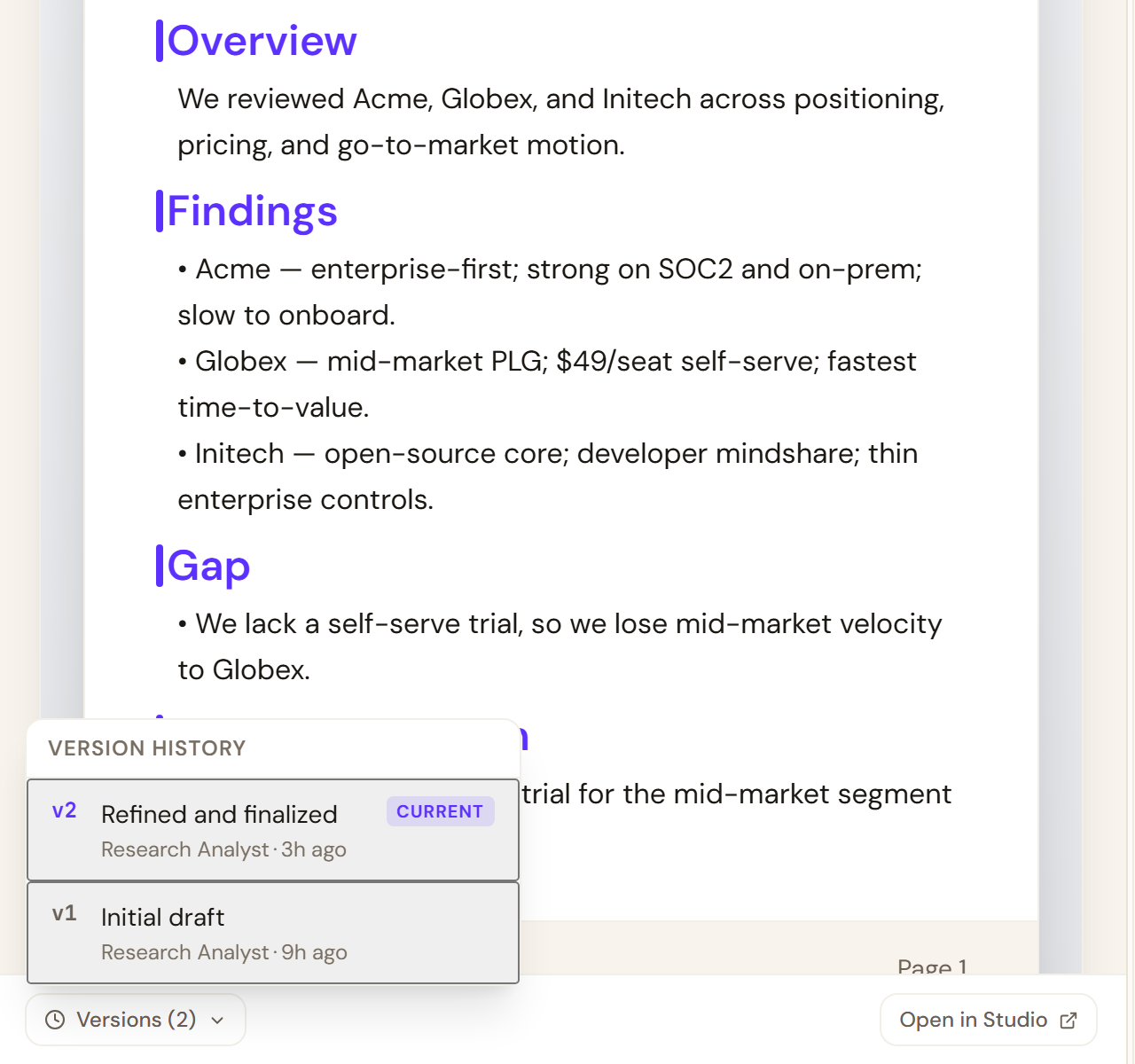
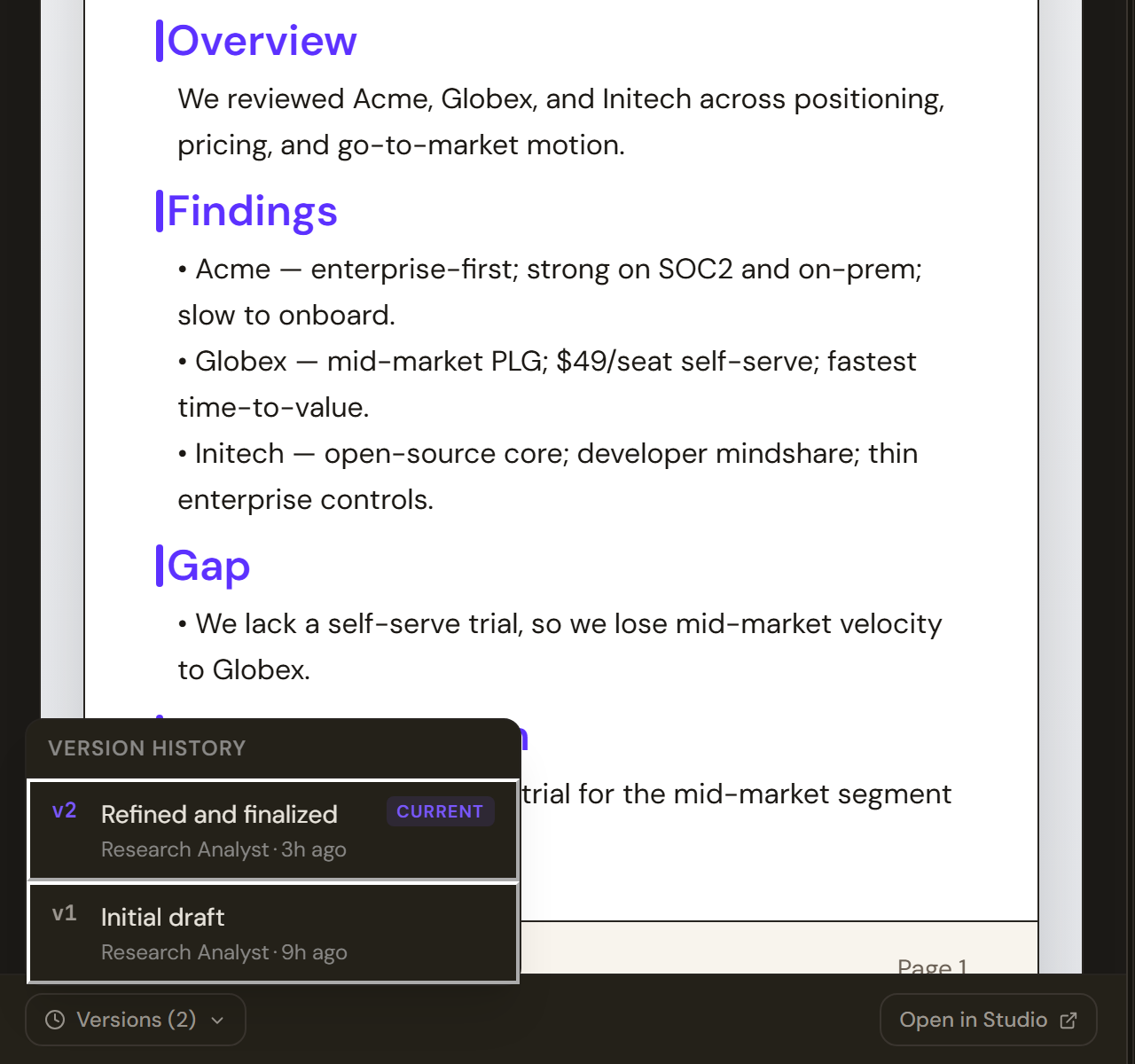
Versions (N) in the footer opens Version history: one row per version, newest first, with its number, the change summary the agent gave it or Manual edit / Agent edit, who made it (You or the agent), when, and the section it touched. The version on screen is marked Current. Select an older version to read it: the header gains a Preview badge, and Return to live takes you back to the latest version, which is the one the pane keeps updating.
Open in Studio opens the artifact in Studio in a new browser tab.
The Chat pane
The right pane is the conversation that produced the artifact, with the same composer and controls as any conversation; see Conversations. When the agent saved part of the document, its message carries a saved to chip naming the section; while it is still writing, the chip reads editing now.
The pane has three other states:
- Loading the conversation… while it finds the thread.
- This artifact wasn't created in a conversation, so there's nothing to show here. for an artifact that came from an automation or another run rather than a chat.
- Couldn't load the conversation for this artifact. when the thread could not be fetched. This does not mean there is none; try again later.
Resize the panes
Drag the divider between the panes (Resize panes) to change the split; with the divider focused, the left and right arrow keys nudge it. The document pane can take between 30 and 75 percent of the width, and your choice is remembered in this browser. On a narrow window the panes stack, and Document and Chat tabs switch between them.
Limits and behaviour
- The document pane is read-only. Ask the agent in the Chat pane to change the artifact; each saved change becomes a new version.
- Previewing an older version does not restore it. Return to live only leaves the preview.
- The pane shows Loading document… while it fetches the artifact, and Couldn't load the artifact. It may have been deleted or moved. with Close session when it cannot.
- Close session always returns to Artifacts, even when you came from Shared with me.
- A shared row of the Artifact kind that points at a source document rather than an agent's artifact opens in the source viewer instead of a working session.
- Cards in a document, such as charts and data tables, render with the same controls as in the thread, but you cannot send an edit back to the agent from here.