Automate a process
Agents
Automate a process builds a workflow: a single trigger, the steps that gather, analyse and generate, branches and approval gates where they are needed, and an output that returns or delivers the result. Members start it from the Work Room or it runs on a schedule or a webhook.
Who can use it: the Builder role or higher, in a tenant licensed for agents.
Recorded on .
- Start
Pick Automate a process, start Blank and Continue to build.
- Wizard
The Wizard lens has six sections. Identity names the flow. Trigger is the single entry point: manual, a schedule or a webhook. Steps holds the work in between; Add a step offers a Tool, Knowledge, a Skill, a Loop or Code. Add branch routes on a Condition expression; Add approval pauses for a human, with the Reviewers / channel to notify. Output names a Destination; Guardrails applies the safety profile to every step.
- Visual
Visual is the same draft on the canvas: the palette groups Flow, Models, Agents and Tools, and Fit frames the flow. Select a node for Config, Input · Output and Policy; an LLM step has a model, a System prompt with upstream variables, optional Skills and a Response format.
- Code
Code is a live, read-only serialisation of the canvas, with Copy and Download. Copilot takes a description of the change and proposes a whole workflow with its diff; nothing changes until Apply to canvas, and Undo is one click away.
- Test
Test runs the draft in the sandbox; every step reports in the Run trace, including the approval, auto-continued in the sandbox.
Four lenses on one draft
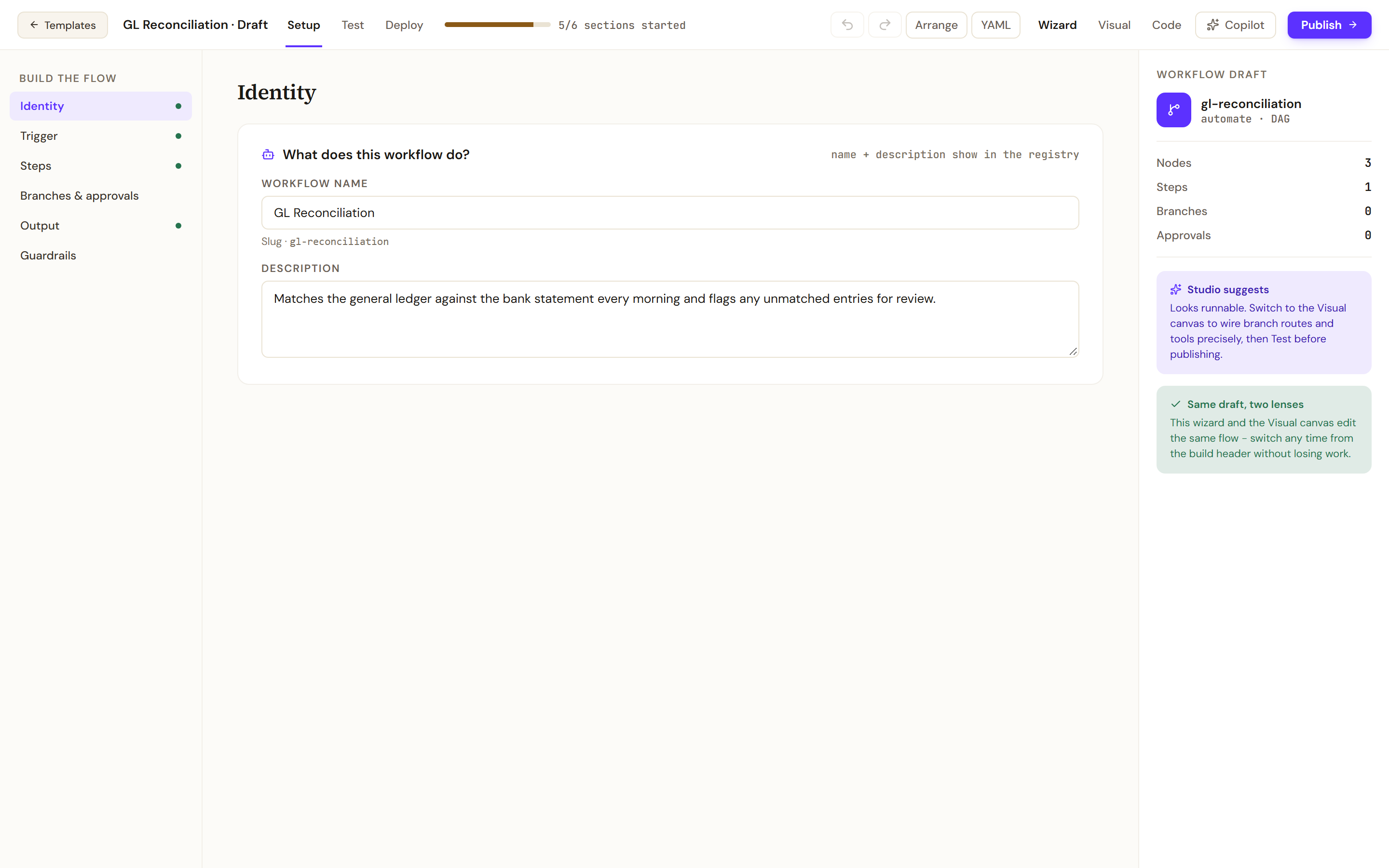
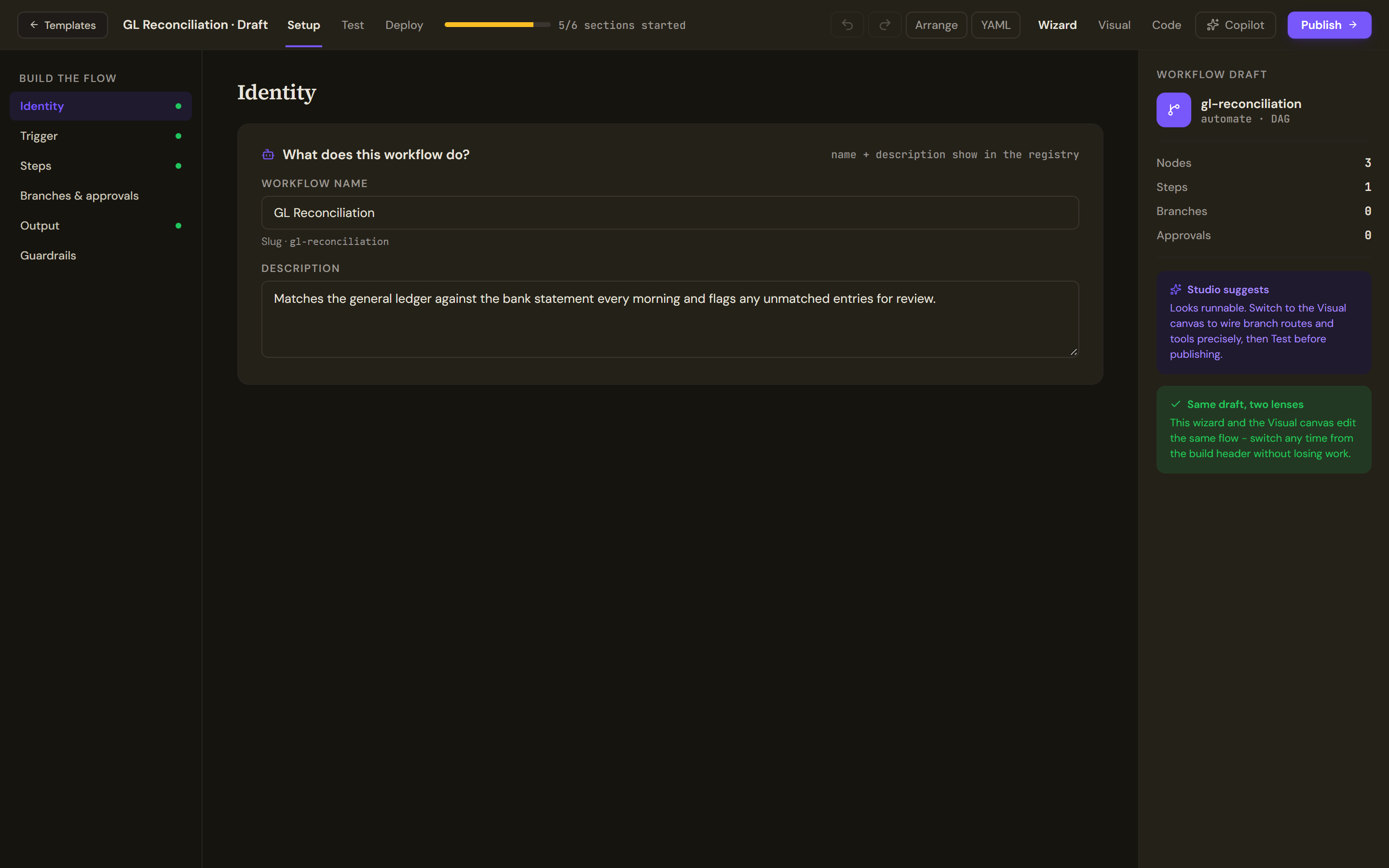
The build header offers Wizard, Visual, Code and Copilot, all editing the same autosaved draft. The Workflow draft rail counts nodes, steps, branches and approvals, and Studio suggests tells you when the flow is runnable: it needs a trigger, at least one step and an output.
The Wizard lens
- Identity: the Workflow name, its slug and a Description that show in the registry.
- Trigger: the flow's single entry point. A trigger is manual, a webhook with a Path, or a schedule with a five-field Cron expression in the workflow's timezone.
- Steps: the work between trigger and output.
- Branches & approvals: Add branch routes on a value with a Condition expression such as
$class.intent; the true and false routes are wired on the canvas. Add approval pauses for a human, with a label and the Reviewers / channel to notify. - Output: the terminal node, with a label and a Destination such as returning to the caller, posting to a channel or writing to a table.
- Guardrails: the safety profile applied across every step.
The Visual canvas
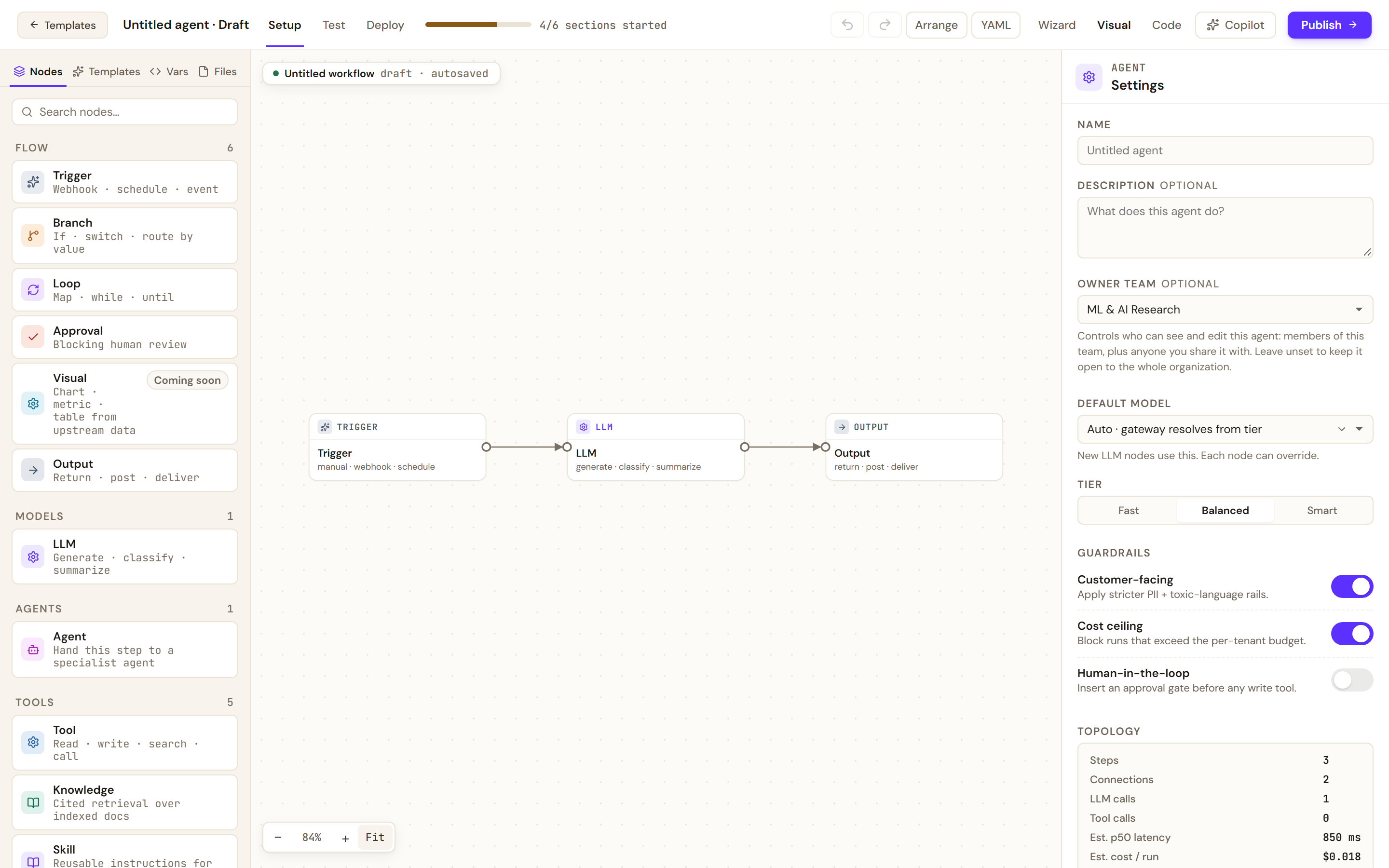
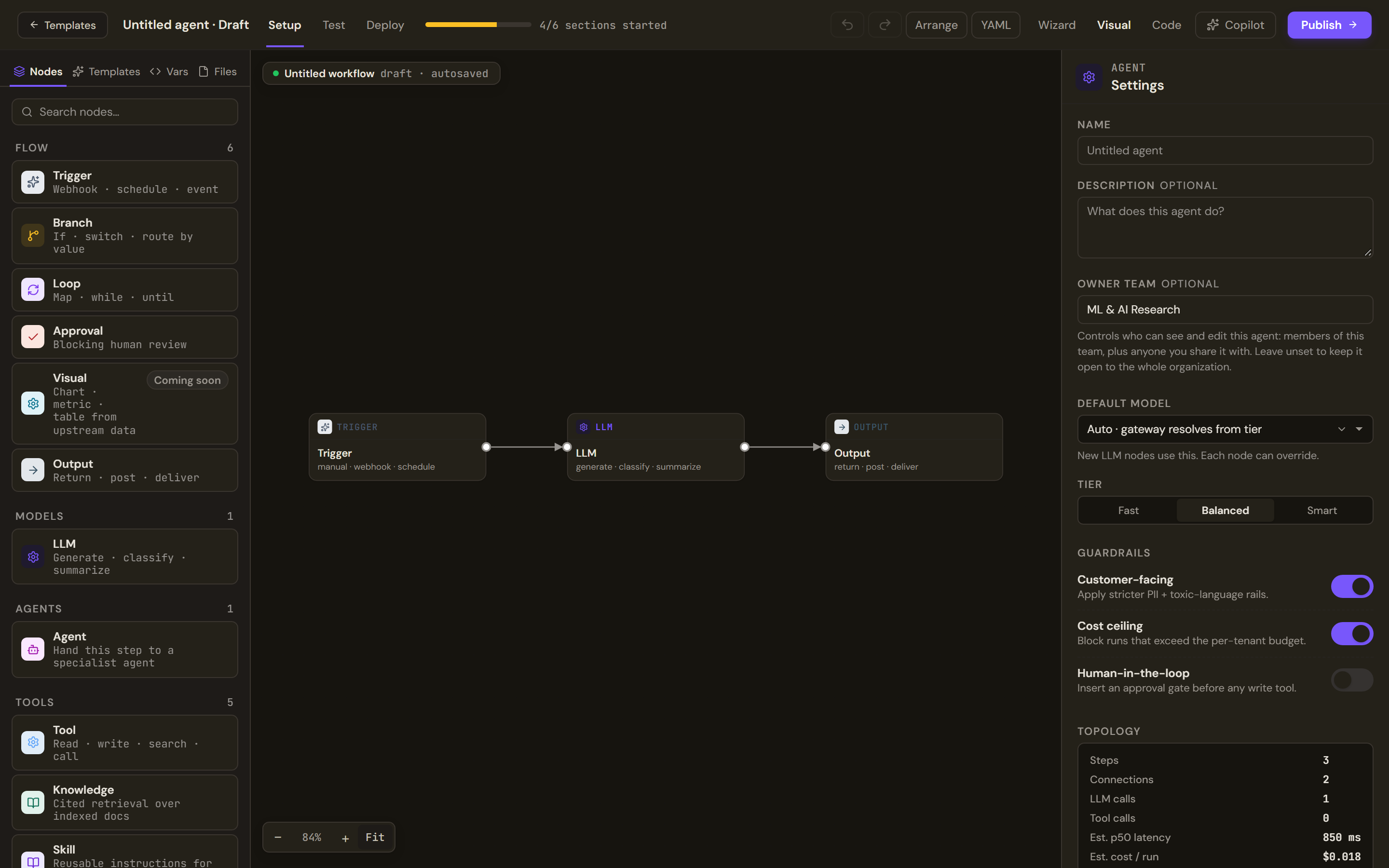
The palette on the left groups nodes: Flow (Trigger, Branch, Loop, Approval, Output, and Visual, a chart, metric or table node marked coming soon), Models (LLM), Agents (hand a step to a specialist agent) and Tools (a tool call, cited knowledge retrieval, a skill, an HTTP request and a code step). A Visual node has no runtime behind it, so dragging one on blocks publishing until you take it off again, and its own panel says so. The palette's other tabs hold Templates, the flow's Vars and Files.
With nothing selected, the inspector shows the agent's Settings: name, description, owner team, the Default model (Auto lets the gateway resolve it from the tier, and each node can override it), the Tier, three guardrail switches (Customer-facing, Cost ceiling, Human-in-the-loop, which inserts an approval gate before any write tool) and a Topology summary with estimated latency and cost per run.
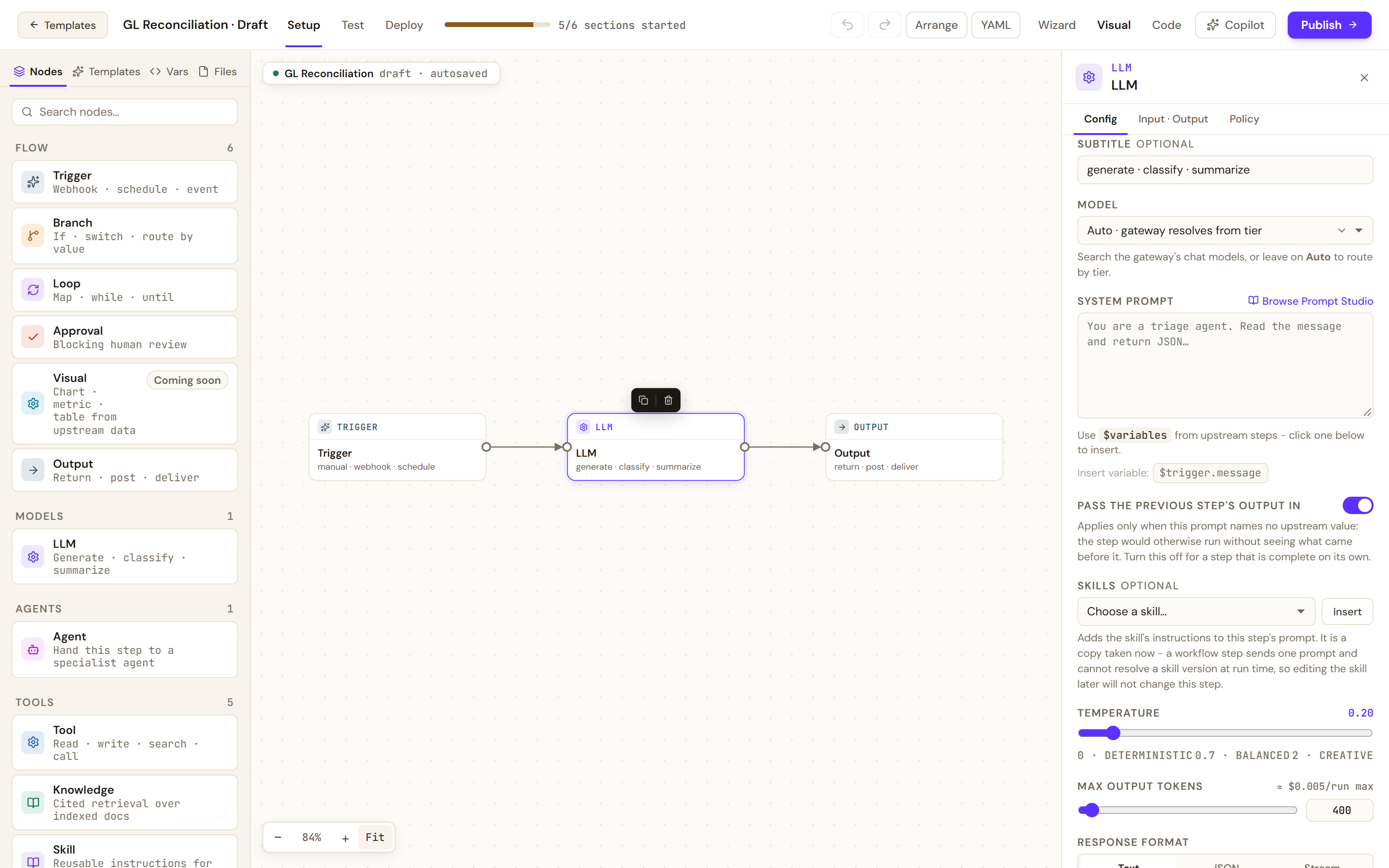
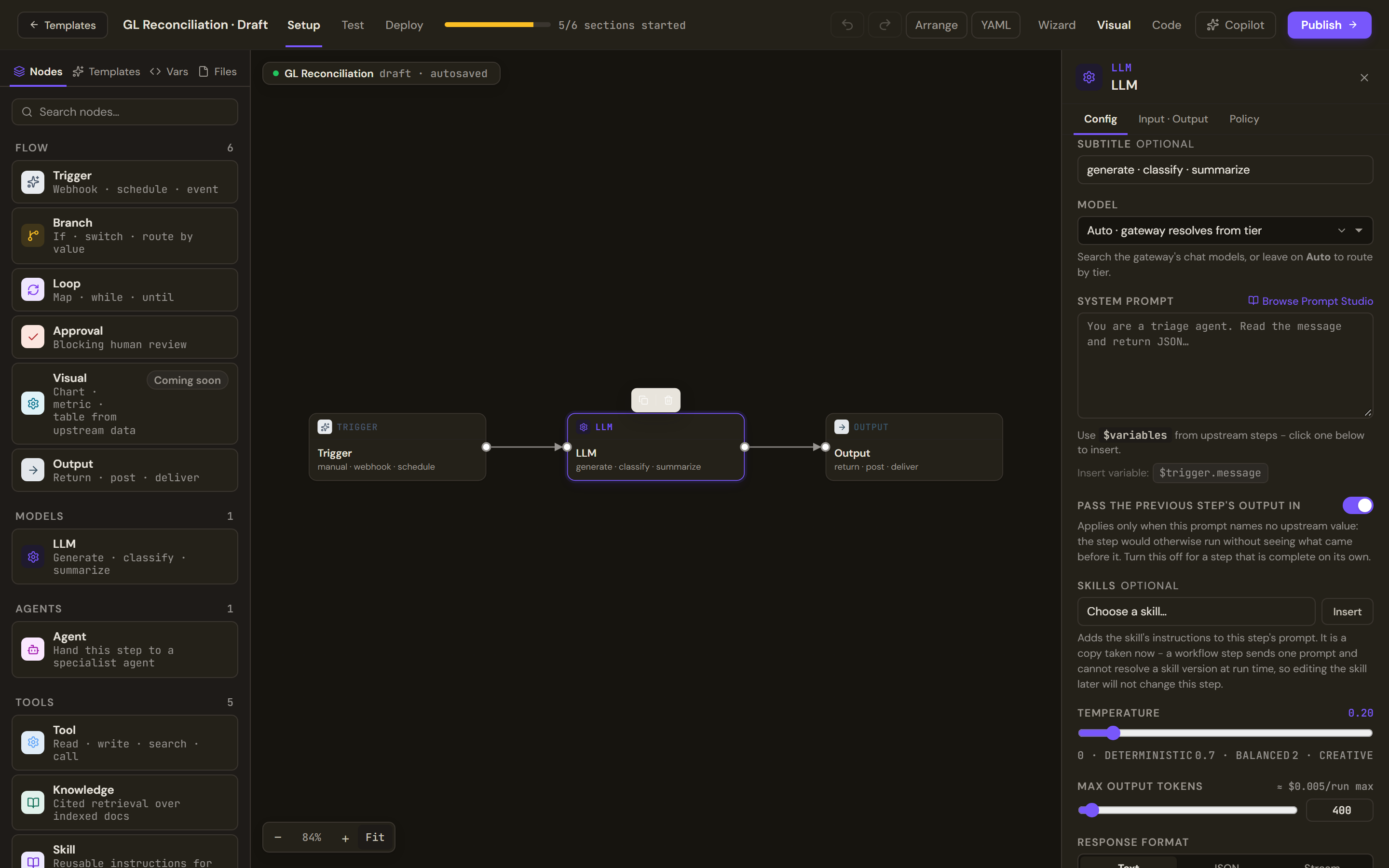
Selecting a node opens its configuration in three tabs: Config, Input · Output and Policy. An LLM step takes a step name, a model, a System prompt that can reference upstream values (Insert variable lists them, such as the trigger's message) or a prompt from Prompt Studio, optional Skills, temperature, maximum output tokens, a Response format of text, JSON or stream, and an output script. Insert on a skill copies its instructions into the step's prompt at that moment; a step sends one prompt and cannot resolve a skill version at run time, so later edits to the skill do not change the step. Duplicate, Disable and Remove sit at the bottom.
An Approval step names who can approve (anyone, a team or one person), the channel to notify, the time allowed and what happens when it runs out. A Member sees the pause as a request in the Work Room's Automations.
The Code lens
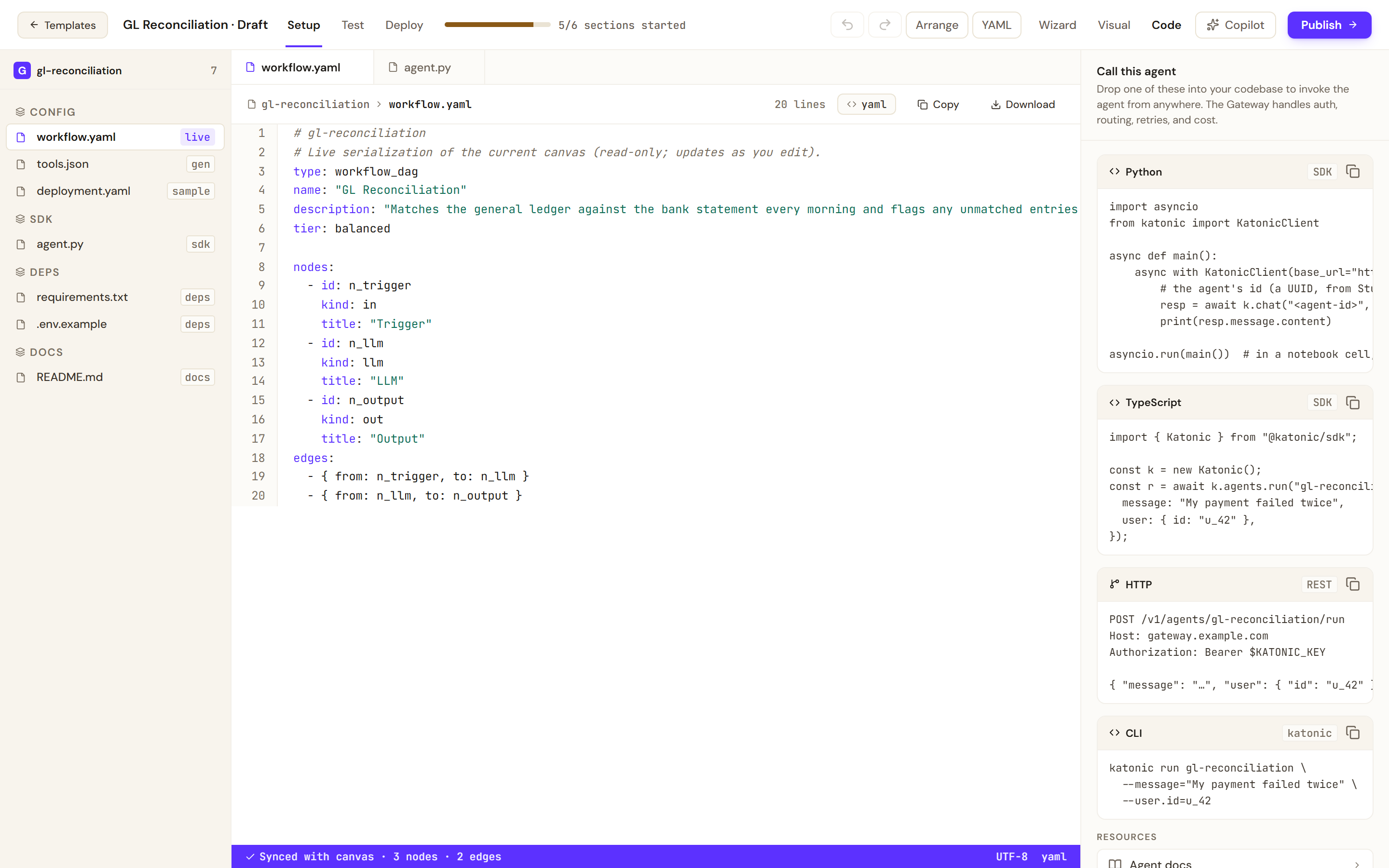
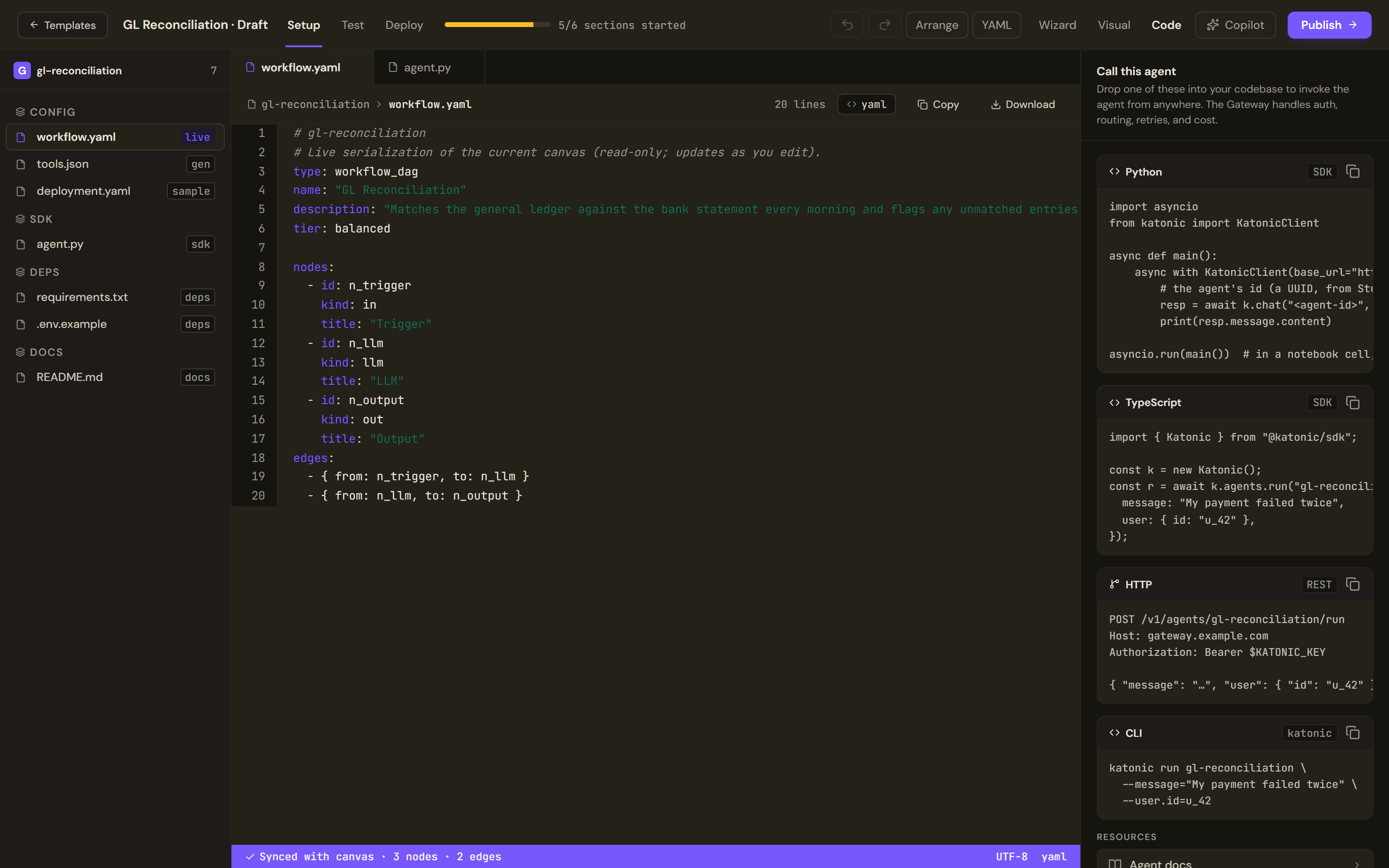
Code is a live, read-only serialisation of the canvas: the workflow definition, a tools file and a sample deployment file under Config, a Python entry point under SDK, dependency files and a README, each with Copy and Download. The Call this agent panel shows sample calls for the published agent in several languages; the API endpoint is the one the Deploy tab shows.
Copilot
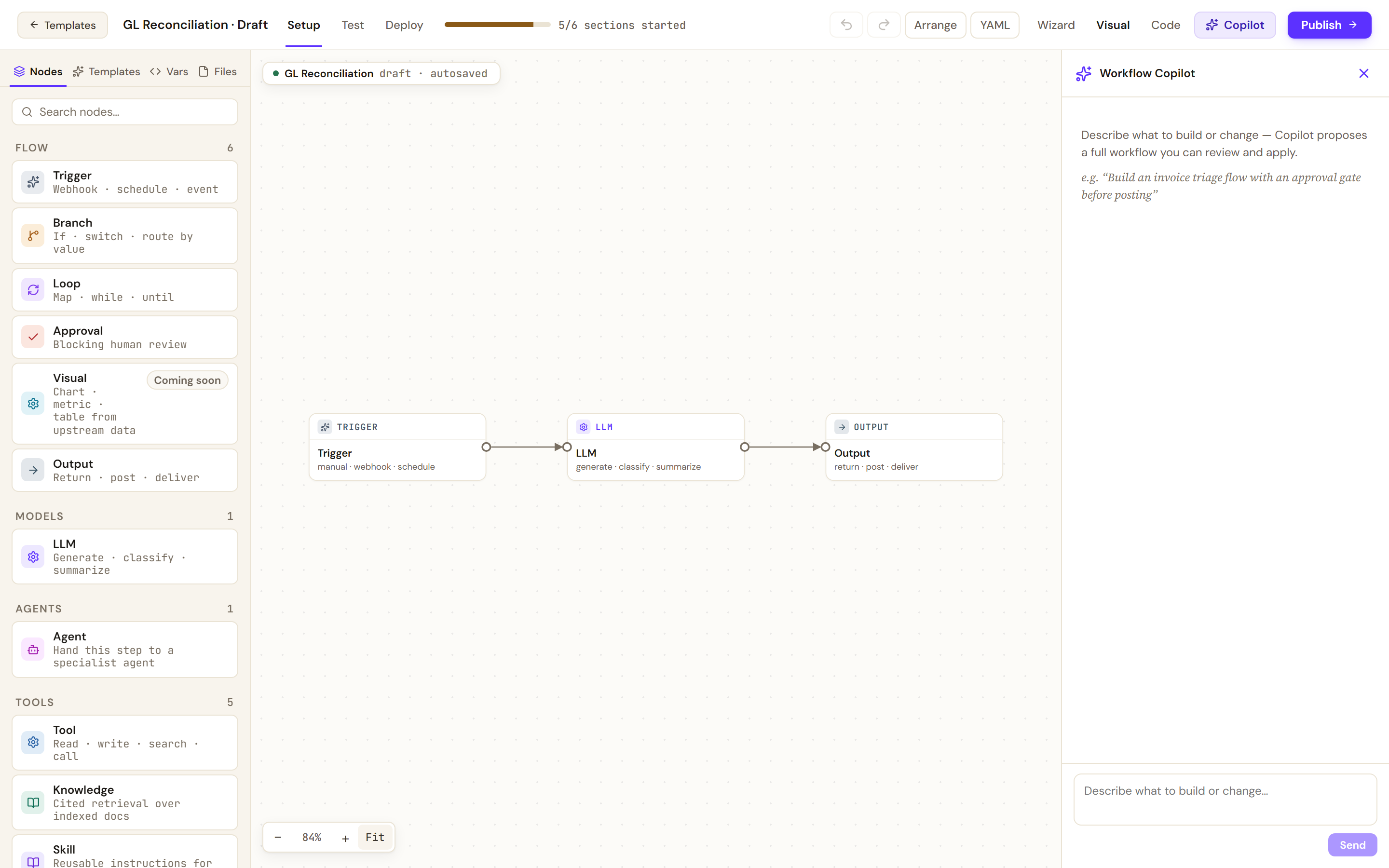
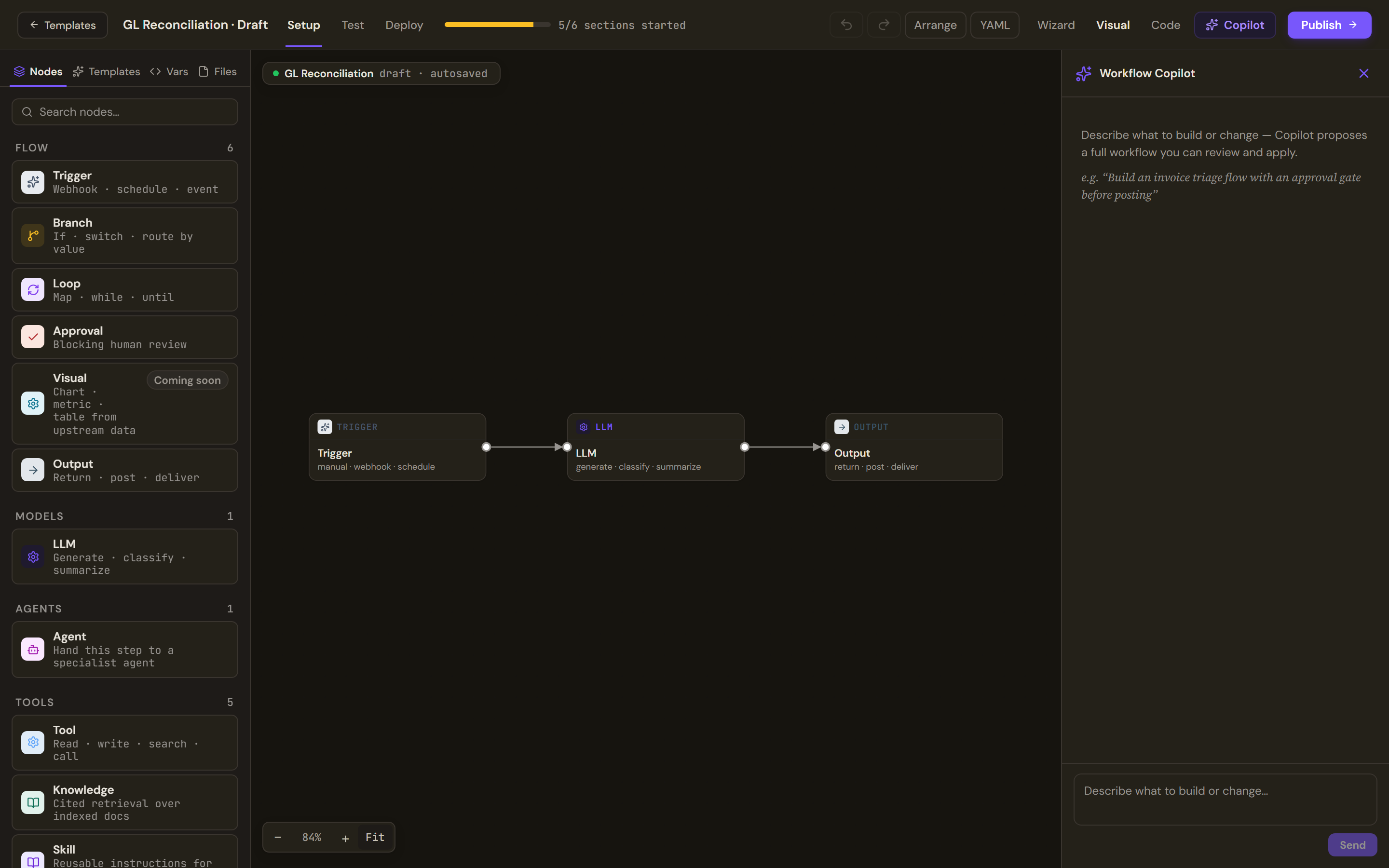
Copilot takes a description of what to build or change and proposes a whole workflow. Review what it proposes before applying it to the canvas; nothing changes until you apply.
If Copilot's pinned model fails, Copilot retries once on the reasoning tier. If no model answers, the panel names the model and provider; try again in a few minutes, or ask an administrator to pick another under Platform Settings › Copilot. A failure on the platform's side, such as an unreachable AI Gateway, is not retried.
Test, publish and run
Test runs the draft in the sandbox and shows each step's trace. Deploy and Publish work as for any agent; see Test, publish and versions. A published workflow gets a trigger endpoint that starts a run when a message is posted to it. Its page in Studio carries the run surface: Triggers (run now, the schedule from the trigger node, or the webhook), the run history with step progress, runs that are Awaiting approval, and outputs saved to Artifacts. Members start and follow runs from the Work Room; see Start an automation.
Limits and behaviour
- The Wizard lens edits the branch condition; the canvas owns the edge labels.
- Skills inserted into an LLM step are copies. To keep a skill live across versions, use a Skill node with a version policy of following minor versions, following the latest, or pinning one.
- A published workflow cannot take a delegated turn from a coordinator; run it directly.