Data Flywheel
The Data Flywheel turns an agent's failures into a change to that agent, one round at a time. A round takes the failures clustered out of production traces, builds a training set from them, proposes edits to the prompt, scores the candidate against the current version, ships it behind a canary, and measures what it actually gained.
Who can use it: anyone in Studio can read it. Starting a round and triaging clusters need the Builder role on an agent you own. Promoting a round or accepting a proposed edit needs an administrator or the release approver grant.
Recorded on .
The flywheel in four steps
The video above walks the workspace and a round; the stage pages go deeper.
- Read the workspace
Two tabs, Overview and Automation; the Auto-loop off pill is a status, not a switch. The wheel names six stages, the flywheel this week gives loops closed, average lift and median loop time, Agents in the loop lists each agent with its round and stage, Loop health and Top failure clusters sit beside them, and Recent loop activity is the last day of events.
- Know what runs without you
Automation holds Loop jobs, Loop settings for the judge, the cluster job and routing, and Evaluation schedules. Nothing there starts a round; where a deployment does not report a setting, the panel says so.
- Follow a round
Selecting an agent opens its round with six stage tabs. The training set is harvested once clusters are routed to it; Tune proposes prompt edits and waits for a person to accept or reject them; Compare shows the candidate beside production once the evaluation suite has run.
- Ship it and measure
Deploy ships the candidate behind a canary, then Promote to 100%, with Roll back beside it; a person starts the canary and promotes. Lift measures the gain once the candidate carries all production traffic.
What is automatic and what is not
This matters more than anything else on the page, because the product's own headline says the loop closes itself and that is not true today.
| Step | Who does it |
|---|---|
| Traces recorded and scored | Automatic |
| Failures clustered into themes | Automatic, on a schedule; the Automation tab reports when it last ran and when it runs next |
| Clusters triaged and a round started | You |
| Training set harvested | Automatic, once clusters are routed to training |
| Prompt edits proposed | Automatic |
| Edits accepted or rejected | A person, and the round will not move on without it |
| Evaluation suite run | Automatic, after enough edits are accepted |
| Canary started | A person, always |
| Promoted or rolled back | A person, unless the round was configured to skip the canary |
| Lift measured | Automatic |
The Auto-loop off pill in the header is a status, not a switch: nothing drives a round from end to end on its own. What the loop does run by itself is on the Automation tab, and the table above says which steps those are. A disabled Settings · Soon stub used to sit beside the pill; it was removed rather than reworded, because a disabled control whose only message is "soon" is a promise and not a control.
What the tune step actually does
The tune stage names its third step LoRA fine-tune. Nothing in this version fine-tunes anything. A round's strategy is prompt edits only, and no training code exists behind that label. Read the stage as "propose changes to the prompt" and you will not be surprised by the result.
The workspace
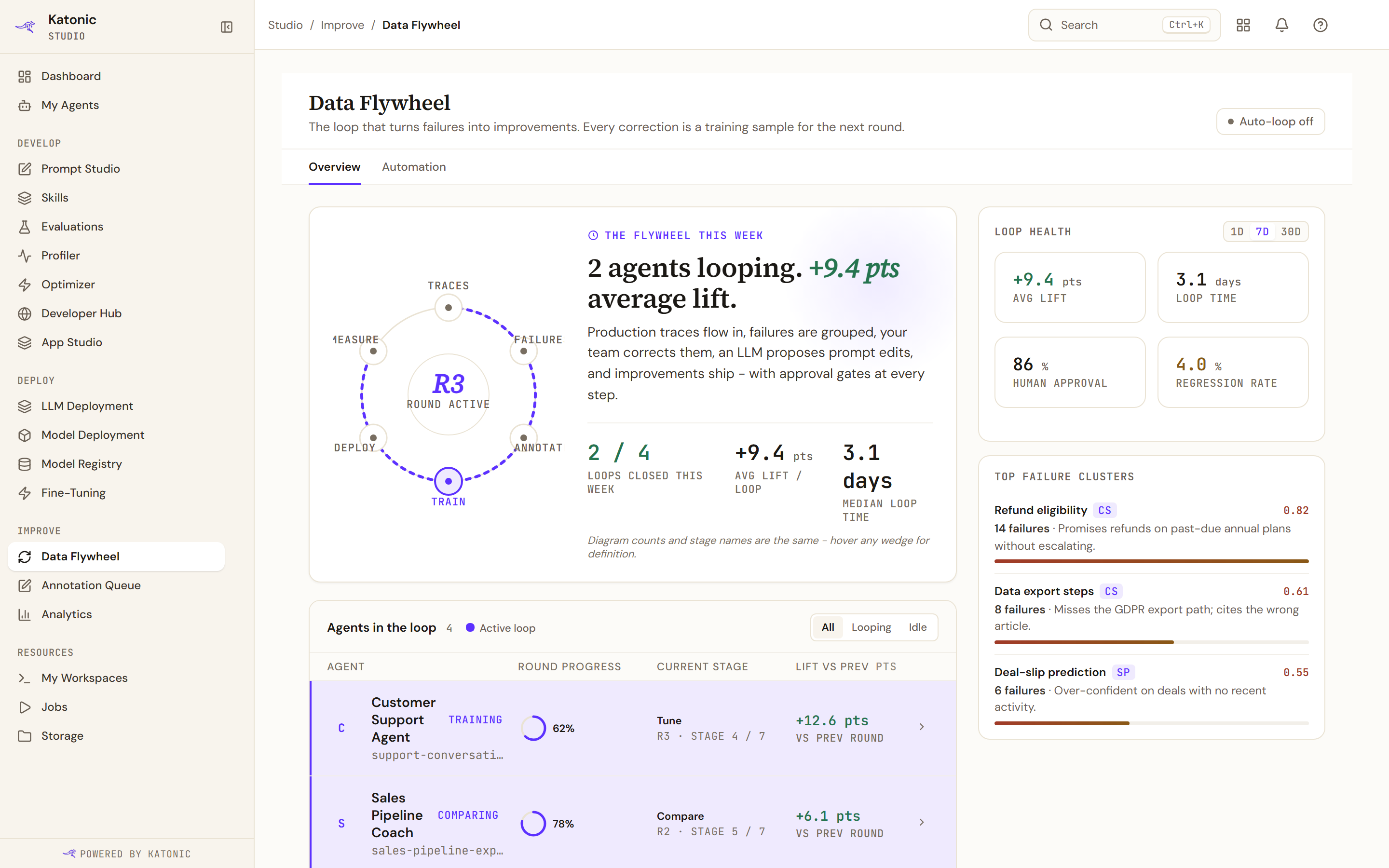
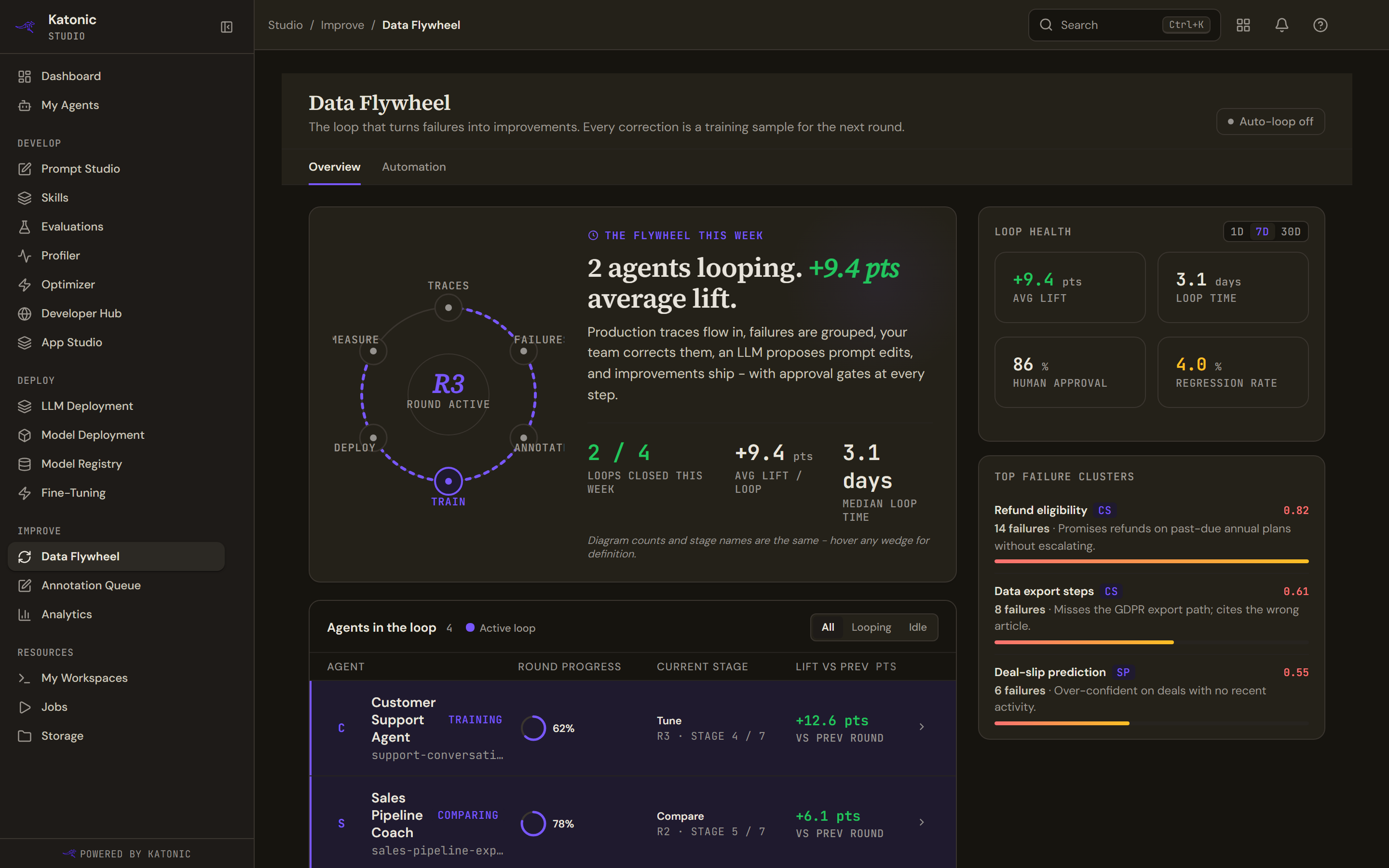
The workspace has two tabs under the header. Overview holds everything described below. Automation holds what runs without you. The Automation tab was its own page until recently and was briefly called Continuous, so both of the older addresses now redirect to it and an old bookmark still lands in the right place.
The wheel at the top names six stages: Traces, Failures, Annotate, Train, Deploy, Measure. The tabs inside a round name six different ones, and the platform's own stage counter counts seven. They describe the same loop at three levels of detail, so do not try to line them up.
The flywheel this week gives loops closed, average lift a loop and median loop time. Average lift is left blank rather than shown as zero when nothing has been measured.
Agents in the loop lists each agent with a progress wheel, the stage it is on as a round and stage number, and its lift against the previous round. The filter above it is All, Looping or Idle.
Loop health gives average lift, loop time, the share of rounds a human approved, and the regression rate, over one, seven or thirty days. A change figure under any of them appears only when the platform supplies one; none is invented in the browser.
Top failure clusters ranks themes by how many failures they hold. Where it is empty it says so and then reports the clustering job itself: when it last ran and when it runs next, or that it has not run on this deployment yet and a platform administrator can start it.
The Automation tab
Everything the loop runs on its own is here, and nothing on this tab starts a round.
Loop jobs is every job the loop depends on, as a table of the job, when it last ran, when it runs next and how it went, with the round it was working on. The jobs that run on a schedule show a countdown to their next run. The rest are triggered by the round itself and say so in place of a time, reading on round start, after harvest, after tune or on approval.
Loop settings names the judge, the cluster job and routing. Where a deployment does not report them, the panel says so and points at the platform administrator rather than showing empty fields.
Evaluation schedules lists each schedule with its cadence, its next run and the result of its last one, and each row can be paused, resumed or deleted from here. The link above the list opens the same schedules in Evaluations.