Optimizer
Inference optimization
The Optimizer, under Develop in Studio, searches for a better version of an agent's live system prompt. It proposes candidates, scores each one against a dataset with your evaluators, and keeps the best. You read the result, compare it with the baseline and decide whether to apply it. The single-shot Suggest in Prompt Studio is the quick alternative; the Optimizer is a multi-candidate sweep with a score behind every candidate.
Who can use it: the Builder role or higher, in a tenant licensed for inference optimisation. An administrator must first pick the optimiser's model tier under Platform Settings in the Control Room; until then no run can start.
Recorded on .
The Optimizer in four steps
The video above walks the page; the pages under Related go deeper on each part.
- Find or start a run in History
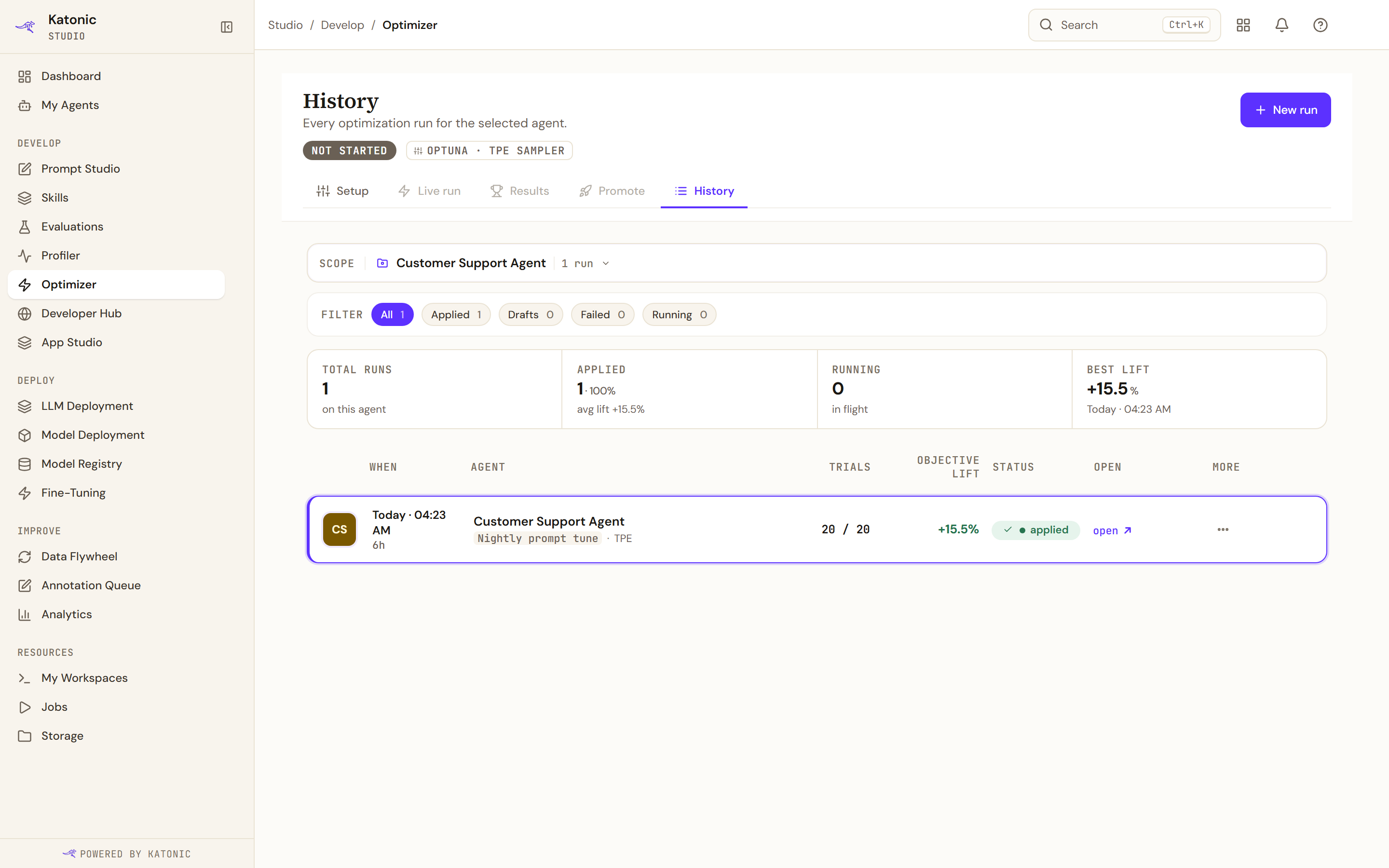
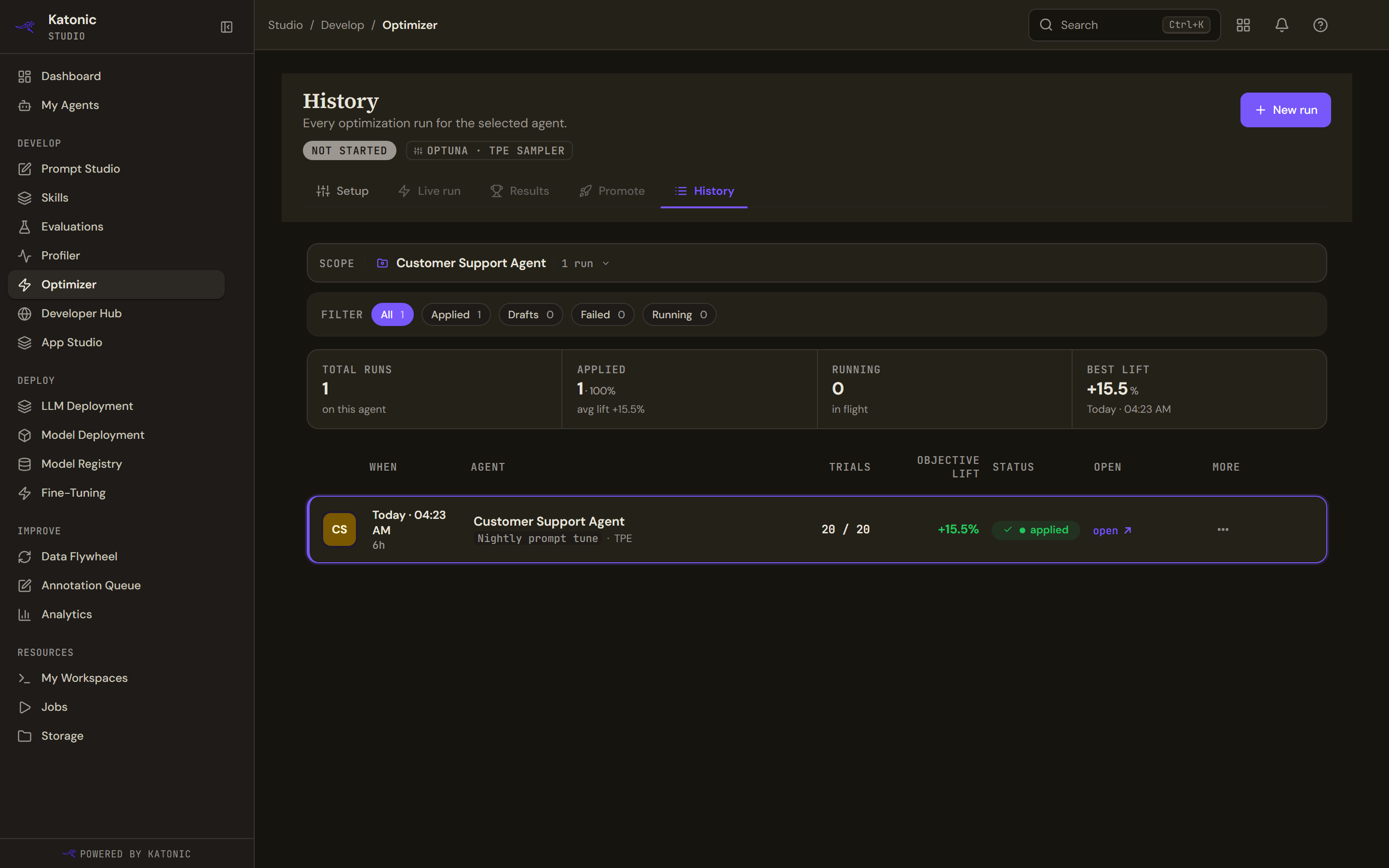
The page has five tabs: Setup, Live run, Results, Promote and History; the last three need a run picked from History first. History lists every run for one agent under the Scope picker, with filters, count cards and a row menu; New run opens Setup.
- Set up the run
Setup is one form in five parts behind a readiness list: what to optimize (a published agent's system prompt), the dataset and its trial and final splits, the weighted evaluators with latency and cost caps as guard rails, the search space of knobs the sampler may turn, and the budget, then Launch optimization.
- Follow it
Live run shows the status and remaining time, the score curve as trials land against the baseline, a rail with spend, evaluator scores and the trial feed, and a trials table where the best candidate so far is marked the winner.
- Read the winner and apply it
Results puts the winner beside the baseline: the objective score before and after, per-evaluator scores, both prompts with additions marked, and Copy as draft for Prompt Studio. Promote shows the lift, what you are shipping, the target and a changelog; applying creates and publishes a new version of the agent.
How it works
A run works on one agent and its published system prompt. Before the first trial the optimiser scores the baseline, the prompt as it is, against the dataset, so every later score has something to compare with. Then a sampler (Optuna's TPE) proposes a candidate per trial: a rewrite of the instructions, a different set or order of few-shot examples mined from the dataset, a different temperature, or several at once, depending on the knobs you leave open. Each candidate is scored on the Trial split of the dataset by the evaluators you weighted, the scores are blended into one objective, and the best candidate so far is carried forward. The model itself is locked to the agent's own, so latency and cost stay comparable across trials.
When the run completes, Results shows the winner beside the baseline and Promote applies it. Applying creates a new version of the agent with the optimised system prompt and its tuned parameters, keeps the rest of the version (tools, knowledge, guardrails) as it was, and publishes it. Rolling back is the ordinary agent rollback: the previous published version becomes live again.
The page has five tabs. Setup configures a run, Live run follows it, Results and Promote read and apply a finished one, and History lists every run for one agent. Live run, Results and Promote need a run picked from History first; their tabs say so until you have one. The pill under the title is the run's status: Not started, Pending, Queued, Running, Completed, Failed or Cancelled, and a failed run adds See what went wrong, which jumps to the reason.
What a run needs
- A published agent, live or in canary. A draft cannot be optimised, and Setup says so.
- An evaluation dataset with expected answers. The Prompt Studio Test tab can create one for you from failing cases.
- At least one evaluator with a weight above zero. Evaluators come from Evaluations.
- The optimiser tier configured under Platform Settings, Optimizer: Reasoning, Balanced or Fast, each backed by at least one enabled model with a credential.
- No other run in flight for the same agent.
Where you meet it
- Studio sidebar: Optimizer opens History with the Scope picker.
- Prompt Studio, Test tab: Send all fails to Optimizer saves the failing cases as a new dataset and opens Setup with it selected; Optimize against this set does the same with the whole iteration set. A banner on Setup confirms how many cases came across.
- Profiler: Tune this prompt on a trace, Tune this node on a node, and Send to Optimizer from the traces list open the Optimizer for that agent.
- Control Room, an agent's Optimization tab: the NAT Optimizer form starts a run without the Studio page and lists Optimization History for that agent. See Agents in the Control Room.
- Public API: start, poll and list jobs from your own tooling. See the Prompt optimizer reference; a Prompt optimization job finished webhook fires when a job completes.
Limits and behaviour
- The model is held at the agent's baseline in every trial. Top-p / penalties and Output schema are locked; Tools is off by default.
- Per-trial latency and cost appear only when the platform recorded them for that trial; otherwise the cells read as a dash rather than an estimate. Hyperparameters are stored for the winning trial only.
- A run without a measured baseline reports baseline not scored and never claims a lift. The API's automatic apply is refused in that case.
- Applying is immediate and complete: no staged ramp and no automatic rollback rules exist in this release. Promote used to show both as disabled controls; they were removed, because nothing wires a ramp or a guard rail and a disabled control promised otherwise. Rolling back is a real action on the applied banner, which re-publishes the previous version.
- History shows the most recent 50 runs of an agent.
- A run continues in the background if you leave the page; polling resumes when you return to it.