Prompt Studio
Agents
Prompt Studio, under Develop in Studio, is where a prompt is written, tested against cases, versioned and promoted. An agent binds a prompt; Prompt Studio is where that prompt's text, variables, model and parameters are decided.
Who can use it: the Builder role or higher, in a tenant licensed for agents. A prompt shared with you that you may not edit opens read-only, and the page says so.
Recorded on .
Prompt Studio in four steps
The video above walks the page; the pages linked under Related go deeper on each part.
- Find a prompt in the library
The rail lists your prompts under Recent, All and Templates; each row carries the name, version, when it was touched and its status. The search box narrows the list, and the plus creates an empty prompt. A template creates a new prompt and seeds the Test tab with its cases.
- Read the header
The title renames in place; beside it sit the version and status, and a badge counting the agents this prompt is live in. History, Compare versions, Share, the bolt, Suggest, Compare models, Save, Run and the overflow (Promote, Mark for review, Move back to draft, Rollback, Export, Delete) follow, then a line of facts: the model, the tags, the baseline and the counts.
- Use the tabs
Compose, Test, Profile, Evals, Deployments and History. Profile and Evals open the Profiler and Evaluations for the agent this prompt is bound to. Deployments lists the agents that pin this prompt and the version each one pins; History lists every version with its label, and Restore brings an earlier one back.
- Understand live
A label makes a version real: live is what an agent runtime uses, review marks one waiting for a decision, draft is everything else. Where agents depend on the prompt, promoting needs a second person, and a proposal appears as a banner with Approve and Reject. Editing a live prompt makes a new draft version; the strip beside the tabs reads Unsaved changes until autosave writes them.
The library
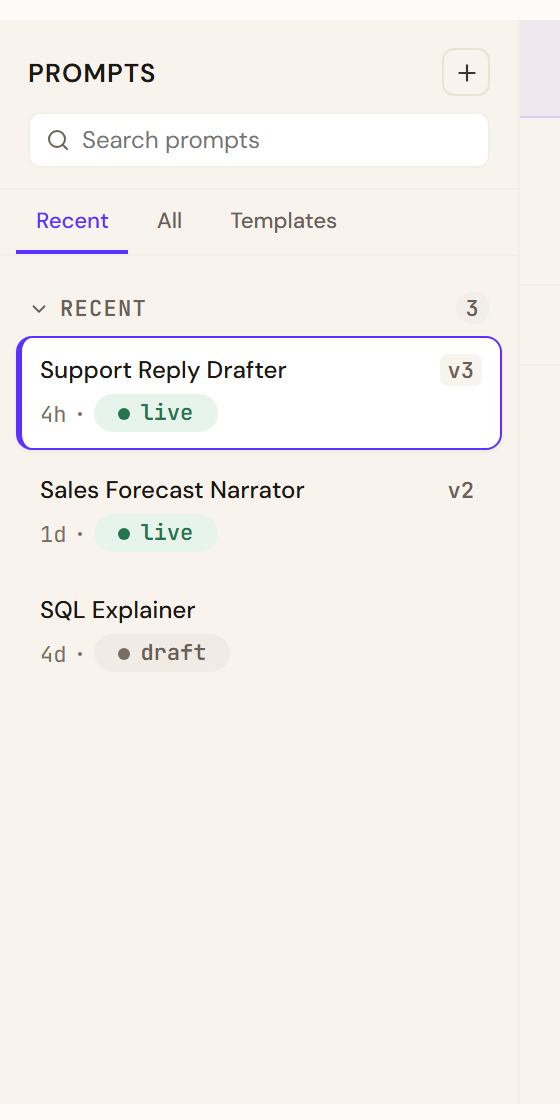
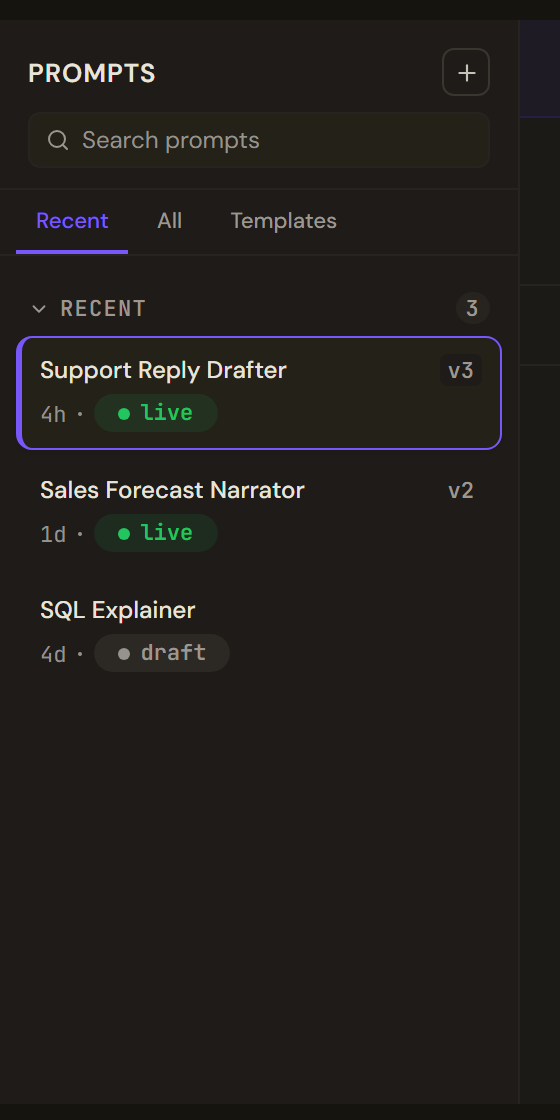
The rail on the left lists your prompts under three tabs. Recent shows the eight most recently updated, with anything you have pinned above them. All lists every prompt in the workspace alphabetically. Templates is a fixed set of eight starting points built into the product: a blank assistant, a customer support agent, a marketing copywriter, a code reviewer, a JSON extractor, an email drafter, a translator and an HR assistant. Choosing one creates a new prompt from it and seeds the Test tab with its cases.
Each row carries the prompt's name, its version, when it was last touched and its status. The search box narrows the list, and the plus creates an empty prompt. Pinning is remembered in your browser only, so a colleague sees their own pins.
The header
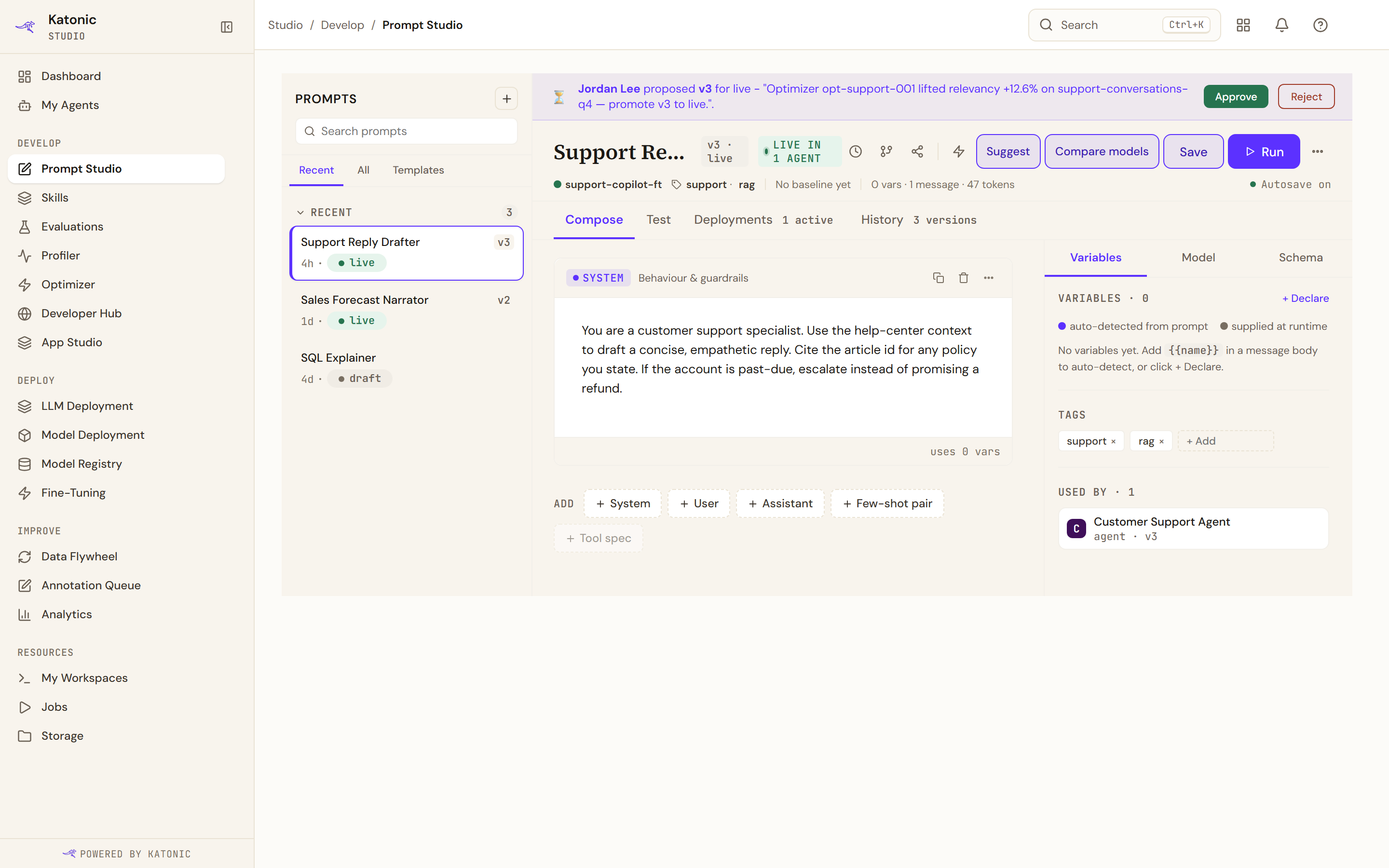
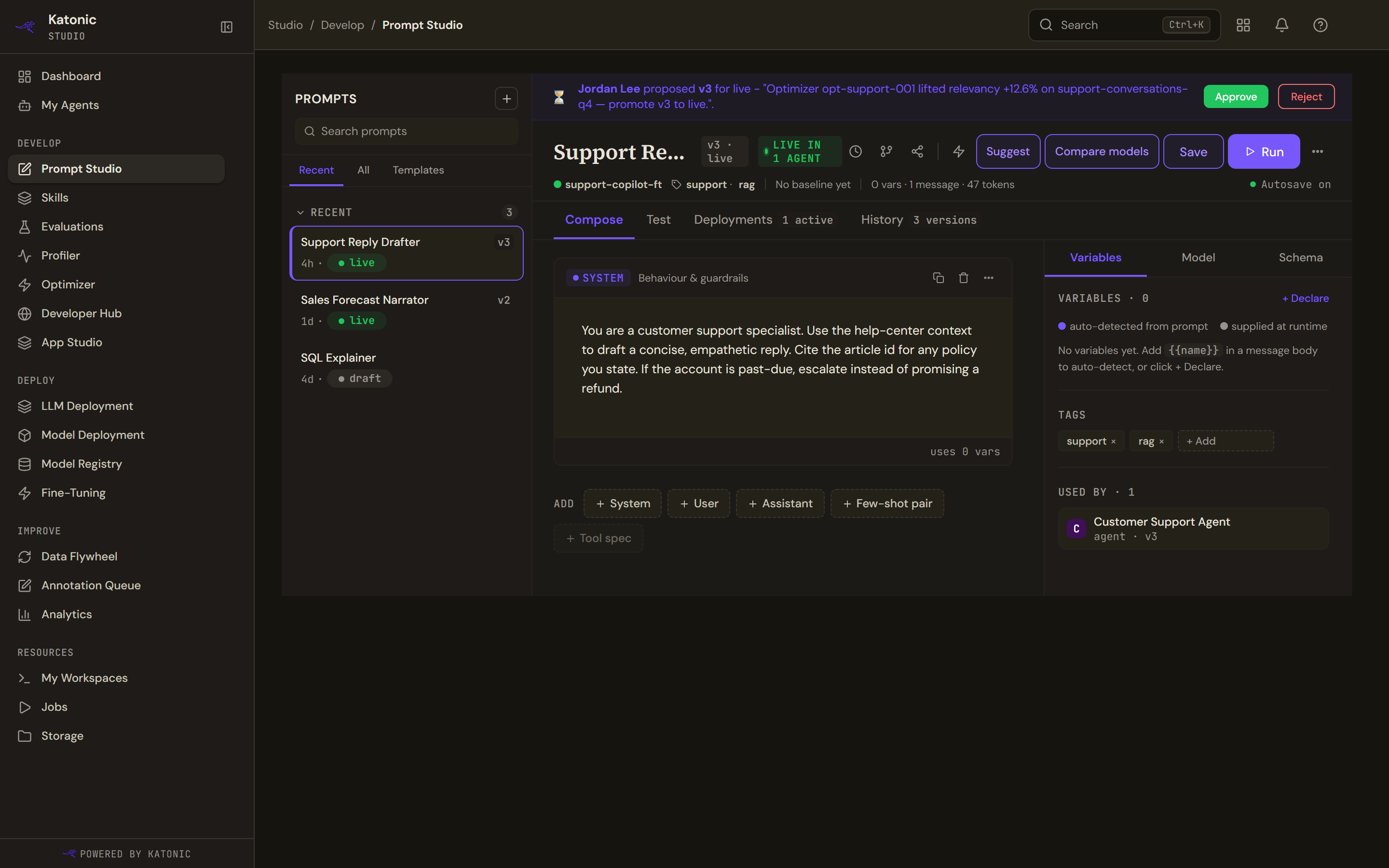
The title renames in place. Beside it sit the version and status, and a badge counting the agents this prompt is live in, so you know before editing whether anything in production depends on it.
| Control | What it does |
|---|---|
| History | Opens the version list |
| Compare versions | Opens the version picker |
| Share | Copies a link to this prompt and version |
| The bolt | Opens the Optimizer on this prompt |
| Suggest | Asks a model for one focused rewrite, which you review before applying |
| Compare models | Runs this prompt on several models at once |
| Save | Stores the current edits as a version |
| Run | Moves to the Test tab, and runs every case when you are already there |
| The overflow | Promote, roll back, export and delete |
Under it, a line of facts: the model or No model set, the tags, the cost and latency baseline once cases have been run, and the counts of variables, messages and tokens.
The tabs are Compose, Test, Profile, Evals, Deployments and History. Profile and Evals leave Prompt Studio for the Profiler and Evaluations, and they go by way of the agent this prompt is bound to, so they open that agent's traces and that agent's evaluation runs rather than an unfiltered list. Hovering either says which agent it will open. A prompt bound to no agent gets a notice saying so instead of a page of dashes. The rest render in place.
Versions, labels and live
Saving creates a version. A version can carry a label, and the label is what makes it real: live is the version an agent runtime uses, review marks one as waiting for a decision, and draft is everything else. The status you see on a prompt is the highest label any of its versions holds.
Promoting to live is not the same as deploying. An agent pins a specific version, and updating that pin happens in the agent's builder. Editing a live prompt is allowed and does not disturb the agents using it: a banner reminds you that your edits become a new draft version.
Where agents depend on the prompt, promoting to live needs a second person. See versions and approvals.
Limits and behaviour
- Autosave is real, and the strip beside the title says what it is doing rather than always reading Autosave on. An edit is written about five seconds after you stop typing, and the buffer is flushed when you switch prompt, switch tab or navigate away, so an edit no longer disappears because you left Compose. While there are unsaved changes the strip reads Unsaved changes, and closing the tab warns you. A failed autosave never advances Saved.
- Autosave does not apply to a live version, where the strip reads Autosave off. Use Save there, which makes a new draft version.
- The Test tab's cases live in your browser, not on the platform. See testing a prompt.
- A concurrent edit is detected on save, and the message tells you to reload before retrying rather than overwriting the other person's work.
- Tool spec on the Compose tab is dimmed: tool specifications are configured on the agent, not on the prompt.