Test, publish and versions
Agents
A draft is private until you publish it. The Test tab runs it live in the sandbox, the Deploy tab shows where it will run and what is still missing, and Publish checks the draft before it becomes a version. Every publish creates a version; the agent's page is where versions are compared, rolled back and promoted.
Who can use it: the Builder role or higher. Promoting to production and rolling back need release authority.
Recorded on .
- The draft
Our Expense Policy Assistant is configured: five of eight sections, three knowledge bases, one skill. Now we open Test.
- Test
The Test tab runs the draft through the same executor that serves published agents, without publishing. Type a question, and run it. The answer streams in, with its sources. The Run trace on the right shows the real steps: run started, configure, the retrieval tool, compose. Duration and tokens sit above them.
- Deploy
Deploy shows where the draft will run. Environments lists your tenant's lanes, none configured here yet. Surface is how people consume it: Chat, Panel, Full app or Voice. Pre-flight on the right lists what is still missing, and This version sums up the draft.
- Publish
Publish checks the draft first. The subtitle says it is ready, with two warnings to review. Under Who can use it, Organization is selected. Under Where it runs, we add the REST API. Section status marks every section Required, Review or Optional, and whether it is done. A blocker would name what is missing, with Go to section beside it. Two warnings, not blocking: no memory configured, and the tenant's environments could not be read. The button reads Publish. Published, not live yet. Production and the Work Room are not serving it, because it may be waiting on approval. View agent opens its page.
- Versions
Every publish adds a row to the agent page's Versions tab: draft, live or initial, with who made it and what changed. Diff compares a version with the one before. Roll back makes an earlier version live again; picking a newer one files a promotion request instead.
Test the draft
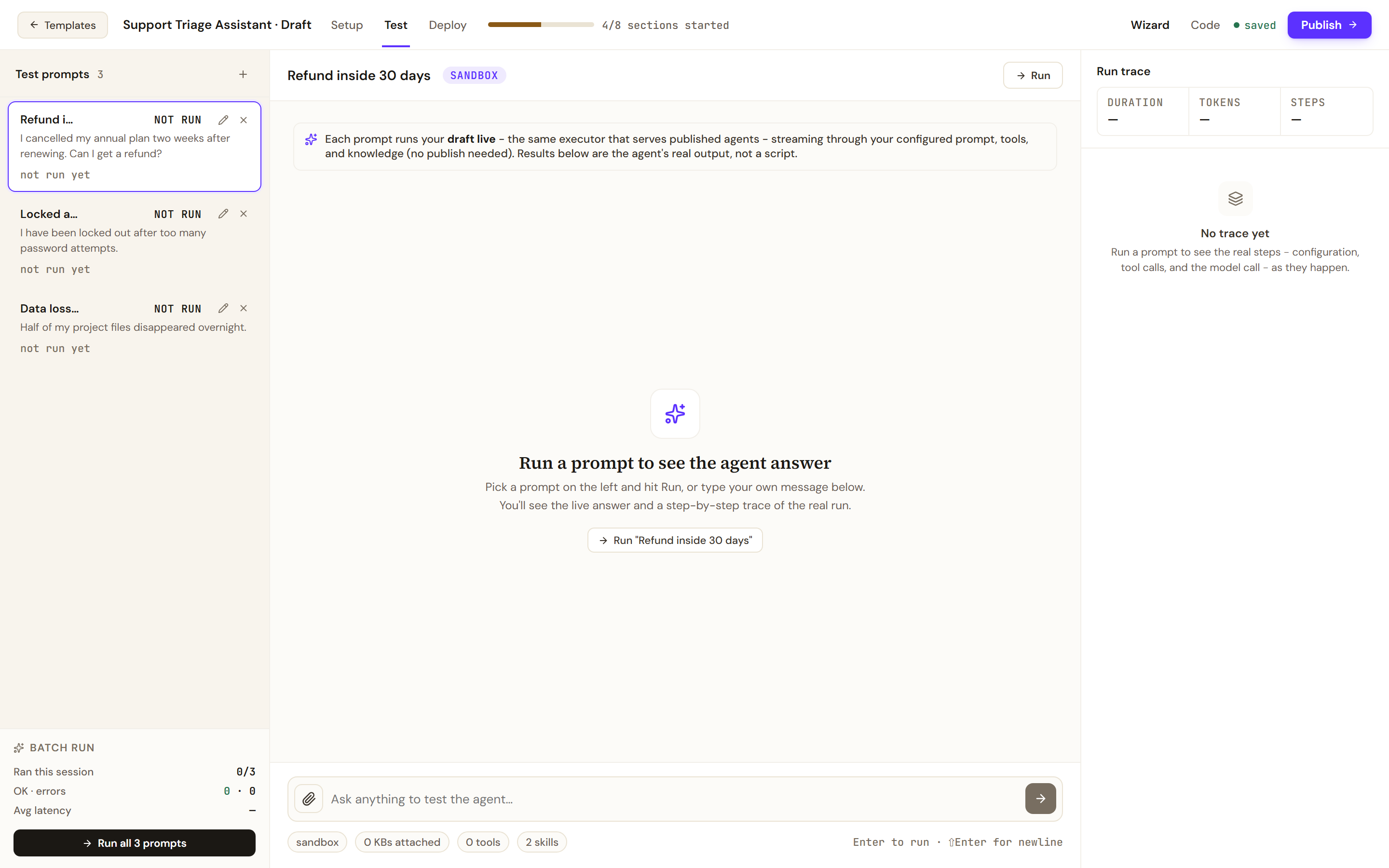
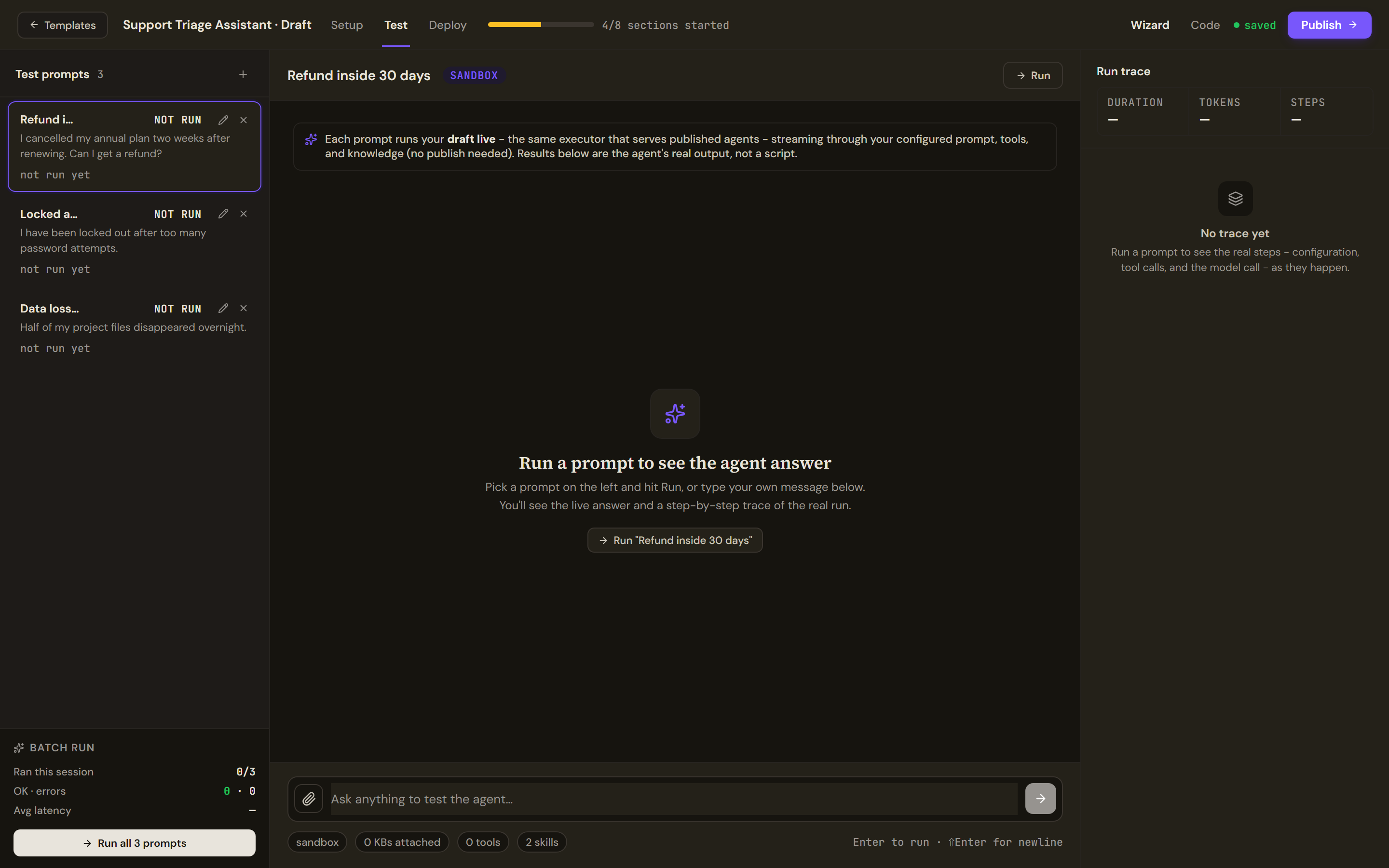
The Test tab runs the draft through the same executor that serves published agents, with your prompt, tools and knowledge, and without publishing. Type a message in the box or pick a saved prompt and select Run; the answer streams in and the Run trace on the right shows the duration, tokens and steps of the real run: configuration, tool calls and the model call.
Test prompts on the left keeps prompts you want to rerun; add one with the plus button. Batch run counts what ran this session, how many succeeded or failed and the average latency, and Run all reruns every saved prompt. The chips under the message box show the environment and how many knowledge sources, tools and skills the draft has. A draft with no system prompt has nothing to run; add one in Behavior first.
Read the Deploy tab
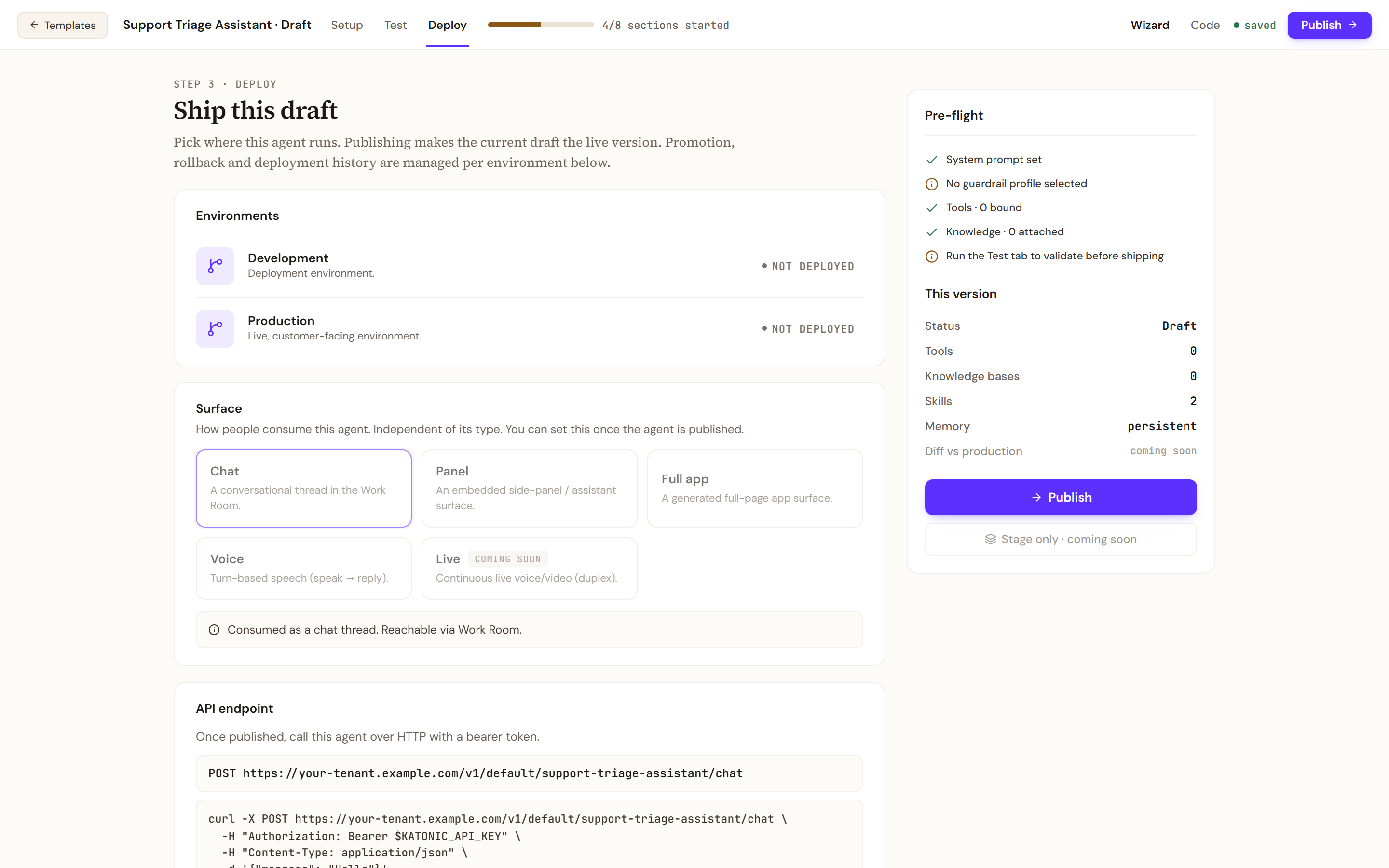
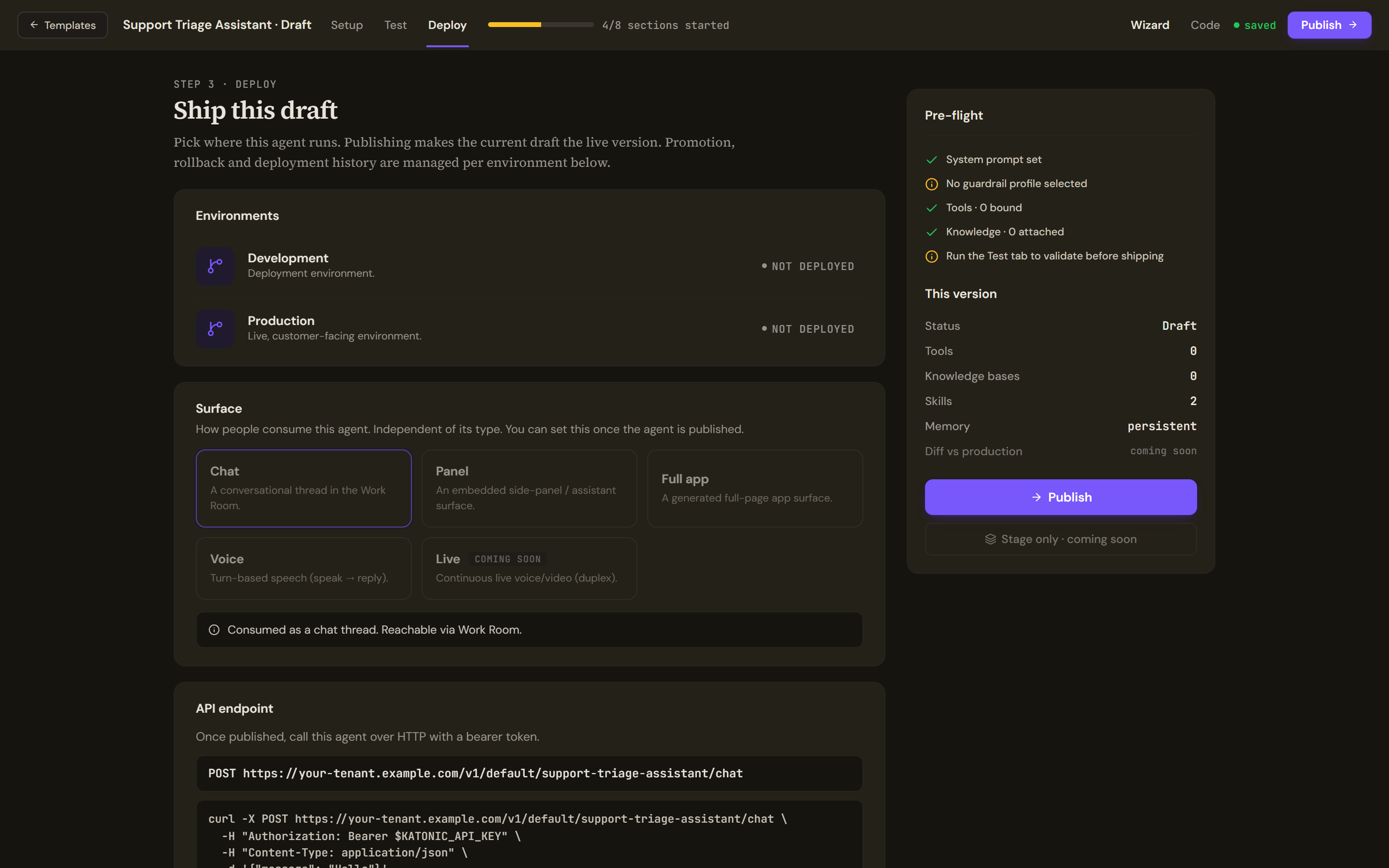
Ship this draft lists the Environments your tenant has, or says none are configured yet. Surface is how people consume the agent (Chat, Panel, Full app, Voice; Live is coming soon) and can be set once the agent is published. API endpoint shows the address callers will use with a bearer token. Channels shows that the Work Room is on and the API can be switched on; Slack is coming soon. Under Production rollout, Instant is available; Staged and Shadow are coming soon.
Pre-flight on the right lists what is still missing: a system prompt, a guardrail profile, tools, knowledge, and a run of the Test tab. This version sums up the draft. If your organisation publishes into a lane and has no production lane, a notice above the environments says promotion is unavailable until an administrator creates one.
Publish
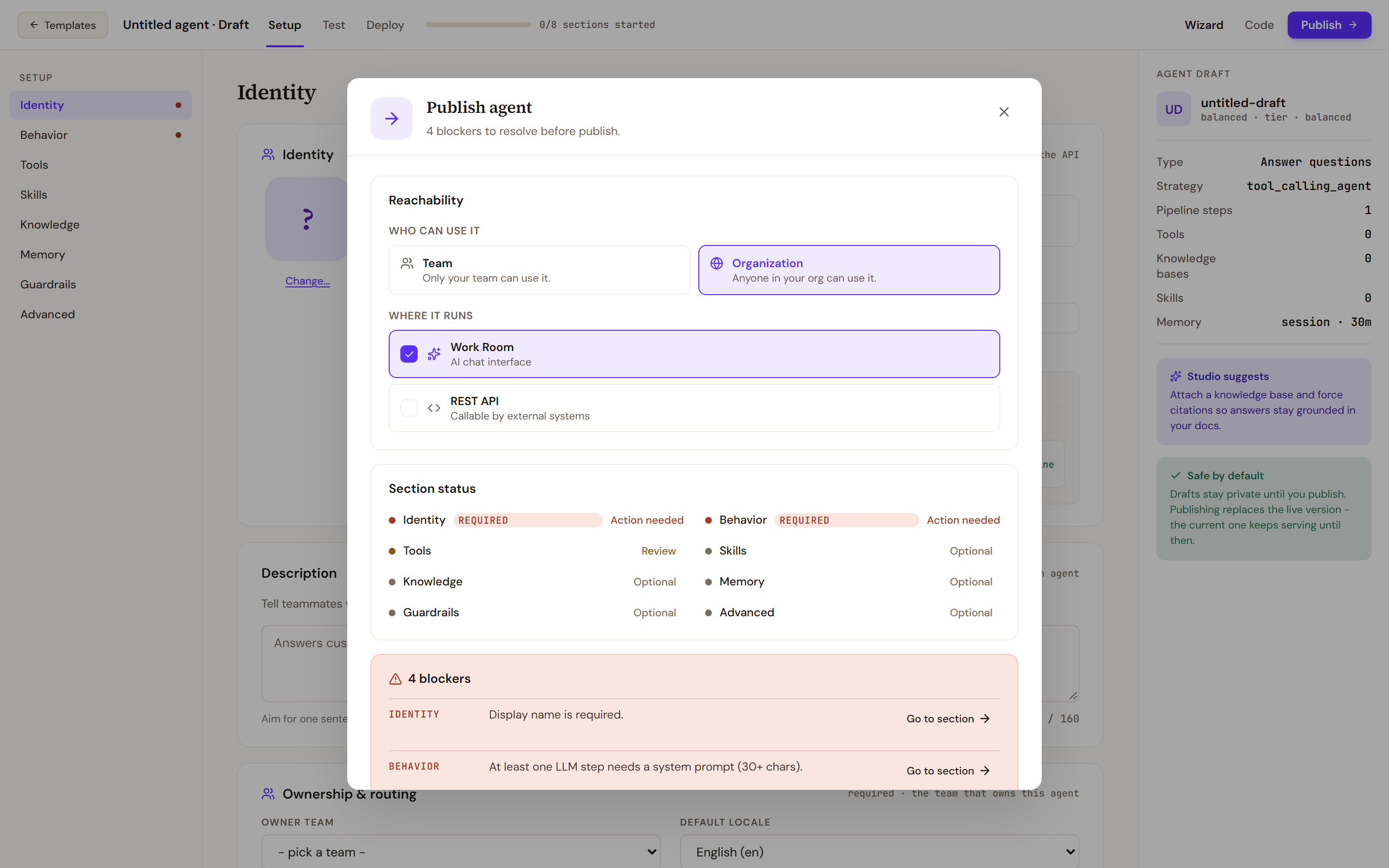
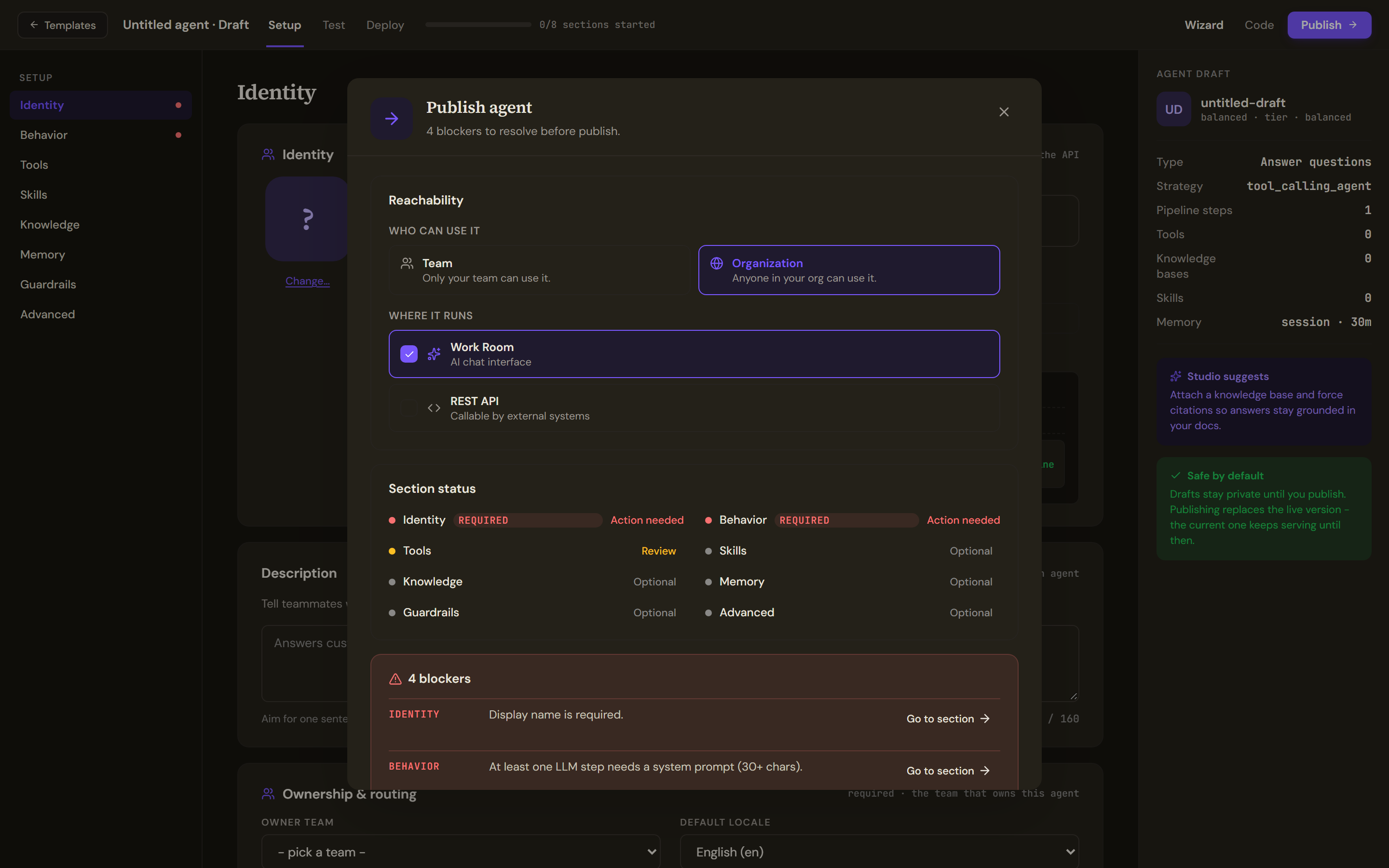
Select Publish in the build header. The subtitle says how many blockers remain, or that the draft is ready with warnings to review, or that all checks passed. Under Who can use it, choose Team or Organization; under Where it runs, tick Work Room, REST API or both. Section status marks each section Required, Review or Optional and whether it is Done; a blocker names what is missing, such as a display name, a slug, an owner team, or a system prompt of at least 30 characters, with Go to section beside it. Warnings do not block. When the draft carries settings the runtime treats as advisory, What's enforced lists each as Enforced, Advisory or Not enforced (not in edition), and you tick an acknowledgement before the button enables. The button reads Publish to production, or Publish to the lane your tenant publishes into, and Publishing… while it runs.
What the success screen means
The screen after a publish tells you where the version landed:
- is now live: the new version serves traffic. Open in Work Room tries it, View agent opens its page, and the REST endpoint can be copied.
- published to a lane, promote when ready: the version is deployed to that environment only. Production still serves the previous version until you promote from the agent's page.
- not live yet: the version is published but production and the Work Room are not serving it; it may be waiting on approval. Open the agent page to see its status.
- A warning that model availability was not verified means the AI Gateway could not be reached to confirm a model; check the gateway's models in the Control Room.
Versions, rollback and promotion
Each publish adds a row to the agent page's Versions tab, tagged draft, live, initial or not live. Diff compares a version with the one before it. Roll back makes an earlier version the one production serves again. Picking a version newer than the live one files a promotion request instead, and production keeps serving until a release manager approves it. Attaching or detaching knowledge from the agent's page also publishes a new version. Details are in The agent's page.
Troubleshooting
- This draft has no system prompt yet, so there is nothing to run. Add one in Behavior, or name the agent in Identity, then run again.
- Couldn't read this tenant's environments. The publish destination is not confirmed; check the Control Room's Environments page before publishing.
- Fix N blockers stays on the button until every blocker is resolved.
Do this from your own code