Connectors
Knowledge
A connector brings content from a system your organisation already uses, a wiki, a drive, a ticketing tool, a code host or a website, into a knowledge source and keeps it in sync. File Upload is the one source with no system behind it: you hand it the files. This section tells you where connectors appear, how each kind signs in, and has a page for each of the recommended connectors.
Who can use it: the Member role browses connectors in the Catalog. Setting one up runs through the Add Knowledge Source wizard, for the Builder role or a Member holding the Knowledge Admin grant, in a tenant licensed for knowledge. The Catalog's Connect button needs Control Room access.
Recorded on .
- Browse the connectors
The Catalog's Connectors section lists them by category; each card reads Connected with how many sources of that kind your organisation has, or Not connected.
- Choose and configure a source
On Knowledge, choose Connect Source, search or pick a connector, and fill in Configure: OAuth signs in with Connect with the provider, a token connector asks for its own fields, File Upload and Web Scraper need no credentials.
- Schedule, Access, Review
Set the Sync Schedule (One-time or Recurring with an interval), choose who can use the source under Access, then Review and Connect Source.
At a glance
You meet connectors in two places.
The Catalog's Connectors section lists exactly the connectors Connect Source offers, by category and with the same descriptions, so the two cannot disagree. A card reads Connected with a count of the sources of that kind you can open, or Not connected; a connector's page says how it signs in and names those sources. Connect opens Connect Source in Knowledge with that connector chosen. Someone without Control Room access sees Ask an admin in its place: see Tools and connectors in the Catalog.
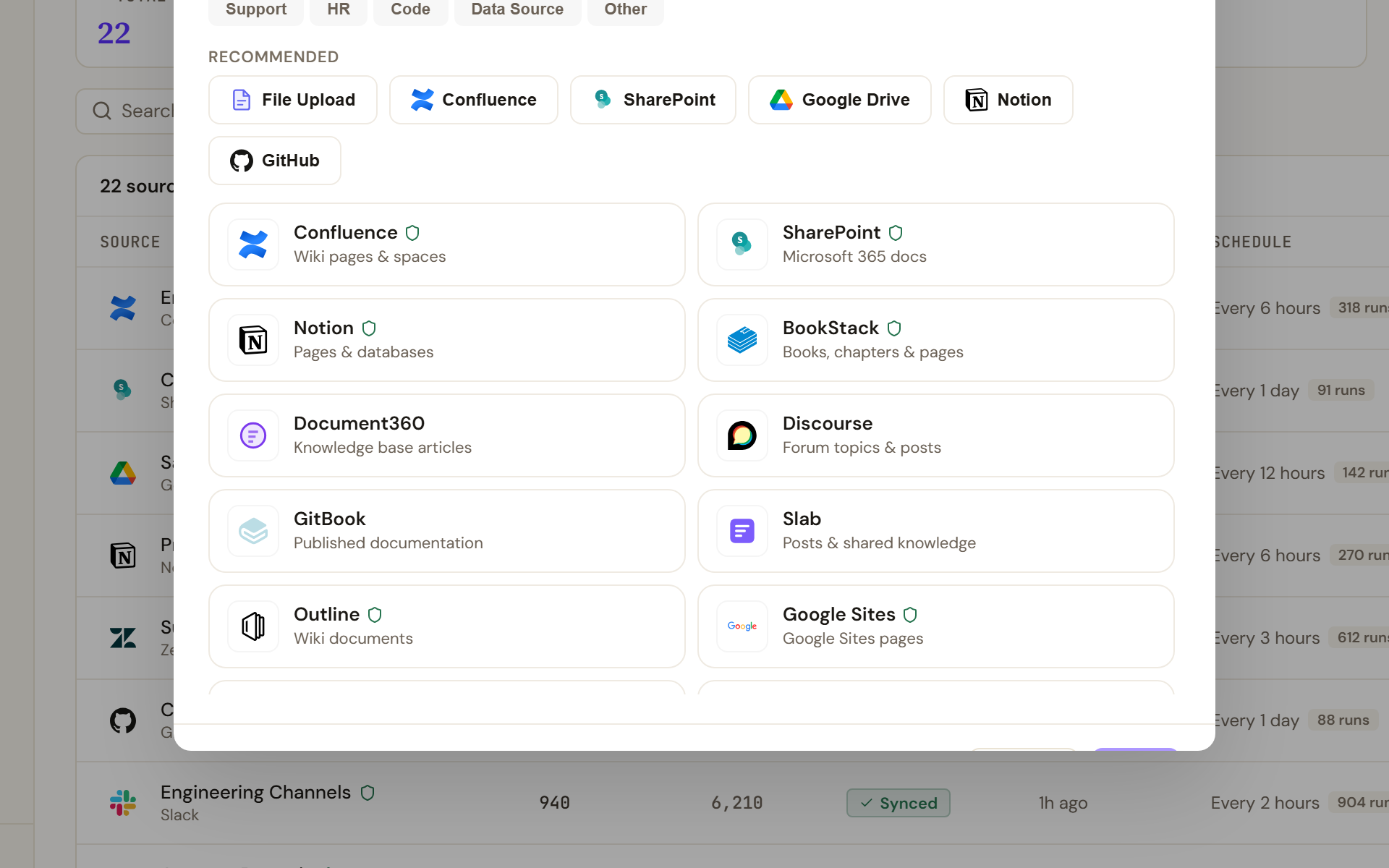
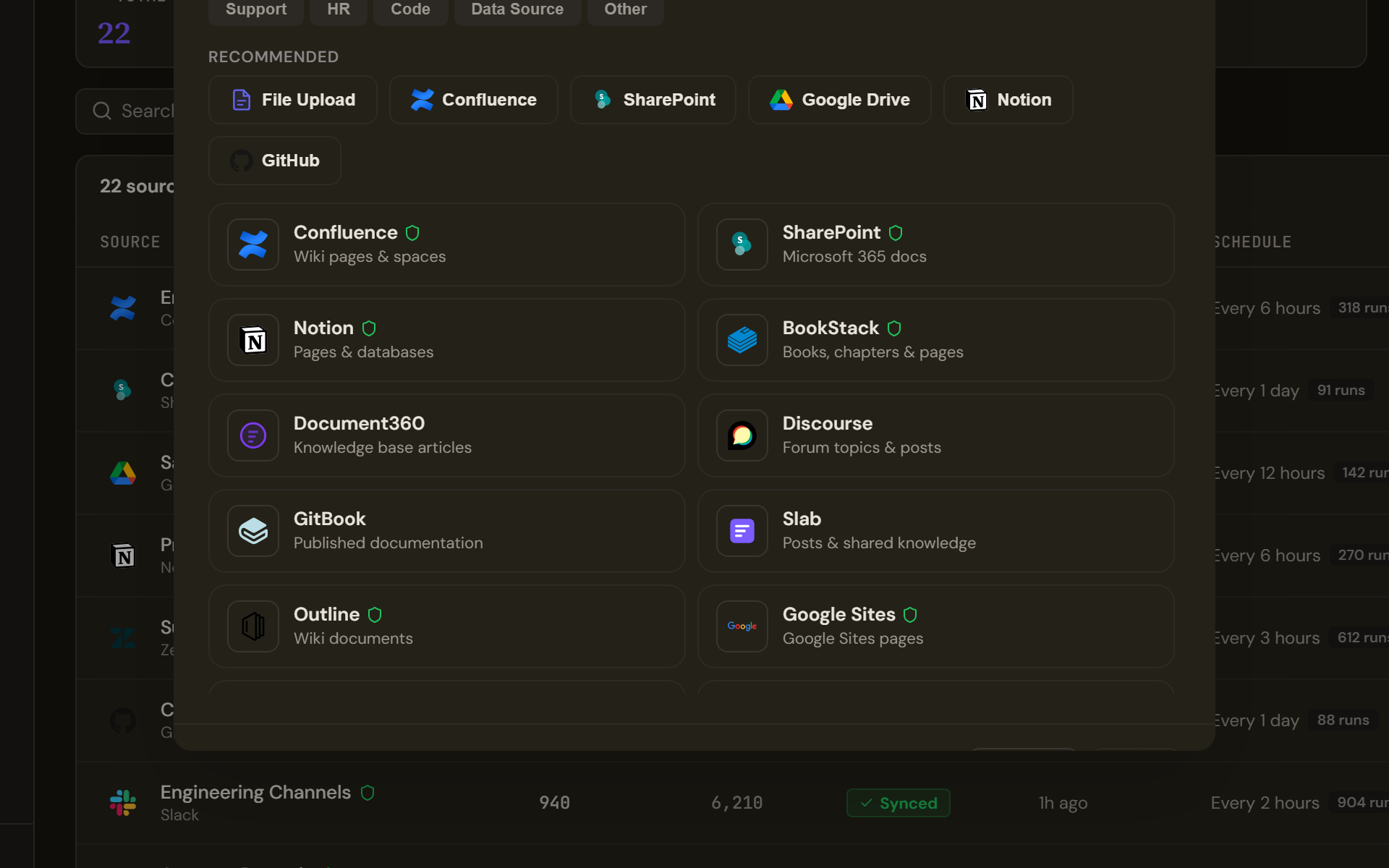
The Add Knowledge Source wizard, opened with Connect Source, is the complete list: 70 sources in eleven categories, Knowledge Base, Cloud Storage, Ticketing, Project Management, Messaging, Sales, Support, HR, Code, Data Source and Other, with a Search connectors... box. Its Recommended row puts six at the top: File Upload, Confluence, SharePoint, Google Drive, Notion and GitHub. Selecting a card moves you straight to that connector's Configure step.
Whichever way in you take, the source system stays the authority on what a connector can read: a connector sees exactly what the account you connect can see. The wizard's Access setting decides only who inside Katonic may open the source; it neither widens nor narrows what the connector reads.
Choose your setup
What the Configure step asks for depends on how the connector signs in. Follow the wizard: it is the setup path.
| How the connector signs in | What Configure asks for | Connectors in this section |
|---|---|---|
| OAuth, one click | Your administrator has stored the provider's OAuth app on the Credentials tab, so the step offers Connect with the provider and says the credentials are pre-configured by your admin. | Confluence, SharePoint, Google Drive, Notion and GitHub, when configured |
| OAuth, your own app | A Client ID and Client Secret first, then Connect with the provider. | The same five, when your administrator has not configured them |
| A token or key | The provider's own fields, such as an API Token, an Access Key or a Bot Token, typed into the step. | None of the seven; in the wizard, BookStack, Zendesk and AWS S3 for example |
| No credentials | The files, or the addresses to crawl and the crawl limits. | File Upload, Web Scraper |
Signing in with OAuth is one pop-up: Connect with the provider opens a secure window, and the step then reads Connected to the provider with a Disconnect button. See Set up connector credentials for the administrator's side.
Connector pages
What every connector shares
After Configure, every source takes the same two steps. Schedule & Access sets the Sync Schedule, One-time or Recurring with a Schedule Interval in minutes, hours, days or weeks; the Knowledge plane, Tenant default, Extract entities or Search only; and Access, Personal or Teams. Review lists your choices and ends with an ACL Sync row, which reads Enabled (source permissions captured each sync) for SharePoint, the only connector whose source permissions are captured, and None (open access) for every other connector. A connector may add settings of its own to the Configure step. On Connect Source, a connector source starts its first sync at once, and a File Upload source uploads its files and then indexes them. The shared steps are documented in Add a knowledge source; each connector page covers only what is specific to its connector.