Control who can use a knowledge source
Knowledge
Every knowledge source has an access setting that decides who inside Katonic can open it and retrieve from it: only the person who created it, or the members of the teams it is shared with. You set it when you add the source and can change it at any time from the source's Access tab, without re-creating the source.
Who can use it: the Admin role or the Knowledge Admin grant, in a tenant licensed for knowledge, to open a source's Access tab in Knowledge Management. Edit sharing is offered to Admins, to holders of the Knowledge Admin grant and to the source's creator; everyone else sees the tab read-only.
Recorded on .
Prerequisites
- To share with a team, the team must already exist under Users & Teams. The wizard says No teams yet. Create one under Users & Teams, then come back. when there is none.
How access works
- A source is either Personal, so only the person who created it can use it, or shared with Teams, so the members of the selected teams can use it too.
- Access governs visibility inside Katonic only. It does not change what the connector can read from the source system; that is fixed by the account you connected. Connectors that sync the source system's own permissions additionally hide the documents a person cannot open there, as described in Connect sources.
- The grants apply to retrieval, so they decide whose searches and agent answers can draw on the source.
- Saving a change replaces the source's whole access setting with what you chose, and it takes effect without re-creating the source.
- The Admin tier, and holders of the Knowledge Admin grant, reach every source whatever its setting, its Documents tab and its chunks included; a source that is Personal to someone else is not hidden from them. Each such read is recorded in the audit log as oversight.
Set access when you add a source
In the Add Knowledge Source wizard, the third step, Schedule & Access, has an Access field with two options: Personal (Only you can view) and Teams (Share with selected teams). Personal is preselected. Choosing Teams lists your teams with their descriptions; tick the ones that may use the source, and a line counts the teams selected. The Review step repeats your choice under Access: Personal (only you), the names of the teams, or Teams (none selected - nobody can view) if you chose Teams without ticking any. The rest of the wizard is described in Add a knowledge source.
Change access later
- Open the Access tab
In Knowledge Management, select the source's row, then the Access tab.
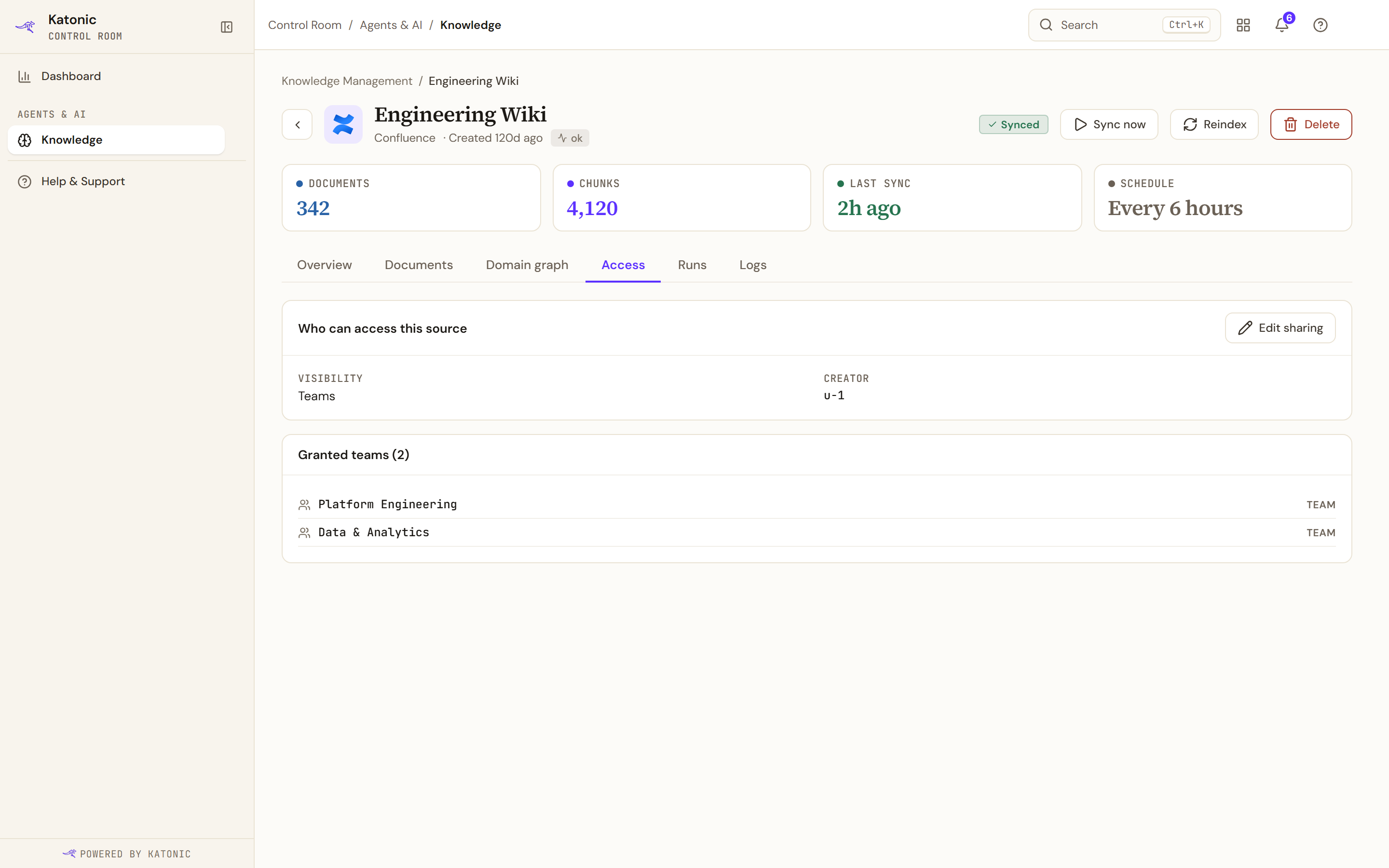
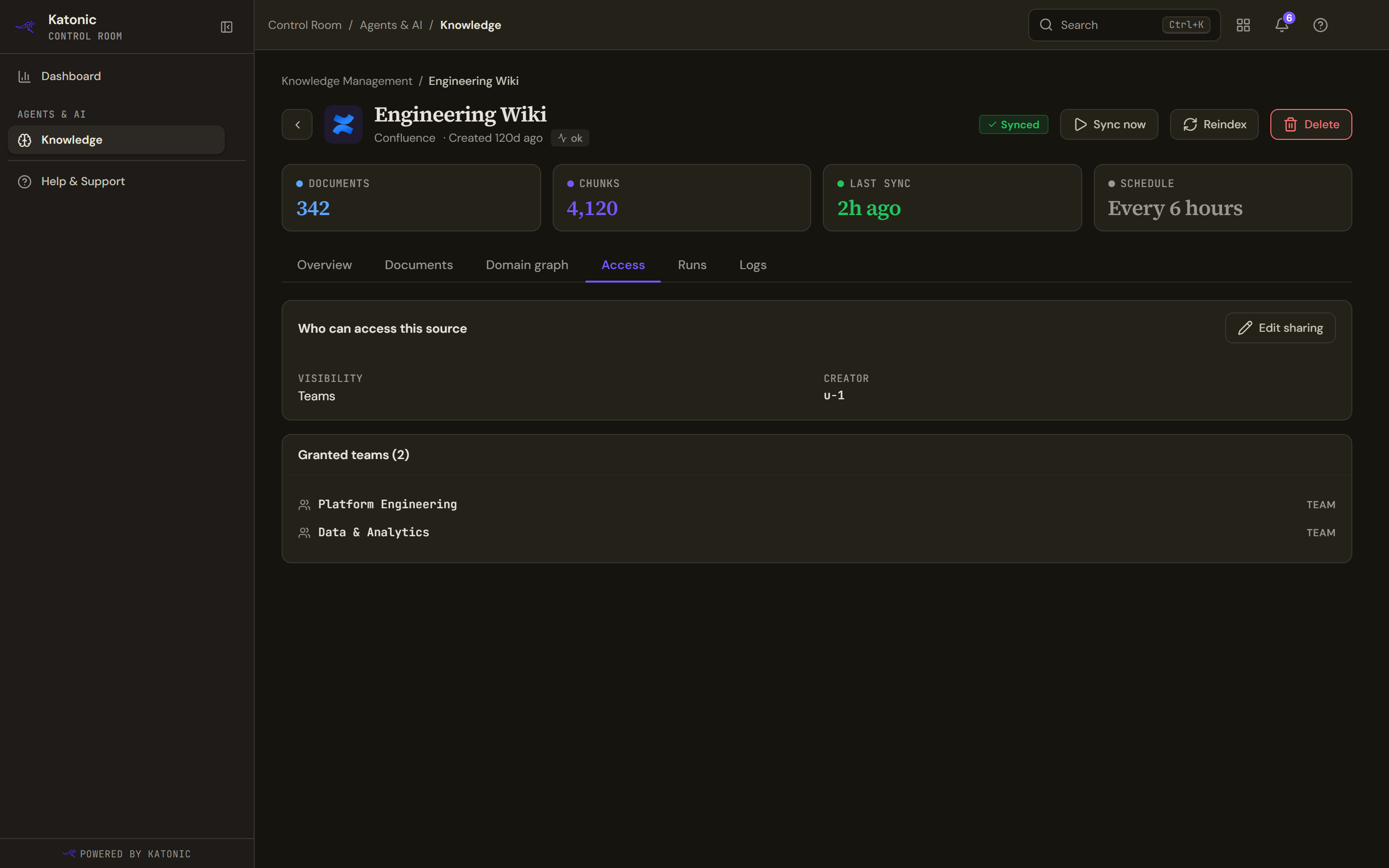
A source's Access tab. Who can access this source shows the Visibility and the Creator; Granted teams lists the teams the source is shared with. Edit sharing appears when you may change them. Who can access this source shows the Visibility (Personal or Teams) and the Creator. Granted teams (N) lists the teams the source is shared with, or says This source is not shared with any team - only the owner can access it.
- Edit sharing
Select Edit sharing. The card becomes Manage sharing, with Cancel and Save in its header and the two options Personal (Only you can access this source.) and Teams (Members of the selected teams can access it.).
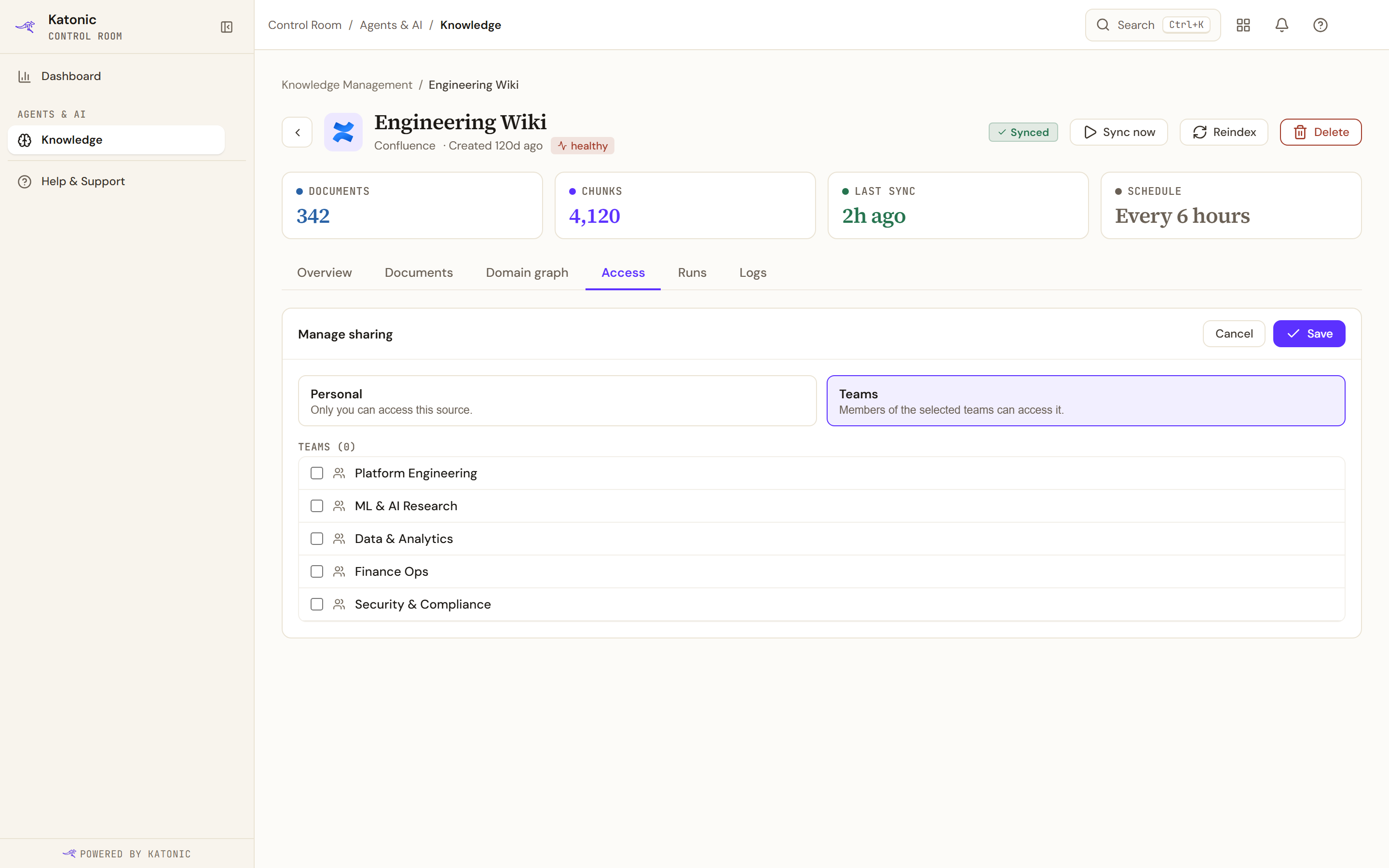
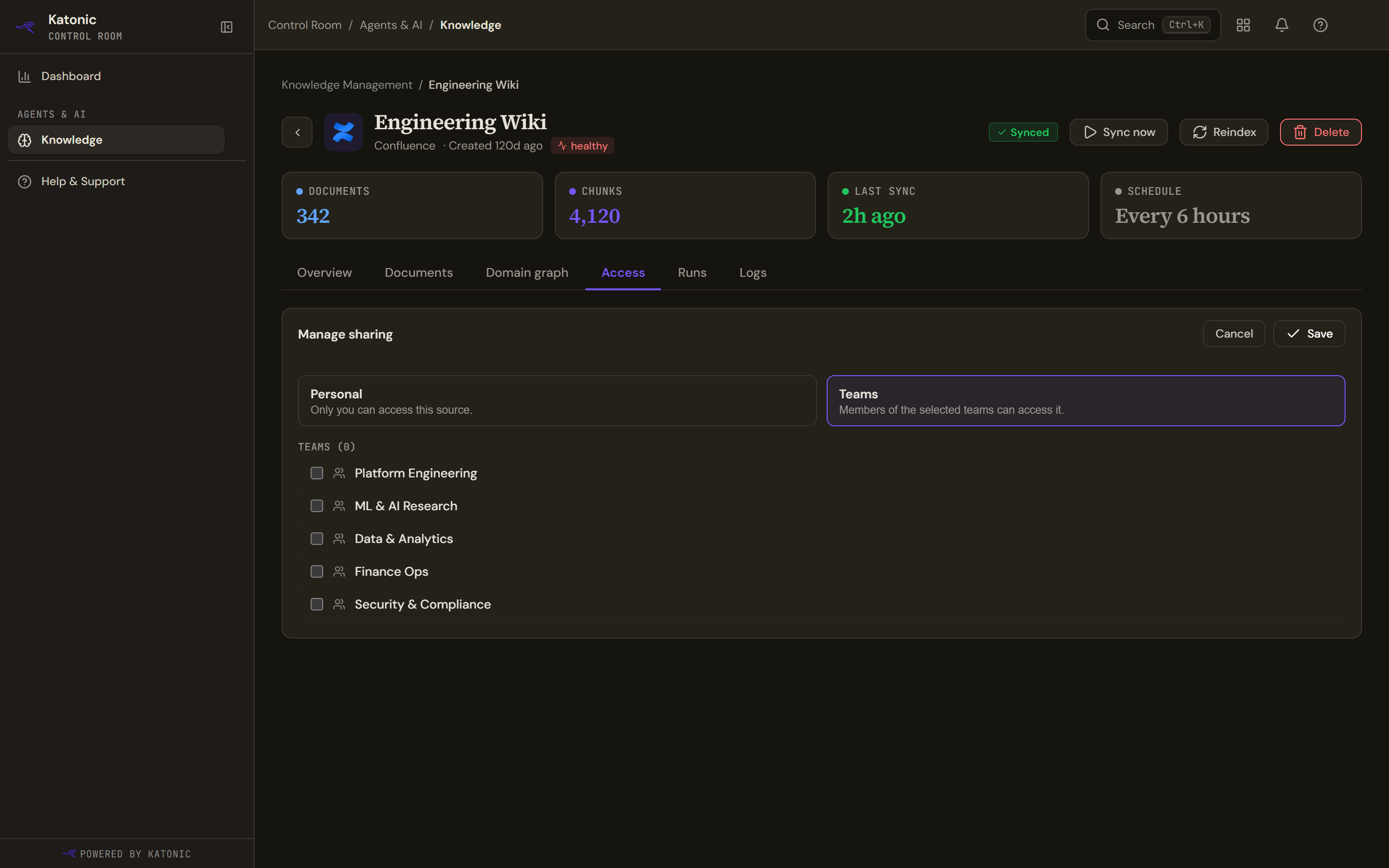
Edit sharing turns the card into Manage sharing. Choose Personal or Teams; with Teams, tick the teams that may use the source, then Save. Cancel discards the change. - Choose the teams
With Teams selected, a Teams (N) list shows every team with a checkbox; tick and untick until the count is right. While the list loads it says Loading teams…, and No teams available to share with. means there is no team to pick.
- Save
Select Save. The read-only view returns with the new Visibility and Granted teams. Cancel discards the change.
What you see without permission
If you may not change the source's access, the Access tab shows the same Who can access this source and Granted teams cards without Edit sharing. If your permission lapses between opening the editor and saving, Save fails with You do not have permission to change this source's access. and the grants stay as they were.
Verify
Back in the read-only view, Visibility reads Teams and Granted teams (N) names each team you ticked, or Visibility reads Personal and the list says the source is not shared with any team.
Troubleshooting
- Could not load access for this source.: the access information could not be fetched. Open the source again; if it persists, ask your administrator to check the knowledge service.
- Could not update access. Please try again.: the save failed for a reason other than permission. Your selection stays in the editor, so try Save again.
- No teams available to share with. or No teams yet. Create one under Users & Teams, then come back.: create the team first, then return to the source or the wizard.
- Teams (none selected - nobody can view) on the wizard's Review step: go back to Schedule & Access and tick at least one team, or choose Personal.