Connect sources
Knowledge
Connectors bring content in from the systems your organisation already uses: wikis, drives, ticketing tools, chat, code hosts, CRMs and databases. Once connected, a source syncs on its schedule, and agents answer from it with access that mirrors the source.
Who can use it: the Builder role, or a Member holding the Knowledge Admin grant, in a tenant licensed for knowledge.
Recorded on .
The sources table
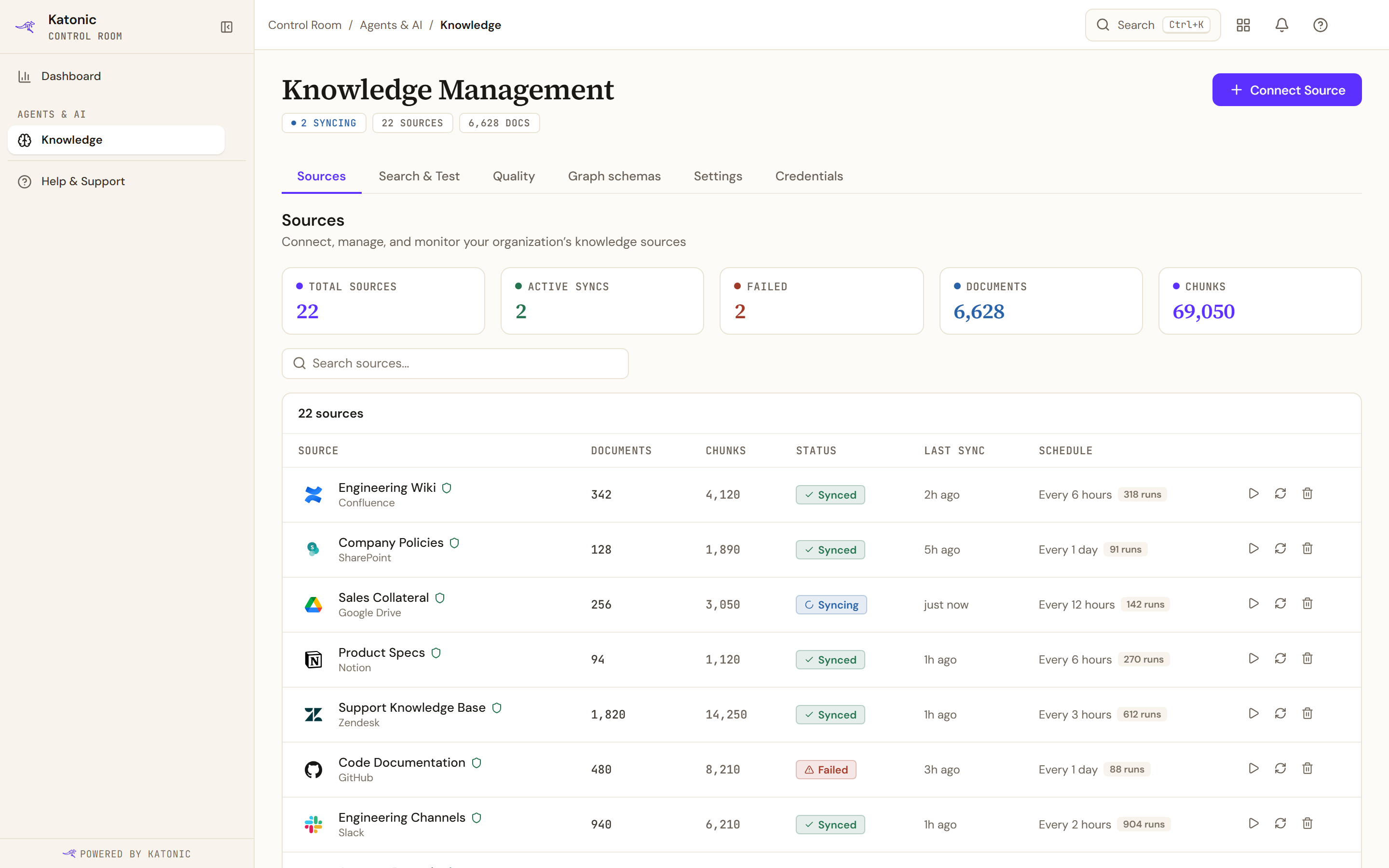
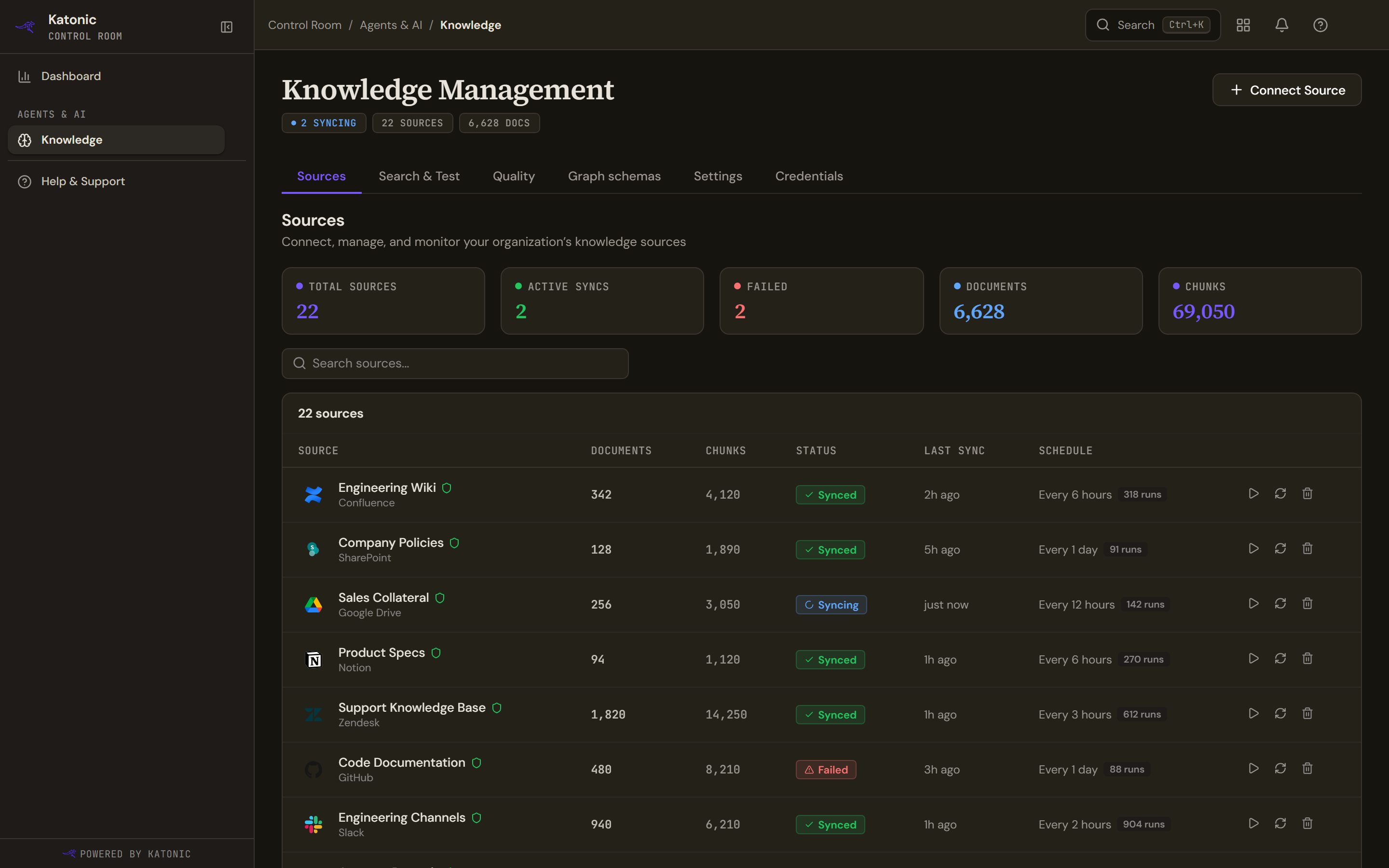
Knowledge Management opens on the Sources tab with the totals for sources, active syncs, failures, documents and chunks. Each row shows the source, its Documents and Chunks, Status, Last Sync and Schedule. The other tabs are Search & Test, Quality, Graph schemas, Settings and Credentials.
| Status | Meaning |
|---|---|
| Pending | Created, first sync not yet started or queued. |
| Syncing | A sync run is in progress. |
| Synced | The last run finished and the content is searchable. |
| Never synced | No run has ever completed, so the source is not claiming to be synced. |
| Partial | The source holds fewer documents than the connected system reports, or the last run reported failures. |
| Empty | A run completed and produced nothing to index. |
| Failed | The last run failed. Open the source for the error. |
| Paused | Syncs are suspended until you start it again. |
A Stale pill beside the status is not a status: it means the embedding model changed after this source was indexed. Keep a knowledge source current covers all of these, and the actions that move a source between them.
Connect a system
Connectors are chosen in the first step of the wizard described in Add a knowledge source. Two things are specific to connectors:
- Credentials. Some connectors take an API key or account details in the Configure step. Others sign in through the provider: select Connect with the provider and complete the authorisation in the pop-up. Saved credentials are listed under the Credentials tab.
- Permissions. Connectors that support it sync the source's own access rules on every run, so a document a person cannot open in the source system does not appear in their answers. The wizard says Permissions synced automatically for these.
Manage a source
- Open the source
Select its row. Back to sources (the arrow beside the source name) returns to the table.
- Read the tabs
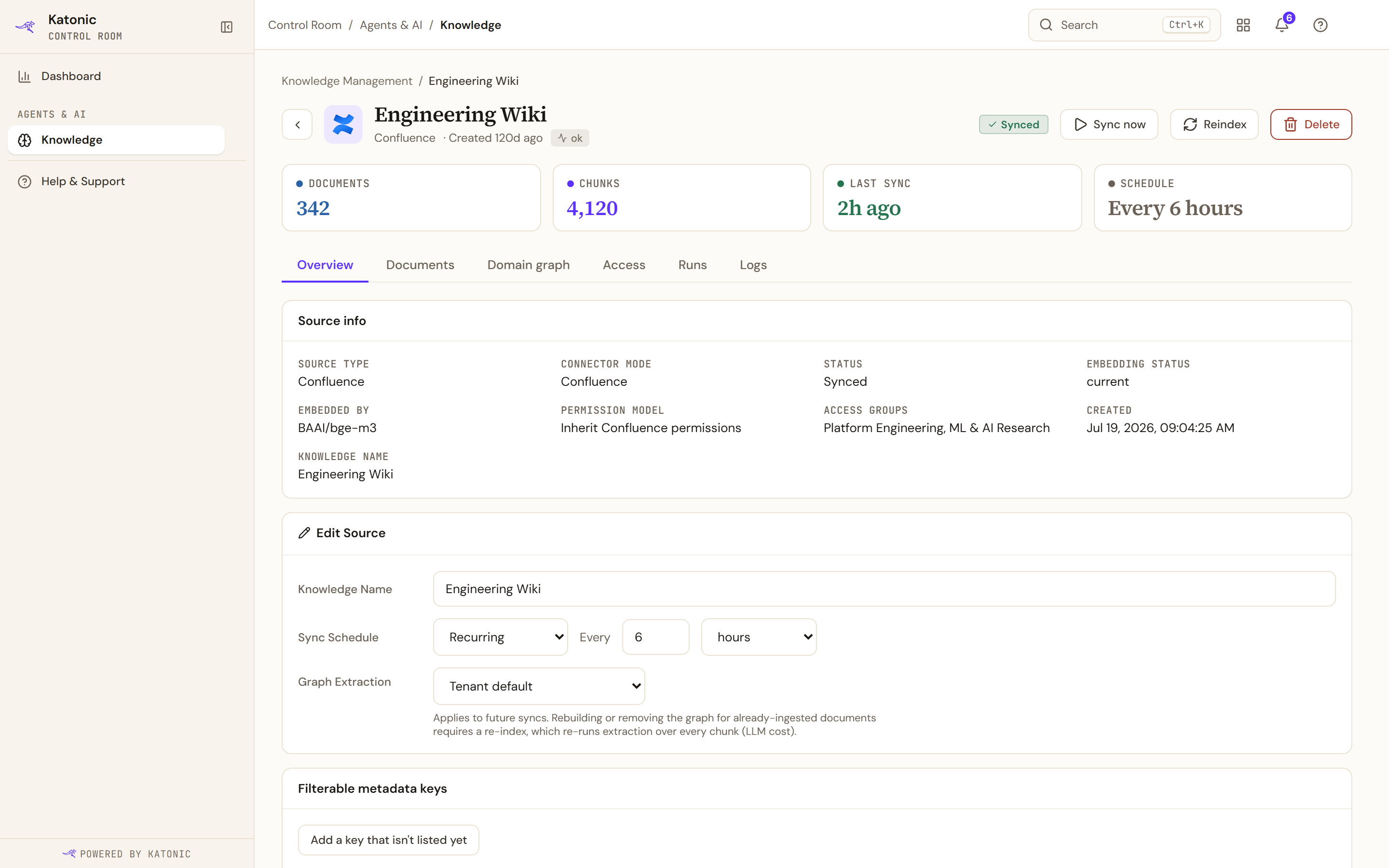
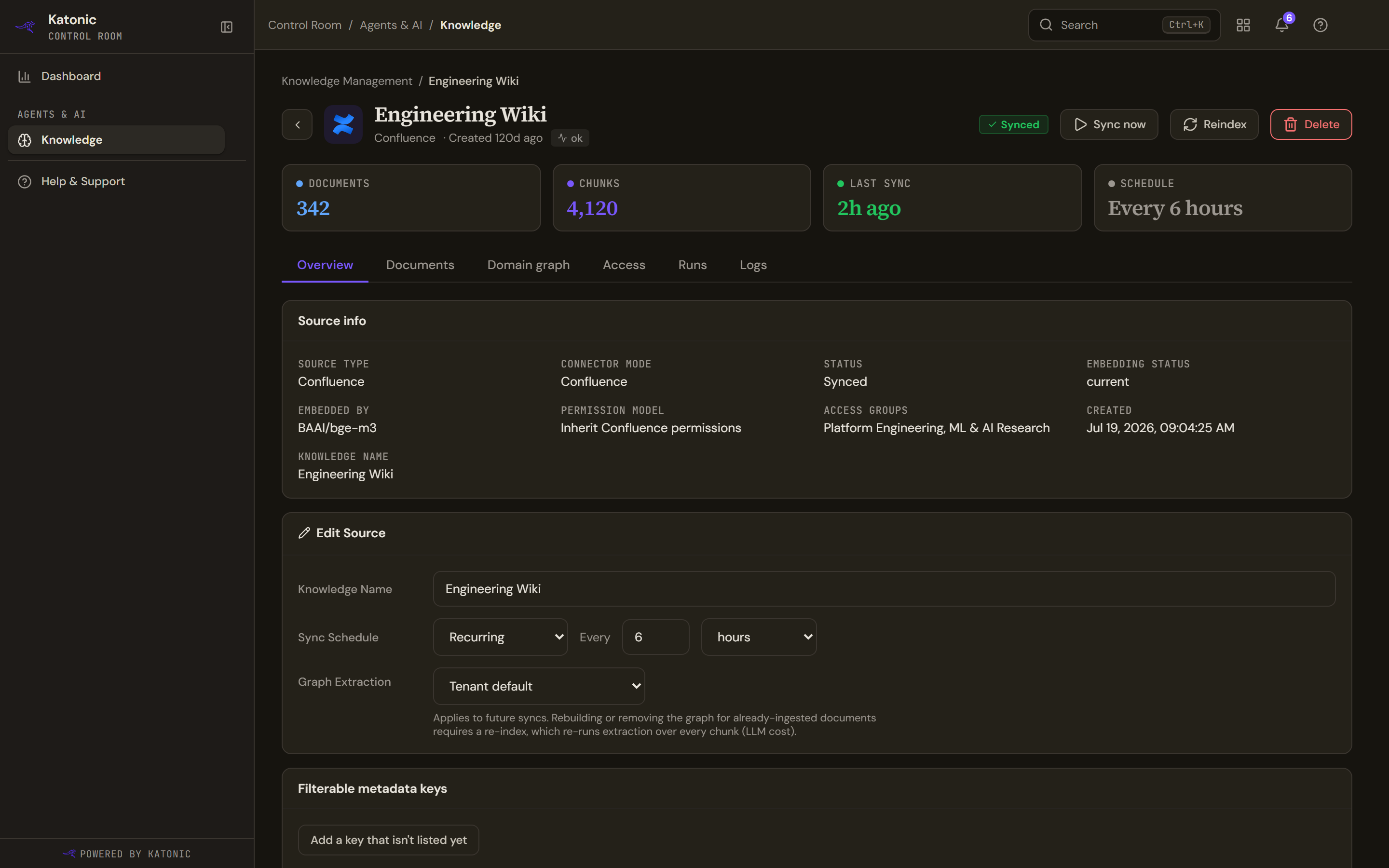
A source's detail view. Sync now picks up new, changed and deleted files; the tabs show its documents, domain graph, access, sync runs and logs. Overview shows the source's name, type, connector mode, status, schedule, embedding status and access groups. Documents lists every indexed document with its status, and lets you Preview chunks, re-index or retry one document. Runs lists sync runs with what was processed and any errors. Logs holds the run logs. Access shows who can search it. Domain graph appears when entity extraction is on.
- Sync
Sync now picks up new, changed and deleted files only. Reindex re-embeds every document from scratch; use it after changing chunking or the embedding model, or to clear stale vectors. The source stays searchable with its existing index until the reindex completes.
- Edit or pause
Edit Source changes the name, the sync schedule and the graph extraction setting. Changing graph extraction applies to future syncs; already indexed documents need a reindex. While a sync is running, Pause takes the place of Sync now and stops it; a source that has been switched off shows Start instead. Delete removes the source and its index permanently.
The Documents tab is described in Browse and curate a source's documents, and the Runs and Logs tabs in Follow sync runs and logs.
Upload more files
For a File Upload source, Add files on the detail page uploads more files into the same source. The hint names the supported types and the size limit. Adding files is only available for file-upload sources; connector sources get their content from the provider.
Verify
After a sync, the row shows Synced and an updated Last Sync time, and the Runs tab shows the run with its processed count and zero errors. Use Search & Test to ask a question you know the source answers and check that the results name the right documents.
Troubleshooting
- Some documents failed. The run finished but marked documents as failed. Open Documents, filter by status, and use Retry on each one.
- Stale banner across the table. The embedding model changed. Re-embed all re-indexes the affected sources; searches against them return degraded results until it completes.
- Failed after a credential change. Update the credential under Credentials, then Sync now.
- Connect Source is disabled. Configure an embedding model in Settings first.