Search and test your knowledge
Knowledge
Search & Test is where you ask your indexed knowledge sources a question and see exactly what retrieval returns: which documents and passages, how they scored, and which retrieval path ran. Use it after a sync, and whenever an agent's answer misses something.
Who can use it: the Admin role or the Knowledge Admin grant, in a tenant licensed for knowledge. Open the Control Room, select Knowledge, then the Search & Test tab.
Recorded on .
Prerequisites
- At least one knowledge source with the status Synced. See Connect sources.
Run a test search
- Ask
Type a question in the search box (Search your knowledge base... (press / to focus)) and press Enter, or select Search. Before your first search the tab shows Knowledge Playground with sample questions under Try searching.
- Read the summary line
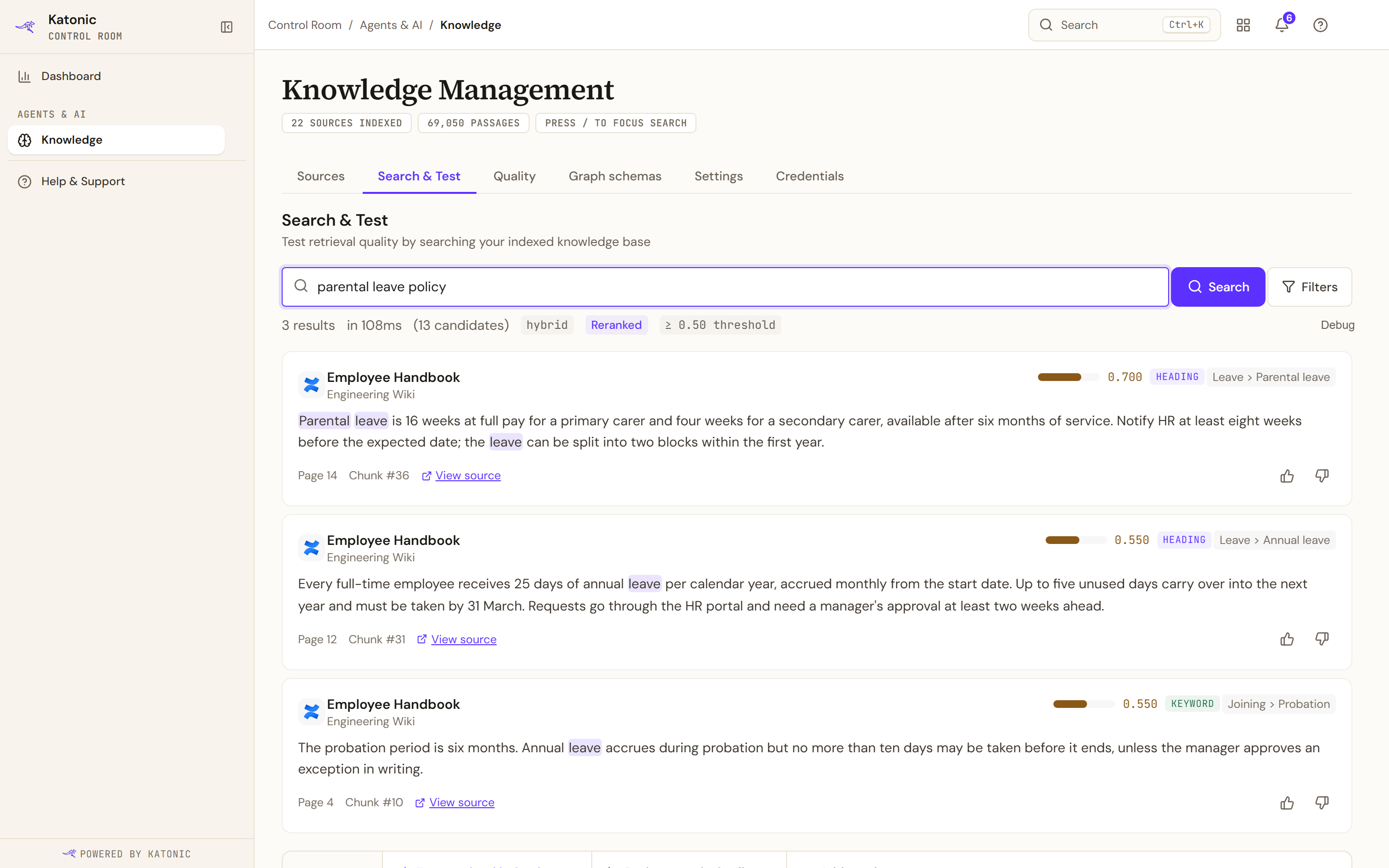
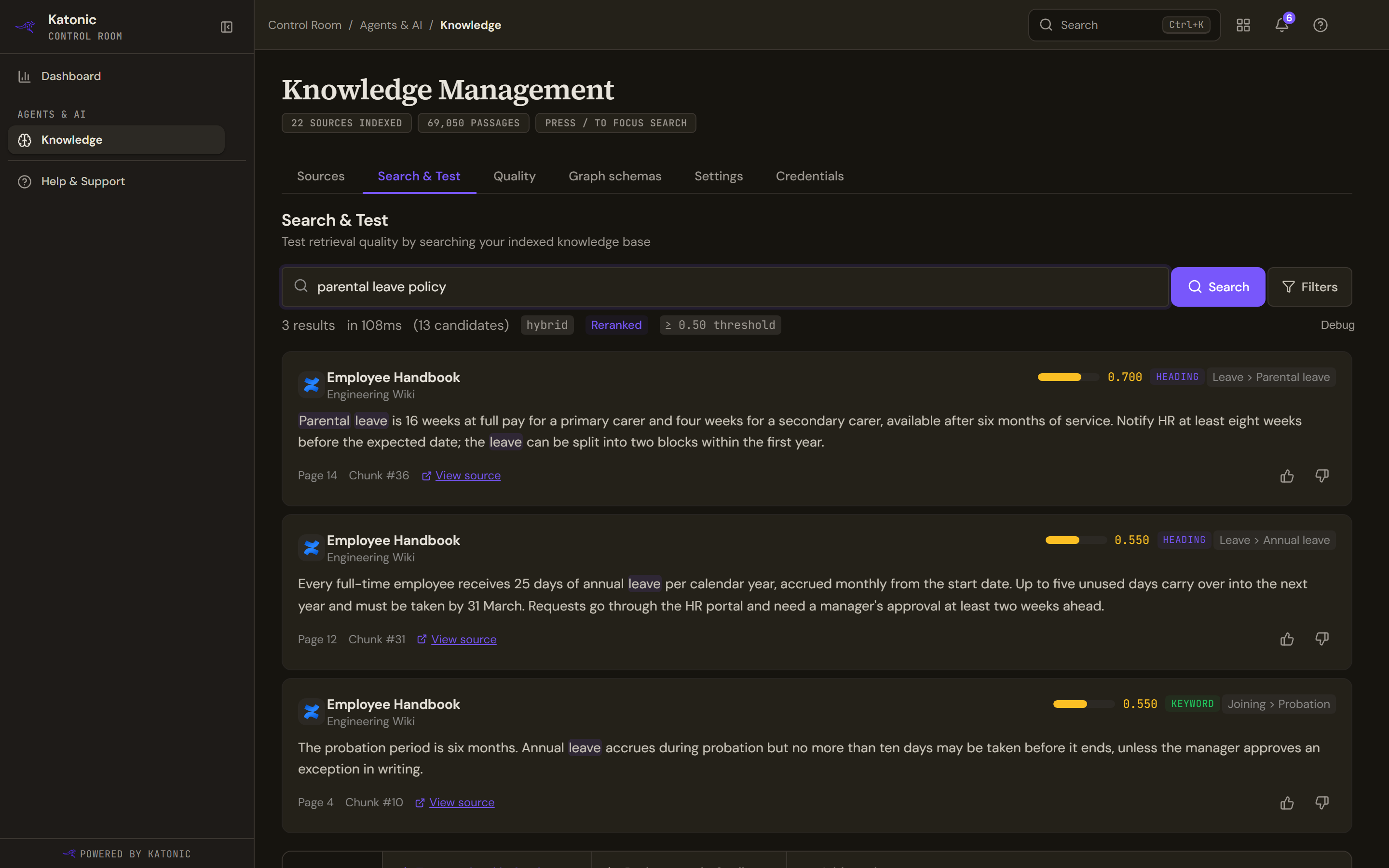
A test search on Search & Test. The summary line says how many results came back, how long the search took, how many candidates were considered and the score threshold applied; each result shows its document, source, score, section, passage, page and chunk, with View source and the two rating controls. The line above the results says how many results came back, how long the search took, how many candidates were considered, and the threshold: the minimum score a candidate needed to appear. Badges beside it report which retrieval path ran (see below). Debug shows the raw response; Hide JSON closes it.
- Read a result
Each card shows the document title, its source, a score bar with the score to three decimals, a chip naming the field that matched (keyword, title, heading or body) and the section path when the document has one. The passage follows with your query terms highlighted; a long one is clamped to three lines with Show more and Show less. The footer gives Page N (or the section, or Page - when the source records neither), Chunk #N, the passage's position in the document, and View source, which opens the original document when the source provides a link.
Use the filters
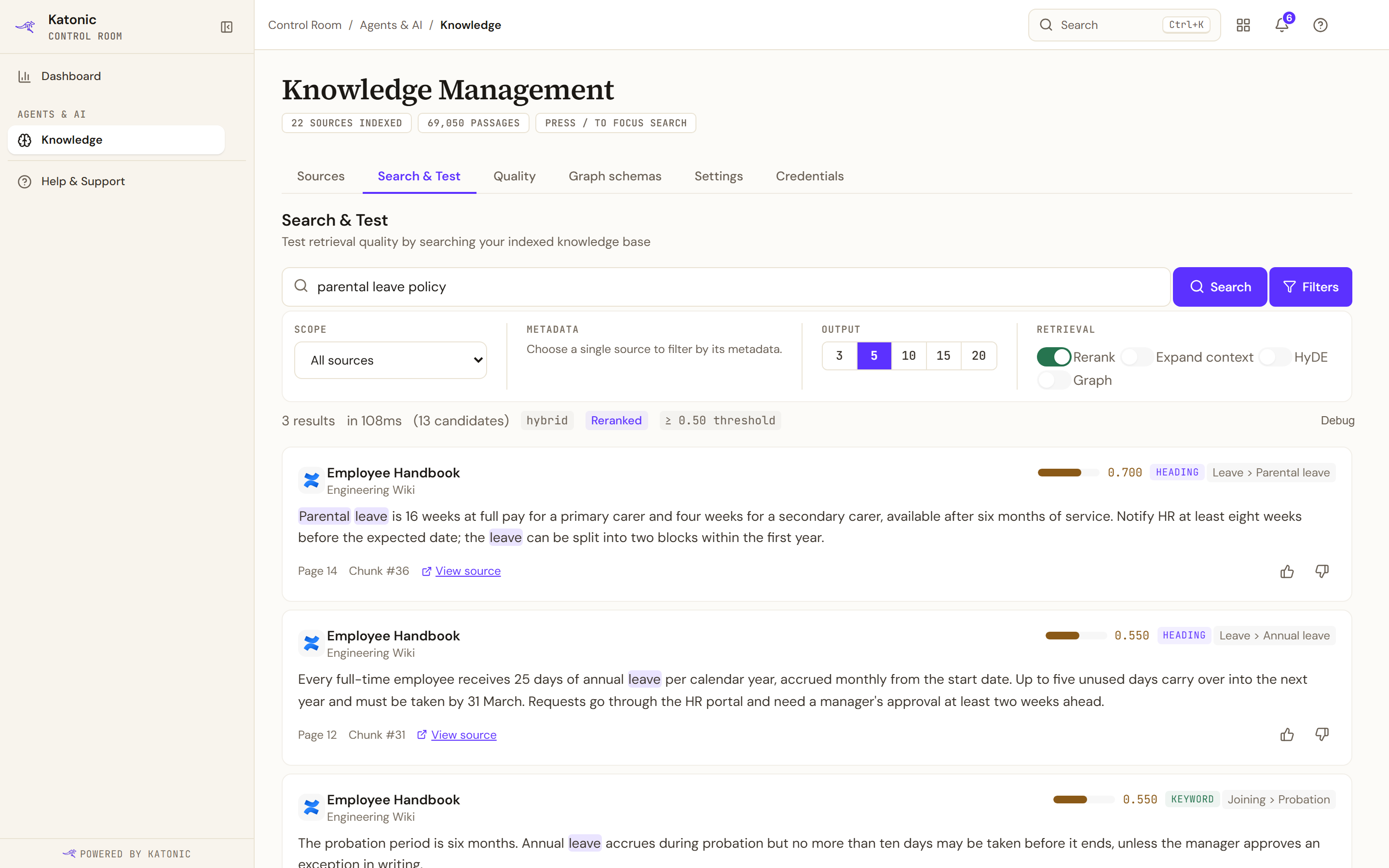
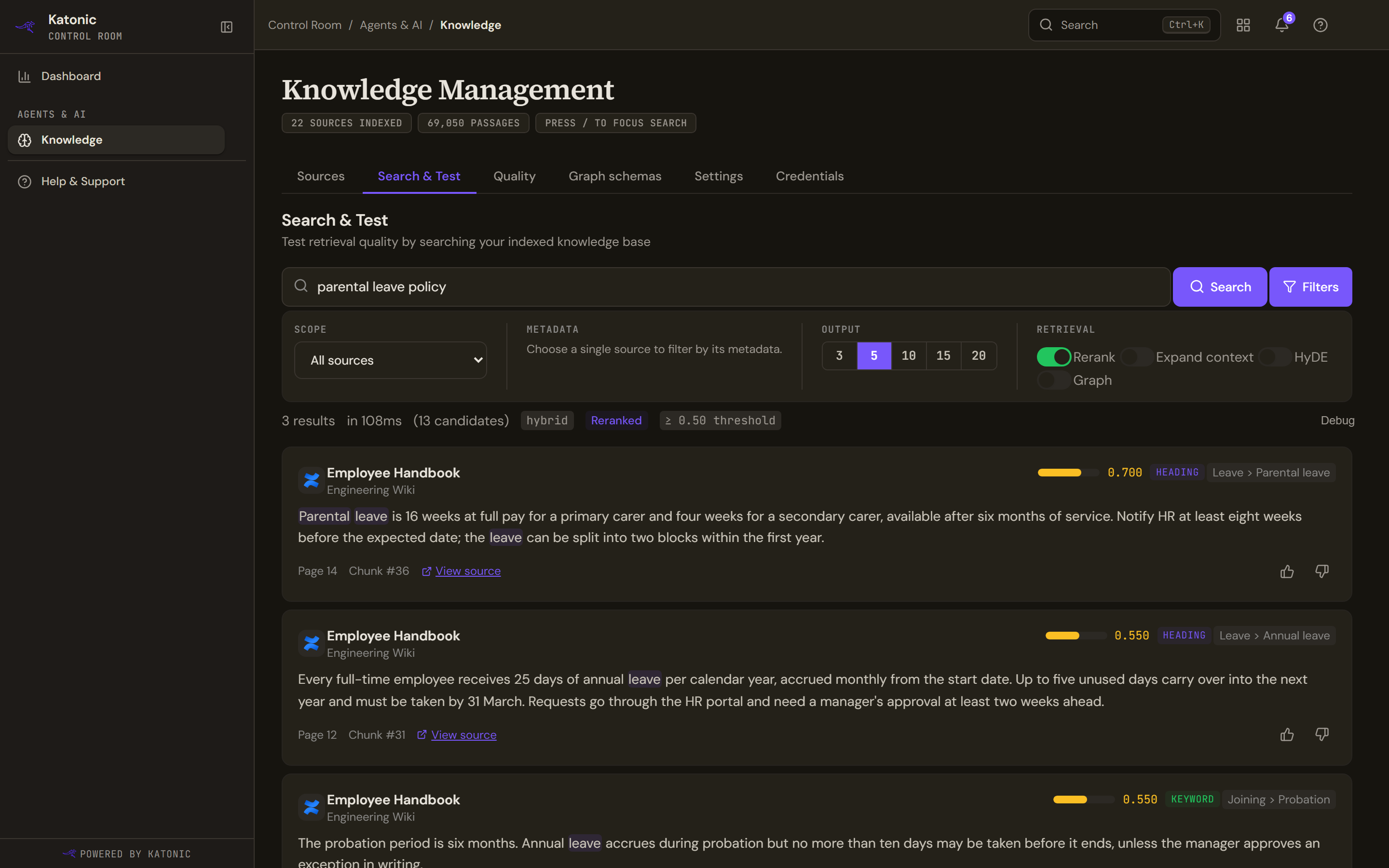
Filters opens a panel with four groups; a badge on the button counts changed settings and Reset restores the defaults. After a search, changing any setting runs it again, marked by a Re-running… pill.
- Scope: Filter by source limits the search to one knowledge source instead of All sources. A Filtered pill then shows in the summary line with Clear source filter.
- Metadata: filter by a metadata key the selected source has declared as filterable. Under All sources the group says Choose a single source to filter by its metadata.; a source with no declared keys offers Declare keys for this source →, which opens the source. Otherwise pick a key, enter a value and select Add filter. Applied filters echo as key = value pills in the summary line; one the engine derived from your question is marked auto.
- Output: how many results to return after reranking: 3, 5, 10, 15 or 20.
- Retrieval: Rerank, on by default, re-scores the top candidates with a more precise model. Expand context adds the neighbouring passages to each match, shown by a +ctx badge. HyDE writes a hypothetical answer first and retrieves against it; it helps vague questions but adds a model call and a second or two. Graph lets the entity graph influence retrieval for complex questions when it is enabled in Settings; passages it added are badged via graph, matches it promoted graph boost.
Read the retrieval badges
The badges in the summary line report what actually happened, not what you asked for.
- hybrid or dense: hybrid fused meaning-based and keyword matches; dense used meaning-based similarity alone.
Reranking gets a badge of its own, because whether it ran is not up to the toggle alone.
| Badge | What happened | What to do |
|---|---|---|
| Reranked | The reranker ran. | Nothing. |
| Rerank failed | It was asked for and attempted, but returned nothing usable, so results are in similarity order. | Check that the AI Gateway's reranking tier has a model assigned and that it is healthy. |
| rerank skipped · fast path | Query Routing judged the query simple and sent it down a path that skips reranking. | Turn Query Routing off in Settings to rerank every query. |
| rerank off · by setting | Reranking is switched off for this deployment. | Turn Enable Reranking back on in Settings. |
| Not reranked | It was asked for and did not run, and no reason was recorded. | Treat the order as similarity order. |
When one of the last three happens, the Rerank toggle itself says so beside its label, so the control does not keep claiming something the search did not do. The toggle is an upper bound: it can ask for reranking, and it can never force it back on for a query the router has already sent down the fast path.
- Retrieval degraded: the pipeline did less than was asked of it; hover the badge for the reason.
- Low Confidence, with a Low Confidence Results banner: every result scored below the threshold.
Rate results
Under each result, Mark as relevant (thumbs up) and Mark as not relevant (thumbs down) record your judgement, confirmed by Marked as relevant ✓ or Marked as not relevant ✓. Selecting it again clears the rating (Feedback cleared); the other control switches it. Ratings count as Positive and Negative under Search Performance on the Quality tab.
Recent lists the other queries from this visit above the results; select one to rerun it. The Next steps strip offers Tune retrieval in Settings →, Review gaps in Quality → and Add another source →.
Verify
The top result names the document you expected, its passage contains the answer, and its score sits well above the threshold. If an expected result is missing, scope the search to its source.
Troubleshooting
- Search failed. Ensure the knowledge engine is running.: the request did not complete. Ask your administrator to check the knowledge service.
- No results found, with a note that candidates were found but none met the confidence threshold: passages exist but scored too low. Try a shorter or more specific query, scope to a source, or turn Rerank off. The threshold is set on the Settings tab.
- Search timed out on the server: the engine stopped at its Search Timeout, naming the stage that was running. This is not a missing match. Select Run again, or raise Search Timeout in the Retrieval settings.
- No matching content found in the knowledge base.: nothing matched at all. Check that the relevant sources are Synced and hold documents.
Do this from your own code